
Remember when editing a photo meant hours in Photoshop, fighting with layers, masks, and sliders you barely understood? Those days are fading fast. Google’s Nano Banana AI lets you edit photos the way you describe things to a friend — in plain, everyday language. Type “change the cloudy sky to a golden sunset, keep everything else exactly the same,” and the AI handles the pixels for you.
In this guide, you’ll learn exactly how to use Nano Banana AI as a complete beginner. We’ll cover where to find it (the Gemini app, Google Photos, and even Google Search itself), how to write prompts that actually work, pro-level tricks like multi-turn editing and photo blending, and answers to the most common questions. No editing experience required. Let’s dive in.
Step 1: Understand What Nano Banana AI Is (and Where to Find It)
Nano Banana is Google’s family of AI models built for one thing: generating and editing images through natural language. You describe what you want to see or what you want changed, and the model builds or edits the image for you. Think of it as an extremely talented photo editor that follows written instructions instantly.
The current version, Nano Banana 2.1, launched on October 6, 2026, and it’s a meaningful upgrade over earlier versions. Google describes it as a high-efficiency image generation and conversational editing model with notable leaps in visual design, mask-based editing (edits that change only the part of the image you mean), and subject consistency (keeping the same person or object recognizable across multiple edits). In plain terms: results look more natural, your edits are more precise, and faces stay looking like the same person when you iterate.
The best part for beginners is where Nano Banana lives — you don’t need to download any special software:
- The Gemini app (gemini.google.com or the mobile app) — the fastest way in.
- Google Photos — through the “Help me edit” feature.
- Google Search AI Mode — via a small banana icon in the Google app.
- Google AI Studio — for a more hands-on, developer-style playground.
Everything in this guide focuses on the free, beginner-friendly entry points. If you’re brand new to Google’s AI tools in general, our beginner walkthrough on how to use Google Gemini is a great warm-up before you continue.
Step 2: Open Nano Banana in the Gemini App (the Fastest Way In)
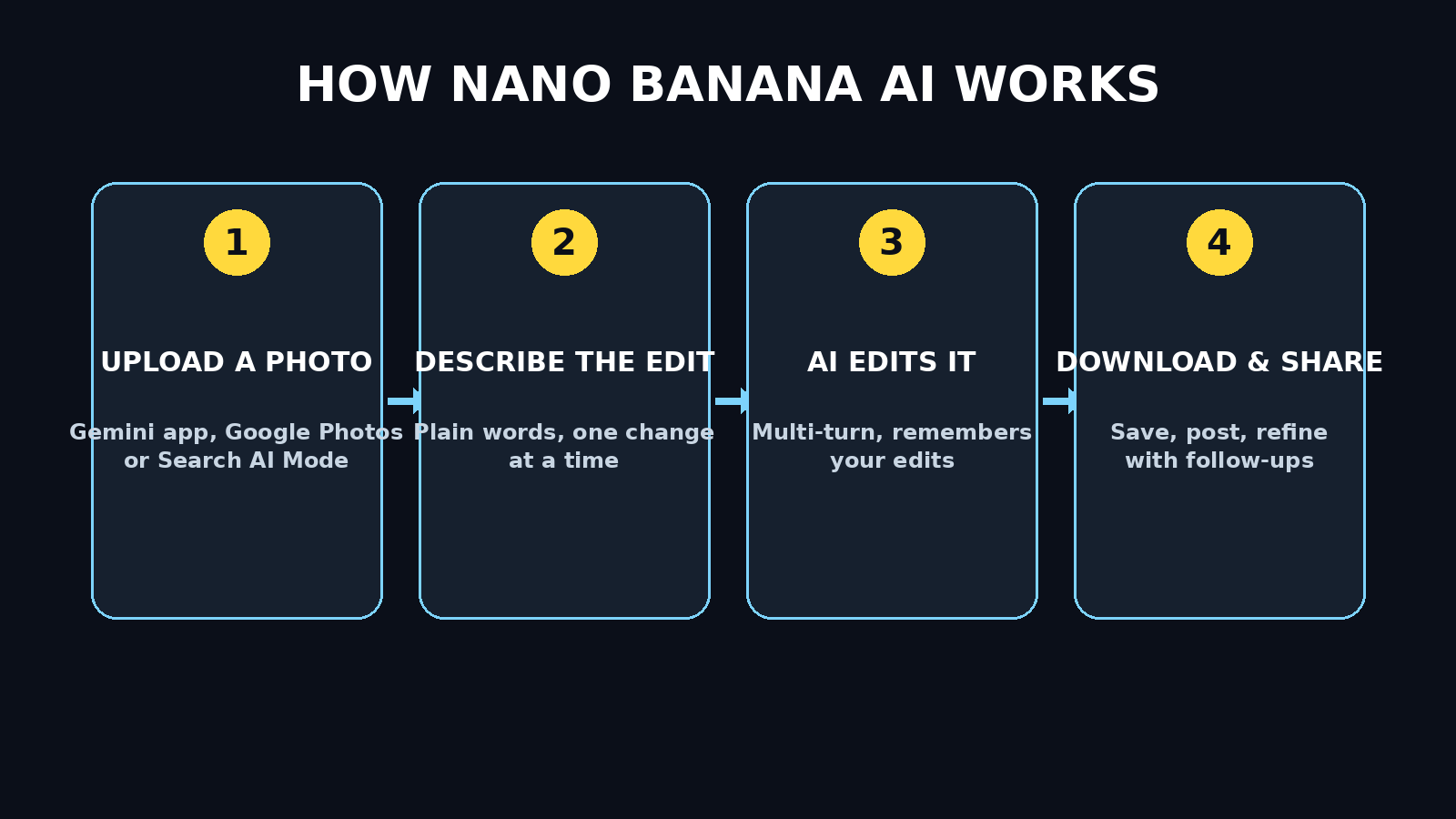
The Gemini app is the simplest on-ramp, and it works on both desktop and mobile. Here’s exactly what to do:
- Go to gemini.google.com in your browser (or open the Gemini app on your phone).
- Sign in with your Google account. If you already use Gmail or YouTube, you’re set — no separate signup needed.
- Start a new chat. You’ll see the familiar chat interface with a “+” or image icon for attachments.
- Upload your photo by tapping the attachment button and choosing an image from your device.
- Type your edit request in plain language in the chat box. For example: “Make the background a blurred city skyline at night, keep my face exactly the same.”
- Hit send and wait — usually just a few seconds. Gemini shows you the edited result right in the chat.
That’s it. There’s no separate “Nano Banana mode” to enable in most regions — image generation and editing are built into the standard Gemini chat experience, powered by the Nano Banana model family behind the scenes.
Tip for first-timers: Start with a clear, well-lit photo of a single subject. Simple starting images give you the cleanest first results, which builds confidence for more ambitious edits later.
Step 3: Edit a Photo With a Simple Text Prompt
This is the core skill, and it follows one golden rule: one bounded change per prompt. The more focused your instruction, the better the result.
Here’s the basic workflow:
- Upload your photo to Gemini as described in Step 2.
- Write one clear instruction. Name the subject, name the change, and name what must not change.
- Review the result before asking for anything else.
Try these copy-ready example prompts:
- Change the background: “Replace the background of this photo with a tropical beach at sunset. Keep the person in the foreground exactly the same — same face, same clothes, same pose.”
- Change an outfit: “Change my shirt to a navy blue blazer. Keep my face, hair, pose, and the background exactly the same.”
- Change the season: “Make this photo look like it was taken on a snowy winter evening with falling snow. Keep the people and their poses unchanged.”
- Improve lighting: “Improve the lighting to look like soft golden-hour sunlight. Keep the composition and all subjects exactly the same.”
Why one change at a time? When you stack five requests into a single prompt, the model has to guess which detail matters most, and small errors multiply. A single, bounded change keeps the AI’s attention exactly where you want it. You’ll polish faster with three short prompts than with one long, complicated one.
Step 4: Fix Faces and Imperfections Like a Pro
Some of Nano Banana’s most impressive party tricks are the fixes that used to require a retouching artist. Because the model understands faces and keeps subjects consistent across edits, it’s remarkably good at natural-looking corrections.
Common fixes beginners use every day:
- Open closed eyes: Upload a group photo where someone blinked and prompt: “Open the eyes of the person on the left. Keep their face, expression, and everything else exactly the same.”
- Remove sunglasses: “Remove the sunglasses from the person in this photo and show natural-looking eyes. Keep the rest of the photo unchanged.”
- Soften blur or harsh shadows: “Reduce the blur on the subject’s face and soften the harsh shadows. Keep the photo’s overall look and colors natural.”
- Remove photobombers and clutter: “Remove the person walking in the background on the right. Fill in the background naturally to match the rest of the scene.”
The key phrase doing the heavy lifting in all of these is “keep everything else exactly the same.” Without that anchor, the AI may “helpfully” reimagine parts of the photo you never asked it to touch. Be explicit about what must stay put, every single time.
Beginner tip: Zoom in on the result and check small details — hands, teeth, earrings, text on clothing. If something looks slightly off, ask for one targeted fix: “Fix the earring on the left ear to match the right one.” Small follow-ups are normal; even pros iterate.
Step 5: Restyle Your Photos With Creative Looks
Nano Banana isn’t just for corrections — it’s a style machine. You can restyle any photo into a completely different artistic look while keeping the person recognizable. This is where the subject-consistency improvements in Nano Banana 2.1 really shine: your face still looks like you, even when the style transforms.
Popular restyles to try:
- Renaissance portrait: “Restyle this photo as an oil painting in the style of a Renaissance portrait. Keep the person’s face and expression recognizable.”
- Mosaic artwork: “Turn this photo into a colorful mosaic tile artwork. Keep the composition and the subject’s pose the same.”
- Storybook illustration: “Restyle this photo as a whimsical children’s storybook illustration with soft colors. Keep the person recognizable.”
- Comic book style: “Convert this photo into a bold comic-book illustration with strong outlines. Keep the face and pose the same.”
The formula stays consistent: style + what to preserve. You can also mix restyles with the editing skills from earlier steps — restyle first, then fix the background, then adjust lighting. Each step builds on the last, which leads us to one of Nano Banana’s superpowers.
Step 6: Blend Two Photos Into One Image
Want to put yourself in front of the Eiffel Tower without leaving home? Nano Banana can fuse two images together. Upload two photos — for example, a portrait of you and a landscape shot — and describe the combination.
How to do it:
- Upload both images to the same Gemini chat (most versions support multiple attachments).
- Describe the blend clearly: “Place the person from the first photo into the scene of the second photo, standing naturally in the center. Match the lighting and shadows so it looks like one real photograph.”
- Check the edges: Look at where the subject meets the background — lighting direction, shadow softness, and color temperature are what sell the illusion.
More ideas for blending:
- Product mockups: Put a photo of your product onto a lifestyle background for a social media post.
- Fantasy portraits: Combine a portrait with a dramatic fantasy landscape for profile pictures or posters.
- Before/after scenes: Merge a daytime photo with a night scene to create a dramatic composite.
If the first blend looks slightly “pasted on,” don’t start over — refine it: “Make the lighting on the person warmer to match the sunset in the background, and soften the edges around the person.” That iterative refinement is exactly what Step 7 is about.
Step 7: Use Multi-Turn Editing: Keep Refining the Same Image
Here’s what separates Nano Banana from basic one-shot image generators: it remembers. Within a conversation, the AI keeps track of your previous edits, so you can refine the same image step by step instead of starting from scratch each time.
A typical multi-turn workflow looks like this:
- Turn 1: Upload the original photo. “Change the background to a mountain lake at sunrise.”
- Turn 2: “Now make the lighting warmer and more golden.”
- Turn 3: “Add a few birds flying in the sky on the left side.”
- Turn 4: “Make the water reflection slightly stronger.”
Because the model maintains context, each prompt builds on the last result — you never have to re-upload or re-describe the whole scene. Nano Banana 2.1’s improved subject consistency means your main subject stays stable even after several rounds of changes, which was a weak point of older models.
Two rules for multi-turn success:
- Inspect before you continue. Look carefully at each result before sending the next prompt. Fixing a small mistake at turn 2 is easy; fixing one that’s been baked through six turns is hard.
- Keep one conversation per project. Starting a fresh chat loses the editing history. If you’re working on a photo across several edits, stay in the same thread until you’re done.
Step 8: Try Nano Banana in Google Photos (“Help me edit”)
If your photos already live in Google Photos, you don’t even need to open Gemini. Google has brought Nano Banana-powered editing directly into the Photos app through a feature called “Help me edit.”
Here’s how to use it:
- Update the Google Photos app to the latest version from your app store.
- Open the photo you want to edit.
- Tap “Edit”, then look for “Help me edit” (it may appear as a sparkle or AI icon depending on your app version).
- Type or speak your change in plain language — the same style of prompts from Steps 3 and 4 work here. You can literally say: “Remove the trash can in the corner” or “Make the sky more dramatic.”
- Review and save the result as a new copy, so your original stays untouched.
This is the most beginner-friendly entry point of all because there’s nothing new to install and no new account to create — it’s inside an app you probably already use. It’s perfect for quick fixes on the go: cleaning up vacation photos, removing distractions, or restyling a shot before posting it.
Note: As with all Google AI features, availability can vary by account, region, and app version. If you don’t see “Help me edit” yet, make sure your app is fully updated and try again in a few days — or use the Gemini app in the meantime, which has the same underlying model.
Step 9: Create Images Right in Google Search (AI Mode)
The newest place to find Nano Banana is somewhere you probably never expected: Google Search itself. Following the Nano Banana 2.1 launch in October 2026, Google rolled the model into AI Mode in Search.
How to access it:
- Open the Google app on your phone (make sure it’s updated).
- Look beneath the Search box for a small banana icon.
- Tap the banana icon to open the image creation interface.
- Describe the image you want — “a cozy reading nook with a cat sleeping on a velvet armchair, warm lamp light” — and the model generates it.
- Iterate with follow-up prompts to refine, just like in Gemini.
This turns Search from a place where you find images into a place where you create them — thumbnails, illustrations, concept art, and social graphics without ever leaving the app you already open fifty times a day.
A fair warning from the rollout: this is a staged rollout, which means not every account sees the banana icon at the same time. Google’s own Search leadership confirmed it’s rolling out progressively. If the icon isn’t there yet, keep your Google app updated and use the Gemini app or Google Photos instead — you’re getting the same Nano Banana technology either way.
Step 10: Write Prompts That Actually Work
Everything in this guide comes down to prompting. Good prompts aren’t magic — they follow a simple formula:
Subject + change + what must stay the same.
- Subject: Who or what is the edit about? (“the person on the left,” “the red car,” “the sky”)
- Change: Exactly what should happen? (“change to a starry night sky,” “remove the watermark”)
- What stays the same: What must the AI not touch? (“keep faces, poses, and clothing exactly the same”)
Five example prompts you can steal and adapt:
- “Change the wall behind the subject to a bookshelf full of colorful books. Keep the subject’s face, pose, and clothing exactly the same.”
- “Remove the coffee cup from the table on the right side. Fill the area naturally to match the wooden table surface.”
- “Turn this daytime photo into a night scene with city lights. Keep all people and their poses unchanged.”
- “Restyle this selfie as a watercolor painting. Keep the face recognizable and the composition the same.”
- “Replace the overcast sky with dramatic storm clouds and lightning in the distance. Keep the foreground landscape exactly the same.”
Three final prompting rules to internalize:
- One change per prompt. Bundled requests produce muddled results. Split them up.
- Be specific, not fancy. “Change the shirt to solid dark green” beats “make the outfit more aesthetic.” The model follows concrete instructions better than vibes.
- Always inspect before the next edit. Zoom in, check faces, hands, and edges. Catch small issues early, when they’re cheapest to fix.
Nano Banana vs Other Beginner AI Image Tools
Nano Banana isn’t the only beginner-friendly AI image tool out there, so here’s how it stacks up against a few popular alternatives — including tools we’ve covered before on this blog.
| Tool | Best for | Free access | Standout feature |
|---|---|---|---|
| Nano Banana (Google) | Everyday photo editing with plain-language prompts | Yes — free in the Gemini app, Google Photos, and Search AI Mode | Multi-turn conversational editing with strong subject consistency across iterations |
| Ideogram AI | Images with readable text, logos, and typography | Yes — free tier with daily generation credits | Exceptionally reliable text rendering inside generated images |
| EaseMate AI | Quick one-click photo enhancements and touch-ups | Yes — free tools with no signup for basics | Simple, fast fixes like background removal with minimal prompting |
| Canva AI editor | Social media graphics and design templates | Yes — free plan includes AI features with limits | Full design suite: combine AI edits with templates, fonts, and layouts |
The honest takeaway: Nano Banana wins on conversational, iterative photo editing — the back-and-forth refinement workflow is its superpower. But if your priority is crisp text inside an image, Ideogram AI still leads. For one-click touch-ups without writing prompts, EaseMate AI is the faster pick. And when you need a finished social media design rather than just an edited photo, Canva’s template ecosystem is unmatched. Many creators use two or three of these together.
If you want to go deeper with Google’s AI ecosystem, our guides on how to use Google Gemini and how to use Google AI Studio pair naturally with everything you’ve learned here.
Frequently Asked Questions
Is Nano Banana AI free?
Yes. For everyday use, Nano Banana is free through the Gemini app, Google Photos’ “Help me edit,” and Search AI Mode — you just need a Google account. Google does charge developers who use the model through its API (priced per image), but as a regular user editing photos in Google’s apps, you don’t pay anything.
Do I need a Gemini Advanced subscription?
No. The image generation and editing features powered by Nano Banana are available on the standard free Gemini experience. A paid subscription may unlock higher usage limits or priority access during busy times, but it isn’t required to use the features covered in this guide.
Does Nano Banana work on iPhone?
Yes. Everything in this guide works on iPhone: the Gemini app is available on iOS, Google Photos works the same on iPhone as on Android, and the Google app with the banana icon is available on iOS too. The web version at gemini.google.com also works fine in Safari or Chrome on your phone.
Can I use Nano Banana-edited photos commercially?
This is a “check the current terms” situation. Google’s terms of service and usage policies for generated content apply, and they can change — especially around commercial use, advertising, and content that depicts real people. As a rule of thumb: original photos you took, edited for your own business or content, are generally fine; but always review Google’s current generative AI terms before using AI-edited images in paid ads or client work, and never use the tool to create misleading images of real people or events.
Why don’t I see the banana icon in my Google app yet?
Because it’s a staged rollout. Google confirmed Nano Banana 2.1 is rolling out progressively in AI Mode, so availability varies by account, region, and app version. Make sure your Google app is updated to the latest version, then check again in a few days. In the meantime, the Gemini app and Google Photos give you the exact same Nano Banana technology — you’re not missing out on capability, just on the Search shortcut.
Final Thoughts
Nano Banana represents a genuine shift in who gets to edit photos well. The skill that used to matter — mastering complex software — is being replaced by a skill anyone can learn: describing what you want clearly. Upload a photo, say what should change, say what should stay the same, and iterate.
Start with the Gemini app, practice the one-change-per-prompt rule, and work through the steps in this guide in order. Within a single afternoon, you’ll go from “I’ve never edited a photo” to fixing faces, restyling portraits, blending images, and refining results like someone who’s been doing it for months.
The tool is free, the learning curve is gentle, and the only real requirement is a Google account. There’s never been a better time to start.
Explore More Free AI Tools
Loved this guide? AIToolSteps is packed with free tools and beginner-friendly tutorials to level up your content game. Try our AI Title Generator for click-worthy headlines, the Meta Description Generator for SEO-ready snippets, the AI Rewriter to polish your drafts, and the Keyword Density Checker to fine-tune your on-page SEO — all free at aitoolsteps.com.