
Have you ever wished you could test the latest Gemini models, generate images, and even build your own AI app — all for free and without installing anything? Google AI Studio is Google’s free browser workspace that lets you do exactly that. You sign in with your Google account, and within minutes you can chat with Gemini, upload documents, create free API keys, and “vibe code” real apps in its Build mode. No credit card, no coding skills required to start.
In this beginner’s guide, you will learn how to use Google AI Studio step by step: signing in, exploring the dashboard, writing your first prompt, testing images and documents, generating your free Gemini API key, and building your first app with Build mode. Let’s get started.
Step 1: Sign In to Google AI Studio
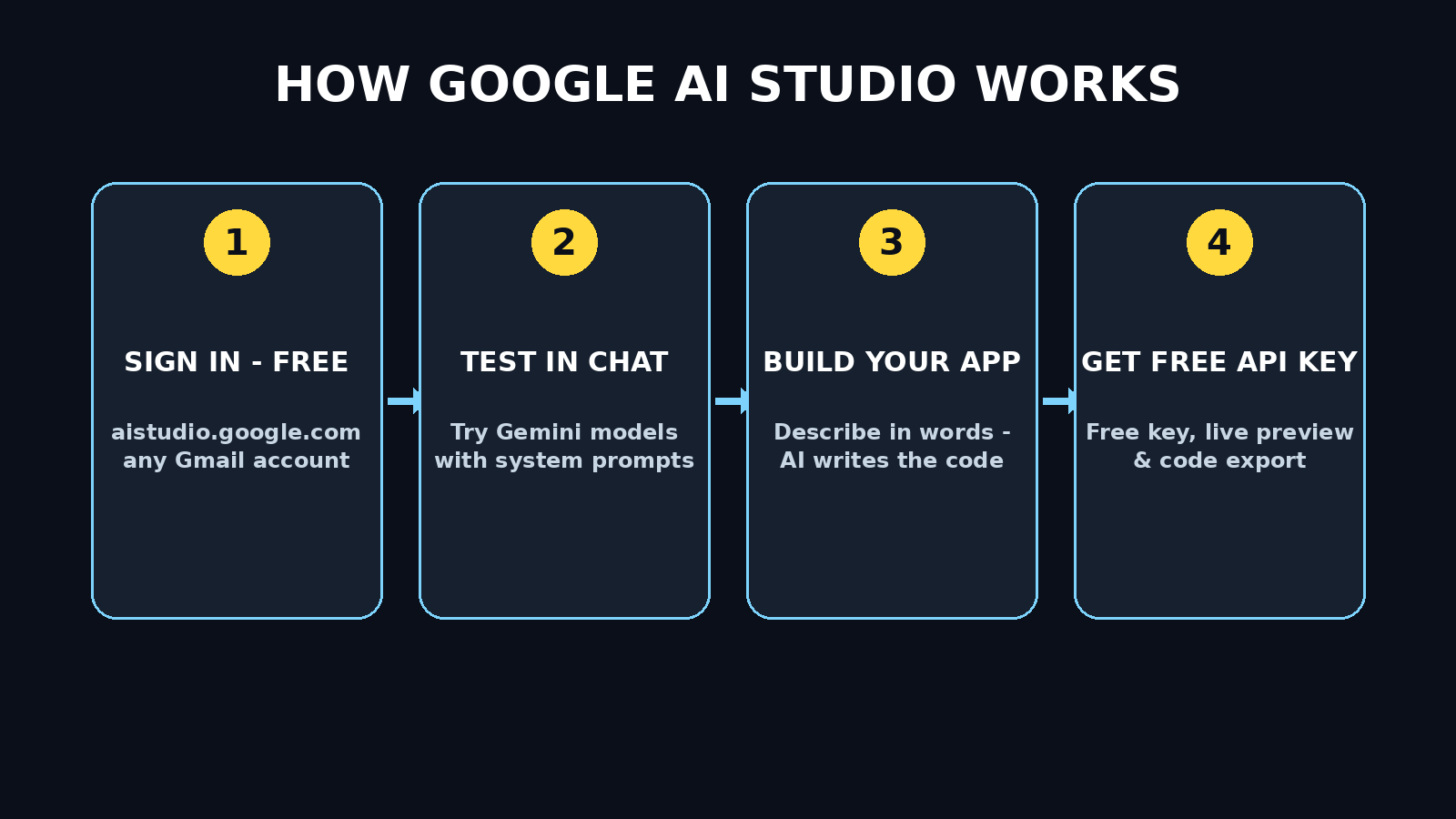
Open your browser and go to aistudio.google.com. Click “Sign in” and choose the Google account you want to use. Any regular Gmail account works — there is no separate signup form and no credit card required. After signing in, you land on the AI Studio home screen with three main areas: Chat, Stream, and Build.
Tip for beginners: Use the same Google account you use for other Google services so your projects, API keys, and prompts stay organized in one place.
Step 2: Explore the AI Studio Dashboard
Before diving in, take two minutes to understand what each mode does:
- Chat mode: A prompt playground where you test Gemini models with text, images, PDFs, video, and audio. This is where you experiment, compare answers, and tune prompts.
- Stream mode: A real-time conversational mode where you talk to Gemini using your microphone, camera, or screen share. Great for brainstorming out loud or narrating what is on your screen.
- Build mode: A no-code app builder. You describe the app you want, and AI Studio writes the code, creates the files, and shows a live preview you can click through. You can even remix pre-built starter apps from the gallery.
Down the left side you will also find your saved prompts and projects, plus the option to create a new API key.
Step 3: Write Your First Prompt in Chat Mode
Click Chat and type something simple, for example: “Explain how photosynthesis works to a 10-year-old.” Press enter and watch Gemini answer. Now try the real power features:
- Choose your model: Use the model dropdown to switch between Gemini models. Use a Pro model for deep reasoning and complex analysis, and a Flash model for fast everyday answers.
- Set a system instruction: Click the settings icon and add a system instruction like “You are a friendly coding tutor who explains things with short examples.” This shapes every answer in the session.
- Tune temperature: Lower the temperature (around 0.2) for factual, predictable answers. Raise it (around 1.0) for creative brainstorming and story ideas.
Save any prompt you love using the save button so you can reuse it later — prompt libraries are one of AI Studio’s most underrated features for beginners.
Step 4: Try Multimodal Inputs (Images, PDFs, and Video)
Google AI Studio accepts more than text. Click the attachment icon and upload:
- An image: Ask Gemini to describe it, read text inside it, or suggest improvements for a design mockup.
- A PDF: Upload a report or an e-book and ask for a summary, key takeaways, or questions answered from the document.
- A video or audio file: Upload a lecture recording and ask for chapter summaries with timestamps.
Gemini supports a very large context window (up to one million tokens), which means you can feed it entire books, long research papers, or hours of transcripts in a single prompt. That is far beyond what most free chatbots allow.
Beginner idea: Upload your resume PDF and ask Gemini to write three bullet-point improvements. You will see how context changes the quality of the answer.
Step 5: Generate Images with Imagen
AI Studio includes image generation powered by Google’s Imagen models. In a chat, type a prompt like: “A cozy coffee shop on a rainy evening, warm light, cinematic photo style.” Gemini generates the image right in the conversation. You can then reply with edits in plain language — for example, “make the windows glow brighter” — and it regenerates the image with your change applied. This conversational editing style (powered by the Nano Banana model) makes image work feel like chatting, not wrestling with settings.
Tip: Describe lighting, camera angle, and mood in your image prompts. “Golden hour sunlight, wide angle” beats “nice photo” every time.
Step 6: Create Your Free Gemini API Key
One of AI Studio’s killer features is free API access. Click Get API key (usually in the left sidebar or top menu), then “Create API key.” AI Studio generates a key you can paste into your own projects, scripts, or no-code tools to call Gemini models. The free tier comes with generous daily rate limits — thousands of requests per day for most models — which is plenty for learning, side projects, and prototypes.
Safety basics for your key:
- Treat the key like a password. Never paste it into public code or share screenshots containing it.
- If a key leaks, delete it in AI Studio and create a new one immediately.
- Prototyping inside AI Studio is free. Paid API access starts with a small prepayment (around five dollars) only when you attach billing for production use.
Step 7: Build Your First App in Build Mode
This is where AI Studio goes from playground to workshop. Click Build and describe an app in plain English, for example: “A flashcard quiz app that helps me learn Spanish vocabulary, with a score tracker.” AI Studio writes the code, organizes the files, and shows a live preview on the right side of the screen. You can:
- Chat with the AI to change things: “Make the cards bigger” or “Add a timer.”
- Edit the generated code directly in the built-in code editor and see changes instantly.
- Preview on desktop or mobile layouts.
You did not write a single line of code yourself — that is why people call this “vibe coding.”
Step 8: Remix a Starter App from the Gallery
Not sure what to build? Open the Starter App Gallery (also called Showcase). Google provides ready-made templates: video analyzers, interactive games, image tools, chatbot demos, and more. Open one, click through it, then ask the AI to adapt it: “Turn this quiz app into a French vocabulary trainer.” Remixing teaches you how AI Studio structures projects far faster than starting from a blank page.
Beginner project ideas: a study buddy chatbot, a meal planner that builds weekly menus, a portfolio site generator, or a tool that turns meeting notes into to-do lists.
Step 9: Export or Share Your App
When your app works, click Export to download the code. AI Studio integrates with GitHub, so you can push your project to a repository and continue developing it in tools like VS Code or Cursor. Remember: AI Studio is best for prototyping. For a production app with real users, export the project, add proper hosting and security, and switch the API calls to a paid key.
Tip: Export early and often. Save a copy of anything you are proud of, because your best prototypes deserve a backup.
Step 10: Understand Free Limits vs Paid Usage
Everything you have done so far — Chat, Stream, Build mode, image generation, API key prototyping — is free inside AI Studio. You pay only when:
- You attach a paid API key to a project for production traffic.
- You deploy to Google Cloud, which bills separately.
Paid Gemini API access typically starts with a small prepayment, and prepaid credits last for months. For a beginner, the free tier is genuinely enough for weeks or months of learning. One caution: Google notes that prompts on the unpaid tier may be reviewed to improve its products, so never paste passwords, private documents, or sensitive client data into AI Studio.
Google AI Studio vs Other Free AI Tools
| Feature | Google AI Studio | ChatGPT (free) | Gemini app (free) | Lovable (free tier) |
|---|---|---|---|---|
| Cost to start | Free, no card | Free, no card | Free, no card | Free, no card |
| Test multiple AI models | Yes, all Gemini models | Limited model choice | Single Gemini experience | N/A (builds apps only) |
| Build full apps in browser | Yes, with live preview | No | No | Yes, with live preview |
| Free API keys | Yes, generous limits | No | No | No |
| Image generation | Yes (Imagen / Nano Banana) | Limited | Yes | No |
| Code export + GitHub sync | Yes | No | No | Yes (paid for some) |
| Best for | Learning + prototyping | Everyday chat | Quick answers | Polished app building |
Pro Tips to Get More from AI Studio
- Reuse system instructions: Create one for your role (“You are my study coach”) and apply it to every study session.
- Compare models side by side: Run the same prompt on a Pro and a Flash model to feel the difference between depth and speed.
- Use structured output: Ask for JSON or tables (“Reply as a JSON list of 5 quiz questions”) when you need machine-readable results.
- Iterate in Build mode: Describe changes in words first; touch the code only when you want to learn how it works.
- Watch your rate limits: If the free API key suddenly errors, you probably hit the daily limit — it resets, so try again tomorrow.
Frequently Asked Questions
Is Google AI Studio really free?
Yes. AI Studio’s interface — Chat, Stream, Build mode, image generation, and API key prototyping — is free with any Google account. You pay only for production API usage outside AI Studio (starting with a small prepayment) or Google Cloud deployment.
Do I need coding skills to use Google AI Studio?
No. Chat mode, Stream mode, and Build mode all work with plain English. Coding skills only become useful when you export a project and customize it further.
What is the difference between Google AI Studio and the Gemini app?
The Gemini app is a consumer chatbot for everyday questions. AI Studio is a developer workspace: it adds model switching, system instructions, API keys, code export, and a full app builder — all things the consumer app does not offer.
Can I publish an app I built in AI Studio?
You can export the code and deploy it yourself (for example, via GitHub and a hosting provider). AI Studio is designed for prototyping, so production apps usually need their own hosting, security setup, and a paid API key.
Which Gemini model should I choose?
Use a Pro model for complex reasoning, long documents, and hard analysis. Use a Flash model for fast, everyday tasks where speed matters more than depth. For simple operations, smaller fast models are fine and respond almost instantly.
Is my data private in Google AI Studio?
Google notes that content submitted on the unpaid tier may be reviewed to improve its products. Avoid pasting sensitive, personal, or client-confidential data. Use a paid API tier with a data-use agreement for business or sensitive work.
Final Thoughts
Google AI Studio is one of the most generous free tools Google has ever released: a Gemini playground, a free API key dispenser, an image studio, and a no-code app builder in one browser tab. Start with Chat mode to learn the models, graduate to Build mode when you have an app idea, and export your best work when you are ready to go further. The entire learning curve costs you exactly zero dollars.
Explore More Free AI Tools
Want to keep building your AI toolkit? Try our free generators: the AI Title Generator, Meta Description Generator, AI Rewriter, and Keyword Density Checker. Every tool is free, no signup needed — and the blog is full of beginner-friendly AI tutorials like this one.