

Have you ever wanted to narrate your own stories with a cinematic background score — the kind that swells at exactly the right moment — but you have no microphone, no studio, and zero music skills? Suno Speech AI was built for exactly this. Type a poem, a bedtime story, or even a grocery list, describe the voice and the music you hear in your head, and Suno turns it into a single scored production. No editing timeline. No stock music library. Just words in, a polished audio track out.
In this beginner’s guide, you’ll learn how to use Suno Speech AI step by step — from signing up free and describing your voice, to understanding the free plan’s real limits (there’s one that catches almost everyone). Let’s get started.
Step 1: Understand What Suno Speech Actually Is
Before you click anything, it helps to know what you’re working with. Suno Speech is a beta generative audio model from Suno — the company behind the viral AI music generator. It opened to everyone on October 1, 2026, on web, iOS, and Android, after about a month of closed testing. The launch arrived just three weeks after Suno v6 dropped on September 9, 2026, so the company is clearly on a roll.
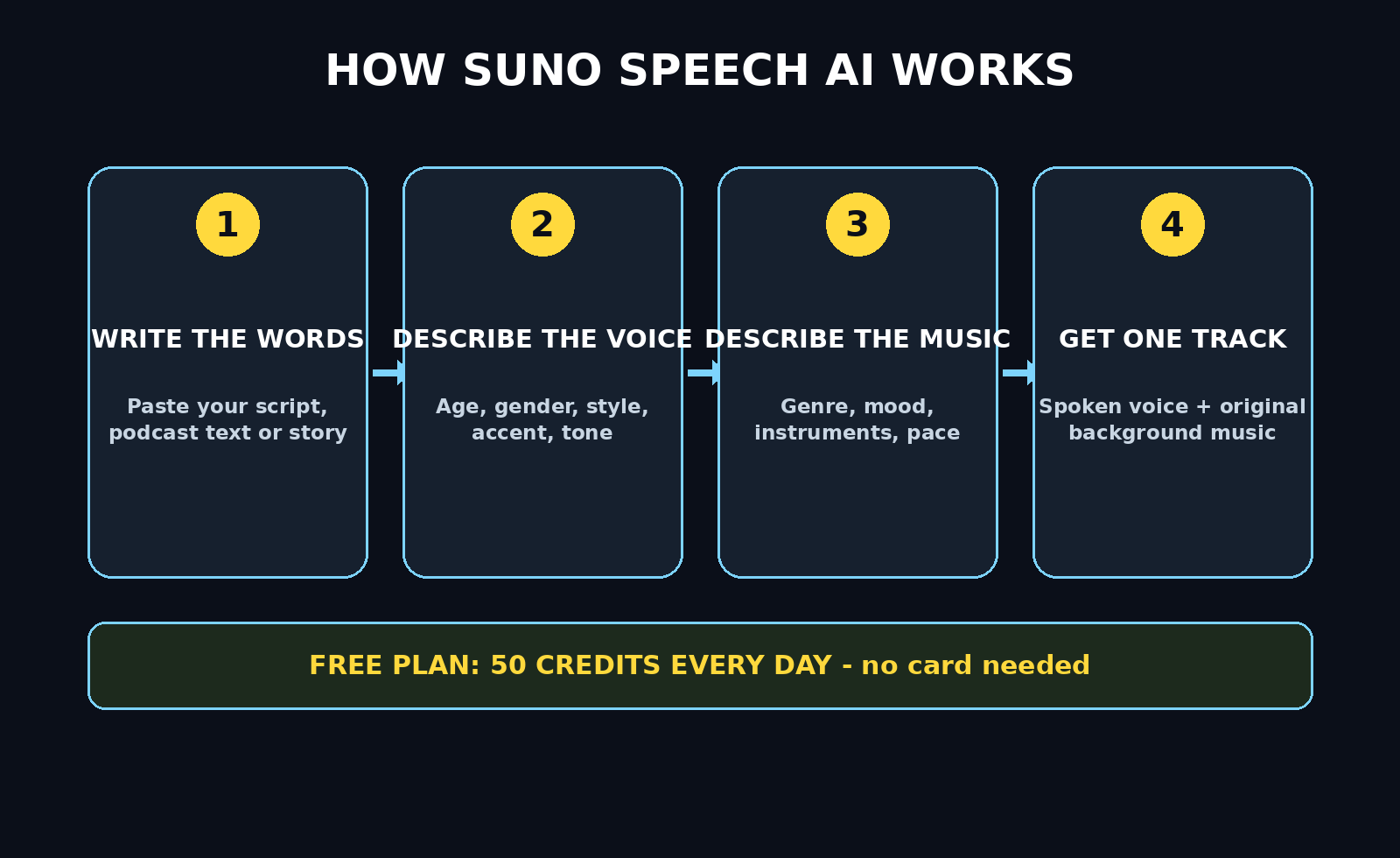
Here’s what makes it different from every other voiceover tool you’ve tried: Suno Speech is, in Suno’s own words, “the first audio model that generates voice and music together as one cohesive track.” You don’t generate a voiceover and then layer music under it. You don’t hunt for a royalty-free track that almost fits. You describe both at once, and the model composes them together — so the music and the delivery feel like one production. The workflow is beautifully simple: text in, scored speech out.
Think of it like hiring a voice actor and a film composer at the same time, except both of them work from the same one-sentence brief and deliver in under a minute.
Step 2: Sign Up for a Free Account
Head to Suno’s website or download the Suno app on iOS or Android. Speech works on all three platforms, so pick whichever is most comfortable for you — the interface is nearly identical.
- Create an account with your email, or sign in with Google, Apple, or Discord. It takes about thirty seconds.
- The free plan costs $0 and gives you 50 credits per day — that’s roughly 10 generations a day. Speech generations use the same credits, so your daily allowance covers both experiments and real projects.
- Your credits reset every day, so even if you burn through them testing silly ideas (you will — everyone does), tomorrow brings a fresh batch.
One heads-up before you go further: while generations are generous on the free plan, downloads are not. Free accounts are capped at up to 7 lifetime trial downloads, and they’re MP3 only. You also get no commercial rights on the free plan — and upgrading later does not change the rights on clips you made while free. Keep this in mind when you decide which creations are worth downloading versus just regenerating later.
Step 3: Find Speech Mode and Start a New Project
Once you’re logged in, look for the Speech mode. On the web app it’s listed alongside the familiar song-generation options; on mobile you’ll find it in the create screen.
- Tap or click Speech to open a new Speech project.
- You’ll see a clean, three-part creation screen. It asks for three things, and only three things. That’s the whole interface — and honestly, that’s the charm.
If you’ve used Suno’s song mode before, resist the urge to treat this like a song prompt. Speech mode is not trying to write lyrics. It’s trying to speak your words beautifully, with music that fits them.
Step 4: Paste Your Words (The Text to Be Spoken)
The first input is “The words” — the text you want spoken aloud. Paste or type it directly into the text box.
- Short personal pieces work best. Poems, short notes, passages from a story, a pep talk for a friend, a meditation script. This is not the place for a 5,000-word essay; think scenes, not chapters.
- Suno’s own launch examples give you a flavor of what’s possible: a bedtime story read over soft piano, a hype speech thundering over stadium drums, even an ASMR grocery list (yes, really).
- Write naturally, the way you’d want it to sound. If you want a pause, add a line break or an ellipsis. The model reads your punctuation as performance cues — commas breathe, periods land, exclamation marks lift the energy.
Beginner tip: Start with something under 100 words for your first few tries. Shorter text gives you more generations per day, faster results, and a clearer sense of how your voice and music descriptions are working.
Step 5: Describe the Voice in Plain Language
The second input is “The voice” — and this is where the fun starts. You don’t pick from a list of 40 voices with names like “Voice 17.” You describe the voice in plain, everyday language.
- Examples straight from Suno’s playbook: “Energetic cheerleader” or “Victorian English with a harpsichord.” Yes, the voice description can even include an instrument reference — the model interprets the vibe as a whole.
- Want a warm grandfather telling a story? Type exactly that. Want a dramatic movie-trailer narrator? Type that.
- Be specific about energy and tone, not just accent. “Calm, slow bedtime voice” gives the model much more to work with than just “bedtime voice.”
Beta quirk to know: Suno is upfront that accents can drift in this beta — a British accent might, in their words, “wander off to Australia and back.” If your accent slides mid-reading, don’t fight it; tweak your description (“strong, consistent British accent”) and regenerate. Most drift settles down with a clearer prompt.
Step 6: Describe the Musical Style
The third input is “The musical style” — described just like a song prompt. This is the backing music that will be composed alongside your voice, not pasted under it.
- Match the music to the mood of your words: soft piano for a bedtime story, epic orchestral drums for a hype speech, lo-fi beats for a casual voice note.
- Borrow language from music you’d actually search for: “cinematic strings, slow build,” “upbeat stadium drums,” “gentle acoustic guitar.”
- Remember the key idea: voice and music are composed together. The model is timing the music around the delivery of your words, so a dramatic pause in your text might get a matching swell in the score. Describe the music as if you’re scoring a scene — because you are.
Beginner tip: For your first generation, keep the music description simple — one genre and one mood. “Soft piano, calm” will teach you more about how the tool behaves than a three-paragraph orchestral epic.
Step 7: Generate Your First Track
Hit generate and give it a moment. Each generation uses some of your daily 50 credits, so it pays to have thought through your three inputs before clicking.
- Generation usually takes well under a minute.
- When it’s done, press play and listen to the whole thing — don’t just sample the first five seconds. The magic of this tool is in how voice and music move together, and that only reveals itself across the full track.
- If something’s off — the accent drifted, the music overpowers the voice, a pause ran too long — note exactly what you’d change and regenerate with adjusted descriptions. Iteration is the whole game here.
Pro tip: judge your tracks on proper earbuds, not laptop speakers — these Belkin SoundForm Mini earbuds reveal the mix details that cheap speakers hide. Disclosure: as an Amazon Associate, AIToolSteps earns from qualifying purchases.
Beta quirk to know: Dramatic pauses can run long in this version, and Suno is honest that the model “can’t promise exact timing.” Translation: don’t use Suno Speech to hit a precise 30-second video sync. It’s a creative tool, not a stopwatch.
Step 8: Listen, Compare, and Regenerate
Your first generation is rarely your best. Treat the first three or four like sketches.
- Generate 2–3 versions of the same text with slightly different voice or music descriptions and compare them side by side. You’ll quickly develop an ear for which descriptions the model responds to.
- Small wording changes can produce big differences. “Energetic” versus “high-energy” versus “shouty” will each give you a different cheerleader.
- Keep a running note of descriptions that worked for you. Power users build a personal prompt library — “warm narrator + soft piano” becomes their signature sound.
Remember: you get roughly 10 generations a day on the free plan, and credits reset daily. That’s plenty of room to experiment without ever spending a cent.
Step 9: Download Your Track (Know the Free-Plan Cap)
When you’ve got a version you love, it’s time to save it. Here’s where the free plan’s real limit shows up, so read carefully.
- Downloads are MP3 only on the free plan.
- Free accounts get up to 7 lifetime trial downloads. Not 7 per day — 7 total, ever. This is the single biggest “gotcha” in the free plan, and it catches almost every beginner.
- No commercial rights come with free-plan clips. And here’s the part people miss: upgrading to Pro later does not retroactively change the rights on clips you made while free. If you think a project might ever earn money — a YouTube video with ads, a client voiceover — generate it on a paid plan from the start.
- Be strategic: only download the versions you’re truly keeping. Let the experiments live in your Suno library until you’re sure.
Step 10: Share and Publish Your Creation
Once downloaded, your track is a normal MP3 — use it anywhere audio goes.
- The Suno team pitches use cases like dramatic readings of a friend’s texts, voice notes backed by epic scores, meditations, pep talks, and bedtime stories. But creators are already going further: podcast intros, YouTube narration, audiobook samples, and personalized birthday messages.
- If you’re posting to YouTube, TikTok, or Instagram, remember the rights rules from Step 9: free-plan clips are for personal and non-commercial use only.
- One more beta limitation to plan around: you get one mixed track, not separate stems. You can’t split the voice from the music afterward, so if you need them separate for editing, you’ll need a different tool.
Step 11: Know When to Upgrade (Free vs Pro vs Premier)
Sooner or later, the free plan’s download cap or rights restrictions will push you toward a decision. Here’s the honest breakdown:
| Feature | Free ($0) | Pro ($10/month) | Premier ($30/month) |
|---|---|---|---|
| Daily/monthly credits | 50/day (~10 generations) | 2,500/month | 10,000/month |
| Downloads | Up to 7 lifetime (MP3 only) | 20/month | 60/month |
| Commercial rights | No | Yes | Yes |
| WAV downloads | No | No | Yes (desktop site) |
| Best for | Trying it out, personal projects | Regular creators, monetized content | Heavy producers, studio-quality files |
My beginner advice: Stay free while you’re learning. The daily credits are generous enough to build real skill at describing voices and music. Upgrade to Pro the moment you want to use a clip commercially or you’ve burned through your 7 downloads — $10 a month is cheap for 20 downloads with full commercial rights.
Things Worth Knowing (The Fine Print, Made Simple)
A few pieces of context that make you a smarter user:
- Suno’s big settlement: In late 2025, Suno settled with Warner Music Group for a reported $500 million. Why should you care? Because it signals that Suno is playing the long game with the music industry — which is good news for the longevity of tools like Speech. Your favorite features are less likely to vanish overnight.
- It’s beta, and it shows (in a good way): The quirks — drifting accents, long pauses, no exact timing, one mixed track — are openly acknowledged by the Suno team. Betas that are honest about their limits are usually the ones improving fastest.
- What makes it different from Suno’s song mode? Song mode writes and sings original lyrics. Speech mode speaks your words and scores them. Same creative DNA, completely different job.
FAQ: Suno Speech AI for Beginners
Is Suno Speech really free?
Yes — the free plan costs $0 and includes 50 credits per day (about 10 generations), available on web, iOS, and Android since the October 1, 2026 launch. The real free-plan limits are elsewhere: only 7 lifetime MP3 downloads, no commercial rights, and no separate audio stems. Generations are generous; downloads and rights are where the paywall sits.
Can I use free-plan Suno Speech clips on YouTube?
Only on non-monetized, personal videos. Free-plan clips come with no commercial rights, and upgrading to Pro later does not change the rights on clips made while free. If your channel is monetized (or might be one day), generate those clips on a paid plan from the start.
Can I separate the voice from the music?
No — not in the current beta. Suno Speech outputs one mixed track with the voice and music composed together. That’s the whole point of the tool (they’re scored as one production), but it means you can’t remix or rebalance them afterward. If you need separate stems for editing, use a dedicated voiceover tool plus a music library instead.
What makes Suno Speech different from regular Suno songs?
Regular Suno generates full songs — it writes lyrics (or uses yours) and sings them. Suno Speech is a different model: it speaks your text as narration and composes original background music around the delivery. Think audiobook-with-a-score versus a pop song. Same company, different creative job.
Can I control the exact timing or length?
Not precisely. Suno is upfront that the beta “can’t promise exact timing” — dramatic pauses can run long and you can’t reliably hit, say, an exact 30-second runtime for video sync. Treat it as a creative generator and trim or time your video edits around the audio, not the other way around.
What kind of text works best?
Short, personal pieces: poems, story passages, meditations, pep talks, voice notes, bedtime stories. Long documents and precise scripts with strict timing requirements are a poor fit for the current beta. Start under 100 words and scale up as you learn how the model handles your style.
Final Thoughts
Suno Speech is one of those rare tools that feels like magic the first time you use it — you type a few lines, describe a voice and a mood, and out comes something that sounds like a tiny film production. The free plan is genuinely useful: 50 credits a day is enough to learn the craft of voice-and-music prompting without spending anything.
Just go in with your eyes open. The 7-download lifetime cap is the real constraint, the commercial-rights rules are strict about clips made while free, and the beta quirks (drifting accents, loose timing, one mixed track) mean this is a creativity tool, not a precision instrument. Learn its rhythms on the free plan, build a little library of voice descriptions that work for you, and upgrade to Pro when your projects outgrow the training wheels.
Your stories deserve better than a flat, robotic read. Now you know exactly how to give them a score.
Explore More Free AI Tools
Want more free AI firepower for your content? Try our free tools at aitoolsteps.com:
- AI Title Generator — craft click-worthy headlines in seconds
- Meta Description Generator — write SEO-perfect descriptions automatically
- AI Rewriter — refresh and improve any text instantly
- Keyword Density Checker — keep your SEO on target
All free, at aitoolsteps.com.