
Most AI image tools can draw a beautiful picture, but they fail the moment you ask for words inside the picture. Letters come out backwards, misspelled, or melted into nonsense. Learning how to use ideogram ai for beginners solves exactly that problem, because Ideogram is famous for one special skill: it renders clear, readable text inside images. That makes it perfect for posters, logos, quotes, t-shirt designs, social media posts, and YouTube thumbnails.
In this guide you will learn how to use ideogram ai for beginners step by step. You will create your free account, write your first prompt the right way, put perfect text into an image, choose styles and aspect ratios, remix other designs safely, upscale and download your work, and compare the free and paid plans honestly. By the end you will have created one finished design and know exactly how to repeat the process for any idea.
Step 1: Understand What Ideogram AI Actually Does
Ideogram is an AI image generator that turns a written description, called a prompt, into a picture. You describe what you want to see, and the AI builds it in seconds. What makes Ideogram different from most rivals is its text rendering. Where other tools treat words as decoration, Ideogram treats words as part of the design, so headlines, names, and short phrases usually come out spelled correctly.
That single strength opens up design jobs that beginners normally cannot do without expensive software. You can make a birthday poster with a name on it, a logo concept for a small business, a motivational quote graphic for Instagram, or a bold thumbnail with a readable title. Understanding this focus is the foundation of ideogram ai for beginners success: use Ideogram when words matter in the picture, and use a general photo-style tool when they do not.
Step 2: Create Your Free Ideogram Account
Getting started takes only a few minutes, and the free plan gives you real credits to practise with every day.
Never share your password with anyone, and only sign in on the official site or official apps. That simple habit keeps ideogram ai for beginners safe from day one, and you can upgrade later only if the free plan stops covering your needs.
Step 3: Write Your First Prompt the Right Way
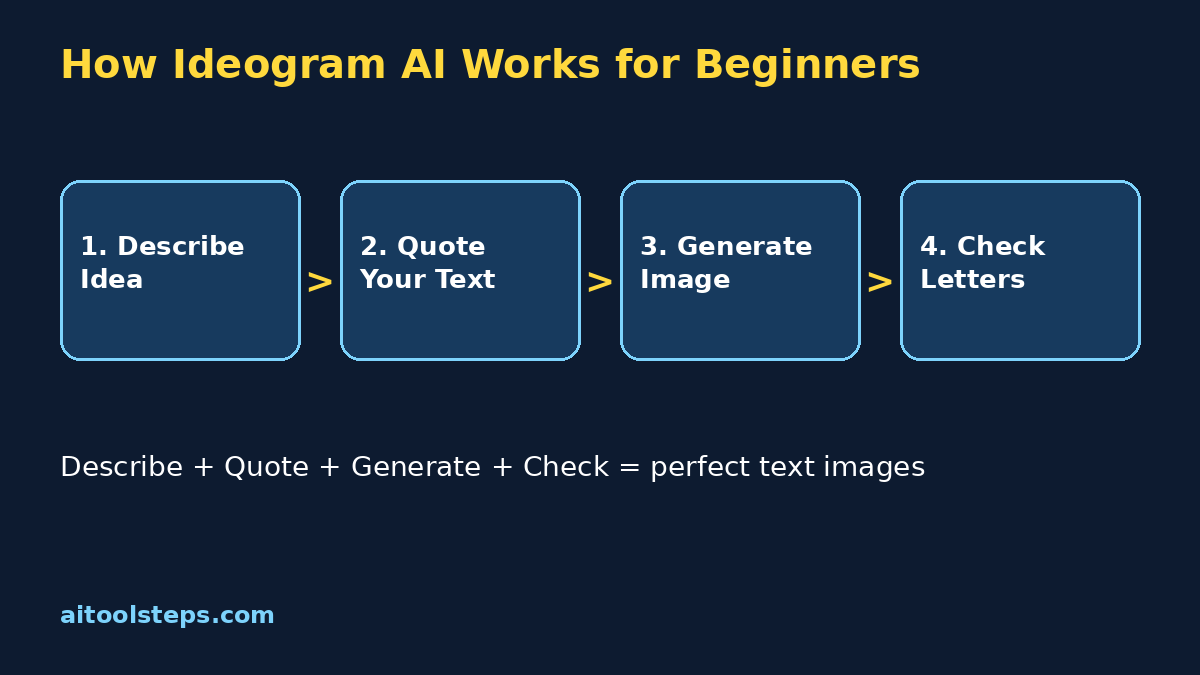
A prompt is an instruction, not a wish. The clearer your description, the closer the result matches your idea. A strong beginner prompt has four parts: the subject, the details, the style, and the exact text in quotation marks.
For example, instead of typing just a poster, describe a vintage travel poster of a mountain lake at sunrise, warm orange colours, illustration style, with the text "WANDER MORE" in bold letters at the top. Notice how the words you want in the image sit inside quotation marks. That is the most important habit in ideogram ai for beginners prompting, because quotation marks tell the AI exactly which words to render.
Step 4: Put Perfect Text Into Your Image
This is the step most beginners came for. Start with a simple design, such as a quote graphic. Type a prompt describing a calm background, then add your short quote in quotation marks. Choose a style that suits text, like poster or typography-friendly illustration, and generate.
When the results appear, zoom in and read every letter carefully. AI text is much better than it used to be, but it is not perfect, especially with long sentences, unusual names, or decorative fonts. If one letter is wrong, do not panic. Generate again, shorten the text, or split a long phrase across two lines in your prompt. Reading the output letter by letter is a non-negotiable habit for ideogram ai for beginners, because a beautiful poster with a spelling mistake is still a mistake.
Step 5: Choose Styles, Colours, and Aspect Ratio
The same prompt can look completely different depending on three settings. First, style tags tell the AI the visual language: photo, illustration, 3D, anime, poster, or typography styles each change the mood. Second, a colour palette keeps a design cohesive instead of random. Third, aspect ratio decides the shape, and shape should match where the image will live.
Use a tall vertical ratio for Pinterest and phone wallpapers, a square ratio for Instagram posts, and a wide ratio for YouTube thumbnails and banners. Choosing the ratio before you generate is far better than cropping afterwards, because the AI composes the whole picture for that shape. For ideogram ai for beginners, matching shape to destination is a small decision that makes every design look intentional and professional.
Step 6: Remix and Improve Any Design
You do not have to start from a blank box every time. Ideogram shows a community feed of public creations, and the Remix feature lets you take a design you like and generate your own version from its prompt. Change the text, swap the colours, or adjust the subject, and the composition stays similar while the content becomes yours.
Remixing is also the fastest way to learn prompting. When you see a result you love, open its prompt and study how it was written. Notice the order of details, the style words, and how the text was quoted. Then apply the same structure to your own ideas. One warning matters for ideogram ai for beginners: remix for learning and inspiration, but do not copy another creator's finished design and sell it as your own original work.
Step 7: Upscale, Download, and Use Your Image
A generated image is not finished until it is saved at the right quality for its job. When you are happy with a result, open it and look for the upscale option if your plan offers it, because upscaling increases resolution for printing and large displays. Then download the file and rename it clearly, so future you can find it, for example birthday-poster-mom-final.png.
Before using any design publicly, check the current terms on the official site for what the free and paid plans allow, especially for commercial projects. Rules differ between plans and can change. Also keep your own source prompt saved in a note with the file, because recreating or adjusting a design later is easy when the original prompt is one copy-paste away. This tidy finish is what separates casual dabbling from a repeatable ideogram ai for beginners workflow.
| Option | Cost to Start | Best For | Main Limit |
|---|---|---|---|
| Doing it yourself in design software | Free | Full manual control | Slow and needs skill |
| Ideogram Free | Free | Learning and daily practise designs | Limited credits and public creations |
| Ideogram Paid | Paid monthly | Private generations and more credits | Costs money every month |
| Hiring a designer | Paid per project | Branding and major campaigns | Slowest and most expensive |
Step 8: Compare Free and Paid Plans Honestly
Most beginners should practise on the free plan for at least a few weeks. It teaches prompting, text checking, and style choices, which are the skills that actually decide quality. Upgrade only when you regularly run out of credits, need private generations for client work, or need the higher resolution and priority speed every day. The comparison keeps ideogram ai for beginners honest: the tool is powerful at every level, but paying early rarely changes your results.
Step 9: Build a Simple Design Workflow
Tools help most when they become a routine. Build this simple workflow around Ideogram and your designs will improve week after week.
Within a few weeks, most beginners notice their first prompt gets closer and closer to the final design, because they have learned how the AI thinks. That progress, not any single lucky image, is the real return on learning ideogram ai for beginners properly. If you want to keep growing, compare this workflow with our Grammarly AI guide and our Claude Haiku guide on other beginner tools and practise one small design every day.
Step 10: Avoid the Common Beginner Mistakes
Most early problems come from a short list of habits. Avoid these and your results will improve fast.
Frequently Asked Questions
Is Ideogram free for beginners?
Yes. The free plan gives you daily credits to generate images and explore styles, which is enough for learning and regular practise. Paid plans add more credits, private generations, and faster priority processing.
Why is Ideogram good at text in images?
Ideogram was built with text rendering as a core strength, so it treats quoted words as part of the design instead of decoration. Short, clearly quoted phrases usually come out spelled correctly, although you should always check every letter.
What should I make first with Ideogram?
Start with a short quote poster or a simple logo concept. Both use short text, forgive small imperfections, and teach you prompting, styles, and aspect ratios in one quick project.
Can I sell designs I make with Ideogram?
It depends on your plan and the current terms on the official site. Check the licensing terms for your plan before selling anything, and never sell a design that copies another creator's work.
What aspect ratio should beginners use?
Match the shape to the destination: vertical for Pinterest and wallpapers, square for Instagram posts, and wide for YouTube thumbnails and banners. Choose the ratio before generating, not after.
How do I fix a misspelled word in my image?
Shorten the text, keep it inside quotation marks, and generate again. You can also remix the almost-right result with the corrected spelling in the prompt. Checking every letter before downloading prevents most problems.
Final Thoughts
Learning how to use ideogram ai for beginners is really about one superpower: pictures with words that actually read correctly. Write clear prompts, quote your text, choose the right style and shape, check every letter, and iterate like a designer. Start on the free plan, make one small poster today, and build from there. Design skill is not talent, it is a repeatable process, and Ideogram gives beginners a friendly place to practise it.
Explore More Free AI Tools
Discover more free tools and step-by-step guides on AIToolSteps:
Visit https://aitoolsteps.com/ to explore all free AI tools and beginner guides.