

Video is the hardest content to make the traditional way. You need a camera, a location, editing software, and hours of time. Learning how to use runway ai for beginners changes that completely, because Runway lets you type a description and watch the AI turn it into a moving video clip in minutes. No camera, no film crew, and no advanced editing skills are required to start.
In this guide you will learn how to use runway ai for beginners step by step. You will create your account, understand credits honestly, write strong text-to-video prompts, animate a still image, control camera movement, extend and edit your clips, export at the right quality, and compare Runway with doing video the old way. By the end you will have a repeatable workflow for making short AI videos for YouTube, TikTok, Instagram, school, or your small business.
Step 1: Understand What Runway AI Actually Does
Runway is an AI video platform built around generative models, most famously its Gen series of video models. You give the AI an input, and it generates motion. That input can be a written prompt, called text-to-video, or a still image that the AI animates, called image-to-video. Newer models also help with editing tasks like removing backgrounds, expanding a frame, and cleaning up clips.
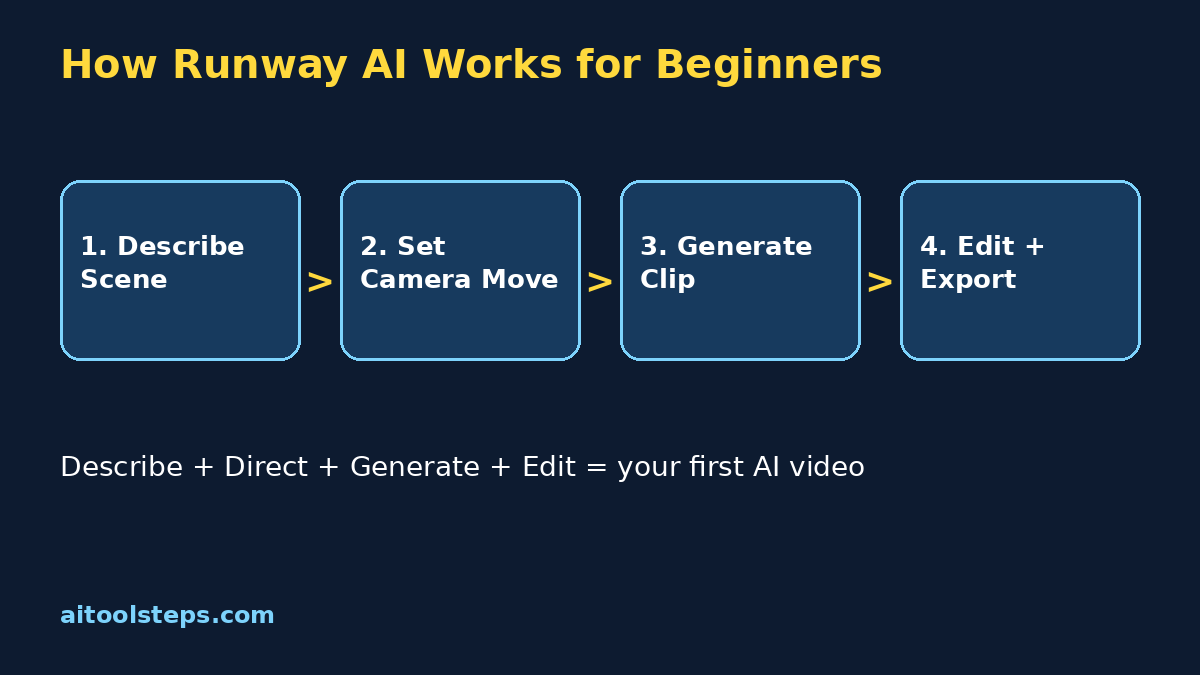
For runway ai for beginners, the most important idea is simple: you are directing, not filming. Your job is to describe the scene, the subject, the action, and the camera, the way a film director explains a shot. The clearer your direction, the closer the generated clip matches your idea. Once you think like a director instead of a cameraperson, every other step in this guide becomes easier.
Step 2: Create Your Runway Account and Check Credits
Getting started takes only a few minutes, but understanding credits on day one saves frustration later, because video generation uses credits quickly.
Free access is best treated as a learning allowance. Use it to practise prompts and settings rather than to produce a finished project in one sitting. That mindset keeps runway ai for beginners relaxed and cheap: experiment small, learn what the model likes, and only consider a paid plan when you know you will generate video every week.
Step 3: Write Your First Text-to-Video Prompt
A video prompt needs more than a subject. It needs a subject, an action, a setting, and a camera direction. Compare a weak prompt like a dog with a strong prompt like a golden retriever puppy running across a sunny green field, low camera tracking beside it, soft morning light, cinematic style. The second prompt tells the AI what moves, where it happens, and how the camera behaves.
Start simple for your first generation. Pick one subject doing one clear action, choose the model and duration the interface offers, and generate. Watch the whole clip before judging it, because AI video often looks great for a few seconds and then drifts. Studying that drift is how runway ai for beginners actually learn: each generation teaches you which words the model understood and which it ignored.
Step 4: Animate a Still Image With Image-to-Video
Image-to-video is the friendliest entry point in runway ai for beginners, because you control exactly how the clip starts. Upload a photo, an AI image you generated, or a product picture, and the first frame is already exactly what you wanted. Then your prompt only needs to describe the motion: the character smiles and waves, clouds drift slowly, or the camera pushes in gently.
This workflow is perfect for social media. A portrait can become a talking-style intro background, a product photo can gain a slow cinematic zoom, and a travel picture can come alive with moving water and sky. Keep motion requests realistic for your first tries. Small, natural movements succeed far more often than complex actions, and a clean five-second clip beats a broken ambitious one every time.
Step 5: Control the Camera Like a Director
Camera language is the secret weapon of runway ai for beginners. The same scene feels completely different depending on camera movement, and Runway responds well when you name the shot clearly in your prompt or use the camera controls your plan offers.
Change only the camera instruction while keeping the rest of the prompt identical, and you will see how much control you really have. Saving the prompt versions that worked is a professional habit worth building from your very first week.
Step 6: Extend, Upscale, and Fix Your Clips
A single generation is rarely the finished product. Runway workflows usually involve building a clip in pieces: generate a strong base clip, extend it if your plan allows, generate variations, and keep only the best seconds. If a clip is almost right, extending or re-generating from its best frame is usually smarter than starting again from a blank prompt.
Before exporting, check resolution options. Upscaling, when available on your plan, makes clips look sharper on large screens and YouTube. Also watch for common AI video flaws: extra fingers, warping faces, melting objects, and text that twists into nonsense. Avoid putting important readable text inside generated video at all; add titles later in your editor. That one rule removes the most embarrassing runway ai for beginners mistakes.
Step 7: Export and Use Your Video Anywhere
When a clip finally makes you smile, export it and name the file clearly, for example runway-puppy-field-v2.mp4, so you can find the right version later. Choose the highest quality your plan allows for a master copy, even if you later compress a copy for social media.
Then put the clip to work. Short Runway clips shine as YouTube Shorts and TikTok hooks, Instagram Reels backgrounds, website hero sections, school project visuals, and product teasers. Because each clip is short, most creators edit several clips together in a simple editor, add music and captions, and publish a finished video that feels much bigger than any single generation. That editing step is where runway ai for beginners projects start looking professional.
| Option | Cost to Start | Best For | Main Limit |
|---|---|---|---|
| Filming with a camera | Free to paid gear | Real people and real events | Time, location, and skill needed |
| Runway Free | Free credits | Learning AI video and testing ideas | Limited credits and short clips |
| Runway Paid | Paid monthly | Regular creators and marketers | Credits run out on big projects |
| Stock video sites | Free to paid | Real footage fast | Not original, same clips as everyone |
Step 8: Compare Runway With Other Ways to Make Video
The honest conclusion is that Runway does not replace filming for everything. Real events, real people, and trust-building content still belong on camera. Runway wins when the shot is impossible, expensive, or purely creative: a flying city, a product in a fantasy world, or a concept you want to test before spending money. Knowing that boundary keeps runway ai for beginners practical instead of hype-driven.
Step 9: Build a Simple Weekly Video Workflow
Tools help most when they become a routine. Build this simple workflow and your clips will improve week after week.
Most beginners are surprised how fast this compounds. Within a month your first prompt usually lands close to the final clip, because you have learned the model's habits. Compare this workflow with our Ideogram AI guide and our Grammarly AI guide on other beginner tools and keep one small project per week. Consistency, not expensive plans, is what makes runway ai for beginners pay off.
Step 10: Avoid the Common Beginner Mistakes
Most early disappointments come from a short list of habits. Avoid these and your results improve fast.
Frequently Asked Questions
Is Runway free for beginners?
Runway offers free credits so beginners can try generating video without paying first. Credits are limited and video uses them quickly, so treat the free allowance as practice material and check the official pricing page for current amounts.
What is the difference between text-to-video and image-to-video?
Text-to-video creates a clip from only your written description. Image-to-video starts from a picture you upload and animates it, which gives you more control over how the clip begins. Beginners often get better first results with image-to-video.
How long are Runway video clips?
Generations are short clips, usually only a few seconds each depending on the model and settings. Creators normally generate several clips and edit them together with music and captions to build a longer finished video.
Can I use Runway videos for YouTube or business?
Many creators do, but what you may use commercially depends on your plan and the current terms on the official site. Check the licensing and terms for your plan before using generated clips in paid or client work.
Why does my AI video look weird or warped?
AI video struggles with fast complex motion, hands, faces in crowds, and readable text. Slow the action down, simplify the scene, use a clear single subject, and add any important text later in an editor.
What should I make first with Runway?
Start with one simple scene: a pet running in a field, waves on a beach at sunset, or your product photo with a slow zoom. One subject, one action, and one camera move teaches you prompting, camera control, and exporting in a single project.
Final Thoughts
Learning how to use runway ai for beginners is really about learning to direct. Describe one clear scene, name the camera move, generate patiently, keep the best seconds, and edit clips together into something bigger. Start with your free credits today, make one tiny clip, and build from there. You do not need a camera crew to start telling visual stories anymore, you just need clear ideas and a repeatable process.
Explore More Free AI Tools
Discover more free tools and step-by-step guides on AIToolSteps:
Visit https://aitoolsteps.com/ to explore all free AI tools and beginner guides.