
Want to create beautiful, professional-looking images without learning Photoshop or hiring a designer? EaseMate AI is a free AI image generator that lets you turn plain text descriptions — or your own photos — into eye-catching visuals in seconds. Best of all, it works right in your browser with no sign-up required, and your downloads come without a watermark.
In this beginner-friendly guide, you will learn exactly how to use EaseMate AI from zero: creating your first AI image from text, editing existing photos, extending images to new sizes, and even animating still photos into short videos. By the end, you will have a complete workflow for free AI image creation.
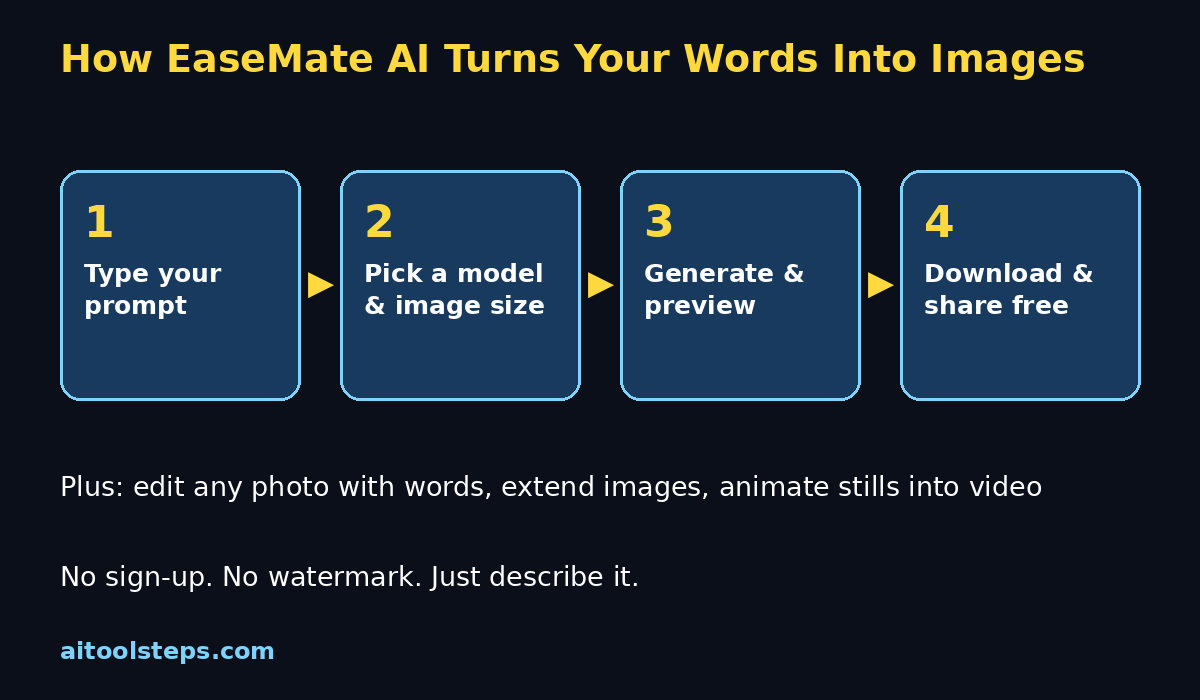
Step 1: Open EaseMate AI and Pick Your Tool
Getting started with EaseMate AI takes less than a minute because there is no account to create and no software to install.
- Open your browser and go to easemate.ai.
- You will see the main AI image generator page with a text box front and center.
- Look at the tool tabs: Text to Image, Image to Image, plus dedicated tools for the AI Image Extender and the AI Image Animator.
- For your first creation, stay on Text to Image — it is the simplest way to see what the tool can do.
Tip: because there is no sign-up, you can start creating immediately. If you plan to use the tool often, bookmark the site so your settings and recent work are easy to reach.
Step 2: Write Your First Text-to-Image Prompt
The prompt is your description of the image you want. Good prompts have three parts: subject (what), style (how it looks), and details (lighting, colors, composition).
- Start simple: type something like “a cozy coffee shop on a rainy evening, warm lights in the windows, watercolor style” into the text box.
- Add style words to steer the look: “photorealistic”, “anime”, “cinematic”, “3D render”, “oil painting”, or “flat vector illustration”.
- Add lighting and mood: “golden hour sunlight”, “soft studio lighting”, “dramatic shadows”, “dreamy pastel tones”.
Common beginner mistakes to avoid:
- Too vague: “a dog” gives you a random dog. “A golden retriever puppy sleeping in a sunlit garden, soft focus, photorealistic” gives you the dog you imagined.
- Too long: stuffing 20 adjectives into one prompt confuses the model. Keep prompts to 1–3 clear sentences.
- No style word: without one, you get a random style. Always name the style you want.
Step 3: Choose Your AI Model and Settings
One of EaseMate AI’s biggest strengths is that it bundles several popular image models in one free place, so you do not need separate accounts for each.
- GPT Image 2: great all-rounder for lifestyle product photos, branded ads, and conversion-focused images.
- Nano Banana: strong at conversational image creation, scene editing, and consistent character scenes.
- Flux Kontext: best for editing existing images with text — it keeps characters and details consistent while you change elements.
- Wan 2.7: excellent for realistic faces, precise text rendering, and consistent characters in campaigns or posters.
Settings you can adjust before generating:
- Aspect ratio: pick square (1:1) for social posts, vertical (9:16) for stories and Shorts covers, or landscape (16:9) for blog headers.
- Output quality and format: higher quality takes a little longer but looks sharper when printed or posted at full size.
- Number of images: generate 2–4 variations at once so you can pick the best instead of re-rolling one at a time.
Step 4: Generate and Download Your Image
Once your prompt and settings look right, the fun part begins.
- Click the Generate button and wait a few seconds — most images appear very quickly.
- Review the result. If something is off (wrong color, missing object, odd text), tweak one thing in your prompt and generate again.
- When you are happy, click Download. The image saves to your device with no watermark, for free.
- Need a different crop? Re-generate with a different aspect ratio instead of cropping later — the model composes better than a manual crop.
A practical tip: keep a small “prompt notebook” (even a phone note works). Every time a prompt produces something you love, save the exact wording so you can reuse or remix it later.
Step 5: Try Image-to-Image: Edit Any Photo with Text
Image-to-image is where EaseMate AI becomes genuinely magical. Instead of describing an image from scratch, you upload one of your own photos and describe the change you want.
- Switch to the Image to Image tab and upload a photo (JPG, JPEG, PNG, or WEBP all work).
- Type your edit in plain words, for example: “change the daytime sky to a starry night sky, keep the same people” or “turn this photo into an anime-style illustration”.
- Adjust the aspect ratio, output quality, and model — Flux Kontext is especially good for keeping the original subject recognizable.
- Click Generate, preview, and download your watermark-free result.
Useful real-world edits for beginners:
- Product photos: put your product on a clean studio background for an online store.
- Portraits: fix backgrounds, change outfits, or try a new art style.
- Thumbnails: drop a screenshot in, ask for a brighter, punchier “YouTube thumbnail style” version.
- Restoration: describe the fix you want (“remove the people in the background”) in plain language.
Step 6: Extend Any Image with the AI Image Extender
Ever had the perfect photo in the wrong size — a square image you need as a vertical story, or a banner that is too narrow? The AI Image Extender “uncrops” images by generating the missing edges.
- Open the AI Image Extender tool and drag in your photo.
- Choose a preset aspect ratio (or set a custom one) for the platform you are posting to.
- Click Generate and let the AI fill in the new areas, matching the original lighting, perspective, and texture.
- Preview and download the expanded, watermark-free image.
This is a lifesaver for social media: one square product shot can become a vertical story, a wide website banner, and a tall Pinterest pin — all in a minute, with no manual editing.
Step 7: Animate Your Photos with the AI Image Animator
EaseMate AI is not just for still images. Its AI Image Animator turns any photo into a short animated video (5 to 30 seconds), which is perfect for social posts that need motion.
- Open the AI Image Animator and upload an image (JPG, JPEG, or PNG).
- Answer the question “What kind of movement do you want?” in plain text — for example, “let the cat’s fur ripple slowly in the light” or “slow zoom into the mountains with drifting clouds”.
- You can also specify camera moves (pan, zoom, rotation) and atmosphere (cyberpunk, cinematic, warm tones).
- Click Generate, watch the preview, and download the MP4 — optimized for social feeds.
The animator is completely free with a couple of videos per day, watermark-free, and the output is ready for TikTok, Reels, or Shorts without conversion.
Step 8: Write Better Prompts with a Simple Formula
If your results keep coming out “meh”, the prompt is almost always the cause. Use this beginner formula and your hit rate will jump:
Subject + Action + Style + Lighting + Composition
- Subject: be specific — “a barista pouring latte art” beats “a coffee person”.
- Action: add motion or intent — “laughing”, “jumping”, “writing in a notebook”.
- Style: pick one — “photorealistic”, “3D Pixar-style”, “anime”, “watercolor”.
- Lighting: “golden hour”, “neon glow”, “soft daylight”, “dramatic shadows”.
- Composition: “close-up portrait”, “wide landscape”, “centered product shot”.
Before generating, read your prompt back and ask: “Could a stranger draw exactly what I want from these words?” If not, add the missing detail.
Step 9: Save, Organize, and Reuse Your Best Work
Free tools are most valuable when they fit a smooth workflow. Set up a tiny system so your best prompts and images are never lost.
- Prompt library: keep one document with your winning prompts, grouped by use case (thumbnails, product shots, blog headers, social posts).
- Image folders: save downloads in named folders by project so you can find them later — “store-banners”, “video-thumbnails”, “client-work”.
- Variation habit: whenever a result is 90% perfect, generate 2–3 variations of the same prompt before editing further. One of them is usually the keeper.
- Check daily rewards: EaseMate AI offers extra free generation through daily check-ins and similar rewards — a quick daily visit stretches your free usage.
Step 10: Put Your Images to Work (Beginner Project Ideas)
Knowing how to generate images is only half the value — here are five beginner-friendly projects to try this week:
- A full set of social posts: generate a week’s worth of square posts for a page or business, all in one consistent style.
- YouTube thumbnails: create bold, bright thumbnails from a base photo using image-to-image edits.
- Blog headers: make custom 16:9 header images for articles instead of using stock photos.
- Product mockups: photograph a product once, then generate seasonal backgrounds for holidays and sales.
- Animated profile content: animate your best photo and post it as a Reel or Short — motion always gets more reach.
Each project reinforces a different EaseMate AI tool, so after five projects you will know the whole platform.
EaseMate AI vs Other Free Image Tools
How does EaseMate AI compare to the other free options beginners usually try?
| Feature | EaseMate AI | Leonardo AI | Microsoft Designer | Ideogram |
|---|---|---|---|---|
| Sign-up required | No | Yes | Yes (Microsoft account) | Yes |
| Free image models in one place | Yes (GPT Image 2, Nano Banana, Flux Kontext, Wan 2.7) | Leonardo’s own models | Microsoft MAI models | Ideogram models |
| Watermark on free downloads | No | No | Yes | No |
| Image-to-image editing | Yes | Yes | Limited | Yes |
| Image extender (uncrop) | Yes | Partial | No | No |
| Image animator (video) | Yes (MP4 export) | Via partner tools | No | No |
| Text inside images | Good (Wan 2.7) | Good | Basic | Excellent |
| Best for | All-in-one free creation | Artistic styles | Quick casual images | Posters with text |
EaseMate AI’s real advantage is consolidation: instead of juggling four accounts for four models plus separate tools for extending and animating, one free site covers the whole beginner workflow.
Frequently Asked Questions
Is EaseMate AI really free?
Yes. The core tools — text-to-image, image-to-image, the image extender, and the image animator — are free to use, with no account required to start. Downloads are watermark-free. You can unlock extra free generation through daily check-ins and similar rewards on the site.
Do I need to create an account to use EaseMate AI?
No sign-up is needed to start generating. This makes it one of the easiest AI image tools for beginners — you can go from opening the website to downloading your first image in about a minute.
What image formats can I upload?
EaseMate AI accepts common formats including JPG, JPEG, PNG, and WEBP for image-to-image editing and extending. The animator supports JPG, JPEG, and PNG uploads.
Can I use EaseMate AI images for my business or social media?
EaseMate AI provides watermark-free downloads, which is ideal for social posts, blog headers, and marketing visuals. As with any AI tool, check the current terms of service on their website before using images in paid advertising or client work.
How is EaseMate AI different from ChatGPT’s image generator?
ChatGPT generates images conversationally inside a chat and limits free users to a few images per day. EaseMate AI gives you a dedicated image studio with multiple models (GPT Image 2, Nano Banana, Flux Kontext, Wan 2.7), direct controls for aspect ratio and quality, plus extra tools like the extender and animator that ChatGPT does not offer.
Why do my AI images look weird sometimes?
The usual causes are a vague prompt, a missing style word, or asking for something the model struggles with (like tiny readable text in older models). Fix it by making the subject specific, naming one clear style, and generating a few variations. The Wan 2.7 model is a good choice when you need accurate text inside an image.
Final Thoughts
EaseMate AI packs an impressive amount of creative power into a free, no-sign-up website: multiple top image models, photo editing with plain-text instructions, an image extender for any platform size, and even an image-to-video animator. For beginners, it removes every excuse — no cost, no account, no learning curve — so you can focus on the fun part: describing what you imagine and watching it appear.
Start with one text-to-image prompt today using the formula from Step 8, then try editing one of your own photos tomorrow. Within a week, you will have a small gallery of original images — and a new skill that pays off in every content project you touch.
Explore More Free AI Tools
Want more free AI power? Check out these handy tools on AIToolSteps: the AI Title Generator for catchy headlines, the Meta Description Generator for SEO snippets, the AI Rewriter to polish your writing, and the Keyword Density Checker to fine-tune your content. Visit https://aitoolsteps.com/ to explore them all for free.