

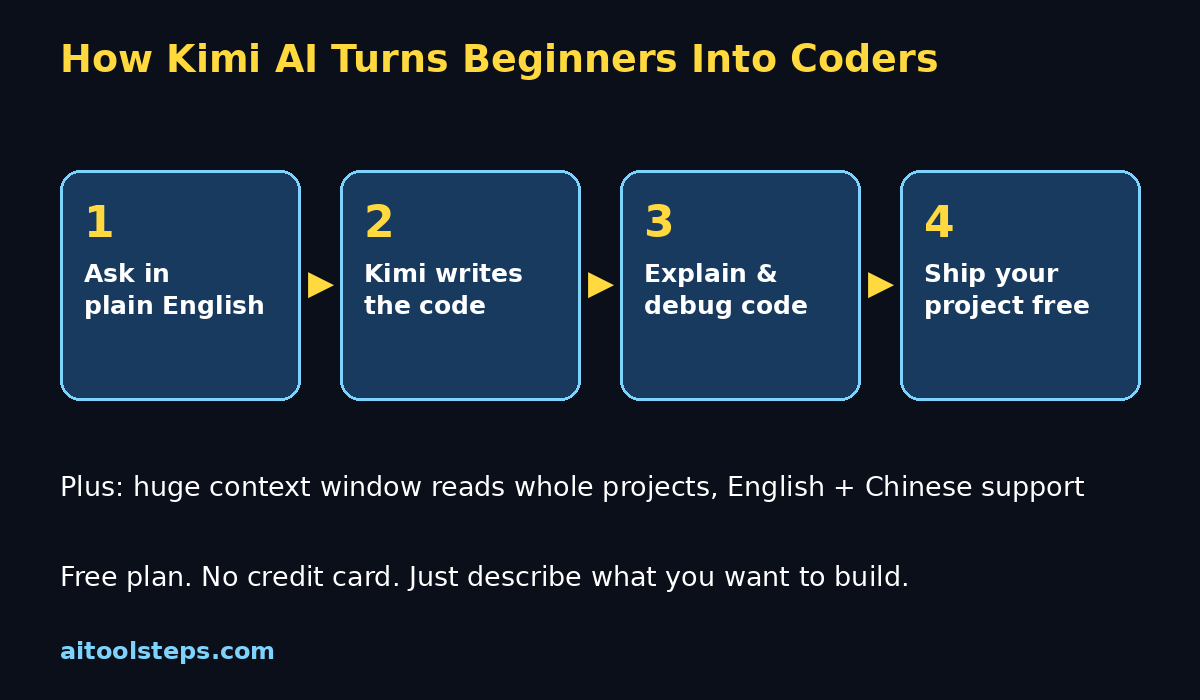
Learning to code has never been easier, and one of the biggest reasons is that you no longer have to learn alone. Kimi AI, the free AI assistant from Moonshot AI, is one of the best beginner-friendly tools you can start with — especially if you want to learn programming. Its flagship coding model, Kimi K3, can write code, explain confusing code, debug errors, and even review whole projects, all from a simple chat window that costs nothing to use.
In this guide, you will learn exactly how to use Kimi AI as a complete beginner: how to sign up for free, how the chat interface works, and how to get it to write, explain, debug, and review code for you — plus pro tips and prompt examples you can copy and paste. By the end, you will have a practical workflow that turns Kimi into your personal coding tutor. No programming experience is required.
Step 1: Sign Up for Kimi AI for Free
Getting started with Kimi AI takes less than two minutes, and you do not need a credit card.
- Go to kimi.com. This is the international website for Kimi, run by Moonshot AI. (Inside China, the same assistant lives at kimi.moonshot.cn — pick whichever one loads faster for you.)
- Click “Sign In” or “Log In.” Kimi offers a free plan that is enough for everyday beginner use. Registration is usually done with a phone number or a supported account, depending on your region.
- Verify your account. Follow the on-screen verification step, and you will land on the main chat screen.
- Bookmark the page. You will use this chat every day once you start learning, so save it in your browser or install the mobile app for learning on the go.
Beginner tip: Before doing anything fancy, just type “Hello” and introduce yourself. Tell Kimi you are a complete beginner learning to code. This one sentence helps it adjust its explanations to your level in every later answer.
Step 2: Learn the Chat Interface
The Kimi interface is intentionally simple — it looks like any messaging app, and that is the point. Here is what each part does:
- The chat box at the bottom: This is where you type your questions and prompts. Press Enter to send.
- New chat button: Starts a fresh conversation. Beginners should start a new chat for each new topic (one chat for Python basics, another for a debugging question), because it keeps answers cleaner and more focused.
- Chat history (sidebar): All your past conversations are saved here, so you can revisit an explanation days later without asking again.
- Copy button on code blocks: When Kimi gives you code, it appears in a neat code box with a copy button — one click copies the whole snippet.
- Language support: Kimi understands English and Chinese. You can ask questions in English and even ask it to explain code line by line in your preferred style.
Beginner tip: Your first exercise is to ask: “What programming language should a complete beginner learn first in 2026, and why?” Kimi will give you an honest, up-to-date answer — and you can follow up with more questions right in the same chat.
Step 3: Ask Kimi AI to Write Code for You
This is the magic moment: describing what you want in plain English and getting working code back. Kimi’s coding model, Kimi K3, is specifically built for this.
- Be specific about what you want. Vague prompts get vague code. Compare these:
- Weak: “Write some Python.”
- Strong: “Write a Python program that asks the user for their name and age, then prints a friendly greeting message.”
- State the language and the goal. Always name the programming language and describe the input and output you expect.
- Ask for comments in the code. Add “please add comments explaining each part” so the code teaches you while it works.
- Copy it and run it. Paste the code into a free online editor (like an online Python runner or your own editor) and see it work. Running code yourself is how you actually learn.
Copy-paste prompt example:
“Write a beginner-friendly Python program that calculates the tip for a restaurant bill. Ask the user for the bill amount and the tip percentage, then print the tip and the total. Add a comment above every line explaining what it does.”
Beginner tip: If the code has an error when you run it, do not delete it — copy the error message and paste it back to Kimi (that is exactly what Step 5 covers).
Step 4: Ask Kimi AI to Explain Code You Don’t Understand
Reading other people’s code is one of the fastest ways to learn, but beginners often stare at a wall of symbols. Kimi can translate any code into plain English.
- Paste the code and ask for a plain-English explanation. Prompt: “Explain this code to me like I am a complete beginner. What does each line do?”
- Ask for a line-by-line breakdown. For longer snippets, ask: “Walk me through this code line by line and tell me what each part does.”
- Ask about single confusing parts. You do not need to understand everything at once. Highlight one line and ask: “What does this specific line do and why is it needed?”
- Ask for analogies. Kimi is great at these: “Explain what a ‘function’ is using a real-life analogy.”
Copy-paste prompt example:
“Explain this JavaScript code like I am five years old. Then explain it again like I am a beginner programmer, and point out the key concept I should learn from it: [paste code here]”
Beginner tip: After Kimi explains a snippet, close the chat and try to explain it out loud yourself, in your own words. If you cannot, ask a follow-up question. This tiny habit doubles how much you retain.
Step 5: Debug Your Code with Kimi AI
Every programmer — beginner or expert — spends a huge amount of time fixing bugs. Kimi K3 is excellent at debugging because it can read your code, read the error message, and connect the two.
- Paste your broken code AND the full error message. The error message is the most important part — never leave it out.
- Describe what you expected to happen. One sentence of context (“I expected it to print numbers 1 to 10, but it prints nothing”) massively improves the fix.
- Ask for the fixed code plus an explanation. Prompt: “Here is my code and the error I get. Fix it, and explain in simple terms what was wrong and why your fix works.”
- Test the fix and iterate. If the fix does not work, paste the NEW error back. Debugging is a loop, and Kimi stays in the loop with you.
Copy-paste prompt example:
“My Python code is not working. Here is the code: [paste code]. Here is the exact error message: [paste error]. I expected it to [describe what you wanted]. Please give me the corrected code and explain the mistake in beginner-friendly language.”
Beginner tip: Keep a “bug diary” — a simple text file where you save each bug and its fix. After a month, you will be shocked how many errors you now solve before even asking Kimi.
Step 6: Review a Whole Project or File with Kimi
One of Kimi’s standout strengths is its large context window — meaning it can read very long inputs, including entire files or even whole small projects, in a single conversation. This makes it a great code reviewer.
- Paste a complete file and ask for a review. Prompt: “Review this code as if you were a senior developer mentoring a beginner. Point out bugs, bad practices, and how to improve it.”
- Ask for specific review angles. Examples: “Check this code for security problems,” “How can I make this code run faster?” or “Is this code readable for other developers?”
- Upload or paste project pieces. For small projects, paste the main files one by one in the same chat so Kimi keeps the full picture in mind.
- Ask for a refactor. Once you understand the feedback, ask: “Now rewrite this code with all your suggestions applied, and explain each change.”
Beginner tip: Before asking for a review, ask Kimi: “What are the 5 most common mistakes beginners make in [your language]?” Then review your own code against that checklist first — you will catch half the issues yourself, and that is real learning.
Step 7: Use Kimi AI for Non-Coding Tasks Too
Kimi is a full AI assistant, not just a code machine. Beginners often forget this and miss out on half its value.
- Learn concepts faster. Ask: “Explain the difference between a list and a dictionary in Python with examples.”
- Plan your learning. Ask: “Create a 30-day beginner plan to learn Python, 30 minutes a day, with topics and small projects.”
- Write documentation and comments. Paste your code and ask: “Write clear comments for this code” or “Write a simple README for this project.”
- Prepare for interviews and exams. Ask for practice questions: “Give me 10 beginner Python interview questions with answers.”
- Translate and summarize. Kimi handles English and Chinese well — useful for reading foreign documentation or translating technical articles.
Beginner tip: Use one chat as your “study planner” and keep returning to it. Ask Kimi to quiz you weekly on what you learned — active recall beats re-reading notes every time.
Step 8: Master Beginner Prompts (Copy-Paste Formulas)
Good prompts are a skill, and beginners improve fastest by starting from proven formulas. Here are five you can reuse forever:
- The Teacher: “Teach me [concept] from zero. Start with a simple analogy, then show a basic example, then a slightly harder one.”
- The Explainer: “Explain this code line by line in simple language: [code]”
- The Debugger: “This code gives this error: [error]. The code is: [code]. Fix it and explain the mistake simply.”
- The Project Builder: “I am a beginner. Help me build a [project idea] in [language]. Break it into small steps and only show me step 1 first.”
- The Reviewer: “Review my code for bugs and bad practices, explain each issue simply, then show the improved version: [code]”
Beginner tip: The single most powerful addition to any prompt is context about YOU. Start important chats with: “I am a complete beginner with no programming background. Explain everything simply and avoid jargon — or explain any jargon you must use.”
Step 9: Build Your First Real Project with Kimi
Tutorials alone do not make programmers — projects do. Use Kimi as your pair-programming partner to build something real this week.
- Pick a tiny project. Good first projects: a to-do list app, a password generator, a simple calculator, a quiz game, or a personal expense tracker.
- Let Kimi break it into steps. Use The Project Builder prompt from Step 8 and insist on one step at a time — this keeps you in control instead of drowning in code.
- Type the code yourself. Do not just copy-paste. Typing builds muscle memory and forces you to actually read every line.
- Get stuck on purpose, then debug. When something breaks, run the Step 5 debugging loop instead of asking for a rewrite immediately. Struggle is where learning happens.
- Finish and show it off. Ask Kimi to help you write a README, then share the project with a friend or online. Finished projects — even tiny ones — are the best motivation fuel there is.
Beginner tip: Aim for a “one-weekend project,” not a “one-month project.” Small finished beats big abandoned, every single time.
Step 10: Pro Tips to Get More from Kimi AI
Once the basics feel comfortable, these habits separate casual users from power users:
- Keep chats focused. One topic per chat. Long mixed chats confuse the AI and dilute the quality of answers.
- Iterate instead of restarting. If an answer is close but not right, say “Good, but make it simpler” or “Now do the same thing without using [X]” — follow-ups are cheaper and better than starting over.
- Ask for multiple approaches. “Show me two different ways to solve this and tell me which is better for a beginner.” Comparing solutions teaches design thinking.
- Verify important code. AI can make mistakes. For anything critical, ask Kimi to double-check its own answer, run the code yourself, and test edge cases.
- Combine tools. Use Kimi for learning and drafting, then test code in a real editor, and use version control (like Git) once you start projects — Kimi can teach you Git too.
- Stay curious daily. Even 20 minutes a day with Kimi — one concept, one small exercise — compounds into real skill within a couple of months.
Beginner tip: Bookmark your best chats. In a few months, re-reading your earliest “dumb questions” is the most satisfying proof of how far you have come.
Kimi K3 vs Other AI Coding Tools
How does Kimi compare with the other popular options? Here is an honest beginner-focused comparison:
| Tool | Best for | Free plan | Limitation |
|---|---|---|---|
| Kimi K3 (Moonshot AI) | Coding help, explaining code, debugging, reviewing long files | Yes — free plan, no credit card to start | Newer ecosystem; fewer third-party integrations than giants |
| ChatGPT | General questions, writing, brainstorming, plus coding | Yes — free tier with limits | Free tier is more limited for heavy daily coding use |
| Claude | Careful explanations, long documents, thoughtful code review | Yes — free tier with limits | Free usage caps can run out fast on big coding sessions |
| Muse | Code autocomplete inside your editor | Limited — free tier for some users | Lives inside a code editor; not a chat tutor for learning concepts |
The takeaway for beginners: Kimi’s free plan, huge context window, and coding-first design make it one of the most generous starting points for learning to code with AI. Many learners end up using Kimi alongside one other assistant — Kimi for code, another for general questions.
Frequently Asked Questions
Is Kimi AI really free?
Yes. Kimi offers a free plan on kimi.com (and kimi.moonshot.cn), and you do not need a credit card to start. The free plan covers everyday beginner use — asking questions, generating code, debugging, and explanations. Like most AI tools, there may be usage limits on the free tier during peak times, but for learning purposes it is more than enough to begin with.
Who makes Kimi AI?
Kimi is built by Moonshot AI, an AI company focused on large language models. Kimi is its flagship AI assistant, and Kimi K3 is its coding-focused model, designed to write, explain, debug, and review code — including very long files and codebases thanks to its large context window.
Do I need to know programming to use Kimi AI?
No — that is the whole point of this guide. Kimi is beginner-friendly precisely because you can describe what you want in plain English and it handles the code. Tell it you are a beginner in your first message, ask for simple explanations, and follow the steps above. Many complete beginners use Kimi as their first coding tutor.
Can Kimi AI read my entire project?
Kimi is known for its large context window, which means it can handle very long inputs — entire files and even small projects — in a single conversation. For very large real-world codebases you may still need to share the most relevant files rather than literally everything, but for beginner and intermediate projects, pasting whole files for review works well.
Does Kimi AI work in English?
Yes. Kimi supports both English and Chinese. You can chat, ask coding questions, and get explanations entirely in English, which makes it fully usable for English-speaking beginners anywhere in the world.
Is Kimi AI better than ChatGPT for coding?
“Better” depends on what you need. Kimi K3 is purpose-built for coding tasks — writing, explaining, debugging, and reviewing code, including long files — and its free plan is generous for learners. ChatGPT is a stronger all-rounder for non-coding tasks like writing and brainstorming. Many beginners use both: Kimi as the coding tutor, ChatGPT (or another assistant) for everything else.
Final Thoughts
Kimi AI is one of the friendliest doors into programming that exists right now. It is free to start, it speaks your language instead of jargon, and its coding model Kimi K3 can write code with you, explain code to you, fix your bugs, and review your projects — the four skills every beginner needs most.
The formula is simple: sign up free at kimi.com, tell Kimi you are a beginner, work through the steps in this guide, and build one small project this week. Do that consistently, and in a few months you will look back amazed at how much you learned — with an AI tutor that never gets tired, never judges, and is available at 2 a.m. when inspiration strikes.
Start today. Your future programmer self will thank you.
Explore More Free AI Tools
Want more free tools to speed up your learning and content creation? Check out these free AI tools on AIToolSteps:
- AI Title Generator — create catchy, click-worthy titles in seconds
- Meta Description Generator — write perfect SEO meta descriptions automatically
- AI Rewriter — rewrite any text in a fresh, natural style
- Keyword Density Checker — analyze keyword usage and optimize your content
All free, all beginner-friendly — explore them at aitoolsteps.com.