
Making a video used to mean a camera, lights, a location, and hours of editing. Learning how to use Luma Dream Machine AI for beginners removes most of that work, because Luma turns a simple written description, or a single still image, into a short moving video clip in minutes. You do not need filming experience, expensive software, or a powerful computer to start, because everything runs in your browser.
In this guide you will learn how to use Luma Dream Machine AI step by step. You will create your free account, understand credits honestly, write a strong first prompt, animate a still photo, control camera movement with simple words, use keyframes, extend and improve your clips, download them at the right size for social media, and compare Luma with Runway and Pika. By the end you will have a repeatable workflow for making AI videos for YouTube Shorts, TikTok, Instagram, school projects, product demos, and pure creative fun.
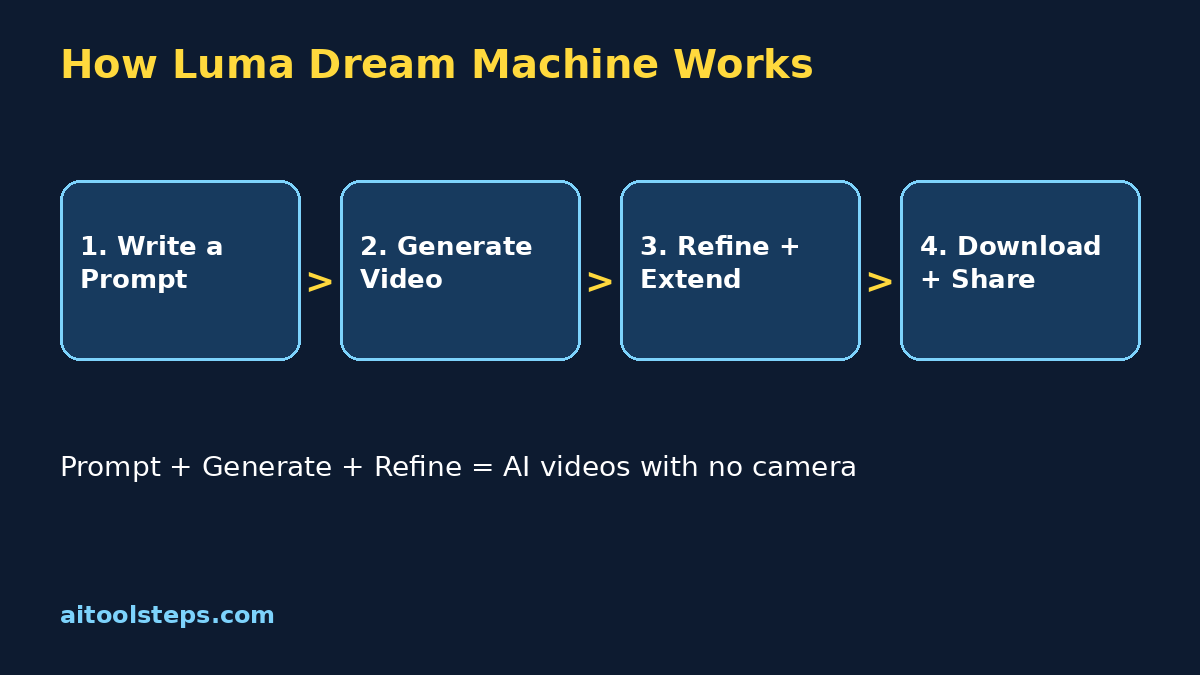
Step 1: Understand What Luma Dream Machine Actually Does
Luma Dream Machine is an AI video generator made by Luma AI. You give it an input, and it generates motion. That input can be a written prompt, called text-to-video, or a still image that the AI brings to life, called image-to-video. Luma is known for smooth, realistic movement and for clips that often look surprisingly cinematic for something made from a single sentence.
For anyone learning how to use Luma Dream Machine AI, the key idea is simple: you are the director, not the camera operator. Your job is to describe the subject, the action, the setting, and the camera movement clearly, the way a film director explains a shot to a crew. The AI handles the filming and the animation. The clearer your direction, the closer the result matches the picture in your head.
- Text-to-video: type a description and Luma generates a brand new clip
- Image-to-video: upload a photo or AI image and Luma animates it
- Keyframes: give a start frame and an end frame and Luma fills in the motion between them
- Extend and loop: make a good clip longer, or turn it into a smooth repeating loop
- Free to start: a free plan lets you test the tool before paying anything
Step 2: Create Your Free Luma Account
Getting started takes about two minutes. You only need a browser and an account, and there is nothing to install.
- Go to the official Luma Dream Machine website and choose Sign In or Get Started.
- Register with the sign-in options offered, using an account you control.
- Complete any verification step Luma sends you.
- Open Dream Machine and look around the main creation screen before generating anything.
- Bookmark the official site, and only ever sign in there or in official Luma apps.
Take a minute to find three things on the creation screen: the prompt box where you describe your video, the area where you can upload an image, and the settings for things like aspect ratio and looping. Knowing where these live before your first generation saves credits later, because you will not waste a generation on the wrong setting. That small bit of patience is the first real skill in learning how to use Luma Dream Machine AI well.
Step 3: Understand Credits and the Free Plan Honestly
Like most AI video tools, Luma works on credits. Each generation costs credits, and the cost can change with the model, the length, and the quality you choose. Free plans come with a limited number of credits or generations, and paid plans give you more credits, faster generation, higher resolution, and extra rights such as commercial use and removal of watermarks, depending on the plan.
Check the official pricing page before you rely on any number you read online, including in older videos, because plans and credit costs change often. The practical advice for how to use Luma Dream Machine AI on a free plan is simple: plan every prompt before you press generate, start with short test clips, and save your best settings when something works. Treat your first credits as learning credits. Expect a few strange results while you discover what the AI does well, and do not judge the tool by your very first clip.
- Check your remaining credits before every session
- Write prompts in a notes app first, then paste the best version
- Test ideas with short clips before spending credits on longer ones
- Read the current free plan limits and watermark rules on the pricing page
- Upgrade only when you hit the same limit again and again
Step 4: Write Your First Text-to-Video Prompt
Your first generation is exciting, and a good prompt makes it far more likely to succeed. Click into the prompt box and describe one clear scene. A strong beginner prompt has four parts: the subject, the action, the setting, and the camera. For example: a golden retriever puppy, running happily through tall grass, in a sunny meadow at sunset, camera slowly pushing in.
Press generate and wait while Luma creates several seconds of video. Watch the whole clip carefully. Notice what the AI got right, and what drifted. Maybe the puppy looks great but the camera moved too fast, or the meadow is beautiful but the action is unclear. Change one thing at a time in your next prompt. That test, watch, and adjust loop is the heart of how to use Luma Dream Machine AI, and it is exactly how experienced creators improve so quickly.
- Describe one scene and one main action, not a whole story
- Name the subject clearly, for example a red sports car, not just a car
- Add the setting and the light, such as a rainy city street at night
- Add one simple camera instruction, such as slow zoom in
- Keep your first prompts short enough to read in one breath
Step 5: Animate a Still Image With Image-to-Video
Image-to-video is where many beginners get their best results, because you control exactly how the clip starts. Upload a clear photo, or an AI image you generated, and then write a prompt that describes only the motion you want. The image already shows the subject and the setting, so your words should focus on movement: the character smiles and waves at the camera, hair blowing gently in the wind, clouds drifting behind.
Choose images with a clear subject, good light, and some space around the edges, because the AI needs room to move things. Portraits, product photos, landscapes, and illustrations all animate well. If a result looks warped, try a simpler motion request. Small movements, like blinking, smiling, turning the head, or water flowing, usually look far more realistic than big dramatic action. This gentle approach is a secret weapon when learning how to use Luma Dream Machine AI for social media content, because subtle motion looks professional and hides small AI flaws.
Step 6: Control Camera Movement and Use Keyframes
Camera movement is what makes an AI clip feel filmed instead of generated. Luma understands plain camera words inside your prompt, and it also offers guided camera concepts on supported versions. Start with the basics and add only one movement per clip.
- Push in or zoom in: builds focus and drama on one subject
- Pull back: reveals the scene and works beautifully for endings
- Pan left or right: follows action across a landscape or street
- Orbit: circles slowly around a product or character
- Static or locked camera: best for dialogue style shots and loops
Keyframes take control even further. You give Luma a starting image and an ending image, and it creates the movement between them. A classic beginner example is a product photo as the first frame and the same product in a lifestyle scene as the last frame. Keyframes are also perfect for before-and-after videos, logo reveals, and transformations. When you plan both ends of the shot, the middle becomes much more predictable, which is why keyframes are such a valuable part of how to use Luma Dream Machine AI beyond random experimenting.
Step 7: Extend, Loop, and Improve Your Best Clips
A five second clip is rarely the finished product. When a generation is almost right, use the built-in tools instead of starting again. Extending continues your clip forward, using its final frames as the starting point, so you can build a longer scene from your best moment. Looping joins the end back to the beginning, which is ideal for backgrounds, ambient scenes, and social posts that replay forever.
If a clip is good but not great, change the prompt slightly and regenerate from the same image or keyframes rather than rewriting everything. Save versions you like as you go, because credits spent returning to a lost idea are credits wasted. Many creators learning how to use Luma Dream Machine AI keep a simple folder system: one folder for raw clips, one for extended versions, and one for finished exports. That tiny bit of organisation saves hours when you start making videos every week.
Step 8: Download Your Video and Post It Anywhere
When a clip makes you smile, download it and check the file before posting. Watch it once at full size and look for warped hands, melting text, or strange faces in the background. AI video still makes these mistakes, and catching them before posting protects your account’s quality.
Choose the aspect ratio that matches your platform. Vertical 9:16 fits TikTok, YouTube Shorts, and Instagram Reels. Landscape 16:9 fits normal YouTube videos and presentations. Square works well for feeds. If your free plan adds a watermark or limits resolution, that is shown in the plan details, so decide before a big project whether a paid plan is worth it. Add your own captions, title, and music inside your normal editor or directly in the social app. Remember that a great workflow for how to use Luma Dream Machine AI always ends with a human check: your eyes are the final quality filter.
| Tool | Cost to Start | Best For | Main Limit |
|---|---|---|---|
| Luma Dream Machine | Free plan available | Smooth realistic motion, image-to-video, keyframes | Free credits run out quickly |
| Runway | Free trial credits | Advanced editing tools and a full video suite | Higher learning curve and cost at scale |
| Pika | Free plan available | Fun effects and quick stylised clips | Less realistic motion on some scenes |
Step 9: Compare Luma With Runway and Pika
All three tools are genuinely good, and many creators use more than one. Luma is a friendly starting point because the interface is simple and the motion looks natural with very little effort. Runway suits creators who want a deeper editing toolbox in the same app. Pika shines for playful effects and fast experiments. If you already read our guide on Runway, you will find the prompt skills transfer directly: subject, action, setting, camera works everywhere. Start with Luma for your first month, learn what good motion looks like, and add other tools only when a project truly needs them.
Step 10: Avoid the Common Beginner Mistakes
Most disappointing AI videos come from the same short list of habits. Avoid these, and your results improve on day one.
- Vague prompts: a beautiful video tells the AI nothing, always name subject, action, setting, and camera
- Too much action: three actions in five seconds turns into a mess, keep one clear action per clip
- Ignoring credits: random testing burns a free plan fast, plan prompts before generating
- Text inside videos: AI still struggles with words and logos in motion, add text later in your editor
- No final check: always watch the full clip for warped faces or hands before posting
- Expecting a full movie: AI video works in short clips, edit several good clips together for longer stories
Frequently Asked Questions
Is Luma Dream Machine free for beginners?
Yes, Luma offers a free way to start with Dream Machine, with limited credits or generations and some restrictions that can include watermarks and personal use only. The exact limits change over time, so check the official pricing page for what the free plan includes today before starting a big project.
How long are Luma Dream Machine videos?
Individual generations are short clips, usually a few seconds long, and you can extend a good clip to make it longer. Most creators build longer videos by generating several clips and joining them in a normal video editor, which also lets them add music, captions, and their own branding.
Can I use Luma videos for YouTube and TikTok?
Yes, the downloaded clips work on YouTube, TikTok, Instagram, and other platforms, and choosing the right aspect ratio in Luma helps them fit perfectly. Check your plan’s licence terms for commercial use, because free plans are commonly limited to personal, non-commercial projects.
What makes a good Luma prompt?
A good prompt names the subject, one clear action, the setting and lighting, and one camera movement. For image-to-video, describe only the motion, because the image already provides the subject and scene. Change one detail at a time when you improve a prompt, so you learn what actually helped.
Is Luma better than Runway?
Neither is better for everyone. Luma is simpler to learn and produces very natural motion from images and keyframes, while Runway offers a wider set of editing tools for advanced creators. Beginners usually get satisfying results faster with Luma, then explore Runway when they need deeper editing control.
Why does my Luma video look warped or strange?
Warping usually comes from asking for too much movement, using a low quality or crowded starting image, or requesting complex actions like fast dancing or detailed hand movements. Use a clearer image, ask for smaller and slower motion, and regenerate. Simple scenes almost always come out cleaner.
Final Thoughts
Learning how to use Luma Dream Machine AI for beginners is really about learning to direct. Describe one clear scene, animate your best images, guide the camera with simple words, use keyframes when you need control, and always check the final clip with your own eyes. Create your free account today, generate one small clip about something you love, and build from there. A month from now, those first few seconds can grow into a whole library of videos you made without ever touching a camera.
Explore More Free AI Tools
Discover more free tools and step-by-step guides on AIToolSteps:
Visit https://aitoolsteps.com/ to explore all free AI tools and beginner guides.