

Everyone has had the same problem: you understand an idea perfectly in your head, but the moment you try to explain it on a slide, in a report, or in a lesson, plain paragraphs lose people. Learning how to use Napkin AI for beginners fixes that, because Napkin takes your written text and instantly suggests matching visuals — diagrams, mind maps, flowcharts, and infographics — that you can drop straight into your work. You do not need design skills, expensive software, or hours of dragging boxes around in a drawing tool.
In this guide you will learn how to use Napkin AI step by step. You will create your free account, paste your first paragraph, pick and customize a visual, connect it to Google Docs, export it in the right format for slides and social media, and compare Napkin honestly with Canva and Miro. By the end you will have a repeatable workflow for turning any explanation into a clear picture that people actually understand.
Step 1: Understand What Napkin AI Actually Does
Napkin AI is a text-to-visual tool. You write or paste text, highlight the part you want to illustrate, and Napkin generates several visual options based on what your words mean. If your paragraph describes a process, it suggests a flowchart. If it lists parts of a whole, it suggests a diagram or a chart. If it compares two ideas, it suggests a comparison layout. The AI reads the structure of your idea, not just your keywords.
For anyone learning how to use Napkin AI, the key idea is simple: you are the writer, and Napkin is your illustrator. Your job is to write clear text with an obvious structure — steps, parts, causes, or comparisons. Napkin's job is to draw that structure. The clearer your writing, the better the visual it can build, which is why a few minutes spent organizing your text always pays off.
Step 2: Create Your Free Napkin AI Account
Getting started takes about two minutes, and there is nothing to install because Napkin runs in your browser.
Take a moment to notice how simple the workspace is. There is a page for your text, and that is mostly it — no toolbox of a hundred design buttons. When you want a visual, you ask for one from your text. That writing-first design is the whole point, and it is why beginners learning how to use Napkin AI feel comfortable within minutes instead of fighting with a complicated design program.
Step 3: Understand the Free Plan and Credits Honestly
Napkin works on a credit-style system on its free plan: generating visuals uses credits that refresh over time, while paid plans give you far more generations, more export options, and extra features such as removing branding on some exports, depending on the plan. The exact numbers change as the product grows, so check the official pricing page before you rely on any number from an older video or blog post.
The practical advice for how to use Napkin AI on a free plan is simple: write your text carefully first, because good text means fewer wasted generations. Generate visuals for your most important paragraphs instead of decorating every sentence. Save and export the versions you love as you go. Treat your first week as practice — learning which kinds of paragraphs produce the best diagrams is worth far more than hoarding credits.
Step 4: Create Your First Visual From a Paragraph
This is the moment the tool clicks. Start a new document and write or paste a short structured paragraph. A perfect first test is a simple process, for example: how a bill becomes a law, how coffee is made, or the steps of your morning routine. Structure matters more than topic, so use a clear sequence with three to six parts.
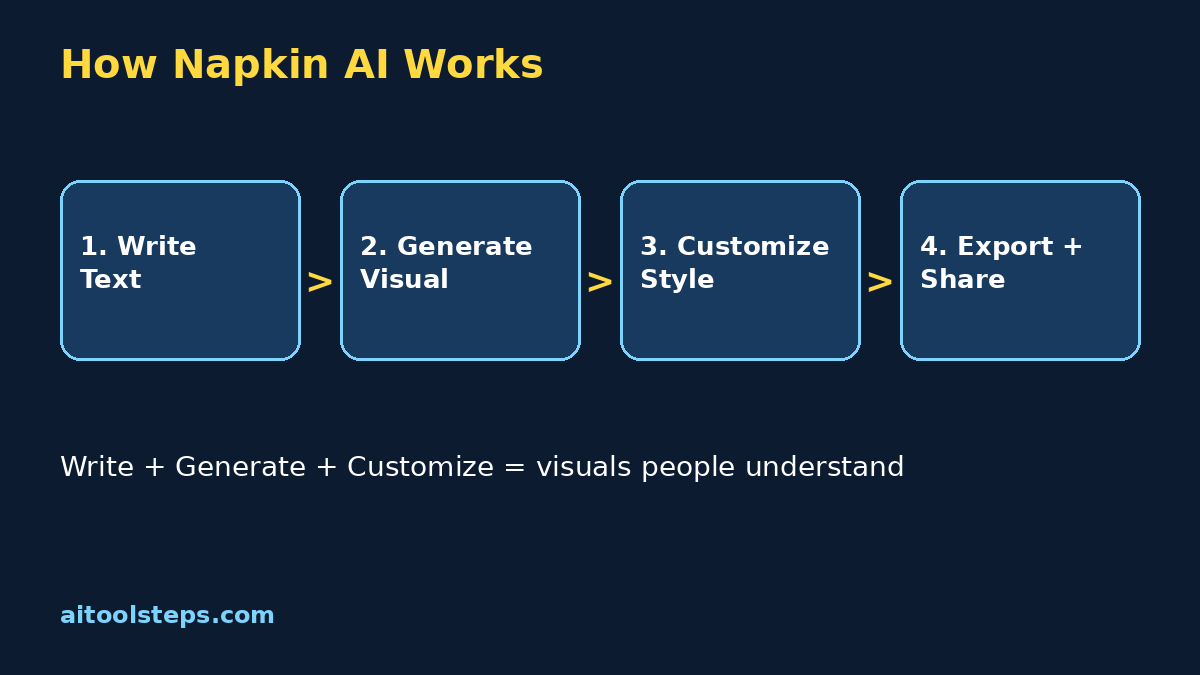
Now highlight the paragraph, or place your cursor in it, and choose the visual generation option — Napkin shows a sparkle-style button beside your text. Wait a few seconds while it builds several options. Scroll through them: you will usually see the same idea drawn as a flowchart, a set of connected shapes, and a cleaner diagram style. Click the one that matches how you think about the idea, and it drops into your document, ready to edit. That highlight, generate, and choose loop is the heart of how to use Napkin AI, and you will repeat it for every visual you make.
Step 5: Customize Colors, Icons, and Layout
A generated visual is a starting point, not a finished product. Napkin lets you restyle it without redrawing anything. You can switch the visual to a different layout of the same idea, change the color scheme to match your brand or slide theme, swap icons on individual elements, and adjust which parts are emphasized. If one branch of your mind map matters most, you can make it stand out instead of treating everything equally.
Editing the text inside a visual is just as easy: click a label and type. If you later edit the paragraph the visual came from, you can regenerate or update the visual so the two stay in sync. Beginners learning how to use Napkin AI often skip this step and accept the first style they see, but two minutes of customization is what makes a visual look like it belongs in your presentation instead of looking pasted in. Keep one consistent color scheme across a whole document, and your work instantly looks more professional.
Step 6: Connect Napkin With Google Docs and Your Notes
Most people do not write inside Napkin first — they already have text in Google Docs, meeting notes, lesson plans, or blog drafts. Napkin is built for that reality. You can import documents, paste text from anywhere, and connect your Google account so your existing writing flows straight in. The workflow many users love is simple: draft in the tool you already use, bring the text into Napkin, generate the visuals, then export them back into your slides or document.
This is also where how to use Napkin AI shines for teams and students. A teacher can turn a lesson summary into a diagram students actually remember. A manager can turn meeting notes into a process visual for the whole team in minutes. A blogger can paste a section of an article and get an infographic that makes readers stop scrolling. Wherever explanations live, a clear picture makes them travel further.
Step 7: Export Your Visuals the Right Way
When a visual is ready, export it in the format your destination needs. Napkin offers image and document exports such as PNG, SVG, and PDF options, with the exact list depending on your plan. PNG is the safe everyday choice for slides, documents, and social media. SVG stays sharp at any size and is best for professional design work and printing. PDF works well when the visual travels inside a report.
Match the export to the job. For a presentation, export at a large size so the visual stays crisp on a big screen. For social media, a clean PNG dropped into your post works beautifully. Give your file a clear name, like onboarding-process-diagram.png, so you can find it later. A small habit that separates organized creators from frustrated ones: keep one folder per project with the source document and all exported visuals together. That tiny system makes reusing your best visuals effortless when you learn how to use Napkin AI for regular weekly work.
Step 8: Use Napkin AI for Slides, Studying, and Social Posts
Once you can make one good visual, you can make them for everything. For presentations, generate a visual for each key slide instead of filling slides with bullet points nobody reads. For studying, turn textbook paragraphs into mind maps and diagrams — actively choosing how an idea should be drawn is itself a powerful way to learn it. For social media, a clean diagram from your own writing makes an original, save-worthy post.
Writers get a special bonus: pasting a section of your own article into Napkin gives you a matching visual for that exact section, which is far better than a random stock photo. Remember the human check that ends every good workflow for how to use Napkin AI: look at the final visual and ask whether a stranger would understand your idea from the picture alone. If yes, export and share it. If not, simplify the text and regenerate — the fix is almost always in the writing.
| Tool | Cost to Start | Best For | Main Limit |
|---|---|---|---|
| Napkin AI | Free plan available | Turning written text into matching diagrams and visuals automatically | Less freehand design control |
| Canva | Free plan available | Full design work, templates, social graphics | You build visuals manually from templates |
| Miro | Free plan available | Team whiteboards and live collaboration | Visuals are manual, not generated from text |
Step 9: Compare Napkin AI With Canva and Miro
All three tools are genuinely useful, and they solve different problems. Napkin wins when your starting point is written text and you want a matching visual in seconds. Canva wins when you need total design freedom and polished templates. Miro wins when a whole team needs to brainstorm together on one board. Many creators use Napkin to generate the visual, then drop it into Canva to finish a social post — the tools combine well instead of competing. Start with Napkin for a month, learn what clear structure looks like, and add other tools only when a project needs them.
Step 10: Avoid the Common Beginner Mistakes
Most weak visuals come from the same short list of habits. Avoid these, and your results improve on day one.
Frequently Asked Questions
Is Napkin AI free for beginners?
Yes, Napkin AI offers a free plan that lets you create visuals with a limited number of credits that refresh over time. Paid plans add many more generations and extra export features. The exact limits change as the product grows, so check the official pricing page for what the free plan includes today.
What kinds of visuals can Napkin AI make?
Napkin generates diagrams, mind maps, flowcharts, timelines, comparison layouts, and simple charts based on the structure of your text. A process becomes a flowchart, a list of parts becomes a diagram, and a sequence of events becomes a timeline. The AI chooses styles that fit what your words describe.
Can I use Napkin AI with Google Docs?
Yes. You can import or paste text from Google Docs and other writing tools, generate visuals in Napkin, and export them back into your documents and slides. Many users draft where they already write, then use Napkin purely as the visual step in their workflow.
Do I need design skills to use Napkin AI?
No, and that is the point of the tool. You never draw anything by hand. You write clear text, choose from generated visual options, and adjust colors, icons, and labels with simple clicks. If you can write a clear paragraph, you can make a clear visual.
Is Napkin AI better than Canva?
They do different jobs. Napkin automatically turns your text into a matching visual, which Canva does not do — in Canva you build or choose designs yourself. Napkin is faster when you start from writing, while Canva gives more design freedom. Many people use both together.
Why does my Napkin visual look confusing?
Confusing visuals almost always come from confusing source text — too many ideas in one paragraph, or no clear structure like steps, parts, or a comparison. Split the paragraph, give the idea a clear shape, and regenerate. Simpler text produces dramatically clearer visuals.
Final Thoughts
Learning how to use Napkin AI for beginners is really about learning to think in pictures. Write one clear, structured idea, let Napkin draw it, customize the style so it feels like yours, and export it where your audience will see it. Create your free account today, paste a paragraph you wrote this week, and watch it turn into a visual in seconds. A month from now, you will wonder how you ever explained anything with plain paragraphs alone.
Explore More Free AI Tools
Discover more free tools and step-by-step guides on AIToolSteps:
Visit https://aitoolsteps.com/ to explore all free AI tools and beginner guides.