

You repeat the same small jobs every day: copying form answers into a spreadsheet, saving email attachments, posting the same update in three places, and moving data from one app to another by hand. Learning how to use Make AI for beginners ends that busywork, because Make connects your apps visually and runs those jobs for you automatically, even while you sleep. You do not need to code, and the free plan is generous enough to automate real work from day one.
In this guide you will learn how to use Make AI step by step. You will create your free account, understand scenarios in plain English, build your first automation that saves Gmail attachments to Google Drive, add filters and AI steps with OpenAI or built-in AI tools, test safely, compare Make honestly with Zapier, and avoid the mistakes that waste free operations. By the end you will have a repeatable system for spotting any repetitive task and turning it into an automation.
Step 1: Understand What Make AI Actually Does
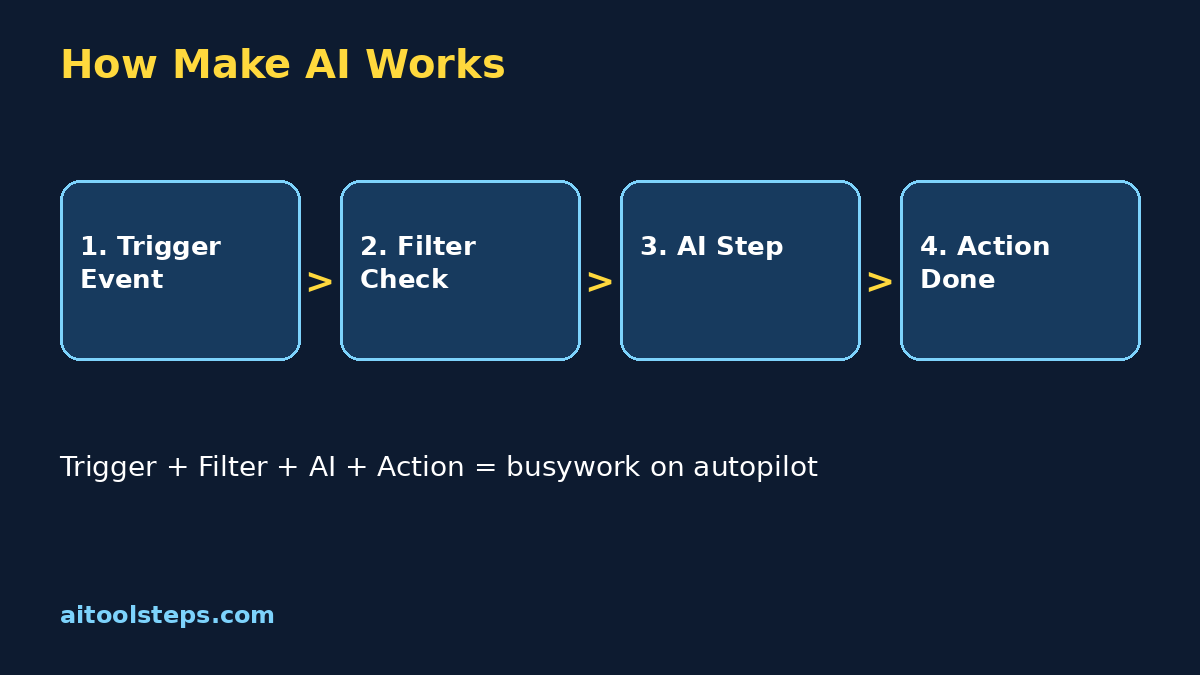
Make is a visual automation platform. Instead of writing code, you build a scenario: a chain of app modules on a canvas. The first module is a trigger, something that starts the automation, like a new email arriving or a new row appearing in a spreadsheet. The modules after it are actions, the jobs Make performs for you, like saving a file, adding a row, sending a message, or asking an AI model to summarize text.
For anyone learning how to use Make AI, the key idea is simple: if you do a job more than twice and the steps are always the same, a scenario can probably do it. Make supports thousands of popular apps, including Gmail, Google Sheets, Google Drive, Slack, Notion, WordPress, and social platforms, plus AI tools you can place in the middle of a workflow. A classic beginner example: every time a customer fills your form, Make adds their details to a sheet, sends you a notification, and asks AI to draft a friendly reply. Three jobs, zero effort from you after setup.
Step 2: Create Your Free Make Account
Getting started takes about three minutes, and everything runs in your browser, so there is nothing to install.
Take a moment to explore before building anything. Open the templates library and search for apps you already use, like Gmail or Google Sheets. Templates are pre-built scenarios you can copy and adjust, and they are the fastest way for beginners learning how to use Make AI to see how real automations are structured. Bookmark the official site and only ever sign in there, because automation accounts hold powerful connections to your other apps.
Step 3: Understand the Free Plan and Operations Honestly
Make's free plan includes a monthly allowance of operations, and one operation is charged each time a module runs inside a scenario. A simple two-module scenario that runs ten times uses about twenty operations. A long scenario with many modules uses more per run. Paid plans raise the allowance a lot and add features, but the free plan is genuinely enough to learn on and to run a few useful personal automations every month.
The practical advice for how to use Make AI on a free plan is to build small and test carefully. Use the built-in run-once test instead of switching a scenario fully on while you are still experimenting. Add filters so your scenario only runs when it truly needs to, for example only for emails with attachments. Check your operations usage in the dashboard each week. When one automation saves you time every single day and starts hitting the limit, that is the honest signal that a paid plan may be worth it.
Step 4: Build Your First Scenario, Gmail to Google Drive
Your first scenario solves a problem everyone has: email attachments getting buried in the inbox. This automation watches Gmail and saves every new attachment straight into a Google Drive folder.
Click Create a new scenario. Add Gmail as the first module and choose the trigger that watches emails. Connect your Google account when Make asks, and approve the connection. Set the filter so Make only looks at emails that have attachments. Next, add an Iterator or use the attachment handling Make suggests, then add Google Drive as an action module and choose upload a file, picking your destination folder. Click Run once, then send yourself a test email with a small attachment. Watch the modules light up one by one, then check Drive: your file is there, saved with no clicking from you. That trigger, action, test loop is the heart of how to use Make AI, and every bigger automation is just more modules in the same chain.
Step 5: Add Filters, Routers, and Multiple Paths
A scenario that runs for every event quickly wastes operations, so filters are your best friend. A filter sits between modules and lets data pass only when conditions are true, for example only when an email subject contains the word invoice. Routers split your scenario into multiple paths, so one trigger can do different jobs depending on the data: invoices go to one folder and a spreadsheet, while job applications go to a different folder and a notification.
Beginners learning how to use Make AI often skip filters and then wonder why their free operations vanish. Spend two extra minutes on conditions and your automations become precise instead of noisy. Keep each path clearly labeled, test each branch with matching sample data, and remember that a scenario you understand is worth more than a giant one you are afraid to touch.
Step 6: Add AI Steps With Make AI Tools and OpenAI
This is where Make becomes Make AI in practice. Between any two modules you can insert an AI step that reads, writes, summarizes, classifies, or translates the data flowing through your scenario. Make offers built-in AI tools and modules for services like OpenAI, so a scenario can watch a support inbox, ask AI to summarize each new message into two lines, classify it as a question, complaint, or praise, and post the result to your team chat with the right label.
A safer beginner pattern is AI drafts, humans approve. Let AI write the reply, the summary, or the social caption, but save it as a draft or send it to yourself for a quick check instead of publishing automatically. As you learn how to use Make AI with real data, you will find the tasks where AI is reliable enough to run untouched, usually sorting, summarizing, and reformatting, while anything public still deserves your eyes first.
Step 7: Schedule, Activate, and Monitor Your Scenario
A tested scenario is not live until you turn scheduling on. Open the scheduling settings under your scenario and choose how often Make should check for new trigger events, for example every 15 minutes for email, or once a day for a report. Shorter intervals react faster but use operations faster when modules run, so match the interval to how urgent the job really is. Most beginner automations are perfectly happy checking a few times an hour.
After activating, visit the scenario history regularly during the first week. History shows every run, which modules succeeded, and exactly where any run failed, with the input and output data visible. That transparency is a huge reason how to use Make AI feels friendly for non-programmers: when something breaks, Make shows you the exact module and message instead of a mysterious error. Fix the connection or condition, run once to confirm, and your automation is healthy again.
Step 8: Use Templates for Sheets, Social Posts, and Leads
Once your first scenario works, templates multiply your results fast. Three proven beginner templates cover most everyday needs. First, form to sheet to notification: every new form response lands in Google Sheets and pings you instantly, so no lead ever sits unseen. Second, RSS or new blog post to social: when you publish, Make drafts or posts the announcement to your social accounts in your chosen format. Third, sheet row to reminder: when a date in your sheet approaches, Make sends the reminder message automatically.
Adapt templates instead of copying them blindly. Change the apps to the ones you actually use, adjust the fields, and test with your own sample data. Writers and small creators get a special bonus from how to use Make AI here: your content pipeline, publish, save links, notify, draft promotion, can run itself while you focus on creating the next piece.
| Tool | Cost to Start | Best For | Main Limit |
|---|---|---|---|
| Make | Free plan available | Visual, powerful multi-step automations with branching and AI steps | Slightly steeper first-day learning curve |
| Zapier | Free plan available | Very simple two-step automations with the widest app list | Multi-step and advanced features need paid plans |
| IFTTT | Free plan available | Quick personal phone and smart-home applets | Too simple for serious business workflows |
Step 9: Compare Make AI With Zapier and IFTTT
All three tools are genuinely useful, and they solve different sizes of problem. Make wins when your workflow has branches, filters, or several steps and you want to see the whole flow on one canvas. Zapier wins for the simplest possible two-app jobs and sheer app count. IFTTT wins for tiny personal shortcuts. Many beginners start on Make because the free plan allows real multi-step scenarios, and the visual canvas teaches you automation thinking you can carry to any tool later.
Step 10: Avoid the Common Beginner Mistakes
Most failed automations come from the same short list of habits. Avoid these, and your scenarios stay reliable from week one.
Frequently Asked Questions
Is Make AI free for beginners?
Yes, Make offers a free plan with a monthly operations allowance that is enough to learn automation and run a few useful personal scenarios. Paid plans mainly raise the operations limit and add advanced features. Check the official pricing page for the current free allowance, since plan details change over time.
Do I need coding skills to use Make?
No. Make is a visual, no-code platform. You build scenarios by choosing apps, picking triggers and actions from menus, and connecting modules on a canvas. If you can describe your repetitive task as when this happens, do that, you can build it in Make.
What is a scenario in Make?
A scenario is one automation: a trigger module that starts the flow when an event happens, followed by action modules that do the work in your other apps. Scenarios can include filters, routers that split into paths, and AI steps that summarize, classify, or draft text along the way.
How is Make different from Zapier?
Both connect apps without code. Make uses a visual canvas with branching paths, filters, and multi-step flows available even on the free plan, while Zapier focuses on simpler linear automations and reserves more advanced steps for paid plans. Make usually gives more power per free operation, Zapier lists slightly more apps.
Can Make use ChatGPT and other AI tools?
Yes. You can add AI modules, including OpenAI and Make's built-in AI tools, inside a scenario to summarize emails, classify messages, translate text, or draft replies and captions. The safest beginner setup is AI drafts saved for your review before anything is sent or published.
Why did my Make scenario stop running?
The usual causes are a disconnected app account that needs reconnecting, a filter that no longer matches your data, or running out of monthly operations. Open the scenario history, find the failed run, and read the module message, it tells you exactly which step failed and why.
Final Thoughts
Learning how to use Make AI for beginners is really about learning to notice your own repetitive work. Pick one small job you do every week, build the smallest scenario that does it, test it honestly, and let it run. Create your free Make account today, automate that first attachment or form, and feel how much calmer your apps become. A month from now, you will have a small team of scenarios quietly doing the busywork while you do the work that actually needs you.
Explore More Free AI Tools
Discover more free tools and step-by-step guides on AIToolSteps:
Visit https://aitoolsteps.com/ to explore all free AI tools and beginner guides.