

If you have ever tried to run more than one AI coding agent at the same time, you know the mess it creates. One terminal window is running Claude Code, another is running Codex, a third is waiting for Gemini CLI, and every one of them stops to ask you a question at the worst possible moment. You end up switching windows, losing track of which agent did what, and wondering whether anything is actually finished. This guide shows you how to use One Roof AI step by step, from install to your first chorus coding session.
One Roof AI was built to end that mess. Launched on Product Hunt on November 2, 2026, One Roof is a free and open-source app — the maker calls the idea “chorus coding” — that puts several coding agents under one roof, with you in charge. Instead of juggling separate terminal windows, you get one place where Claude Code, Codex, Gemini CLI, Kimi and Antigravity can all work together, one inbox for everything they ask you, and a morning page that tells you what happened overnight.
The best part for beginners is the price and the philosophy: it costs nothing, the code is open source under the MIT licence, and the whole point is that you stay in control. The agents do the typing, but you decide what gets approved, what gets stopped, and what counts as done.
In this beginner-friendly guide, you will learn exactly how to use One Roof AI: what it is, whether your Mac can run it, how to install it, how to connect your coding agents, how to run your first multi-agent session, and how to use its inbox, loops and morning page to keep every agent honest. You do not need any coding experience beyond the basics, and you do not need a credit card to start.
Step 1: Understand What One Roof AI Actually Is
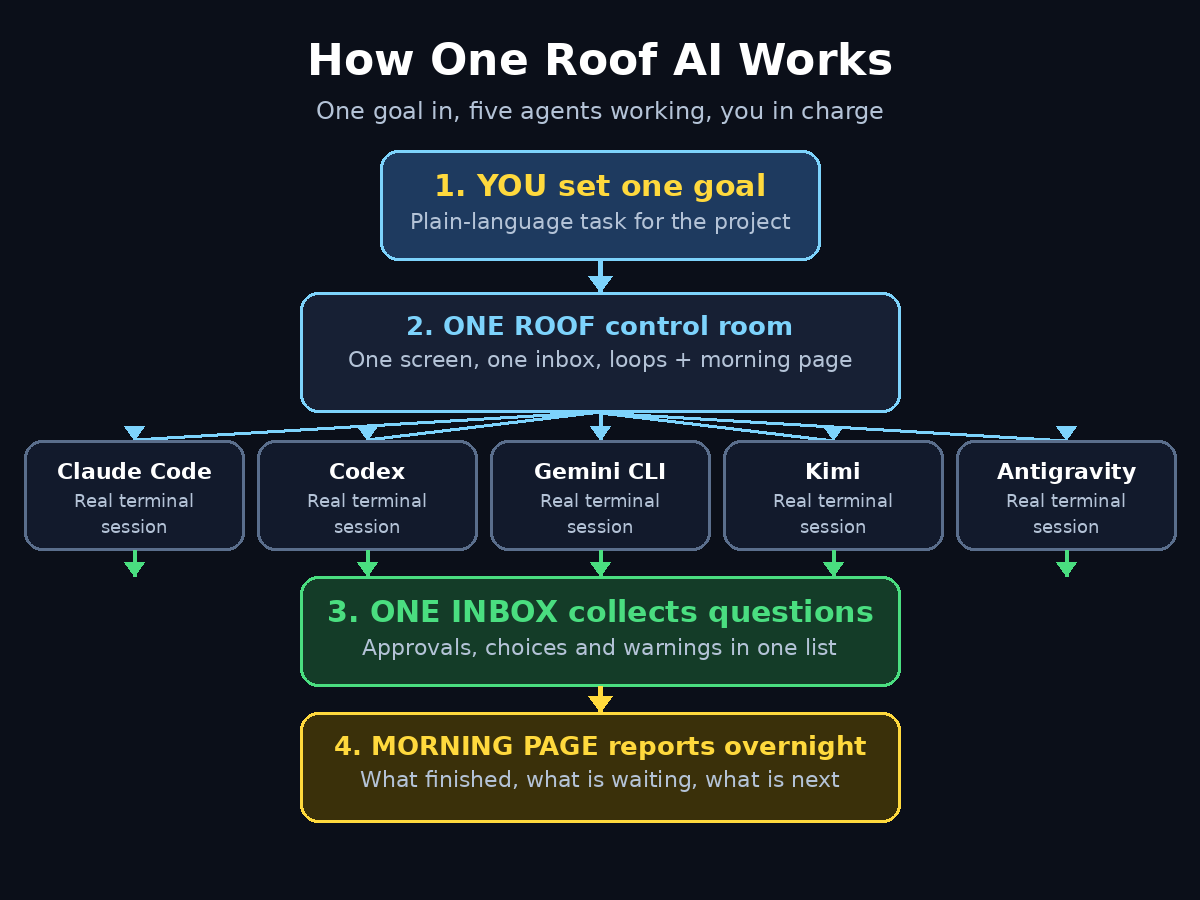
One Roof AI is not another AI model, and it is not a replacement for Claude Code or Codex. Think of it as a control room for the coding agents you already use. Each agent still runs in its own real terminal session, doing real work on your real project. One Roof simply watches all of those sessions from one window and organises what they need from you.
Here is the simple version of how it works:
- Several agent sessions, one screen. You can run Claude Code, Codex, Gemini CLI, Kimi and Google Antigravity side by side. Each session stays a real agent in a real terminal, so you can always click in and type straight into it yourself.
- One inbox for everything they ask. When any agent needs a decision — approve a file change, pick an option, confirm a risky command — the question lands in a single inbox. You answer in one place instead of hunting through terminals.
- Loops that watch, check and report. One Roof ships with about 25 ready-made loops: small automated routines that watch your agents, check their work and report back, with limits and gates so nothing runs away on its own.
- A morning page. Every morning you get a summary page that says what happened overnight: what each agent finished, what is still waiting, and what needs your attention first.
The maker’s own summary says it plainly: “One place for chorus coding: several sessions of Claude Code, Codex, Gemini CLI, Kimi and Antigravity working together, with you in charge.”
That last phrase matters. A lot of multi-agent tools try to remove the human from the loop. One Roof does the opposite. It assumes you are the boss, the agents are the workers, and the software’s job is to make sure you can see and steer everything without living inside five terminal windows.
Step 2: Check Whether Your Mac Can Run One Roof AI
Before you download anything, check the one hard requirement. One Roof currently runs on macOS 14 or newer, on Apple silicon Macs (the M1, M2, M3 and M4 chips). That is the only supported setup at launch.
Here is how to check your Mac in under a minute:
- Click the Apple menu in the top-left corner and choose About This Mac.
- Look at the chip line. If it says Apple M1, M2, M3 or M4, you are good.
- Look at the macOS version. It needs to be 14 (Sonoma) or newer. If you are on macOS 13 or older, update first from System Settings, then come back.
If you use Windows or Linux, One Roof is not for you yet. The maker is a solo developer who has only used it day to day on his own Mac, and the launch notes are honest about that: the tool is new, some rough edges are expected, and feedback is welcome. For now, Windows and Linux users can still learn the workflow from this guide and watch for a future release — or run it on a Mac if one is available.
You will also need at least one coding agent already installed and working on your machine, such as Claude Code or Codex, because One Roof manages agents — it does not replace them. If you have never installed a coding agent before, start with one agent first, get it running on a small project, and then add One Roof on top.
Step 3: Install One Roof AI for Free
Installing One Roof is quick because there is nothing to pay for and no account wall in front of you. The tool is free and open source under the MIT licence, so you can download it, read the code, and use it without a subscription.
Follow these steps:
- Find the official download. Go to the One Roof page on Product Hunt and follow the launch link to the official site, or search for “One Roof chorus coding” and open the maker’s page (console.zibajoon.com). Always download from the official source, never from a random mirror.
- Download the Mac app. Grab the version for Apple silicon and open the downloaded file. Drag the app into your Applications folder, the same way you install any Mac app.
- Open it for the first time. macOS may warn you that the app was downloaded from the internet. Click Open to confirm — this is normal for a new open-source app.
- Let it find your agents. On first launch, One Roof looks for the coding agents already installed on your Mac. If it finds Claude Code, Codex, Gemini CLI or Kimi, it will list them for you. If it finds nothing, it will tell you which agent to install first.
There is no sign-up form, no credit card, and no free-trial countdown. That is one of the reasons the launch stood out: a genuinely free tool in a market where most agent managers charge a monthly fee before you have written a single line of code.
Step 4: Connect Your Coding Agents to One Roof
Once the app is open, the next job is connecting the agents you actually use. One Roof supports Claude Code, Codex, Gemini CLI, Kimi and Google Antigravity, and you can connect as many or as few as you like.
Here is the beginner-friendly way to do it:
- Start with one agent. Pick the agent you already trust — for most people that is Claude Code or Codex. Connect that one first and get comfortable before you add a second.
- Point One Roof at your project. Choose the folder you want the agents to work in. One Roof opens a real terminal session for each agent inside that project, so the agent can see your files and run commands.
- Give each agent a job. This is where chorus coding starts to feel different. Instead of asking one agent to do everything, split the work: one agent writes the feature, another writes the tests, a third reviews the code. Each agent works in its own session, and you watch them all from one screen.
- Add more agents when you are ready. When the first session feels comfortable, add a second agent on a separate task. Two agents working in parallel is the sweet spot for beginners — you get the speed of parallel work without the chaos of five sessions at once.
A practical tip: keep each agent on a separate, clearly named task. “Build the login page” for one agent and “write tests for the login page” for another is a clean split. “Both of you work on the login page” is a recipe for two agents editing the same files and overwriting each other.
Step 5: Start Your First Chorus Coding Session
Your first chorus session is the moment One Roof earns its keep. Here is a simple first run that takes about fifteen minutes and teaches you the whole workflow.
- Pick a small, safe project. Use a practice project or a copy of your real one — not the only copy of something important. Beginners should always test a new agent setup on something they can afford to break.
- Write one clear goal. Open One Roof and type the goal in plain language, for example: “Add a contact form to the homepage with name, email and message fields, and save submissions to a file.” One clear sentence beats a long paragraph.
- Launch two agents. Assign the form itself to your first agent and the tests to your second agent. Start both sessions from One Roof and watch them appear side by side.
- Watch, do not micromanage. Let the agents work. You will see their output in their own terminal panels. Resist the urge to type into every session — the point of the control room is that you can see everything without living inside it.
- Answer questions from the inbox. When an agent needs a decision, the question appears in your One Roof inbox. Answer it there, and the agent carries on. This is the whole secret of the tool: the questions come to you, instead of you hunting for them.
When both agents report done, review the changes yourself before you accept them. Read the code, run the project, and check that the form actually works. One Roof makes multi-agent work manageable, but it does not remove your job as the person who checks the result.
Step 6: Use the Inbox to Answer Every Agent Question in One Place
The inbox is the feature you will use most, and it is the feature that saves the most time. In a normal multi-agent setup, every agent stops and waits in its own window, and you have to notice the stop, switch to that window, read the question, answer it, and switch back. With three or four agents, you spend more time switching windows than coding.
One Roof’s inbox fixes that in three ways:
- Every question lands in one list. Approvals, choices, confirmations and warnings from all your agents appear in a single inbox, newest first.
- You answer with context. Each inbox item shows you which agent asked, what it was doing, and what it wants to do next, so you can answer sensibly without re-reading the whole session.
- Nothing gets lost. An agent that is waiting shows up as a waiting item, not as a silent frozen terminal you forgot about. You can see at a glance which agents are working, which are waiting, and which are finished.
Build a habit around the inbox: check it every few minutes while agents run, answer the quick questions straight away, and leave the tricky ones for a proper look. If you work with a team, the inbox also becomes a natural place to show what the agents are doing — a digital agency running several client projects can keep each project’s agent questions in one view instead of scattered across developers’ screens. The same idea scales to any workflow where several AI helpers need human sign-off, which is exactly the kind of practical setup the team at a digital agency like D365A builds for clients who want AI assistance without losing control.
Step 7: Set Up Loops That Watch, Check and Report
Loops are One Roof’s quiet superpower, and they are included in the free version. A loop is a small automated routine that watches your agents, checks their work, and reports back — with limits and gates so it cannot run wild.
One Roof ships with about 25 ready-made loops. You do not need to use all of them. Start with three that help every beginner:
- A check loop. After an agent says a task is done, the loop re-reads the changed files and reports whether the work actually matches what you asked for. It catches the “says done, is not done” problem early.
- A watch loop. While agents run, the loop watches for errors, failed tests or stuck sessions and flags them in your inbox instead of letting them sit silently.
- A report loop. At the end of a session, the loop writes a short summary: what changed, which files were touched, and what still needs a human eye.
The important part is the limits and gates. Every loop runs inside boundaries you set: how often it can run, what it is allowed to touch, and when it must stop and ask you. That is what keeps One Roof safe for beginners. You are not handing the keys to an unsupervised system — you are giving a careful assistant a checklist and a curfew.
To enable a loop, open the loops list in One Roof, read what the loop does, turn on one loop, and watch it work for a day before you turn on the next. Turning on all 25 at once is the beginner mistake. One at a time, you learn what each one actually does for you.
Step 8: Read Your Morning Page Every Day
The morning page is One Roof’s simplest idea and one of its most useful. Every morning, One Roof shows you a page that says what happened overnight: which agents finished their work, which tasks are still open, and what needs your attention first.
Think of it as a stand-up meeting written by the software. Instead of opening five terminals and scrolling through five histories, you read one page and you know where everything stands.
Use the morning page as your daily planning tool:
- Start here, not in the terminals. Read the page first, then open only the sessions that need you.
- Turn overnight results into today’s tasks. Finished work becomes “review and merge”. Unfinished work becomes “restart with a clearer prompt”. Blocked work becomes “answer the waiting question”.
- Keep a simple log. If you run agents overnight more than once a week, keep a short note of what each morning page said. After a month you will see patterns: which agents finish reliably, which tasks always stall, and which prompts need rewriting. That log becomes your own playbook for getting more out of every agent you run, and it is the same kind of honest record-keeping that good AI automation services use when they report results to clients — for example, the team behind Agentic Affairs documents what their AI agents actually delivered, not just what was promised.
The morning page only works if your agents actually ran overnight, so do not expect a full page on day one. Give it a week of real use, and it becomes the first thing you open every morning.
Step 9: Keep Control With Limits and Gates
Everything in One Roof is built around one idea: you stay in charge. The tool gives you several ways to enforce that, and beginners should set them up before running agents on anything important.
- Approve risky actions. Set One Roof so that agents must ask before they delete files, install packages, or run commands that change things outside the project folder. An agent that can do anything without asking is an accident waiting to happen.
- Limit what each agent can touch. Point each agent at one project folder and keep it there. An agent with access to your whole computer is far more dangerous than an agent with access to one folder.
- Use the gates on loops. Every loop has limits: how often it runs, how much it can do, and when it must stop. Keep those limits tight while you are learning. You can loosen them later when you trust the setup.
- Type straight into any session. Because each session stays a real agent in a real terminal, you can always click into it and type a correction yourself. You are never locked out of your own agents. If an agent goes in the wrong direction, stop it, type a clearer instruction, and let it try again.
This is the part of One Roof that most beginners skip, and it is the part that matters most. Multi-agent coding is powerful precisely because several agents can change a lot of code very quickly — and that is also why it needs a human in charge. Set the limits first, run the agents second.
Step 10: One Roof AI vs Other Multi-Agent Tools
One Roof is not the only way to run several coding agents at once. Here is how it compares with the tools beginners usually consider, so you can pick the right one for your situation.
| Tool | What it does | Price | Best for |
|---|---|---|---|
| One Roof AI | Runs Claude Code, Codex, Gemini CLI, Kimi and Antigravity side by side, one inbox, loops, morning page | Free, open source (MIT) | Beginners who want control on a Mac |
| Paradev AI | Manages Claude Code, Codex and OpenCode side by side in one app | Free start listed | Beginners who want a polished manager app |
| Beacon AI | Shared memory for coding agents so they stop forgetting your project | Free start listed | Teams whose agents keep re-learning the same context |
| Plain terminal windows | One window per agent, no manager at all | Free | One agent at a time, or very patient users |
| Full agent frameworks | Build your own multi-agent system with code | Free to expensive | Developers building a product, not a project |
If you want the cheapest way to run several agents with real oversight, One Roof is the obvious starting point: it costs nothing, it is open source, and its whole design is built around keeping you in charge. If you later want shared memory across agents, pair it with a memory tool — our guide to Beacon AI explains how that works. And if you prefer a more polished manager app, our guide to Paradev AI covers the closest alternative.
Frequently Asked Questions
Is One Roof AI really free?
Yes. One Roof is free and open source under the MIT licence. There is no paid plan, no subscription, and no credit card required at launch. The maker built it for his own daily use and released it publicly on Product Hunt on November 2, 2026. Because it is open source, you can read the code and even contribute fixes. As with any new launch, check the official page for updates, because a solo project can change quickly.
Does One Roof AI work on Windows?
Not at launch. One Roof runs on macOS 14 or newer on Apple silicon Macs only. No Windows or Linux version has been announced. If you are on Windows, you can still follow the workflow ideas in this guide with separate terminal windows, and watch the project’s page for a future release.
Which coding agents does One Roof AI support?
One Roof supports Claude Code, Codex, Gemini CLI, Kimi and Google Antigravity. Each agent runs in its own real terminal session inside One Roof, so you can always click in and type to the agent directly. You need at least one of these agents installed and working before One Roof is useful.
What is chorus coding?
Chorus coding is the maker’s name for running several AI coding agents together, like a chorus singing in harmony instead of one solo voice. Each agent takes a different part — one writes the feature, another writes the tests, a third reviews — and One Roof conducts them from one place, with you as the conductor. The point is parallel work with human control, not unsupervised automation.
Can One Roof AI agents work without my permission?
No, not if you set it up the way this guide describes. Agents ask for approval through the inbox before risky actions, loops run inside limits and gates you set, and you can type straight into any session at any time. One Roof is designed so that you stay in charge — but like any powerful tool, it needs you to actually set those limits instead of leaving everything wide open.
Is One Roof AI safe for a real project?
It can be, with the right precautions. Run it first on a practice project, keep each agent inside one project folder, require approval for deletions and installs, and review every change before you accept it. One Roof is brand new and the maker is honest that it is a solo project — so treat the first week as a trial, keep backups, and only move it onto a real project once you trust the setup.
Final Thoughts
One Roof AI solves a real problem that every multi-agent user hits sooner or later: the more agents you run, the harder it is to see what any of them is doing. Instead of adding another layer of automation on top of the chaos, One Roof adds a control room — one screen, one inbox, a few careful loops, and a morning page that tells you where everything stands.
For beginners, the appeal is simple. It is free, it is open source, and it does not ask you to trust a black box. Your agents stay real agents in real terminals, your questions all land in one inbox, and you can step in and type to any agent at any moment. Start with one agent and one small project, turn on one loop at a time, read the morning page every day, and set your limits before you set your agents loose.
If you have been curious about running Claude Code and Codex side by side but put off by the window-juggling, this is the week to try it. Download One Roof, run your first chorus session on a practice project, and see how much calmer multi-agent coding feels when you are actually in charge.