

Introduction
Beacon AI is the tool that stops your AI coding agents from forgetting everything they learn. If you use Claude Code, Cursor, or Codex, you already know the frustration: you spend an afternoon teaching one agent how your project works, you fix a tricky bug together, and then the next day you open a different tool and have to teach it the exact same lesson all over again. Beacon AI fixes that by giving all of your coding agents one shared memory.
Beacon AI is a free, open-source memory layer for AI coding agents, built by Asymptote Labs. It captures what happens inside your agent sessions, turns the useful discoveries into reusable knowledge, and makes that knowledge available to every agent you use. As a result, a problem solved once in Claude Code never has to be solved from scratch in Cursor or Codex. Launched on Product Hunt on November 2, 2026, Beacon AI quickly reached the number one spot on the hot list, because it solves a pain that almost every developer using AI agents feels every single day.
This beginner-friendly guide walks you through everything: what Beacon AI is, how its memory actually works, how to choose between Local and Cloud mode, how to install it, how to connect it to Claude Code, Cursor, and Codex, how to review the knowledge it extracts, and how to keep your secrets safe. You do not need to be an expert developer to follow along, and you do not need a credit card to start, because Beacon AI is free and open source under the MIT license.
Step 1: What Is Beacon AI?
Beacon AI is a memory layer that sits across your AI coding agents instead of inside any single one of them. Most coding agents keep their own private memory. Claude Code remembers what happened in Claude Code, Cursor remembers what happened in Cursor, and Codex remembers what happened in Codex. When you switch tools, that knowledge stays behind.
Beacon AI changes this by capturing session history from more than 20 coding harnesses, including Claude Code, Cursor, Codex, OpenCode, and Cline, and normalizing everything into one common format. Then it reviews finished sessions, picks out the workflows, corrections, and debugging patterns that actually matter, and turns them into reusable knowledge that any of your agents can retrieve later.
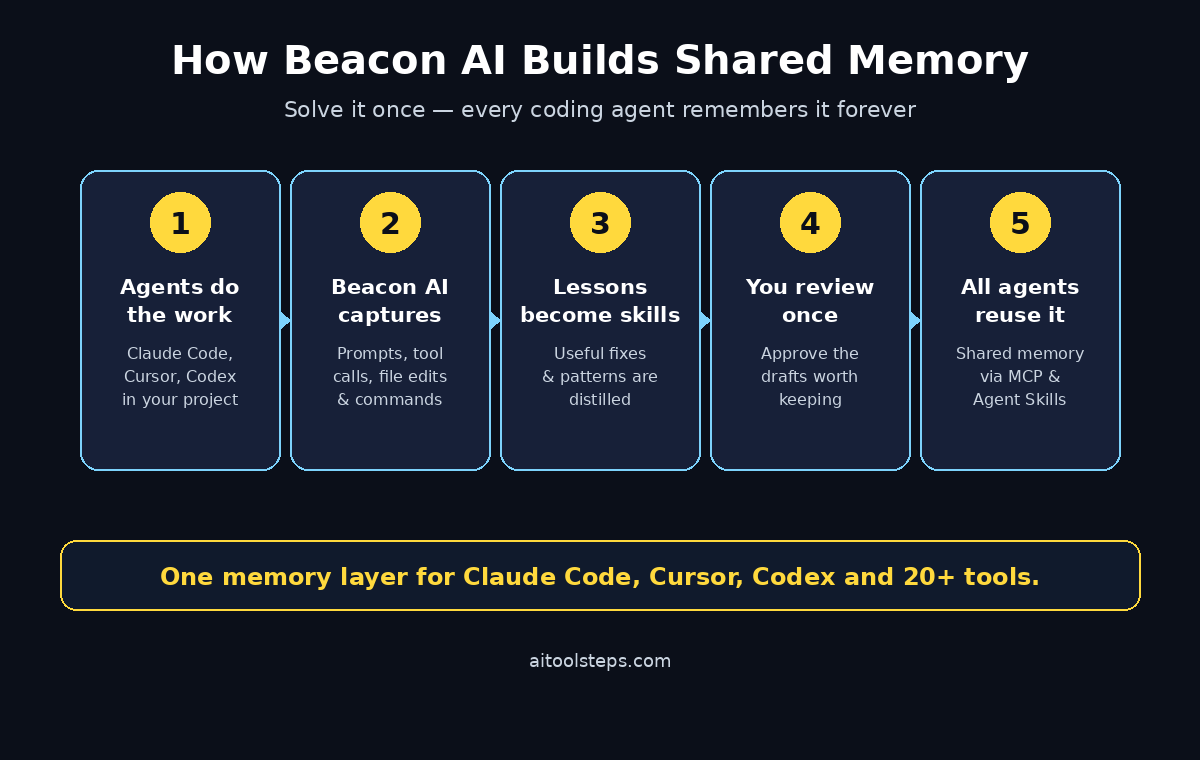
Here is the idea in simple terms:
- You work normally. You keep using Claude Code, Cursor, or Codex exactly as you do today.
- Beacon AI watches quietly. It records prompts, responses, tool calls, commands, file edits, approvals, and token usage in the background.
- It distills what mattered. After a session ends, Beacon AI reviews the trace and drafts the useful lesson into a small, reusable skill.
- You approve it. Nothing becomes shared memory until a human reviews it once.
- Every agent benefits. The next time any supported agent faces the same problem, it can pull that knowledge in through MCP or Agent Skills.
The team behind Beacon AI calls this process “dreaming,” because it works a little like sleep: your agents do the work during the day, and Beacon AI consolidates the lessons overnight. The company behind it, Asymptote Labs, is a New York startup founded by former Doppel engineers Justin D’Souza and Shukan Shah. In October 2026, the company announced a $5.5 million seed round led by Tower Research Ventures to keep building Beacon AI in the open.
Step 2: How Beacon AI Memory Actually Works
Understanding the workflow makes the setup much easier, so here is the full loop that Beacon AI runs for you.
First, capture happens automatically. Beacon AI records every agent session across your machine into local JSONL trace files, using an OpenTelemetry-based event model. That means prompts, responses, tool calls, commands, file activity, approvals, MCP interactions, and token usage are all stored in one consistent format, no matter which harness produced them.
Second, evaluate looks at what happened. After a session finishes, Beacon AI reviews the trace and asks a simple question: did anything here teach us something worth keeping? A routine file edit probably did not. A hard-won debugging fix probably did.
Third, extract turns the useful moment into knowledge. Beacon AI drafts it as a concrete, reusable skill. The company’s own example is a webhook retry bug: an agent discovers a repository-specific signing rule while fixing it, and instead of that fix living only inside one Claude Code transcript, it becomes a skill that a later Codex or Cursor session can retrieve.
Fourth, review keeps a human in charge. The drafted skill waits for your approval before it ships. This step matters, because you should expect to curate what Beacon AI extracts rather than getting perfect memory on day one.
Finally, reuse closes the loop. Approved knowledge is served back to your agents through MCP or Agent Skills, so the next agent that hits the same problem starts smarter than the last one. Over time, this creates a compounding knowledge layer: every session makes every future session a little better.
Step 3: Local vs Beacon Cloud — Choose Before You Install
Before you install anything, decide where your traces should live, because this is the most important choice in the whole setup.
Local mode keeps everything on your own machine. Traces are written to local JSONL files, the local MCP server never touches the network, and nothing is sent to Asymptote Labs or anyone else. If privacy matters to you, or if you work with client code, this is the mode to choose.
Beacon Cloud forwards your normalized history to Asymptote Labs, so you get a hosted dashboard and cross-device access to your memory. It is convenient, but it does send your prompts and commands off your machine.
Here is the detail beginners often miss: the interactive setup signs you in through beacon.sh and preselects Beacon Cloud, with Local as an explicit opt-out. Signing in by itself forwards nothing, but confirming the preselected Cloud option installs Beacon AI and starts forwarding your history. The confirmation screen says this plainly before you accept, so read it carefully. If you want everything to stay on your machine, choose Local during setup. You can disconnect a cloud endpoint at any time later with the command beacon endpoint disconnect.
For this guide, we will use Local mode, because it is free, private, and enough for everything a beginner needs. You can switch to Cloud later if you want the hosted dashboard.
Step 4: Install Beacon AI on Your Computer
Installation takes only a few minutes, and you have two easy routes. Pick the one that matches your computer.
On a Mac with Homebrew:
- First, update Homebrew with
brew update. - Then add the Beacon AI tap with
brew tap asymptote-labs/tap. - Next, install Beacon AI with
brew install beacon. - Finally, run the endpoint installer with
beacon endpoint install. When it asks for a destination, choose Local.
On Linux, or on a Mac without Homebrew:
- Run the official install script with
curl -fsSL https://github.com/asymptote-labs/agent-beacon/releases/latest/download/install.sh | bash. - Then run
beacon endpoint installand choose Local when asked for a destination.
If you ever get stuck, the official start guide at beacon.sh/start.md walks through the same steps, and the full documentation lives at docs.beacon.sh. The source code is public at github.com/asymptote-labs/agent-beacon, so you can inspect exactly what the tool does before you trust it with your sessions.
Once the installer finishes, Beacon AI starts capturing session history in the background. You do not need to change how you work. Just keep using your coding agents, and the traces will accumulate on their own.
Step 5: Connect Beacon AI to Claude Code
Claude Code is the harness with the fullest Beacon AI support, so connect it first.
During the install, the wizard places the Beacon Skills into ~/.agents/skills and ~/.claude/skills unless you turn that off. These Agent Skills are what let Claude Code recall and distill project memory from your traces. Check that the skills folder exists after installation; if it is empty, re-run the installer or install the skills manually.
You can also install Beacon AI as a Claude Code plugin. Inside Claude Code, run /plugin marketplace add asymptote-labs/agent-beacon to add the marketplace, then install the plugin from it. Alternatively, use the skills CLI with npx skills add asymptote-labs/agent-beacon.
After that, open Claude Code and start a normal task, for example asking it to fix a small bug or explain a file. Beacon AI captures the session silently. When the session ends, the review step can draft any useful lesson into a skill for your approval. You do not need to prompt Claude Code about Beacon AI at all; the memory layer works underneath your normal workflow.
Step 6: Connect Beacon AI to Cursor and Codex
The real power of Beacon AI shows up when a second tool joins the same memory, so connect Cursor and Codex next.
In Cursor, the Beacon Skills installed into ~/.agents/skills are picked up by the agent, and the MCP server gives it access to the same memory Claude Code built. Ask Cursor to work on the same project you used with Claude Code, and watch whether it already knows the patterns your earlier session discovered. That is the moment Beacon AI clicks: knowledge learned in one harness informing another.
In Codex, connect the same way, through the Beacon MCP server or the installed skills. Then try the same test: give Codex a task related to a problem you already solved elsewhere, and see whether it reaches for the shared knowledge instead of rediscovering the fix.
A few honest notes on coverage: Beacon AI’s own support table shows full capture for Claude Code, but with gaps elsewhere, including no file-activity capture for the Codex CLI and no token capture for Cursor. These gaps do not break the workflow, but they are worth knowing, because a memory built from Cursor sessions will simply contain less detail than one built from Claude Code.
Step 7: Run Your First Agents and Let Beacon AI Capture Sessions
Now that everything is connected, give Beacon AI something real to learn from.
Pick a small, genuine task in a project you care about, for example fixing a failing test, adding a small feature, or cleaning up a messy function. Run it in Claude Code first, and let the agent work through the problem, including any mistakes and corrections along the way. Those corrections are exactly what Beacon AI is looking for.
Next, switch to a different harness and try a related task in the same project. For example, if Claude Code fixed a webhook retry bug, ask Cursor to add a similar retry to another endpoint. If Beacon AI has already distilled the signing rule into a skill, Cursor should apply it without you repeating the explanation.
Finally, check what was captured. Your traces live as local JSONL files, and you can inspect them to see prompts, tool calls, and file activity in one place. This is also useful for auditing: instead of five incompatible session logs from five tools, you now have one trace format and one local file to review.
Step 8: Review and Approve the Knowledge Beacon AI Extracts
This step is where Beacon AI earns its trust, so do not skip it.
After sessions finish, Beacon AI drafts candidate knowledge from the traces. Each draft is a small, concrete lesson, such as “this repository signs webhook retries with this header” or “always run this test command before that deploy step.” Review each draft once before it ships into shared memory. Approve the ones that are correct and generally useful, and reject the ones that are too specific, wrong, or tied to a one-off situation.
Over the first week, expect to curate more than you approve. That is normal. The extraction improves as Beacon AI sees more of your real work, and your review history teaches it what counts as useful in your projects. After a few weeks, the drafts get sharper, and the review step takes only a minute or two.
Think of this like editing a shared team notebook. The value is not in capturing everything; it is in keeping the few lessons that save real time the next time they apply. A tidy memory beats a noisy one.
Step 9: Reuse Memory Across Tools with MCP and Agent Skills
Approved knowledge reaches your agents through two channels, and both are worth understanding.
Agent Skills are the simplest channel. The Beacon Skills installed during setup let each harness recall and distill project memory from your traces. When an agent starts a task, the relevant skills are available to it, so it can pull in the lessons that match the work at hand.
MCP (Model Context Protocol) is the live channel. Locally, beacon mcp serve runs the local Beacon MCP server, which never touches the network. With Beacon Cloud, beacon mcp connect registers the hosted beacon-managed MCP server in Claude Code, Codex CLI, Cursor, VS Code, Gemini CLI, and OpenCode. Each harness signs in, and then it can search and read your knowledge base directly.
In practice, you do not need to choose between them. Install the skills for recall, and let MCP handle live lookups. Together they mean an agent can both remember the distilled lessons and search the raw traces when it needs the full story. If you run a small business and want help setting up AI workflows like this across your team, a digital agency can help you design the setup; likewise, teams building AI-powered products can explore AI automation services to put agent memory to work at a larger scale.
Step 10: Replay a Session and Audit What Happened
Beacon AI is not only a memory tool. Because it keeps complete traces, it is also an audit tool, and that second job is genuinely useful.
Exact session replay lets you reconstruct what an agent did, step by step: which prompts it received, which tools it called, which files it changed, and which commands it ran. That is invaluable when something goes wrong in production and you need to know whether the agent or the human made the call.
The same traces can also be forwarded to observability tools. Beacon AI can send its normalized history to Splunk, Datadog, Elastic, Microsoft Sentinel, AWS S3, and other destinations, and content packs exist for several SIEM platforms. This is mainly a team feature, but even solo developers benefit from knowing that one trace format feeds every audit view.
One caution from Beacon AI’s own documentation: dashboard lenses run in a sandboxed frame, but the sandbox cannot block every way a browser can send data out, so only install lenses you trust with your traces. Treat third-party lenses the way you would treat any browser extension: useful, but only from sources you trust.
Step 11: Keep Secrets Out of Your Traces
Beacon AI records prompts, responses, commands, and file edits, so it can also record secrets if you are careless. This step protects you.
First, never paste API keys, passwords, or tokens into an agent chat. If a key ends up in a trace, it can end up in shared memory and in any forwarded destination. Use environment variables and secret managers instead, and keep credentials out of prompts entirely.
Second, prefer Local mode if you work with client code, private repositories, or anything under an NDA. Local mode keeps traces on your machine, while Cloud mode sends them to Asymptote Labs by design.
Third, review extracted knowledge before approving it, as Step 8 describes. A draft skill that quotes a secret should be rejected, not approved.
Finally, remember that forwarding is opt-in and visible. The setup screen tells you before anything leaves your machine, and beacon endpoint disconnect removes a cloud endpoint at any time. Check your endpoints occasionally with the Beacon CLI to make sure nothing is forwarding that you did not intend.
Step 12: Fix Common Beacon AI Problems
Even a smooth install hits a snag sometimes, so here are the fixes for the problems beginners meet most often.
- No memory appears after a session. First, check that the Beacon Skills are installed in
~/.agents/skillsand~/.claude/skills. If the folders are empty, re-run the installer or add the skills withnpx skills add asymptote-labs/agent-beacon. - An agent does not know what another agent learned. Make sure both harnesses are connected to the same Beacon endpoint, and that the lesson was actually reviewed and approved. Unreviewed drafts are not shared memory yet.
- Setup keeps pushing you toward Cloud. The installer preselects Beacon Cloud. Choose Local explicitly during setup, and if Cloud was already confirmed, run
beacon endpoint disconnectto remove it. - Traces are missing details in Codex or Cursor. This is a known coverage gap: no file-activity capture for the Codex CLI and no token capture for Cursor. Use Claude Code for the sessions where full detail matters most.
- Extracted knowledge looks wrong. Reject the draft and keep working. Extraction improves with more sessions, and your rejections are part of how it learns what counts as useful.
- You pasted a secret into an agent. Rotate the secret immediately, delete the affected trace files if you use Local mode, and do not approve any draft that quotes it.
If none of these fixes help, the documentation at docs.beacon.sh and the public repository at github.com/asymptote-labs/agent-beacon are the fastest places to find answers, because the project is built in the open and issues are discussed publicly.
Beacon AI vs Other AI Options
| Feature | Beacon AI | Claude Code memory | Cursor memory | Plain notes |
|---|---|---|---|---|
| Works across tools | Yes, 20+ harnesses | No, Claude Code only | No, Cursor only | Yes, but manual |
| Captures sessions automatically | Yes | Partially | Partially | No |
| Turns lessons into reusable skills | Yes, with human review | No | No | No, manual writing |
| Local-first privacy option | Yes, Local mode | N/A | N/A | Yes |
| Price to start | Free, open source (MIT) | Included in Claude plans | Included in Cursor plans | Free |
| Best for | Developers using several AI agents | Claude Code only users | Cursor only users | Tiny projects |
Prices and free tiers change often, so check each tool’s own pricing page before you commit to a workflow that depends on it.
Frequently Asked Questions
Is Beacon AI really free?
Yes, to start. Beacon AI is free and open source under the MIT license, and the Product Hunt listing shows a price of $0. The company’s revenue comes from a separate enterprise platform built on top of it that enforces policy guardrails on live agent activity. The memory layer itself costs nothing, although heavier team features may eventually be paid, so check the pricing page inside your account before you build a workflow that depends on them.
Do I need to know how to code to use Beacon AI?
You need basic comfort with a terminal, because installation uses Homebrew or a curl script and a few short commands. You do not need to write code or build anything yourself. If you can install an app from the command line and follow a setup wizard, you can install Beacon AI. If terminal commands are new to you, follow Step 4 slowly, one command at a time.
Does Beacon AI send my code to the cloud?
Not in Local mode. In Local mode, everything stays on your machine in local JSONL files, and the local MCP server never touches the network. In Beacon Cloud mode, your normalized history is forwarded to Asymptote Labs. The setup screen tells you which mode is selected before anything is sent, so choose Local if you want your code to stay private.
Which coding agents work with Beacon AI?
Beacon AI supports Claude Code, Cursor, Codex, OpenCode, Cline, and more than 20 other harnesses. Claude Code has the fullest capture support, while Codex CLI and Cursor have known gaps, such as no file-activity capture for Codex CLI and no token capture for Cursor. Check Beacon AI’s own support table for the harness you use most.
Can Beacon AI remember things across different projects?
Yes, and that is the point. Beacon AI captures sessions across your environment and distills project-specific lessons, so knowledge learned in one project can inform another when the lesson applies. However, review each extracted skill before approving it, because a lesson that is specific to one repository should not be treated as a general rule.
What happens if I stop using Beacon AI?
Nothing breaks. Beacon AI writes nothing into your agents’ configuration beyond the installed skills, and your agents keep working exactly as they did before. Your traces remain as local files you can delete, and you can disconnect any cloud endpoint with beacon endpoint disconnect. Your agents do not depend on Beacon AI to function.
Final Thoughts
Beacon AI solves a problem that gets worse every month: the more AI coding agents you use, the more knowledge you lose between them. A fix learned in Claude Code should not have to be relearned in Cursor, and a debugging pattern discovered in Codex should not vanish when the session ends. Beacon AI turns those scattered sessions into one compounding memory, and it does it for free, in the open, with a human review step that keeps you in control.
Start small. Install Beacon AI in Local mode, connect Claude Code, and run one real task. Then connect a second harness, review the first extracted lessons, and watch the second agent start smarter than the first. Within a week, you will have a small library of lessons that saves you real time. Within a month, you will wonder how you ever worked without shared agent memory. If you found this guide useful, you may also enjoy our beginner guides to CuriousLM AI, Agent Inbox AI, and Builderii AI — three more free tools that make AI agents easier to use every day.
Explore More Free AI Tools
Want to keep building your AI toolkit? Try our free tools at AIToolSteps: the AI Title Generator for headlines that get clicked, the Meta Description Generator for search snippets that earn clicks, the AI Rewriter for polishing any draft, and the Keyword Density Checker for keeping your SEO on track. All free, all in your browser, no sign-up needed.