

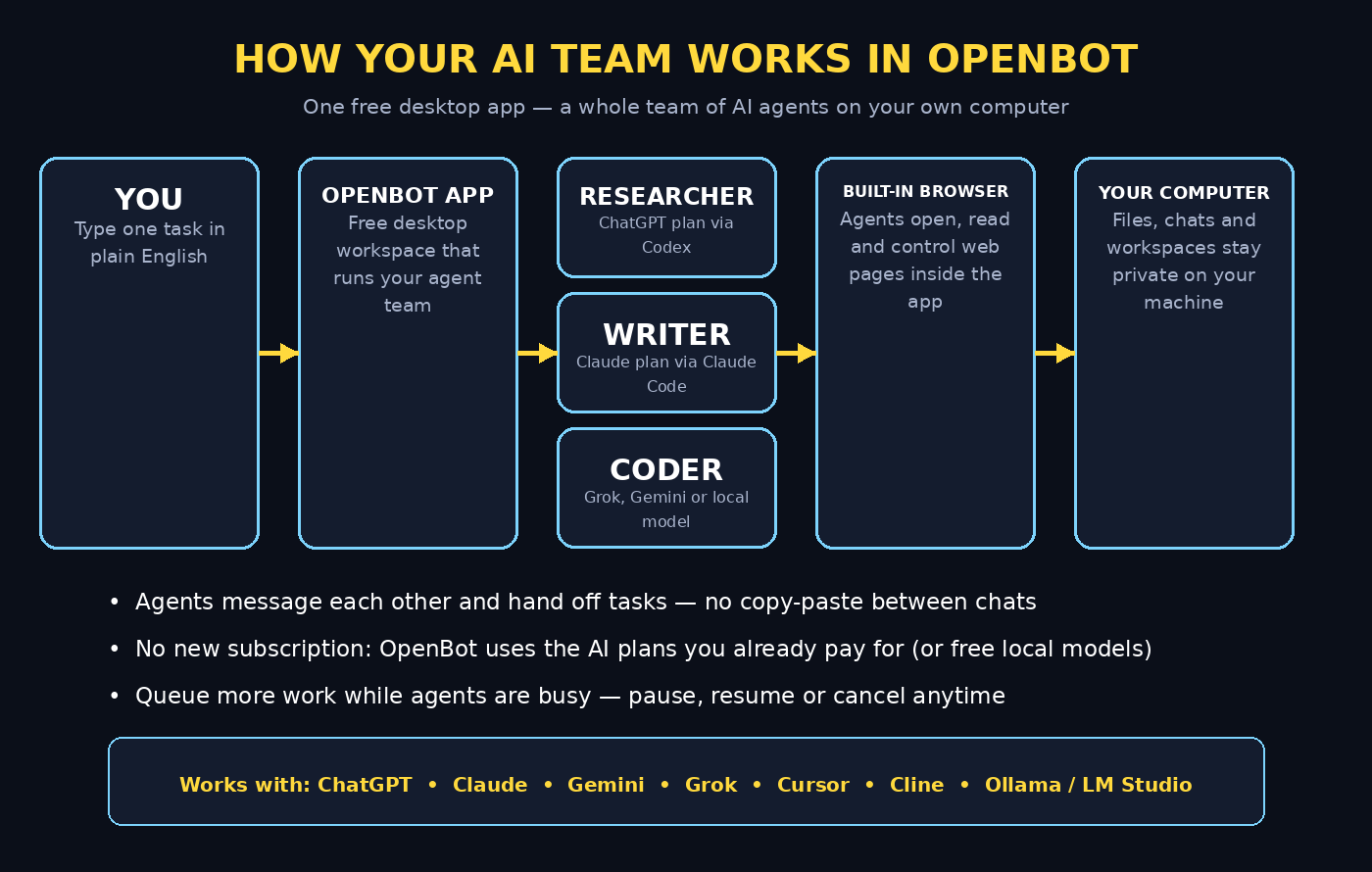
Most AI tools give you one chat window and one assistant. OpenBot AI flips that idea on its head: it turns your own computer into a small office where a team of AI agents works together. Each agent gets a name, its own instructions, and its own workspace. The agents message each other, hand off tasks, and share files — while everything stays on your machine.
Here is the clever part: OpenBot sells you no AI model and asks for no new subscription. Instead, it plugs into the AI plans you already pay for — ChatGPT (through Codex), Claude (through Claude Code), Gemini, Grok, Cursor, Cline, or OpenCode — and it even works with completely free local models through Ollama or LM Studio. The desktop app itself is free and open source, it finished as the #2 Product of the Day on Product Hunt in October 2026, and it runs on macOS, Windows, and Linux, with iPhone and Android apps to reach your agents on the go.
This beginner-friendly guide shows you exactly how to use OpenBot AI: installing it, connecting your first provider, creating an agent team, making agents collaborate, and staying safe while they work.
Step 1: Understand What OpenBot AI Is (and What It Is Not)
Before you install anything, get the mental model right — it will save you confusion later.
- OpenBot is a desktop workspace for AI teammates, not a chatbot. Think of it as mission control: you define agents with roles, and they work in the background like persistent colleagues.
- It is not a model vendor. OpenBot does not train or sell an AI model. You bring your own plan (ChatGPT, Claude, Gemini, Grok) or your own local model, and OpenBot orchestrates the agents.
- Agents are persistent. Each agent keeps its workspace and its conversation even when you restart the app or switch it to a different AI provider.
- Agents can truly collaborate. They send each other messages, hand off tasks, and share files through shared channels — you are not copy-pasting between chat windows.
- It has a built-in browser. Agents can open, read, and control web pages inside OpenBot itself, so research tasks happen without you babysitting tabs.
- You can queue work. Send an agent new tasks while it is busy; messages wait in a queue you can pause, resume, or cancel.
What it is not: a magic button that does your whole job, a sandboxed environment where nothing can go wrong, or a free source of unlimited AI model usage. Your model usage still runs through whatever provider plan you connect (more on that in Step 3), and agents get broad permissions on your files once you approve them — so Step 10’s safety rules matter.
Step 2: Download and Install OpenBot on Your Computer
OpenBot is a desktop app, so everything starts with a download. Get it only from official sources — the project’s website or its GitHub releases page (search “nightly-labs openbot”) — never from a random download mirror, because a fake installer could be malware.
- macOS (13 or newer): Download the
.dmgfile — thearm64build for Apple silicon Macs, thex64build for Intel Macs. Open it, drag OpenBot into your Applications folder, and launch it. - Windows (10 or newer, 64-bit): Download the
x64installer.exe, run it, and open OpenBot from the Start menu. - Linux: Download the
.AppImage(x86_64, or arm64 for ARM machines), make it executable, and run it.
On first launch you get a short tour of the workspace: a sidebar with your agents, a central chat area, and panels for workspaces and shared channels. Take two minutes to click around before connecting anything — knowing where the “new agent” button and the provider settings live makes the rest of this tutorial much smoother.
Step 3: Connect Your First AI Provider
This is the step most beginners misunderstand, so read it carefully: OpenBot itself is free, but the AI “brains” come from plans you already have. You sign in to the AI subscriptions you pay for, and each agent borrows one of them. Supported connections include:
- Codex — uses your ChatGPT plan
- Claude Code — uses your Claude plan
- Gemini — uses your Google AI Pro or Ultra plan
- Grok — uses your Grok account or an xAI API key
- Cursor — uses your Cursor plan or API key
- Cline — uses your Cline account or API key
- OpenCode — free models, or an OpenCode key
- Your own model — any OpenAI-compatible server, including one on your own computer
Here is how to connect one:
- Open OpenBot and go to Settings → Providers.
- Pick the provider whose plan you already pay for (beginners: just choose whichever subscription is already in your pocket — do not buy a new one for this).
- Follow the sign-in flow to authorize OpenBot to use that plan.
- Repeat for any other providers you want your team to mix and match.
If you currently pay for no AI plan at all, do not worry — you can still use OpenBot completely free by connecting a local model through Ollama or LM Studio. That setup is covered in Step 9, and it also happens to be the most private way to run the app.
Step 4: Create Your First Agent and Give It a Clear Role
Now the fun part: hiring your first AI teammate.
- Click the new agent button in the sidebar.
- Give the agent a name — something role-like works best, for example “Researcher” or “Draft Writer”.
- Write its instructions. This is the agent’s job description, and the quality of your results depends on it. A good pattern is: goal + boundaries + output format. For example: “You are my research assistant. Gather facts from reputable sources, never invent statistics, and return findings as short bullet points with links.”
- Assign it a workspace — a folder on your computer where it keeps its files. Use a fresh, dedicated folder (not your Documents root), so the agent’s work stays tidy and contained.
- Pick which connected provider this agent should use.
Then give it a small test task, something like: “Find three beginner-friendly tutorials about starting a newsletter and summarize each in two sentences.” Watch how it works: it may use the built-in browser to open pages, save notes to its workspace, and report back. This first run teaches you more than any documentation — you will see exactly how much the agent does on its own and where it asks for guidance.
Step 5: Add a Second Agent and Let Them Collaborate
One agent is an assistant; two agents are a team. This is where OpenBot gets genuinely different from every chatbot you have used.
- Create a second agent — call it “Writer” — with instructions like: “You turn research notes into clear, friendly blog drafts. Write in short paragraphs and simple English.”
- Open a shared channel that both agents can see.
- Give the Researcher a task and tell it to hand off its findings to the Writer when done.
What happens next feels a little magical the first time: the Researcher gathers material, messages the Writer with its notes, and the Writer produces a draft from them — all without you acting as the middleman. Teams running a digital agency use exactly this pattern: one agent pulls client briefs and competitor facts while another drafts the report, so a two-person workflow runs while the humans focus on strategy.
Start with two agents. Once you trust the handoff rhythm, you can add a third — for example an “Editor” that proofreads the Writer’s draft — and you will have a tiny content pipeline running on your laptop.
Step 6: Queue Tasks While Your Agents Are Busy
Real teams do not stop the world every time someone is mid-task, and neither does OpenBot. While an agent is working, you can keep sending it more work: the messages wait in a FIFO queue that you can pause, resume, or cancel at any time.
A practical beginner workflow looks like this:
- Morning: ask your Researcher for background on three topics and queue all three at once.
- While it works through the queue, open the Writer and queue the drafting tasks that depend on the research.
- If priorities change, pause a queued item or cancel it — no need to wait for the current task to finish first.
This queue system is also what makes OpenBot practical on a normal computer: you do not need five terminal windows or five chat tabs. One window, one queue per agent, and you always know what is running and what is waiting.
Step 7: Let Agents Use the Built-in Browser
One of OpenBot’s most useful features is easy to miss: every agent gets a browser built into the app. Agents can open pages, read them, and even control them — which means research tasks that used to need you at the keyboard now run themselves.
Try this beginner exercise:
- Ask your Researcher: “Open the pricing pages of three popular email tools and compare their free plans in a table.”
- Watch (or check later) as it opens the pages inside OpenBot, extracts the details, and saves the comparison to its workspace.
Because the browsing happens inside the app, nothing clutters your own browser tabs. Two cautions, though. First, agents browse with your computer’s network connection, so keep them pointed at reputable sites. Second, this is a great fit for marketing and PR workflows — for example, an agent can monitor breaking stories and draft reactive pitches, a workflow you can sharpen with a dedicated guide like Featured Newsjacking AI.
Step 8: Switch Providers Without Losing Your Agent
Here is a feature almost no other agent tool offers: an agent keeps its workspace and its entire conversation when you move it to a different provider. Restart the app, change the underlying model — the agent remembers who it is and what it was doing.
Why does this matter for beginners? Because you can:
- Draft with the provider that writes best, then switch the same agent to a cheaper or faster provider for revisions.
- Test how the same agent behaves on Claude Code versus Gemini without rebuilding its instructions from scratch.
- Keep working if one provider has an outage — just point the agent at another connection.
To try it, open an agent’s settings, change its provider, and ask it to continue its last task. It picks up exactly where it left off, files and memory intact. This persistence is also what makes agents feel like teammates rather than disposable chat sessions.
Step 9: Go Fully Private with a Local Model (Ollama or LM Studio)
If privacy is your priority — or you simply do not want to pay for any AI plan — OpenBot works with local models running on your own machine.
- Install Ollama or LM Studio (both free) and download a model that fits your computer’s memory.
- Start the local server (Ollama exposes an OpenAI-compatible endpoint on your machine by default).
- In OpenBot’s provider settings, add a custom OpenAI-compatible endpoint pointing at your local server.
- Assign your agents to the local model.
Now your agents run with no cloud provider in the loop: prompts, files, and conversations never leave your computer, and you can even work fully offline. Be honest with yourself about the trade-off — local models are weaker than frontier models at complex reasoning — but for drafting, summarizing private documents, and organizing notes they are more than capable. And when your agents produce an important document, you can still run an independent quality pass with a dedicated checker like Google Deep Review.
Step 10: Stay Safe — Permissions, Privacy, and Best Practices
OpenBot is currently a development preview, and honesty matters here: agents can read and change files, run commands, and use the network without asking again after your initial approval. An agent workspace is not a locked security sandbox. That power is what makes the tool useful — and it is exactly why these rules are non-negotiable:
- Give agents their own folder. Never point a workspace at your entire home directory, photo library, or password manager vault.
- Keep secrets out of workspaces. Do not store API keys, private keys, or sensitive client data where an agent (or a prompt-injection attack through a web page it reads) could reach them.
- Review before you trust. Read what an agent changed before accepting it, especially in the first week.
- Know where your data goes. Workspaces, conversations, and files stay on your computer — but prompts you send to a cloud model reach that provider, and pages the built-in browser visits use the network. If you want tighter privacy, disable product analytics under Settings → General → Privacy → Share product analytics, and prefer local models for sensitive work.
- Mind the license. The desktop app is free under the PolyForm Noncommercial 1.0.0 license — great for personal projects and learning. Commercial use needs a separate license, and teams that do not want to manage their own machine can buy hosted servers (a Linux machine in the EU where OpenBot runs for the team). Specialists in AI automation services can help you evaluate whether a self-hosted or managed setup fits your workflow.
None of this should scare you off — it is the same care you would take with any powerful tool. Set the boundaries once, and your agent team becomes a genuinely productive part of your routine.
OpenBot vs a Single AI Chatbot: Quick Comparison
| Feature | OpenBot AI | A single chatbot (ChatGPT / Claude) |
|---|---|---|
| Number of agents | A whole team, each with a name, role, and workspace | One assistant per chat |
| Agent collaboration | Agents message each other and hand off tasks | You copy-paste between chats |
| Persistent memory | Workspace and conversation survive restarts and provider switches | New chat usually means starting over |
| Built-in browser control | Agents open, read, and control web pages inside the app | Browsing is limited and supervised by you |
| Use the plans you have | Connects Codex, Claude Code, Gemini, Grok, Cursor, Cline, OpenCode, or local models | Locked to one provider’s models |
| Offline / private option | Yes — run local models via Ollama or LM Studio | No — always cloud-based |
| App price | Free (open source, noncommercial license) | Free tiers exist, but no agent-team features |
| Best for | Beginners who want an AI team that works while they do other things | Quick one-off questions and single tasks |
Frequently Asked Questions
Is OpenBot AI really free?
Yes — the desktop app is free with no locked features and no paid tier for individuals. What is not free is the AI model usage behind it: your agents consume the AI plans you connect (ChatGPT, Claude, Gemini, and so on), so you pay whatever those providers charge. If you connect a local model through Ollama or LM Studio instead, your total cost can genuinely be zero.
Do I need a ChatGPT or Claude subscription to use OpenBot?
No. Those are just the most popular connections. You can run OpenBot entirely on free local models, use OpenCode’s free models, or connect any OpenAI-compatible endpoint. Paid plans simply give your agents access to stronger frontier models.
Can I use OpenBot for commercial client work?
Careful here: the app is released under the PolyForm Noncommercial 1.0.0 license, which means personal and non-commercial use is free but commercial use requires a separate license from the developers. If you plan to run client work through it, check the current licensing terms on the official site first.
Is OpenBot safe — can an agent delete my files?
Technically, yes: after your initial approval, agents can read, change, and delete files, run commands, and browse the network. That is why Step 10 exists — give each agent its own dedicated workspace folder, keep secrets elsewhere, and review changes before you trust them blindly. Treat it like hiring a very fast intern: capable, but supervised.
Does OpenBot work offline?
Partly. The app itself runs on your computer, and if your agents use local models through Ollama or LM Studio, the whole setup works offline. If your agents use cloud providers (ChatGPT, Claude, Gemini, Grok), those calls need an internet connection, and the built-in browser obviously needs the network too.
Which devices does OpenBot support?
macOS 13 or newer (Apple silicon and Intel), Windows 10 or newer (64-bit), and Linux via AppImage — plus iPhone and Android apps so you can check on your agents while they work on your computer or server. The interface is available in English, French, Japanese, and Turkish, and there is no region lock.
Final Thoughts
OpenBot AI is one of the most interesting free AI tools of late 2026 because it changes the shape of working with AI: instead of one chat window that forgets everything, you get a persistent team of specialists living on your own computer, running on the subscriptions you already pay for. Install it, connect one provider, create two agents with clear roles, and let them hand work to each other — that single afternoon of setup teaches you the whole paradigm.
Start small, keep the safety rules from Step 10, and scale up only when you trust the handoffs. Before long, “ask the team” will feel as natural as opening a chat window once did.
Explore More Free AI Tools
Want to sharpen what your agent team produces? Try these free tools on AIToolSteps: AI Title Generator for click-worthy headlines, Meta Description Generator for search-ready snippets, AI Rewriter for polishing agent drafts, and Keyword Density Checker to keep your SEO on target — all free at aitoolsteps.com.