

Imagine an AI assistant that does not just answer your questions — it builds you tiny apps on the spot, then lets you share the whole thing with your partner, family, or team so everyone plans together. That is exactly what Wabi AI promises. Launched to everyone on October 19, 2026, Wabi is the new venture of Eugenia Kuyda, the founder who previously built Replika. Backed by a $20 million pre-seed round led by Andreessen Horowitz, Wabi 2.0 bets on something no major assistant has tried: multiplayer AI.
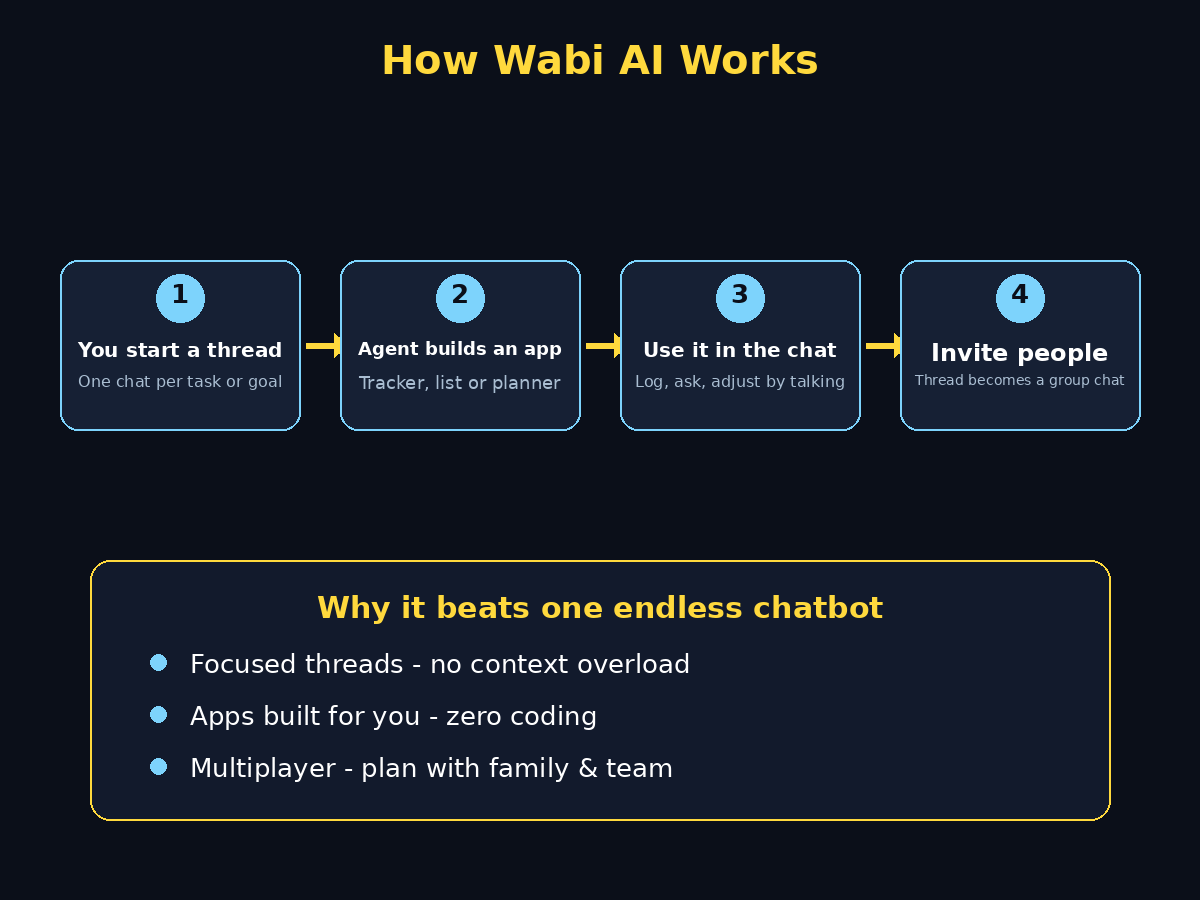
Instead of one endless chat thread that slowly gets confusing, Wabi works like a messenger app with many task-focused threads. Inside each thread, an AI agent builds custom mini apps for you — a budget tracker in your finance thread, a workout log in your health thread, an events app in your family thread. You do not build the apps yourself; the agent does it for you.
Best of all, Wabi is free for now on iOS, Android, and Mac, with no waitlist. This beginner guide walks you through everything: installing Wabi, creating threads, connecting your email, letting the agent build apps, and sharing threads with the people in your life.
Step 1: Download Wabi and Create Your Free Account
Getting started takes just a few minutes:
- Find the app: Open the App Store (iPhone), Google Play Store (Android), or the official Wabi website (Mac) and search for “Wabi AI”.
- Install it: The app is free to download and there is no waitlist — you can start immediately.
- Sign up: Create your account with an email address. Verify your email if asked, then accept the basic permissions.
- Meet the home screen: After onboarding, you will see a messenger-style home screen. It looks like a chat app because that is what it is — every task in Wabi lives inside a conversation thread.
Beginner tip: Do not rush the onboarding questions. Telling Wabi what you care about — health, travel, family, work — helps the agent suggest the right threads and apps later.
Step 2: Understand Threads — Your New Way to Organize AI
Traditional AI chatbots keep everything in one giant conversation. The founder of Wabi argues that this single-thread design gets worse over time: too much context piles up, the assistant forgets things, and answers can drift off track.
Wabi fixes this with threads:
- Each thread is dedicated to one task or long-term goal — for example “Trip to Turkey,” “Family Budget,” or “Fitness.”
- Threads work like chats: you talk to the AI inside them, but the thread also stores the mini apps built for that task.
- You can run many threads at once, and each one stays focused on its own topic.
Think of it this way: instead of one messy notebook for your whole life, you get a separate clean notebook for every project. If you run a small business and juggle many client projects, this thread-per-project model feels familiar — and if your team needs help setting up AI workflows professionally, a digital agency like D365A can design the setup for you.
Step 3: Create Your First Solo Thread
Start simple with a thread just for yourself:
- Tap the “+” or “New Thread” button on the home screen.
- Name it clearly, for example “Healthy Eating” or “Learn Spanish.”
- Describe your goal in one or two sentences when the assistant asks. For example: “I want to eat healthier and track my meals this month.”
- The assistant will reply with suggestions and may immediately build a starter app for the thread.
What good looks like: After a minute or two, you should see your thread containing both a chat conversation and a small app at the top of the screen — for instance, a meal tracker with today’s date ready to fill in.
Step 4: (Optional) Connect Your Email to Auto-Create Starter Threads
One of Wabi’s headline tricks is that connecting your email account lets the agent automatically spin up threads and apps for you:
- A health thread might appear with a weight-loss or habit tracker already built.
- A family thread might include an app showing nearby children’s events.
- A travel thread might organize flight confirmations into a mini itinerary app.
This is the fastest way to see Wabi’s “agent builds the apps” idea in action. However, email access is a real trust decision: the assistant is cloud-based and SOC 2 compliant, and access is scoped per chat (visible to everyone in that chat). If you are privacy-cautious, skip this step for now and create threads manually instead — you lose nothing except a few minutes of setup.
Step 5: Ask the Agent to Build You a Custom App
Here is the fun part. Inside any thread, you can simply ask for an app in plain language. You never write code or drag-and-drop widgets:
- “Build me a weekly meal planner with a grocery list.”
- “Make a savings tracker for our Japan trip — target $3,000 by December.”
- “Create a quiz app to help me learn 20 Japanese phrases.”
- “Build a shared packing checklist for our family vacation.”
The agent will design the app and pin it at the top of the thread. You can then use it right there in the conversation, ask the assistant to change it (“add a column for costs”), or request a completely new one.
Beginner tip: Be specific about what the app should do, not how it should look. “Track my daily water intake with a weekly chart” works better than “make something for water.”
Step 6: Use the Apps Inside Your Threads
Wabi’s apps are not separate downloads — they live inside the thread, next to the chat:
- Trackers: Log entries by chatting (“I drank 2 glasses of water”) and watch the app update.
- Lists: Add, check off, and share items like restaurants, books, or tasks.
- Planners: Review itineraries, budgets, or schedules the agent generated from your conversation.
- Quizzes and tools: Use small interactive apps (language quizzes, calculators) directly in the thread.
Everything stays in context: the assistant sees both the conversation and the app data, so follow-up requests like “summarize my week” or “what did we spend most on?” actually work.
Step 7: Invite Someone and Go Multiplayer
This is what makes Wabi different from ChatGPT or Claude. Any thread can become a shared group chat:
- Open a thread you want to share — a trip plan, a household budget, a family schedule.
- Tap Share or Invite inside the thread.
- Send the invite link to your partner, family member, or teammate.
- Everyone in the thread sees the same conversation, the same apps, and the same data.
Real examples from the launch: couples keep a shared restaurant list and a daily relationship question; families track a child’s schedule and find kid-friendly events together; friends plan trips with a shared budget tracker. Connected accounts (email, calendars) are scoped per chat — each person sees what is shared in that thread, and nothing else.
Beginner tip: Start multiplayer with something low-stakes and fun, like planning a weekend trip, before sharing anything sensitive.
Step 8: Create a Thread for Every Goal in Your Life
Once you are comfortable, build out your thread collection. Popular starter threads for beginners:
- Health: workout log, meal tracker, sleep notes
- Money: monthly budget, savings goal, shared household expenses
- Family: kids’ schedules, event finder, shared shopping list
- Learning: language practice, study planner, quiz apps
- Travel: itinerary builder, packing checklist, expense splitter
- Work: meeting notes thread, project tracker, content ideas
Keeping one goal per thread is the whole point — each thread stays focused, and the agent’s apps stay relevant. Over time, your Wabi home screen becomes a dashboard of your life’s projects, each with its own assistant and toolkit.
Step 9: Review Privacy and Chat-Scoped Access
Because Wabi can connect to your email, calendar, and other accounts, take five minutes to review privacy:
- Access is scoped per chat: When you connect an account, what the assistant can see is limited to the thread you shared it in, and everyone in that thread can see it.
- Start minimal: Only connect accounts to threads where the connection clearly helps (calendar in a planning thread, for example).
- Shared means shared: Never put passwords, banking logins, or highly sensitive documents into a shared thread.
- Review connected apps: Check settings periodically and disconnect anything you no longer use.
Wabi is SOC 2 compliant and cloud-based, but smart sharing habits are still your responsibility — especially in threads with other people.
Step 10: Pro Tips to Get the Most Out of Wabi
- Keep threads single-purpose. The moment a thread covers two unrelated goals, split it — focused threads get better apps and better answers.
- Talk to the agent like a project manager. “Every Monday, summarize my spending from the budget tracker” turns Wabi into an automated routine.
- Iterate on apps. First versions are drafts. Ask for changes: “make the tracker weekly instead of daily” or “add a progress bar.”
- Use it free while it lasts. Wabi is free for now with no paid tiers announced, but the company has not decided on a business model — enjoy the free ride and watch for pricing news.
- Combine with professional tools. If you love the agent-built-app concept and want it for your business, explore dedicated AI automation services to take the idea further than a consumer app allows.
Frequently Asked Questions
Is Wabi AI really free?
Yes — as of October 2026, Wabi is completely free with no waitlist and no announced paid tiers. The company raised $20 million in pre-seed funding, so it can afford to grow first and monetize later. Just know that pricing could appear in the future since no business model has been decided yet.
Which devices does Wabi work on?
Wabi launched on iOS, Android, and Mac. There is no Windows or web version announced yet, so Windows users will need to wait or use a mobile device.
Do I have to connect my email to use Wabi?
No. Connecting email is optional — it simply lets the agent auto-create starter threads and apps for you. You can create every thread manually and ask for apps in plain language without connecting anything.
Is Wabi safe? What about connecting my bank or calendar?
Wabi is SOC 2 compliant and cloud-based, and connected-account access is scoped per chat. Still, be cautious: only connect accounts where it clearly helps, keep sensitive data out of shared threads, and review your connected apps in settings regularly.
What is the difference between Wabi and Replika?
Both come from founder Eugenia Kuyda, but they solve different problems. Replika is an AI companion for one-on-one emotional conversation. Wabi is a multiplayer productivity assistant: task threads, agent-built apps, and shared group chats for couples, families, and teams.
Final Thoughts
Wabi AI is one of the most interesting AI launches of late 2026 because it challenges the basic shape of the chatbot: instead of one endless conversation, you get many focused threads; instead of building your own tools, an agent builds them for you; instead of planning alone, you plan together. For beginners, the learning curve is gentle — if you can use a messenger app, you can use Wabi.
Start with one solo thread, let the agent build you one app, then invite someone you trust and try the multiplayer magic on a fun shared goal. And keep an eye on where this goes: agent-built, shareable software may well be how we all use AI a year from now. If your business wants to ride that wave professionally, from workflow automation to custom AI tooling, the team behind AI automation services and the digital experts at D365A are good places to start the conversation.
Explore More Free AI Tools
Want more free AI power? Try these handy tools on AIToolSteps — no sign-up needed:
- AI Title Generator — craft click-worthy headlines in seconds: https://aitoolsteps.com/
- Meta Description Generator — write perfect SEO snippets fast: https://aitoolsteps.com/
- AI Rewriter — refresh and improve any text instantly: https://aitoolsteps.com/
- Keyword Density Checker — fine-tune your content for SEO: https://aitoolsteps.com/
More free AI tools: https://aitoolsteps.com/