

How to Use ElevenLabs Eleven v4 for Beginners (2026)
AI voiceovers have come a long way from the robotic, monotone computer voices of the past. In October 2026, ElevenLabs raised the bar again with Eleven v4, its most expressive text-to-speech model yet — a model that can laugh, whisper, hesitate, and deliver lines in over 90 languages with near-human emotion. Whether you make YouTube videos, podcasts, online courses, audiobooks, or social media content, Eleven v4 lets you turn plain text into studio-quality voiceovers in minutes, and you can start completely free.
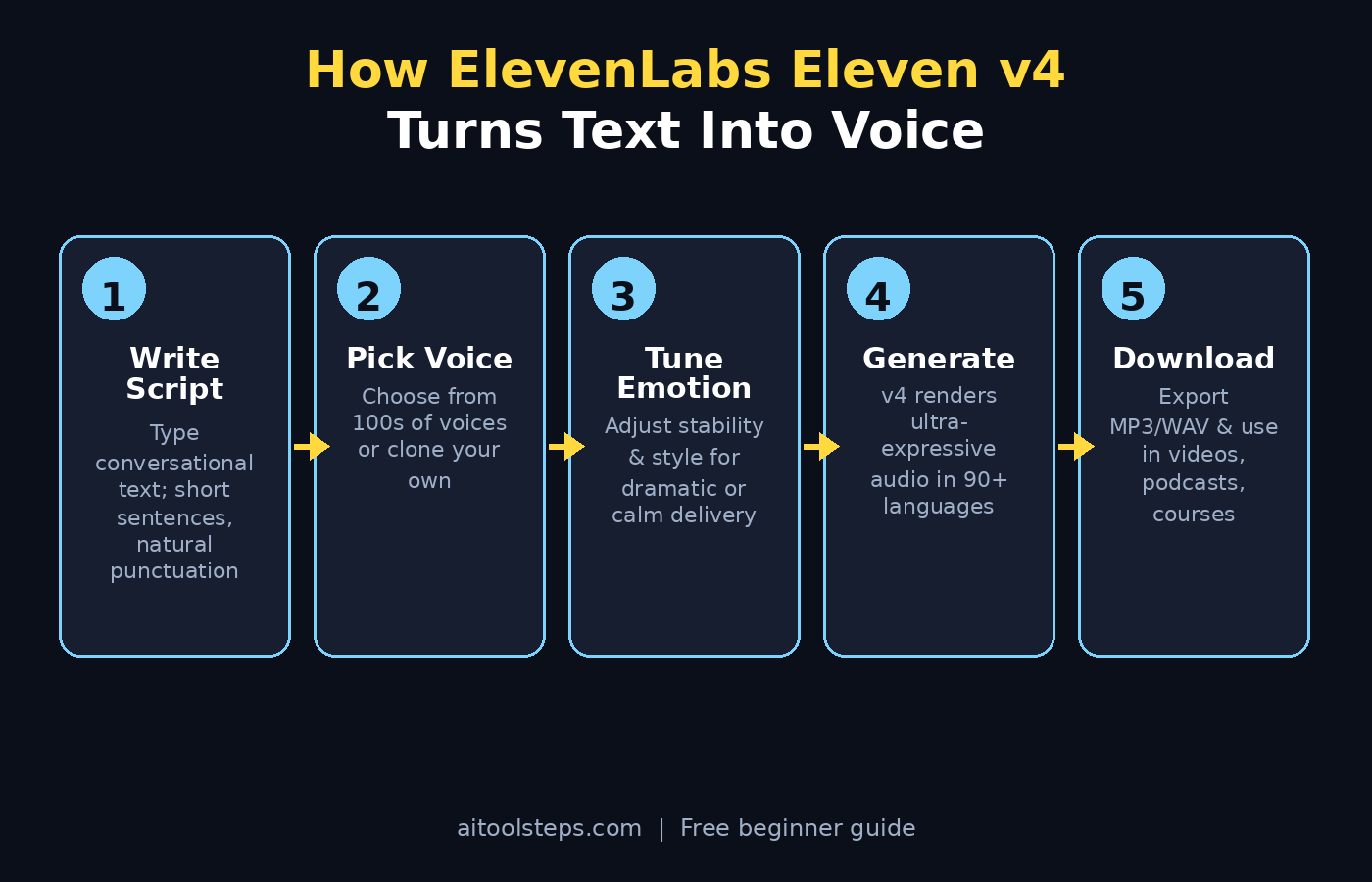
In this ElevenLabs Eleven v4 beginners guide, you will learn exactly how to use ElevenLabs Eleven v4 from scratch: creating a free account, picking the right voice, writing scripts that sound natural, tuning the new expressiveness controls, cloning your own voice, generating multilingual versions, and downloading your finished audio. No technical background needed — if you can type, you can do this. Let’s get started.
Step 1: Create Your Free ElevenLabs Account
Everything begins with a free ElevenLabs account. Head to the ElevenLabs website and click Sign Up — you can register with your email or sign in with Google. The free plan gives you a generous monthly character quota that is more than enough to test Eleven v4, experiment with voices, and even produce short videos or demos.
- Verify your email so your account unlocks the full free quota.
- Open the Speech / Text to Speech page after logging in — this is your main workspace.
- Check your quota in the account sidebar so you know how many characters you can generate each month.
- Bookmark the voice library, because you will return to it often when trying new voices.
Tip for beginners: the free plan resets monthly, so treat your first month as a learning playground. Generate short samples, compare voices, and get comfortable before spending characters on long scripts.
Step 2: Meet the Eleven v4 Models and Pick Your Voice
Once you are inside the text-to-speech studio, look for the model selector — this is where you choose Eleven v4. Earlier models like v3 still work, but v4 is the one with dramatically better emotion, pacing, and multilingual quality. Selecting v4 is the single most important setting in this whole guide.
Next, choose a voice. ElevenLabs offers hundreds of pre-made voices plus a community voice library. For your first project, pick a voice that matches your content’s personality: warm and friendly for tutorials, energetic for social media, calm and steady for narration.
- Filter by language if your audience is non-English — v4 supports 90+ languages.
- Preview voices with the built-in sample playback before committing.
- Save favorites so your go-to voices are one click away next time.
- Try contrasting voices on the same sentence — you will be amazed how different the same text can sound.
Don’t overthink your first choice. You can swap voices anytime without rewriting your script, so picking “good enough” now and refining later is the fastest way to learn.
Step 3: Write or Paste Your Script the Smart Way
The quality of your voiceover starts with your script. Eleven v4 is smart, but it still reads what you give it — so write the way people actually speak. Short sentences, contractions like “you’ll” and “it’s”, and natural punctuation all help the model find the right rhythm and emphasis.
Paste your text into the big text box in the studio. For beginners, a great starting point is a 100–200 word script — roughly a one-minute voiceover. This keeps generation fast and lets you iterate quickly.
- Write conversationally: read your script out loud first; if it sounds stiff to you, it will sound stiff to the AI.
- Use punctuation deliberately: commas create short pauses, periods create full stops, and ellipses (…) add dramatic hesitation.
- Break long paragraphs into 2–3 sentence chunks for more natural pacing.
- Spell out numbers and abbreviations: write “twenty twenty-six” instead of “2026” and “artificial intelligence” instead of “AI” where pronunciation matters.
Pro tip: if you struggle with scriptwriting, pair ElevenLabs with one of the free AI writing helpers listed in our Explore More Free AI Tools section at the end of this guide — generate a draft script, polish it, then paste it into ElevenLabs.
Step 4: Tune Expressiveness with v4’s Emotion Controls
This is where Eleven v4 pulls ahead of older models. The expressiveness controls let you shape how the voice delivers your words, not just what it says. Two sliders matter most: Stability and Style Exaggeration (sometimes labeled as expressiveness, depending on the interface version).
- Lower stability + higher style: more dramatic, emotional delivery — great for storytelling, ads, and entertainment.
- Higher stability + lower style: consistent, professional delivery — ideal for tutorials, e-learning, and corporate narration.
- Middle settings: the safest starting point for most beginners; adjust from here.
Generate a short sample at different settings and compare. The difference between a flat read and an expressive one is night and day — and finding your sweet spot takes less than five minutes of experimentation. Remember that extreme settings can occasionally produce odd pronunciations, so always preview before generating long audio.
Step 5: Clone Your Own Voice with Instant Voice Cloning
One of ElevenLabs’ most popular features is Instant Voice Cloning: upload a short, clear recording of your own voice (usually just a minute or two of clean audio), and the platform builds a digital copy you can type with. Imagine narrating an entire audiobook or a month of videos without ever touching a microphone again.
- Record in a quiet room with no background noise for the cleanest clone.
- Speak naturally for 1–3 minutes — read an article or talk about your day; variety helps.
- Label your clone clearly (e.g. “My Voice – v4”) so you can find it instantly.
- Use your clone responsibly: only clone your own voice or voices you have explicit permission to use.
Step 6: Generate the Same Voiceover in 90+ Languages
Eleven v4’s multilingual engine is a genuine superpower. You can take one English script and generate the same voice — with the same tone and personality — in Spanish, French, Urdu, Hindi, Arabic, and dozens more languages. For creators targeting international audiences, this turns one video into ten with almost no extra work.
- Duplicate your project so the original stays untouched.
- Translate your script first (machine translation is fine for a first pass, but have a native speaker review important content).
- Keep the same voice selected — v4 preserves the voice’s character across languages.
- Check timing: translated scripts are often longer or shorter, so re-check that the audio still fits your video.
This single feature is why many YouTubers and course creators call ElevenLabs a growth tool rather than just a production tool: one recording session, many markets. If you run a digital agency or create content for clients, multilingual voiceovers are also a high-value service you can offer without hiring voice actors in every language.
Step 7: Add Pauses, Emphasis and Audio Tags Like a Pro
Small markup tricks separate amateur-sounding voiceovers from professional ones. ElevenLabs supports special tags and formatting that control delivery at a granular level. Learning just three of them will noticeably upgrade your audio.
- [pause] or ellipses: insert breathing room between ideas — essential for dramatic or instructional content.
- ALL CAPS on single words: adds emphasis, e.g. “This is REALLY important” (use sparingly).
- Audio tags: newer v4 builds support expressive tags for laughter, sighs, and whispers — check the documentation panel for the current list.
- Line breaks: each new paragraph typically triggers a slightly longer pause, so format your script like a screenplay.
Practice on a single paragraph: generate it plain, then generate it again with pauses and emphasis tags, and compare. Most beginners hear the improvement instantly — and once your ears learn the difference, you will never go back to plain pastes.
Step 8: Generate, Preview and Regenerate
With your script, voice, and settings ready, hit Generate. Short scripts render in seconds; longer ones take a little more time. When the audio is ready, listen to the full thing with headphones — speakers hide flaws that headphones reveal.
- Listen for mispronunciations, especially brand names, technical terms, and foreign words — respell them phonetically if needed.
- Check the pacing: if a section rushes, add punctuation or line breaks and regenerate just that part.
- Regenerate freely: every generation can vary slightly, so generating twice and picking the better take is normal professional practice.
- Watch your quota: long regenerations eat characters, so finalize short sections before generating full-length audio.
Don’t chase perfection on take one. The professional workflow is draft, listen, fix the two worst spots, regenerate — and that loop takes minutes, not hours.
Step 9: Download, Share and Put Your Audio to Work
Happy with the result? Click Download to export your voiceover, typically as an MP3 or WAV file. From here, your audio can go anywhere: under a YouTube video, inside a podcast episode, over a product demo, into an online course, or as narration for social media clips.
- WAV for quality, MP3 for size: use WAV for final masters and MP3 for drafts and web uploads.
- Name files clearly: include the project, language, and version (e.g. “product-demo-v4-en-v2.mp3”).
- Keep a voiceover library: save finished audio alongside the script that produced it — future you will thank present you.
- Mind the usage rights: the free plan covers most personal and small commercial projects, but read the current terms if you are producing client work at scale.
And if voiceover production is becoming a bottleneck rather than a creative task, that is exactly the kind of repetitive workflow that AI automation services are built to streamline — from script generation to multilingual publishing pipelines.
ElevenLabs Eleven v4 vs the Alternatives
ElevenLabs is not the only AI voice tool in 2026. For ElevenLabs Eleven v4 beginners weighing the options, here is how Eleven v4 compares with the alternatives, so you can pick the right tool for your project.
| Tool | Best for | Voice quality | Languages | Free plan |
|---|---|---|---|---|
| ElevenLabs Eleven v4 | Ultra-expressive narration, voice cloning | Near-human emotion, laughter/whisper tags | 90+ | Yes — monthly character quota |
| ElevenLabs v3 (older) | Budget bulk generation | Good, but flatter than v4 | 30+ | Yes |
| Fish Audio | Voice cloning on a budget | Very good cloning quality | 10+ | Yes — generous free tier |
| Suno Speech | Voice + background music in one track | Good, music-focused | 20+ | Yes — free plan |
| HeyGen Voice Turbo | Fast, cheap TTS for video pipelines | Top-ranked TTS quality, less theatrical | 40+ | Limited free trial |
Bottom line: if expressiveness and emotion are your priority — storytelling, YouTube narration, character voices — Eleven v4 is the current leader. If you mainly need fast, affordable voiceovers at scale, the alternatives above are worth testing too.
ElevenLabs Eleven v4 Beginners: Frequently Asked Questions
Is ElevenLabs Eleven v4 really free to use?
Yes — ElevenLabs offers a free plan with a monthly character quota that includes access to Eleven v4. It This makes it ideal for ElevenLabs Eleven v4 beginners. is enough for short videos, demos, and learning. Heavy users and professionals can upgrade to paid plans for larger quotas and commercial features.
How is Eleven v4 different from Eleven v3?
Eleven v4 adds dramatically better emotional range (laughter, whispers, hesitation), improved pacing and emphasis control, and far stronger multilingual support — over 90 languages versus around 30 in v3. For expressive narration, v4 is a clear step up.
Can Eleven v4 clone my voice?
Yes. Instant Voice Cloning lets you create a digital copy of your voice from 1–3 minutes of clean recorded audio, then type any script and hear it in your own voice. Always clone only your own voice or voices you have permission to use.
Which languages does Eleven v4 support?
Over 90 languages, including English, Spanish, French, German, Urdu, Hindi, Arabic, Chinese, and many more. The same voice keeps its character across languages, which makes multilingual content much easier.
Can I use ElevenLabs voiceovers in monetized YouTube videos?
Generally yes, within the terms of your plan — many creators do. For client work or large-scale commercial use, review the current plan terms on the ElevenLabs website, since commercial rights vary by tier.
Why does my voiceover sound robotic?
Three usual culprits: the wrong model selected (make sure v4 is active, not v3), a stiff script (rewrite it conversationally), or flat expressiveness settings (lower stability, raise style exaggeration, add punctuation and pauses). Fixing these three almost always solves it.
Final Thoughts for ElevenLabs Eleven v4 Beginners
ElevenLabs Eleven v4 is one of those rare upgrades that genuinely changes what a beginner can produce: near-human emotional voiceovers, your own cloned voice on demand, and 90+ languages from a single script — all starting free. The learning curve is refreshingly short: sign up, pick v4, choose a voice, write conversationally, tune the expressiveness sliders, and generate. For ElevenLabs Eleven v4 beginners, there has never been a better time to start creating.
Start with short projects this week — a one-minute video narration, a podcast intro, a product demo — and build from there. The creators getting the most from AI voice tools in 2026 are not the ones with the biggest budgets; they are the ones who publish consistently and iterate. Your voice (or your AI voice) is ready — press generate.
Explore More Free AI Tools
Want more free tools to level up your content? Try these:
- AI Title Generator — craft click-worthy headlines in seconds
- Meta Description Generator — write perfect SEO snippets automatically
- AI Rewriter — polish rough drafts into smooth, natural copy
- Keyword Density Checker — keep your SEO on target
Find them all at aitoolsteps.com — free AI tools, guides, and tutorials for creators.