
Video is eating the internet — TikTok, Reels, and YouTube Shorts reward creators who post moving pictures, not static ones. But traditional video editing takes hours and expensive software. Digen AI flips that completely: it is a free, browser-based AI video generator that turns a line of text or a single photo into a finished video clip in about a minute. New users get 300 free credits, so you can start creating today without a credit card.
In this beginner guide, you will learn exactly how to use Digen AI step by step: creating your free account, writing prompts that actually work, generating text-to-video clips, animating photos with image-to-video, making talking videos with AI lip-sync, producing music videos with AI soundtracks, removing watermarks, and stretching your free credits as far as they go.
What Is Digen AI?
Digen AI (digen.ai) is an online AI video creation platform — everything runs in your browser, so there is nothing to download and no powerful computer required. It packs several generation modes into one simple workspace:
- Text-to-video: type a description, and the AI renders a video clip from it.
- Image-to-video: upload any photo, and the AI animates it with realistic motion.
- Lip-sync videos: upload a portrait or avatar, add a script or audio, and the AI matches mouth movements to the voice with impressive accuracy (Lip Motion Gen-2 even handles cartoon characters and animals).
- AI music videos: generate visuals, then let the AI compose a matching soundtrack from the video’s first frame — or customize the genre, mood, and instruments yourself.
- Act-Motion: upload a photo plus an action video, and the AI transfers the movements from the video onto your still image.
The platform offers multiple AI video models (including well-known ones like Veo 3.1), 40,000+ AI voices across 70+ languages, and a community Explore tab with over a million shared videos and templates you can remix. It is a favorite among beginners searching for an “AI video generator free no watermark” workflow — because, as you will see in Step 9, you can enable watermark removal before you generate.
Step 1: Create Your Free Digen AI Account and Claim 300 Credits
Getting started takes about a minute:
- Go to digen.ai in your browser (Chrome works best).
- Click Sign Up or Log In and register with your Google account or email address.
- Once you are in, Digen AI grants new users 300 free credits — you will see your credit balance in the top corner of the dashboard.
- No credit card is required to claim or use the free credits.
These credits are your currency for every generation. A short clip costs a small handful of credits, so 300 is enough to experiment generously, learn the ropes, and produce several real videos before you ever think about paying.
Step 2: Tour the Dashboard — Create, Explore, and Your Credits
Before generating anything, spend two minutes learning the layout so nothing surprises you later:
- Create button: the big entry point to the generation studio — this is where text-to-video, image-to-video, and lip-sync live.
- Explore tab: a community hub with 1M+ shared videos and prompt templates. Stuck for ideas? Open Explore, find a style you like, and use its template as a starting point for your own prompt. This is the fastest way to learn what good prompts look like.
- My Creations: every video you generate is saved here automatically — preview, regenerate, or download them anytime.
- Credit balance: always visible, so you know exactly how much free generation power you have left before you hit Generate.
Step 3: Write a Prompt That Actually Works
Digen AI’s output quality depends heavily on your prompt. A vague prompt gives you a vague video. Use this simple anatomy:
Subject + Action + Camera + Setting + Mood
- Subject: who or what is in the scene (“a young woman in a yellow raincoat”)
- Action: what they are doing (“dancing joyfully in the rain”)
- Camera: how the shot moves (“slow cinematic dolly shot”)
- Setting: where it happens (“neon-lit city street at night”)
- Mood: the feeling (“energetic, vibrant, ultra-detailed”)
Example prompts you can copy:
- “A golden retriever puppy running through a sunflower field, slow-motion, warm sunset light, joyful mood, cinematic detail”
- “Two mountain explorers in bright technical shells shouting in a blizzard, breath vapor on exhale, snow crunching, dramatic and urgent”
- “A cozy coffee shop interior at dawn, steam rising from cups, rain on the windows, camera slowly panning, calm lo-fi mood”
Keep prompts focused — one scene, one main action. Long, rambling prompts confuse the model. And write in English for the most reliable results; the models are trained primarily on English descriptions.
Step 4: Generate Your First Text-to-Video Clip
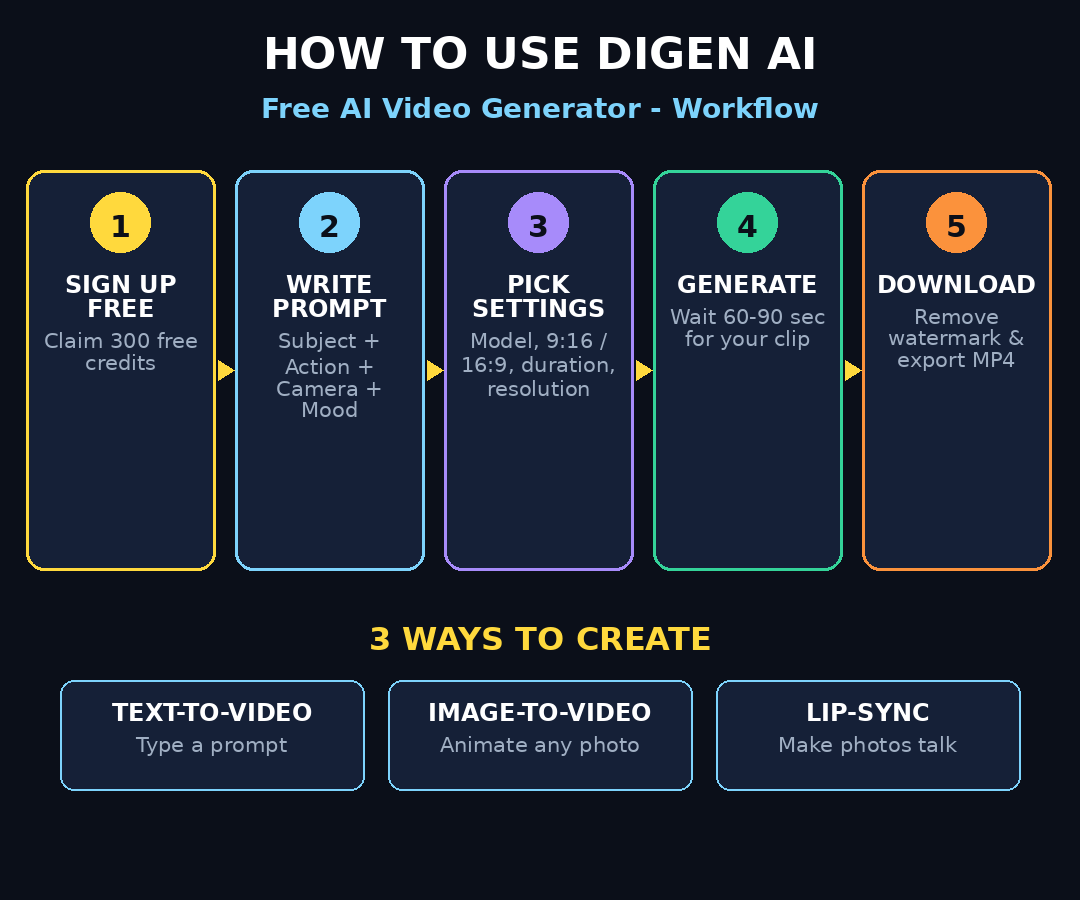
Now the fun part. To create your first video from text:
- Click Create, then choose Generate video (text-to-video mode).
- Type your prompt into the description box.
- Pick your AI model — Digen offers several; if you are unsure, start with the recommended default and try others later to compare styles.
- Set the aspect ratio: 9:16 for TikTok/Reels/Shorts, 16:9 for YouTube, 1:1 for feeds.
- Choose the duration (typically 5–10 seconds on the free tier) and resolution.
- Hit Enter (the generate button) and wait — most clips render in about 60–90 seconds.
When it finishes, preview the clip right in the studio. Not happy? Tweak one thing at a time — usually the prompt wording or the camera description — and regenerate. Small, deliberate changes teach you faster than random guessing.
Step 5: Animate a Photo with Image-to-Video
Image-to-video is Digen AI’s most magical trick for beginners, and it is dead simple:
- In the Create studio, click the “+” icon and upload a photo from your device.
- Write a short prompt describing the motion you want — for example, “woman smiling and turning her head, hair blowing gently in the wind, natural movement.”
- Choose your model, aspect ratio, and duration, then generate.
This works beautifully for product photos (make a still product shot rotate or shimmer), portraits (add a lifelike blink and smile), logos, sketches, and even AI-generated images you made elsewhere. If you created images with a tool like Leonardo AI, you can bring them straight into Digen and make them move — see our guide on how to use Leonardo AI for the image side of that workflow.
Step 6: Make a Talking Video with Lip-Sync
Want an avatar or photo that speaks? Digen’s lip-sync engine matches mouth movements to audio with around 95% accuracy, and it works on real people, cartoon characters, and even animals:
- Upload a portrait photo or choose an AI avatar.
- Input your script as text — or upload your own audio file.
- Pick a voice from the library of 40,000+ AI voices in 70+ languages, and choose an emotional tone (excited, calm, professional…).
- Generate and watch your still image start talking.
This is gold for faceless YouTube channels, product explainers, language-learning content, and personalized marketing videos. Record nothing, film nothing — just type, pick a voice, and publish.
Step 7: Create a Music Video with an AI Soundtrack
Digen AI can score your video automatically, which most beginner tools cannot do:
- Generate your video first (text-to-video or image-to-video).
- Click “Generate soundtrack” on the finished clip.
- Choose “Generate based on first frame” to let the AI analyze your visuals and compose matching music automatically — or click Customize to pick the genre, mood, theme, and instruments yourself.
- Preview the result, regenerate if the vibe is off, and export when it clicks.
The whole pipeline — visuals plus a fitting soundtrack — takes just a few minutes. For musicians, this is a fast way to make lyric or promo visuals; for marketers, it is instant background music for product clips without hunting royalty-free libraries.
Pro tip: judge your AI soundtrack properly with a good pair of hybrid noise-cancelling headphones — you will catch mixing flaws that laptop speakers hide. Disclosure: as an Amazon Associate, AIToolSteps earns from qualifying purchases.
Step 8: Choose the Right Model, Aspect Ratio, and Duration
These three settings decide whether your video looks professional or amateur. Quick cheat sheet:
- Model: different models have different strengths — some excel at realistic humans, others at animation or cinematic scenes. When one model gives stiff motion, try another before blaming your prompt. Community favorites in the Explore tab often name the model they used.
- Aspect ratio: match the platform. 9:16 vertical for TikTok, Instagram Reels, and YouTube Shorts; 16:9 horizontal for standard YouTube; 1:1 square for feed posts. Generating in the wrong ratio and cropping later wastes quality.
- Duration: free-tier clips typically run 5–10 seconds; some modes stretch to 15 or even 30 seconds. Shorter clips cost fewer credits, so draft in short bursts and only go long on your final version.
- Resolution: higher resolution costs more credits. Draft at lower resolution, then re-render your winner at the highest setting.
One more pro note: DIGEN’s Sora 2 mode exports with zero watermarks and needs no invite code — it is the cleanest-looking option when you want a polished clip.
Step 9: Turn On Watermark Removal Before You Generate
This is the step beginners miss most often, and it matters: locate and activate the “Remove Watermark” option BEFORE you hit generate. By default the watermark setting may be off, and a watermark baked into a finished video cannot be removed afterwards — you would have to spend credits regenerating.
Make it a habit: prompt → settings → watermark removal ON → generate. Your exports stay clean and professional, ready to post anywhere.
Step 10: Preview, Regenerate, and Download
When generation finishes, Digen opens your clip in the preview player. Do a quick quality pass:
- Does the motion look natural, or stiff and jittery? (Reviewers note motion can occasionally feel stiff — regenerating with a simpler prompt often fixes it.)
- Is the clip the length you expected? (Some models promise 8 seconds and deliver 5 — check before you plan around it.)
- Is the watermark gone?
If something is off, hit regenerate — each attempt teaches you something. When it is right, click the download icon to save the MP4 to your device, or share it directly to your socials. Everything stays saved in My Creations, so you can come back and download later.
Step 11: Stretch Your Free Credits Like a Pro
300 credits go further than you think with these habits:
- Draft short and low-res, finalize long and high-res. Test ideas at 5 seconds, then render your keeper at full quality.
- Steal like an artist (legally): the Explore tab’s community templates are free starting points — remix a proven prompt instead of writing from scratch.
- Collect daily credits: the free plan refreshes with daily credits, so a little patience means free generations every day.
- Use referrals: sharing Digen with friends earns you extra credits through the referral program.
- Batch similar ideas: generate variations of one concept in a single sitting to compare models and prompts efficiently.
- Know the ceiling: when free credits run out, premium starts at about $0.99 per video — far cheaper than hiring an editor — but most beginners can create for weeks on free credits alone.
Digen AI vs Other Free AI Video Tools
How does Digen stack up against the other free video generators beginners are trying right now?
| Feature | Digen AI | Hunyuan Video | Giz AI | Fliki |
|---|---|---|---|---|
| Free starting credits | 300 free credits for new users | Free, no account needed | Model-specific free allowances | 3 min video/month free |
| Text-to-video | Yes | Yes | Yes | Yes |
| Image-to-video | Yes | Yes | Yes | Limited |
| Lip-sync talking videos | Yes (Lip Motion Gen-2) | No | Varies | AI avatars |
| AI soundtrack generation | Yes | No | No | Royalty-free music library |
| Watermark removal option | Yes (enable before generating) | Varies | Varies | Paid plans only |
| Best for | All-round free video creation | Quick no-signup experiments | Trying different video models | Voiceover-led explainers |
For voiceover-driven explainers with captions, also check our Fliki AI beginner guide — it is the stronger pick when the narration matters more than the visuals.
Frequently Asked Questions
Is Digen AI really free?
Yes. New users receive 300 free credits with no credit card required, and the free plan includes daily refreshed credits. When you run out, paid options start at around $0.99 per video or from $5 plans — but most casual creators can work for free for a long time.
Do I need to download or install anything to use Digen AI?
No. Digen AI is fully browser-based — you sign up at digen.ai and generate everything online. No app download, no GPU, no powerful computer needed.
How long are the videos Digen AI generates?
Most free-tier clips are 5–10 seconds, ideal for Shorts, Reels, and TikTok. Some modes and models support 15-second clips, and image-to-video can stretch toward 30 seconds in certain configurations.
Can Digen AI animate my own photo?
Yes — that is what image-to-video is for. Upload any photo, describe the motion you want in a short prompt, and Digen animates it with realistic movement. The Act-Motion feature can even transfer motion from a separate action video onto your still image.
Will my Digen AI videos have a watermark?
Free exports may include a watermark, but you can enable the Remove Watermark option before generating to get a clean export. DIGEN’s Sora 2 mode exports with zero watermarks by default.
Which languages do Digen AI’s voices support?
The platform offers 40,000+ AI voices across 70+ languages — including English, Spanish, Chinese, Korean, and Arabic — with emotional tones like excitement or calm, making it practical for global content.
Final Thoughts
Digen AI earns its spot on your beginner toolkit: 300 free credits, no downloads, text-to-video, image-to-video, lip-sync, and AI soundtracks in one friendly dashboard. Start with a simple text prompt, animate a photo next, and graduate to talking avatars and music videos once you are comfortable — each mode builds on the last.
If you are creating videos for clients or a growing business and want a repeatable content pipeline rather than one-off clips, a digital agency like Digital 365 Agency can produce them for you at scale — and teams exploring AI automation services can help wire tools like Digen into automated workflows. For everyone else: your first free clip is about 90 seconds away. Go make it.
Explore More Free AI Tools
Want more free AI superpowers? Try these free tools on AIToolSteps:
- AI Title Generator — https://aitoolsteps.com/
- Meta Description Generator — https://aitoolsteps.com/
- AI Rewriter — https://aitoolsteps.com/
- Keyword Density Checker — https://aitoolsteps.com/