

Introduction
If you have ever wanted to try the latest AI models without opening twenty different accounts, Ropewalk AI is exactly what you have been looking for. Ropewalk is an all-in-one creative AI platform. It puts 100+ AI models for images, video, text, audio, and 3D inside a single free dashboard.
Most free AI tools in 2026 suffer from the same problem. You sign up, get a small pile of one-time credits, burn through them in an afternoon, and hit a paywall. Ropewalk flips that model. Instead of one-time signup credits that never come back, your free credits refill daily. That turns Ropewalk from a demo into a real tool you can use all month.
In this beginner-friendly guide, you will learn how to use Ropewalk AI step by step. We cover account setup, credits, images, video, chat, voiceovers, and a weekly free-credits workflow.
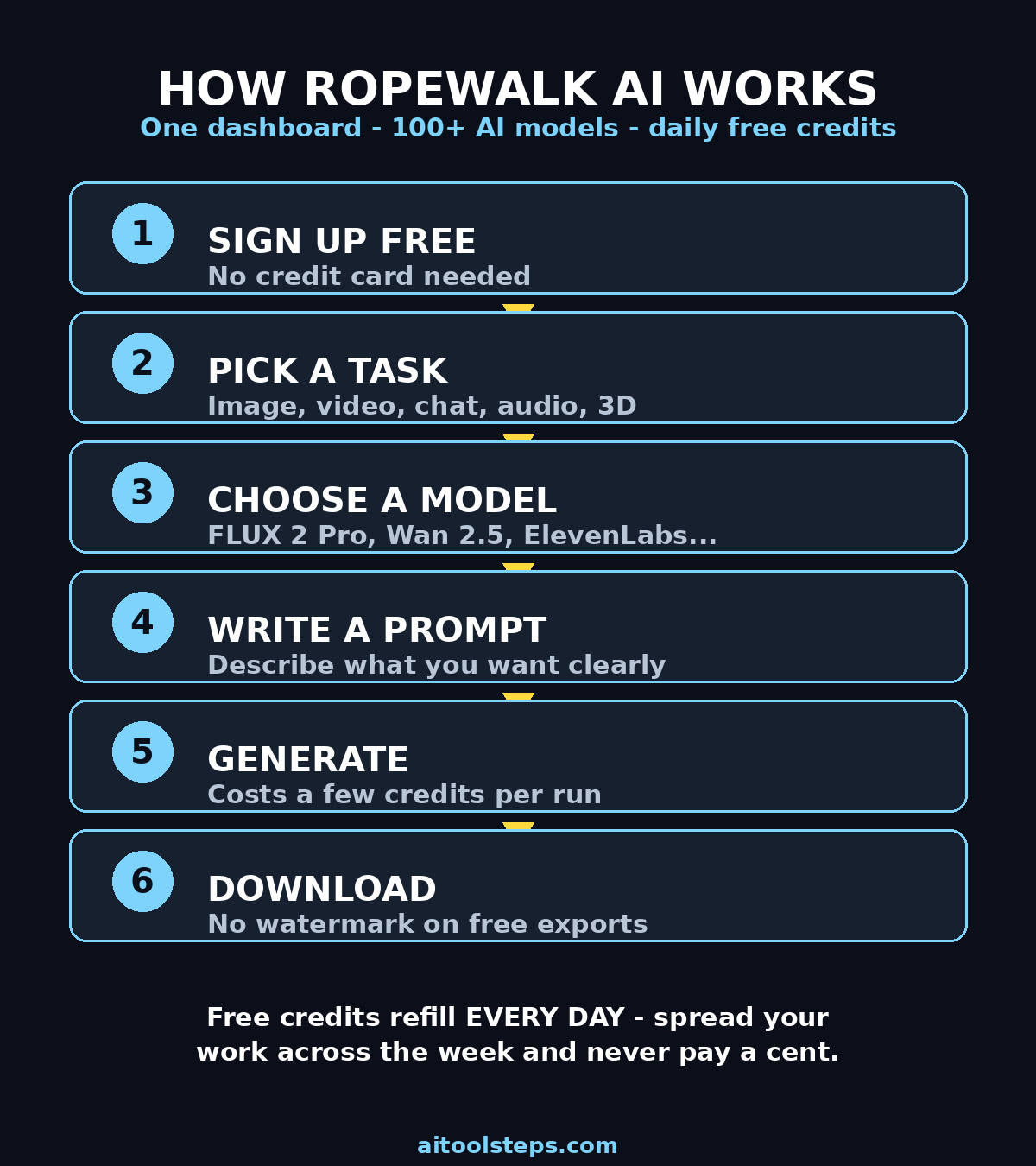
Step 1: Create Your Free Ropewalk Account
Getting started takes less than two minutes. Head over to ropewalk.ai and click the sign-up button. You can register with your email address — no credit card is required for the free tier, which is an important green flag. Be cautious of any AI site that demands your card details before you have even tried the product; legitimate free tiers like Ropewalk let you create content first.
Once you verify your email and log in, you will land on the main dashboard. Take a moment to look around. You will see sections for image generation, video generation, chat (text models), audio, and 3D. Everything is organized by task rather than by model brand, which is helpful for beginners — you pick what you want to make first, and the platform shows you which models can do it.
Your free credits are deposited into your account immediately on signup. You will see your credit balance in the top corner of the dashboard. This balance is shared across every model on the platform, so you do not have to manage separate pools of credits for images, video, and audio.
Step 2: Understand Credits and Daily Refills
Before you generate anything, spend five minutes understanding the credit system. This is the skill that separates beginners who run out of credits from creators who make things free all month.
Every model on Ropewalk costs a certain number of credits per generation. Lightweight models like Stable Diffusion XL cost around 5 credits per image, while flagship models like FLUX 2 Pro cost more. A 5-second video with Wan 2.5 costs about 50 credits, while a cinematic clip from Kling 2.6 can run 150 to 250 credits depending on resolution. Utilities like the BG Remover cost zero credits — genuinely free, unlimited cleanup.
The magic is the refill cadence: your credits refill daily. This turns Ropewalk from a demo into a real tool. Instead of cramming all your generation into one afternoon, spread your creative work across the week. A practical rhythm that works well for beginners:
- Monday: image iteration with cheap models (Stable Diffusion XL at 5 credits)
- Tuesday: premium image finals (FLUX 2 Pro, Nano Banana Pro)
- Wednesday: video pre-visualization on Wan 2.5
- Thursday: finals on Kling 2.6 or Hailuo 02 Pro
- Friday: audio and voiceovers
This rhythm means you never sit down to create and discover you are out of credits, because the balance topped itself up overnight. If you are comparing free tiers across platforms, refill cadence is the single most important thing to check — daily refills beat one-time signup grants every time.
Step 3: Generate Your First AI Image with FLUX 2 Pro
Now for the fun part. Click into the image generation section and select FLUX 2 Pro — this is the flagship photorealistic model for 2026 and the best starting point for beginners.
In the prompt box, write a clear, specific description of what you want. Good prompts have four ingredients: the subject, the setting, the lighting, and the style. For example: “A cozy coffee shop on a rainy evening, warm golden lighting, cinematic photography style.”
Choose your aspect ratio before generating. For Instagram posts use 1:1, for phone wallpapers or stories use 9:16, and for desktop backgrounds or blog headers use 16:9. Setting the right ratio now saves you a cropping headache later.
Hit generate and wait — usually 30 to 60 seconds. When your image appears, do not stop there: this is where beginners leave quality on the table. Use the “variation” or “regenerate” option to create two or three more versions of the same prompt, pick the strongest, and download it. Iterating three times on a free-tier prompt routinely beats paying for a single expensive generation elsewhere. And remember that every Ropewalk export on the free tier comes without a watermark, so the images are ready to use in your projects.
Step 4: Edit Photos with Nano Banana Pro
Image generation is only half the power — editing is where Nano Banana Pro (Google’s instruction-following model) shines. Select Nano Banana Pro in the image section, then upload a photo you want to change.
Instead of learning layers and masks like in Photoshop, you simply describe the edit in plain words. For example: “Change the daytime sky in this photo to a dramatic sunset.” The model understands instructions and reference-image consistency.
This is enormously practical for small business owners. Product photos, social media graphics, and thumbnails can all be polished without hiring a designer. If your shop or startup needs a professional digital presence beyond DIY edits, a specialist digital agency can build your AI-generated assets into a complete website or brand.
Try three starter edits today: change a background, remove an unwanted object, and restyle a photo. Each edit costs a handful of credits, and the skill you build here transfers to every other AI image tool you will ever use.
Step 5: Create Your First AI Video with Wan 2.5
Move to the video section and select Wan 2.5 text-to-video. At roughly 50 credits per short clip, Wan 2.5 is the workhorse for experimentation. It is cheap enough for wild ideas and good enough to judge them.
Write a prompt that describes motion, not just a scene. A prompt like “a robot” produces a static-looking result. A detailed prompt describing action, camera move, and mood gives the model real movement to animate.
Set the duration to the shortest option for your first tests — 5 seconds is plenty while you are learning. Generate the clip, watch it, and take notes on what worked. Then refine the prompt and generate again. This iterate-cheap-first discipline is the whole secret to free video generation. Burn experiments on the 50-credit model. Spend the premium 150-credit render only on the winning concept.
For creators who plan to scale up — agencies producing dozens of clips a week, for example — this is where AI automation services become relevant. They wire AI tools into repeatable pipelines.
Step 6: Chat with 30+ Text Models in One Place
Ropewalk is not just an image and video site. Open the chat section (ropewalk.ai/chat) and you will find 30+ text models — including GPT-5, Claude 4.5 Opus, and DeepSeek — accessible through one interface, typically around 10 credits per message on the free tier.
Why does this matter? Because different models have different strengths. Use ChatGPT-style models for general brainstorming and coding help, Claude for long documents and careful long-form writing, and DeepSeek for technical or coding-heavy questions. On Ropewalk you can ask the same question to two different models in the same afternoon and compare the answers without juggling accounts — something that would take three signups and three subscriptions elsewhere.
Practical beginner uses: draft social media captions, summarize long articles or PDFs, brainstorm blog post ideas, write product descriptions, and get help learning new skills. Write your prompt with context. For example: “You are helping a beginner write product descriptions for a handmade soap shop. Keep each under 50 words and friendly.”
Step 7: Generate Voiceovers with ElevenLabs TTS
Audio is the forgotten superpower of free AI platforms. In the audio section, select ElevenLabs TTS — widely considered the most natural-sounding text-to-speech in 2026 — and paste a short script of 100 to 200 words.
Pick a voice that fits your project: a warm voice for storytelling, a crisp voice for tutorials, an energetic voice for ads. At around 30 credits per generation, voiceovers are cheap enough to experiment with. Listen to the full result before downloading. AI voices sometimes mispronounce names. A quick regeneration with a small script tweak usually fixes it.
Combine this with your video clips. A Wan 2.5 video plus an ElevenLabs voiceover plus a music track gives you a complete short video made entirely with free tools.
Step 8: Use the Free Utilities (BG Remover and More)
Do not skip the utilities section — it contains some of the best zero-credit value on the platform. The BG Remover strips backgrounds from images at zero credits, which is perfect for product photos, profile pictures, and thumbnails. Upload, click, download a clean cutout — it genuinely costs nothing.
Beyond background removal, Ropewalk offers 50+ specialist tools: upscalers that sharpen low-resolution images, face-swap and consistency tools for character work, and format converters. Build a habit of running finished images through the upscaler before publishing. A 2x upscale of a good generation looks noticeably more professional on large screens.
Think of utilities as the finishing department of your free creative studio: generation makes the raw material, editing refines it, and utilities polish it for the real world.
Step 9: Compare Models Side by Side Before Committing
Here is the advanced beginner move that saves the most credits: never spend premium credits on a prompt you have not tested cheaply first. Ropewalk’s single-dashboard layout makes this easy. Run the same prompt on Stable Diffusion XL (5 credits), then Seedream 4, then FLUX 2 Pro — and compare.
The table below summarizes the models worth knowing and what each one is best for:
| Model | Best For | Approx. Credit Cost | Free-Tier Notes |
|---|---|---|---|
| FLUX 2 Pro | Photoreal portraits & product shots | Higher per image | Flagship quality, clean exports |
| Nano Banana Pro | Instruction edits, reference consistency | Moderate | Best editor on the platform |
| Seedream 4 | Stylized illustration | Low | Great value for artistic work |
| Recraft V4 | Logos, icons, design work | Moderate | Only model with SVG export |
| Stable Diffusion XL | Fast cheap iteration | ~5 credits | Burn experiments here |
| Wan 2.5 | Text-to-video drafts | ~50 credits | Workhorse for video tests |
| Kling 2.6 | Cinematic video finals | 150–250 credits | Character coherence leader |
| Hailuo 02 Pro | Action sequences | 150–250 credits | Prompt-faithful motion |
| Veo 3.1 | Physics-realistic scenes | Higher | Realistic movement & camera |
| ElevenLabs TTS | Voiceovers | ~30 credits | Most natural voices |
| BG Remover | Background cleanup | 0 credits | Unlimited free use |
A realistic free-tier strategy: iterate on the cheap rows of this table all week, and spend the expensive rows only on finals that actually matter. Two or three polished finals per week, made entirely free, is a completely achievable beginner goal.
Step 10: Build a Weekly Free-Credits Workflow
Turn everything above into a repeatable weekly system. Here is a simple one that fits a busy schedule:
1. Sunday evening (15 min): Plan the week’s creations — list the images, videos, or audio clips you need.
2. Monday: Generate image drafts with Stable Diffusion XL and Seedream 4 (cheap iteration day).
3. Tuesday: Run your best prompts through FLUX 2 Pro and Nano Banana Pro for finals.
4. Wednesday: Draft video clips with Wan 2.5.
5. Thursday: Render the one or two winning clips on Kling 2.6 or Hailuo 02 Pro.
6. Friday: Voiceovers, music, and utility polish (upscale, BG removal).
Because credits refill daily, you wake up each morning with a fresh budget — the system sustains itself indefinitely. Keep a simple notes file of prompts that worked well; over a month you will build a personal library of proven prompts that make every future generation faster and cheaper. This is how hobbyists turn a free tier into a genuine production pipeline.
Step 11: Download, Organize, and Use Your Creations
The final step is the one beginners most often fumble: actually using what you made. Ropewalk exports download as standard files: JPG or PNG for images, MP4 for video, MP3 or WAV for audio. There is no lock-in and no proprietary format.
Create a simple folder structure on your computer: `Ropewalk/2026-10/images`, `/videos`, `/audio`. Name files descriptively (“product-shot-soap-sunset.png”) instead of leaving the default hash names, and save the prompt that generated each keeper in a text file alongside it. Six months from now, when you want a matching image, that saved prompt is worth more than the image itself.
Then put your creations to work: social media posts, YouTube thumbnails, blog headers, product listings, presentation slides, birthday videos for family. Free-tier exports have no watermark, so they are ready for real use. For paid client work, always check the current terms of service on ropewalk.ai first.
Frequently Asked Questions
Is Ropewalk AI really free?
Yes — Ropewalk offers a genuine free tier with credits on signup and daily refills, no credit card required. The credit system means heavy generation has limits, but the daily refill makes it a sustainable free workflow rather than a one-shot trial. Paid upgrades exist for users who need more credits, but beginners can create real projects without paying.
Do I need any technical skills to use Ropewalk?
No. Everything runs in your web browser with simple prompt boxes and dropdown menus. If you can describe what you want in plain English and click “generate,” you have all the skills you need. The steps in this guide assume zero prior experience with AI tools.
How many free credits do I get each day?
Ropewalk deposits free credits on signup and refills them daily, though the exact amounts can change — check your dashboard balance for the current numbers. The key point is the refill cadence: unlike platforms that hand you one-time credits that never return, Ropewalk tops you up every day, which is what makes long-term free use possible.
Can I use Ropewalk creations commercially?
Free-tier exports come without watermarks and are suitable for personal projects and content creation. For paid client work, always check the current terms of service on ropewalk.ai, as commercial-use policies can change. When in doubt, the platform’s own documentation is the authority.
Which Ropewalk model should a beginner try first?
Start with FLUX 2 Pro for images and Wan 2.5 for video. Use BG Remover for instant free wins while you learn.
Is Ropewalk better than using each AI tool separately?
For beginners, yes — one account, one credit balance, and 100+ models beats managing separate signups, subscriptions, and credit pools across a dozen vendor sites. The side-by-side comparison alone (same prompt, four models, one afternoon) is something separate accounts make nearly impossible. Power users with deep needs in one category may eventually prefer a specialist platform, but Ropewalk is the best starting point.
Final Thoughts
Ropewalk AI solves the biggest frustration beginners have with AI tools in 2026: the fragmentation. Instead of ten accounts, ten credit systems, and ten learning curves, you get one dashboard with 100+ models, one shared credit balance, and daily refills that keep the whole thing free. Learn the credit rhythm, iterate cheap before you spend premium, and build the weekly workflow. You will soon produce studio-quality images, videos, and voiceovers for zero dollars.
The AI landscape moves fast, and platforms like Ropewalk are how regular people keep up without a budget. Start with one image today using the steps above, and by next week the whole workflow will feel natural. Your only real limit is the daily refill — and a little patience.
Explore More Free AI Tools
Want to keep building your free AI toolkit? Try these handy free tools on AIToolSteps: the AI Title Generator, Meta Description Generator, AI Rewriter, and Keyword Density Checker — perfect companions for turning your AI-generated content into polished, search-ready posts. And if you missed our earlier guides, check out how to use Nano Banana AI and Qwen Image AI for even more free image-generation power.