
Leonardo AI has quietly grown into one of the most powerful free AI image generators on the internet, with tens of millions of users creating everything from YouTube thumbnails to game concept art. If you have been curious about AI art but felt overwhelmed by complicated tools, this is your perfect starting point. In this beginner-friendly guide, you will learn how to use Leonardo AI step by step: setting up your free account, choosing the right model, writing prompts that actually work, editing your images, and even turning them into short videos.
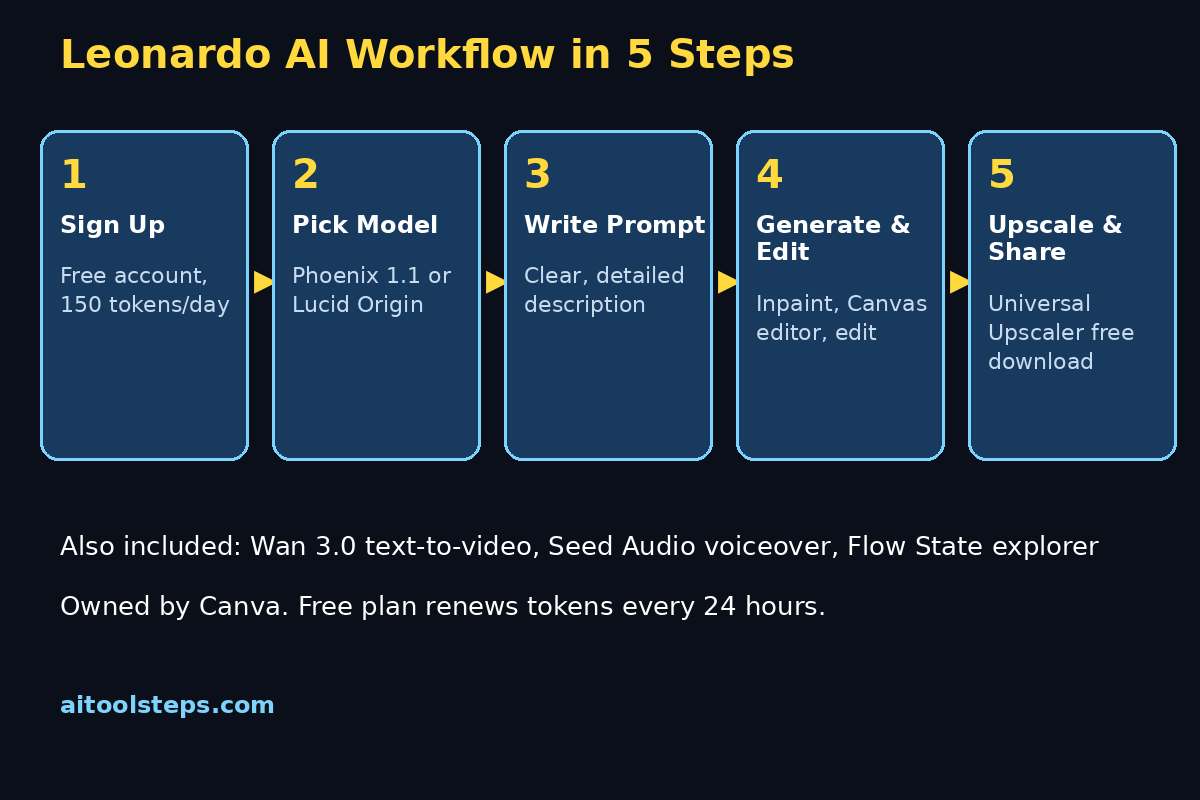
The best part? You can start completely free — no credit card required. Leonardo AI gives every new user 150 Fast Tokens every day, which is enough for roughly 15 to 30 image generations. That is plenty to learn, experiment, and create real content for your projects. Whether you are a blogger who needs featured images, a small business owner making social media graphics, or just someone who wants to explore their creativity, this guide will take you from a blank account to a repeatable AI art workflow.
Step 1: Create Your Free Leonardo AI Account
Getting started takes less than two minutes. Head to leonardo.ai and click the sign-up button. You can register with your email address or sign in with your Google or Apple account — the social sign-in is the fastest route. Once you confirm your account, you land on the Leonardo AI dashboard, and your free daily token balance is already active.
Take a moment to explore the left sidebar. You will see options like Image Generation, Realtime Canvas, Canvas Editor, Video Generation, and more. As a beginner, you will spend most of your time in Image Generation, so click there first. The interface looks clean and modern — a large prompt box on the left, model settings next to it, and your generation history on the right. Nothing here requires a design degree, and the free plan unlocks all the core features you need to learn.
Step 2: Understand the 150 Free Daily Tokens
Leonardo AI runs on a token system, and understanding it saves you from frustration later. Your free plan refills with 150 Fast Tokens every 24 hours. Each image generation costs a small number of tokens depending on the model and settings you choose — a standard generation with default settings costs around 5 to 8 tokens, which means your daily allowance covers about 15 to 30 images per day.
A few practical tips for stretching your tokens: generate in small batches of 2 to 4 images instead of 8; start with standard quality before trying HD; and avoid re-running the same prompt blindly — tweak one variable at a time so every generation teaches you something. Tokens reset automatically, so there is no need to hoard them. Think of each day as a fresh creative budget, and use it to practice one new skill at a time. If you ever need more, paid plans start at a modest monthly price and add private generations and higher limits, but most beginners create happily for months on the free tier.
Step 3: Pick the Right AI Model for Your Image
This is where Leonardo AI stands out from simpler generators: instead of one model, you get a whole model hub. Choosing the right model is the single biggest lever for image quality, and beginners only need to know three of them at first.
- Phoenix 1.1 — the best all-rounder for beginners. It follows your prompt with roughly 95 percent accuracy, meaning it actually draws what you describe, and it can render legible text inside images (great for thumbnails and posters).
- Lucid Origin — Leonardo’s flagship model for high-fidelity, cinematic, ultra-detailed work. Use it when you want gallery-quality art or dramatic lighting.
- Leonardo Anime XL — purpose-built for anime and illustration styles, perfect if your content lives in that aesthetic.
There are dozens more models, including ones trained by the community, but resist the urge to scroll endlessly. Master Phoenix 1.1 first — it is forgiving, fast, and cheap on tokens. Once your prompts consistently produce what you imagined, experiment with Lucid Origin for hero images. For freelancers and agencies producing client work, the digital agency approach works well here too: start with the reliable default, then upgrade specific pieces where quality matters most.
Step 4: Write Your First Prompt the Right Way
Your prompt is the instruction you give the AI artist, and a structured prompt beats a pile of random adjectives every time. Use this beginner formula, in this order: subject, physical details, environment, lighting, composition, style, constraints.
Here is a concrete example:
“A cozy coffee shop storefront at dawn, warm wooden exterior, steam rising from a cup on the window sill, soft golden sunlight, street-level view, photorealistic, shallow depth of field, no people, no text.”
Notice how each phrase adds one clear layer. Beginners make two classic mistakes: prompts that are too short (“cool dragon”) and prompts stuffed with contradictory adjectives. A good rule is 25 to 60 words — specific enough to guide the AI, short enough to stay coherent. If your result misses the mark, resist changing everything at once. Ask yourself: was the failure about the subject, the lighting, the composition, or the style? Fix that one variable and regenerate. Within a week of daily practice, you will start predicting results before you hit generate.
Step 5: Use Negative Prompts to Clean Up Mistakes
A negative prompt tells the AI what to exclude, and it is the secret weapon beginners overlook. Leonardo AI has a dedicated negative prompt field, and a starter template handles most common glitches:
“blurry, distorted hands, extra limbs, low quality, watermark, text artifacts, deformed faces, oversaturated”
AI image generators share predictable failure modes — mangled hands, garbled text, warped faces — and negative prompts filter them out before they appear. For photorealistic portraits, add “uncanny, plastic skin”; for product shots, add “reflections, cluttered background”. Keep your negative prompt saved somewhere (a note on your phone works) and paste it into every generation. It costs nothing extra and quietly improves every image you make. Many creators working with AI automation services build negative-prompt presets into their content pipelines for exactly this reason — consistency comes from systems, not luck.
Step 6: Generate, Compare, and Pick Your Winner
With your model, prompt, and negative prompt set, click Generate and wait a few seconds. Leonardo AI produces a small batch — choose the image with the best composition, not just the most detail. A well-framed image with a clear focal point beats a busy, over-rendered one every time.
Here is a workflow the pros use: generate 3 to 4 variations, star your favorite, then make one targeted tweak (a warmer lighting phrase, a different angle) and generate again. Two or three rounds like this usually lands a keeper. Save your winning prompts — Leonardo AI keeps a generation history, but exporting your best prompts into a document means you can reuse and remix them later. Over time, you will build a personal prompt library that makes every new project faster. And remember: free-plan images are public by default, so do not generate anything confidential on the free tier.
Step 7: Edit Images with the Built-in Image Editor
Generation is only half the story. Leonardo AI’s Image Editor (Canvas) lets you refine images without leaving the platform — and it is beginner-friendly. Open any generated image in the editor and you can:
- Erase and regenerate parts of an image (inpainting) — fix a weird hand or swap an object.
- Extend the canvas (outpainting) — widen a portrait into a landscape banner for YouTube thumbnails.
- Remove backgrounds with one click for product shots and profile pictures.
- Sketch-to-image — draw a rough doodle and let the AI turn it into finished art.
Make one controlled change at a time, generate a preview, and keep the version you like. Editing is where good images become great ones, and it costs far fewer tokens than regenerating from scratch. For bloggers, this step is gold: generate one strong base image, then create matching variations for featured images, social covers, and thumbnails from the same edit session.
Step 8: Upscale for Crisp, Professional Quality
Free-plan generations are often smaller than what you need for print or large screens. Leonardo AI’s Universal Upscaler fixes that with one click, enlarging your image while adding detail instead of blur. Always upscale after you are happy with the composition and edits — upscaling first wastes tokens on an image you might discard.
For web use, 2x upscaling is usually plenty; thumbnails and blog featured images look noticeably sharper. For print-on-demand products like posters or t-shirts, go higher. One caution: upscaling cannot fix a fundamentally broken image — if the hands are mangled, edit or regenerate first. Think of upscaling as the final polish, the digital equivalent of framing a painting. Pair this with the free daily tokens, and you can produce genuinely professional visuals without spending a rupee or dollar.
Step 9: Explore Flow State, Canvas, and Realtime Generation
Once the basics feel natural, Leonardo AI has three power features worth exploring. Flow State is an idea explorer: give it a rough direction and it generates a grid of visual concepts, so you can discover a style instead of guessing at one. Realtime Canvas turns your rough sketches into finished images live as you draw — magical for brainstorming thumbnails. And Realtime Generation renders images almost instantly as you type, which is perfect for rapid prompt experimentation when you are learning what wording works.
These tools share one beginner lesson: explore before you commit. Spend ten free minutes in Flow State finding a direction you love, then spend your tokens refining it with the standard generator. This two-phase approach — cheap exploration, deliberate production — is how experienced creators get consistent results, and it works on the free plan just as well as on paid ones.
Pro tip: Realtime Generation runs smoothest on a machine with dedicated AI hardware — an ASUS Vivobook S16 Copilot+ laptop handles live AI rendering without breaking a sweat. Disclosure: as an Amazon Associate, AIToolSteps earns from qualifying purchases.
Step 10: Turn Images into Video and Add Voiceover
Leonardo AI is no longer just an image tool. The Wan 3.0 video model (added August 2026) turns your finished stills into short animated clips: pick your best image as the start frame, describe the motion (“slow camera zoom, petals drifting”), and generate a few seconds of video. Then the Seed Audio feature pairs narration with your visuals, so a static gallery becomes a narrated showcase.
For content creators, this is a complete short-form pipeline in one tab: image for the thumbnail, video clip for the Short or Reel, voiceover for the narration. Video generation costs more tokens than images, so be selective — animate only your winners. But even on the free plan, you can produce a few clips per day, which is plenty to test what your audience responds to before committing to a paid plan.
Leonardo AI vs the Alternatives: Quick Comparison
| Feature | Leonardo AI | Midjourney | ChatGPT (GPT Image) |
|---|---|---|---|
| Free plan | 150 Fast Tokens/day, resets daily | No free tier | Limited image generation on free plan |
| Best for | Control, editing, variety | Artistic quality, minimal effort | Conversational, no learning curve |
| Models | 30+ models + custom training | Proprietary, few options | Single model via chat |
| Editing tools | Canvas, inpainting, upscaler | Limited | Conversational edits |
| Text in images | Yes (Phoenix 1.1) | Improving | Excellent |
| Video | Wan 3.0 image-to-video | Separate tool | Not built-in |
| Commercial use | Paid plans (Artisan+) | Paid plans | Per plan terms |
| Learning curve | 30–60 minutes | Low | Near zero |
The honest takeaway: ChatGPT is the easiest way to make your first AI image, and Midjourney produces gorgeous art with less effort — but Leonardo AI gives beginners the most control for free, plus a genuine editing suite. If you want to learn the craft of AI image creation rather than just chatting with a bot, Leonardo AI is the better classroom.
FAQ
Is Leonardo AI really free?
Yes. The free plan gives you 150 Fast Tokens every day with no credit card required. That covers roughly 15 to 30 image generations daily. Free-plan images are public and have restricted commercial rights — for client or business work, consider a paid plan that includes commercial licensing and private generations.
What is the best Leonardo AI model for beginners?
Start with Phoenix 1.1. It follows prompts with about 95 percent accuracy and renders legible text, which makes it forgiving while you learn prompt writing. Move to Lucid Origin when you want cinematic, high-detail results, and Leonardo Anime XL for anime-style art.
Can I use Leonardo AI images commercially?
Free-tier images have restricted commercial use. Leonardo AI’s paid plans (Artisan and above) include commercial usage rights. If you are generating images for a business, marketing, or client work, always check the current licensing terms on the official site before publishing.
How do negative prompts work?
Negative prompts list things you want excluded — “blurry, distorted hands, extra limbs, watermark” is a solid starter. They go in the dedicated negative prompt field and cost nothing extra. They are the fastest way to reduce common AI image glitches.
Does Leonardo AI have an app?
Yes, Leonardo AI has mobile apps (the Android app received a major update in September 2026) alongside the web platform. The web version is best for learning, since the full Canvas editor and model settings are easiest to use on a larger screen.
What is the difference between Leonardo AI and Canva’s AI tools?
Leonardo AI is owned by Canva but operates as its own platform with its own token system and a much deeper model hub. Canva’s built-in AI tools are simpler and great for quick designs; Leonardo AI is the full creative studio for people who want control over models, editing, and training.
Final Thoughts
Leonardo AI earns its popularity: a genuinely useful free tier, a model hub that grows with you, real editing tools, and now video and voiceover features that turn stills into content. The learning curve is real but short — invest one focused hour in the Phoenix model, a structured prompt formula, and negative prompts, and you will be creating images that surprise you.
Start today with your 150 free tokens. Generate your first image, edit one detail, upscale it, and share it somewhere. Then come back tomorrow and do it again. That daily loop is how every skilled AI creator you admire actually learned — one free generation at a time. And when you are ready to turn your AI art habit into a full content operation, the guides and free tools at AIToolSteps will be here to help you scale it.
Explore More Free AI Tools
Want to keep building your free AI toolkit? AIToolSteps offers free tools and guides for every creator — try the AI Title Generator for catchy headlines, the Meta Description Generator for SEO-ready snippets, the AI Rewriter to polish your drafts, and the Keyword Density Checker to keep your content optimized. Everything is free, and new guides drop every day.