
Making a video used to mean cameras, microphones, editing software, and hours of work. Not anymore. In this beginner guide, you will learn how to use Fliki AI — a free text-to-video platform that turns a simple script, a blog post, or even a one-line idea into a finished video with a lifelike AI voiceover, matching visuals, captions, and music. No filming. No recording. No editing skills required.
Whether you want to start a faceless YouTube channel, create TikToks without showing your face, or turn your blog posts into engaging social videos, Fliki handles the entire production in one workspace. Let’s walk through it step by step.
What Is Fliki AI?
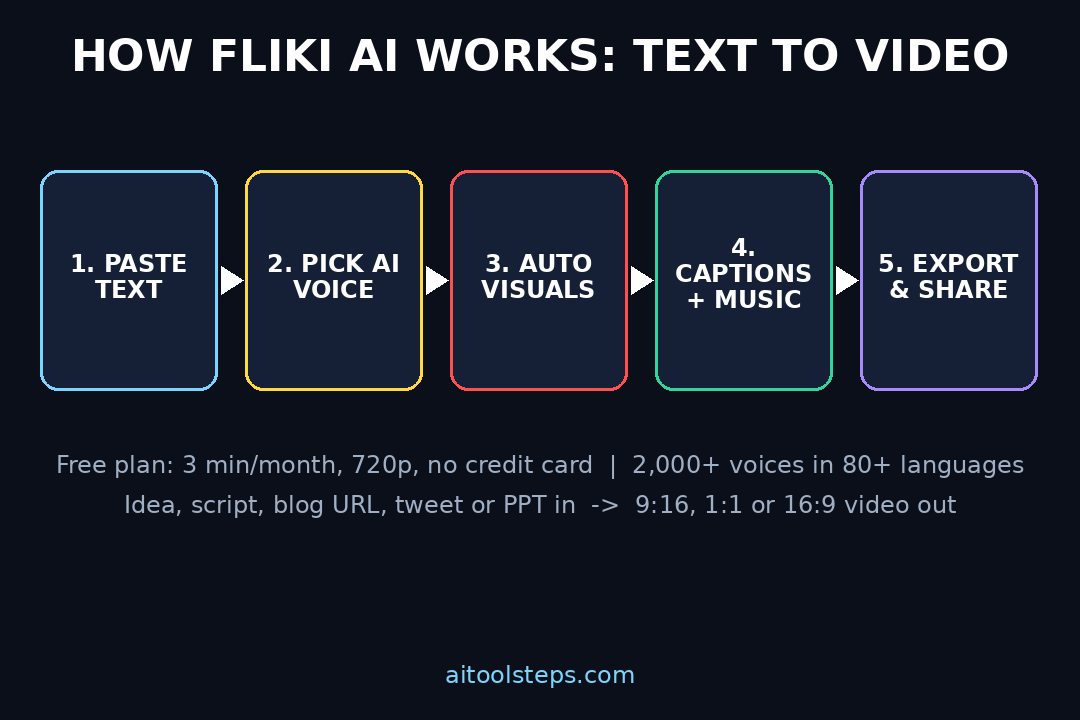
Fliki AI is a text-to-video generator that combines five production jobs — scriptwriting, voiceover, visuals, captions, and music — into a single online tool. You paste text (or just an idea), and Fliki writes or formats the script, reads it aloud with one of 2,000+ AI voices in 80+ languages, pairs each line with stock footage or AI-generated visuals, adds word-timed captions, and layers royalty-free music underneath.
The free plan is genuinely usable: no credit card required, 3 minutes of video per month, 720p export, and the full voice library to experiment with. Exports carry a small Fliki watermark on the free plan, which paid plans remove.
Why Beginners Love Fliki AI
- No camera or microphone needed: create complete videos without recording yourself.
- Start from anything: a one-line idea, a full script, a blog URL, a tweet thread, or a PowerPoint file.
- 2,000+ realistic AI voices in 80+ languages and 100+ dialects.
- Auto-matched visuals: every scene gets stock footage or AI-generated media automatically.
- Word-timed captions: animated subtitles that follow the voiceover, which keeps muted scrollers watching.
- One-click resizing: export the same video in 9:16 for TikTok/Reels/Shorts, 1:1 for feeds, or 16:9 for YouTube.
- AI avatars: add a lifelike on-screen presenter that lip-syncs your script.
Step 1: Create Your Free Fliki Account
Go to fliki.ai and click Sign up. You can register with Google or an email address — the free plan asks for no credit card and has no trial timer. Every new account starts with a monthly allowance of video minutes, so you can build real videos from day one. After signing in, you land on the dashboard where all your projects live. Click New File to start your first video.
Step 2: Pick Your Starting Point
Fliki gives you several ways to begin, and this flexibility is one of its biggest strengths for beginners:
- Idea to video: type a one-line prompt like “a 60-second explainer about why sleep matters” and Fliki writes the script, picks a voice, builds the visuals, and adds captions automatically.
- Script to video: paste your own finished script for full control over every word.
- Blog to video: paste an article URL — Fliki summarizes and converts it into a video script.
- Tweet to video: paste a tweet or thread; each post becomes its own scene.
- PPT/PDF to video: upload a presentation and turn slides into a narrated video.
For your first project, choose Idea to video — it shows off the full automation and gets you a finished result in minutes.
Step 3: Write or Refine Your Script
If you started from an idea, Fliki’s AI script generator produces a scene-by-scene script in seconds. You can pick the video type (explainer, listicle, story, ad) and tone (friendly, professional, punchy) before generating. Then edit any line in the built-in editor — shorten long sentences, since short lines pace better on social video.
Scripting tip for beginners: hook viewers in the first 1.5 seconds, add a “retention beat” (a surprising fact or question) every 10–15 seconds, and end with a clear call to action. Fliki paces each scene to the target length you set, with 15 to 90 seconds as the sweet spot for TikTok and Shorts.
Step 4: Pick an AI Voice
Open the voice panel and browse 2,000+ AI voices across 80+ languages. Filter by language, accent, gender, and style — calm narrator, energetic creator read, conversational, and more. Click any voice to preview it reading your actual script. For English content, try a few voices and pick the one that matches your topic’s energy: a finance explainer wants calm and confident, a fun-facts video wants punchy and upbeat.
Pro tip: preview AI voices the way your viewers will hear them — a comfortable pair of Bluetooth on-ear headphones with a built-in mic is perfect for long voice-testing sessions. Disclosure: as an Amazon Associate, AIToolSteps earns from qualifying purchases.
You can adjust pace, pitch, and pauses per scene, and on paid plans you can even clone your own voice from a short sample so every video sounds like you.
Step 5: Let Fliki Match the Visuals
Here is the magic moment: Fliki auto-pairs every scene with stock footage, photos, or AI-generated images matched to what the line is saying. A line about “morning coffee” gets coffee footage; a line about “saving money” gets finance visuals. If you don’t like a clip, swap it with one click or generate a fresh visual from your own prompt using the built-in AI image generator.
For a consistent look, pick a visual style for the whole project — Fliki can apply AI video models and style presets so every scene feels like one video instead of a slideshow. This is also where small creators save hours compared to editing manually.
Step 6: Style Your Captions and On-Screen Text
Fliki generates animated captions that follow the voiceover word by word — the single most important feature for social video, since most viewers watch with sound off. Customize the font, colors, position, and animation of the captions to match your brand. You can also add headline text overlays on key scenes to emphasize numbers, quotes, or takeaways.
If you want a fancier typographic look, Fliki’s kinetic typography mode animates each word in time with the narration — no After Effects keyframing needed.
Step 7: Add Music and an AI Avatar (Optional)
Fliki auto-pairs a royalty-free music track tuned to your video’s genre, and you can swap tracks from its built-in stock library. Keep the music bed subtle so the voiceover stays clear. For a more personal feel, add an AI avatar presenter that delivers your script to camera with lip-sync in 80+ languages — great for faceless creators who still want a “face” on screen.
Teams and freelancers can also save brand kits (logo, colors, fonts) on paid plans so every client video looks consistent — a workflow many digital agencies use to repurpose blog content into social video at scale.
Step 8: Preview, Tweak, and Export
Hit Preview and watch the full video. Common beginner fixes: shorten any scene that drags, swap a mismatched visual, or re-pick a voice that doesn’t fit. When you’re happy, click Export. Fliki renders your video in MP4, in 9:16 (vertical), 1:1, or 16:9 — one click resizes the same video for TikTok, Instagram Reels, YouTube Shorts, and LinkedIn. The free plan exports at 720p with a small watermark; paid plans unlock 1080p/4K and remove the watermark.
Step 9: Make Your 3 Free Minutes Count
The free plan gives you 3 minutes of video per month, so spend them strategically:
- Make one strong 60–90 second video rather than three weak 30-second ones.
- Draft and preview as much as you like — only the final export uses your minutes.
- Export in 9:16 once, then resize to other ratios instead of re-exporting.
- Upgrade only when you need more minutes, Full HD export, or commercial rights — free-plan exports have no commercial usage rights, so monetized client work needs a paid plan.
Fliki vs Other Beginner Video Tools
| Tool | Best For | Free Plan | AI Voices |
|---|---|---|---|
| Fliki AI | Script-to-video with voiceover | 3 min/month, 720p, watermark | 2,000+ in 80+ languages |
| CapCut | Manual editing + auto-captions | Generous free editor | Basic TTS voices |
| Lumen5 | Blog-to-video summaries | Limited free videos | Smaller voice library |
| Canva Video | Template-based social clips | Free with limits | Limited voiceover options |
Fliki wins when you want the fastest path from text to a narrated video. CapCut wins when you want hands-on editing control. Many creators use both: Fliki for the first draft, CapCut for the final polish.
Pro Tips to Get Better Results
- Write like you speak: conversational scripts sound far more natural with AI voices than formal writing.
- Label AI content: TikTok requires creators to mark realistic AI-generated content with its AI-generated toggle — Fliki’s own guides recommend this too.
- Repurpose everything: turn one blog post into a TikTok, a Reel, a Short, and a LinkedIn clip with one-click resizing.
- Build a series: consistent voices and visual styles make episodic content (daily facts, tips, stories) feel professional.
- Automate the pipeline: if you publish daily, AI automation services can connect tools like Fliki into a hands-free content workflow — from idea to scheduled post.
Frequently Asked Questions
Is Fliki AI really free?
Yes. Fliki’s free plan is free forever with no credit card and no trial timer. You get 3 minutes of video per month, 720p exports, the full voice library, stock media, and AI image generation — exports carry a small Fliki watermark.
Do I need video editing skills to use Fliki?
No. Fliki is built for beginners: type an idea, and it writes the script, picks a voice, matches visuals, adds captions, and adds music. The timeline editor is there if you want to fine-tune scenes, but you can publish without touching it.
Can I use Fliki videos commercially or monetize them?
On paid plans, yes — Fliki videos are royalty-free and commercially usable, including the voiceover, stock footage, and AI visuals. Free-plan exports have no commercial rights. Note that TikToks made with AI tools can qualify for the TikTok Creativity Program when they run over 1 minute and add original commentary or framing.
What languages and voices does Fliki support?
Fliki offers 2,000+ AI voices across 80+ languages and 100+ dialects, with adjustable pace, pitch, and emotion. Paid plans add voice cloning from a short sample and one-click translation that re-renders the voiceover, captions, and on-screen text.
What video sizes can I export?
Fliki exports MP4 in 9:16 (TikTok, Reels, Shorts), 1:1 (social feeds), and 16:9 (YouTube) — 720p on the free plan, 1080p or 4K on paid plans. You can resize the same project to another ratio with one click instead of rebuilding it.
Can I use my own voice instead of an AI voice?
Yes. You can upload your own recorded voiceover, or on paid plans clone your voice so Fliki narrates every script in your voice — in any of the supported languages.
Final Thoughts
Fliki AI removes the two biggest barriers to video creation: being on camera and editing. With a free plan that genuinely works, 2,000+ voices in 80+ languages, and one-click exports for every platform, it is one of the easiest ways for a beginner to start publishing video in 2026. Start with one 60-second idea-to-video, learn the pacing, and then build a consistent series. Your first video can be live within the hour — and your tenth will take you half the time.
Explore More Free AI Tools
Want more free tools to grow your content? Try our AI Title Generator, Meta Description Generator, AI Rewriter, and Keyword Density Checker at aitoolsteps.com — free, no sign-up needed.