
Want to create stunning AI images without paying a single rupee? Meet Qwen Image AI — Alibaba's powerful free image generator that turns your words into pictures and can even edit your photos with simple text instructions. In October 2026, the Qwen team released Qwen-Image-2.1-Turbo, a super-fast version that creates images in just 8 steps instead of 40, making it one of the quickest free AI image tools available right now.
In this beginner-friendly guide, you will learn how to use Qwen Image AI for free: from creating your account, writing your first prompt, and choosing the right image size, to editing photos with text commands and downloading your creations. No coding skills needed — if you can type a sentence, you can use this tool.
Step 1: Understand What Qwen Image AI Is
Qwen Image AI (officially called Qwen-Image-2.1) is an open-weight AI image model built by Alibaba's Qwen team. Think of it as a digital artist that lives inside your browser: you describe what you want in plain English, and it paints the picture for you.
Here is what makes it special for beginners:
- It is free to use through hosted chat apps and free tiers — no credit card required.
- It generates AND edits images in one place. You can create a brand-new image or upload a photo and tell the AI what to change.
- It handles text inside images surprisingly well — great for posters, thumbnails, and social media graphics.
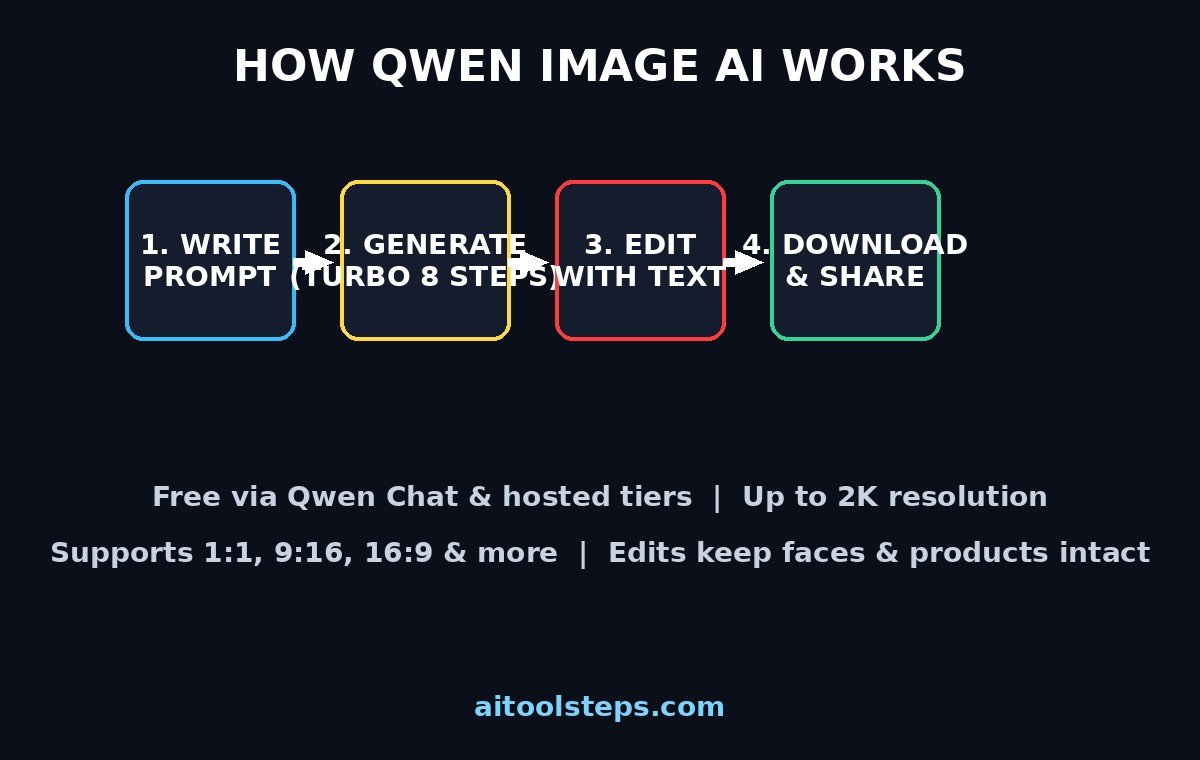
- It supports many sizes: square (1:1), portrait (9:16), landscape (16:9), and more, up to 2K resolution.
- Turbo mode (released October 9, 2026) generates images much faster with barely any quality loss.
The model behind it has 7 billion parameters and was trained to understand both images and text deeply. On Alibaba's own image benchmark it scored 60.28 — slightly ahead of Google's Nano Banana 2.0 at 59.82. That means the free model you are about to use competes with tools people pay for.
If you run a business and need custom graphics regularly, many small teams pair free generators like this with professional help from a digital agency when they need brand-perfect designs at scale.
Step 2: Create Your Free Account
The easiest beginner route is using Qwen Image through a free hosted interface — no downloads, no graphics card needed. Follow these steps:
1. Go to Qwen Chat (chat.qwen.ai) — Alibaba's free AI chat app — or another free host like Venice.ai that offers the Qwen Image model.
2. Sign up with your email or Google account. It takes about a minute.
3. Look for the image generation option — usually a small image icon or a "generate image" toggle inside the chat box.
4. Select the Qwen Image model if the app lets you choose models. Some apps pick it automatically.
That is it — you are ready to create. The free tier is generous enough for daily experimenting, and you never have to install anything.
Step 3: Write Your First Prompt (The 5-Part Formula)
Your prompt is your paintbrush. A great beginner formula has 5 parts:
1. Subject — what is in the image (a cat, a mountain cabin, a robot)
2. Style — photo, cartoon, oil painting, 3D render
3. Details — colors, lighting, mood
4. Composition — close-up, wide shot, portrait orientation
5. Quality words — "highly detailed", "4K", "professional lighting"
Weak prompt: "a dog"
Strong prompt: "A golden retriever puppy playing in a field of sunflowers, warm sunset lighting, photorealistic style, close-up portrait, highly detailed fur, professional photography"
Try this now: type your strong prompt into the chat, hit generate, and wait 10–30 seconds. Your first AI image will appear. Congratulations — you just used Qwen Image AI!
Step 4: Choose the Right Aspect Ratio and Size
Before you generate, pick a shape that matches where the image will be used:
- 1:1 (square) — Instagram posts, profile pictures
- 9:16 (vertical) — TikTok, Reels, Shorts, phone wallpapers
- 16:9 (landscape) — YouTube thumbnails, blog headers, presentations
- 4:5 (portrait) — Pinterest pins, posters
Qwen Image 2.1 supports resolutions up to 2752 × 1536 (landscape) and 2048 × 2048 (square) — plenty sharp for social media and blogs. For a blog featured image, 16:9 at the highest setting gives you crisp, professional results. For a TikTok cover, 9:16 fills the whole phone screen.
Beginner tip: generate at the highest resolution the free tier allows. You can always shrink an image later, but you cannot add detail that was never generated.
Step 5: Generate and Iterate Like a Pro
Your first result is rarely perfect — and that is normal. Professional AI artists generate in rounds:
- Round 1: generate 2–4 versions of your prompt and pick the best one.
- Round 2: keep what worked, change one thing. ("Same image, but make the sky stormy.")
- Round 3: fine-tune details like lighting, colors, or camera angle.
Each round teaches you how the model "thinks." Within an hour of experimenting, most beginners start getting images that look genuinely impressive. Save every version you like — you will want them for step 7's editing tricks.
Creators who publish daily often build a simple system for this: generate in batches, keep a folder of favorites, and reuse winning prompt formulas. Teams exploring AI automation services sometimes even automate this whole pipeline, but for beginners the manual loop above is the fastest way to learn.
Step 6: Edit Photos With Text Instructions
This is Qwen Image's secret weapon. Instead of learning Photoshop, you upload a photo and describe the change:
1. Upload your photo using the attachment button in the chat.
2. Describe the edit in plain words, for example:
- "Change the background to a beach at sunset, keep the person exactly the same"
- "Remove the trash can from the left side"
- "Make this look like a watercolor painting"
- "Add soft golden-hour lighting to this portrait"
3. Generate and compare the before/after.
The model can work with up to 10 reference images at once, and it is good at identity preservation — meaning your face or product stays recognizable while everything around it changes. You can even circle a region of the image and ask for a local edit ("change only the shirt color to red").
Beginner project ideas: turn a dull selfie into a professional headshot, restyle product photos for your online shop, or convert a daytime photo into a dramatic night scene.
Step 7: Try Turbo Mode for Lightning-Fast Results
On October 9, 2026, Alibaba released Qwen-Image-2.1-Turbo — a distilled version of the same model that finishes in only 8 denoising steps instead of 40. In plain English: it is much, much faster.
When to use each version:
| Feature | Qwen-Image-2.1 (Base) | Qwen-Image-2.1-Turbo |
|---|---|---|
| Generation steps | 40 | 8 |
| Speed | Standard (slower) | Very fast |
| Image quality | Highest detail | Nearly identical, slightly less precise on exact counts/layouts |
| Best for | Final artwork, precise compositions | Drafts, fast experiments, quick edits |
| Cost | Free (hosted tiers) | Free (hosted tiers) |
| Editing support | Yes, up to 10 reference images | Yes, same editing features |
Beginner workflow: do all your experimenting in Turbo mode (fast iterations = fast learning), then re-generate your favorite prompt in the base model for the final high-quality version. One honest trade-off found by testers: Turbo sometimes miscounts objects ("exactly 5 apples" might come out as 4 or 6), so use the base model when exact details matter.
Step 8: Create Text-Heavy Graphics (Posters, Thumbnails, Logos)
Most free image generators butcher text — you ask for "SALE" and get "SALEZ" or gibberish. Qwen Image 2.1 is notably better at rendering readable words inside images, which unlocks a whole category of projects:
- YouTube thumbnails with bold title text
- Sale posters for a small business
- Quote graphics for Instagram
- Logo concepts and sticker designs (it even supports transparent PNG backgrounds)
How to get clean text: put the exact words in quotation marks in your prompt and keep it short. Example: `A YouTube thumbnail background, dramatic blue and purple gradient with lightning, bold text reading "FREE AI TOOLS" at the top, high contrast, 16:9`.
Beginner tip: keep text to 2–4 words. Short phrases render far more reliably than full sentences. If a word comes out wrong, regenerate — text accuracy improves with each retry.
Step 9: Download and Use Your Images Safely
Once you love an image:
1. Click the image to open the full-size preview.
2. Download it (right-click → Save, or the download button). Save as PNG for the best quality.
3. Organize your downloads in folders by project.
One important note on licensing: the downloadable model weights use Alibaba's Qwen Research License, which allows non-commercial research and evaluation — commercial use needs a separate license. However, images you create through free hosted apps (like Qwen Chat) fall under that app's terms of service, which are generally friendly for personal and content-creator use. If you plan to sell products featuring AI images, check the specific platform's commercial terms first. When in doubt, treat free-tier images as perfect for blogs, social media, and personal projects.
Step 10: Level Up With Advanced Beginner Tricks
You have the basics — here are five tricks that separate beginners from power users:
- Seed control: if the app shows a "seed" number, reuse it to generate variations of the same composition instead of starting from scratch.
- Negative prompts: some interfaces let you list what to AVOID ("blurry, watermark, extra fingers"). Use this to kill common AI artifacts.
- Style stacking: combine styles for unique looks — "cyberpunk watercolor" or "Pixar-style photorealistic portrait."
- Character consistency: upload the same reference photo across generations to keep a character looking identical in a whole series — perfect for comics or brand mascots.
- Batch prompting: write 5 prompts in one sitting, generate them all, and pick winners. Volume beats perfection.
Practice these for a week and you will be producing images that most people assume came from a professional designer.
Qwen Image AI vs Other Free Image Tools
| Tool | Free access | Speed | Editing with text | Text in images | Best for |
|---|---|---|---|---|---|
| Qwen Image 2.1 | Yes (hosted free tiers) | Fast (Turbo: very fast) | Excellent (10 reference images) | Very good | Free all-rounder: generate + edit |
| Nano Banana 2.0 | Yes (free tier) | Fast | Excellent | Very good | Quick photo edits |
| EaseMate AI | Yes (free tier) | Medium | Good | Good | Simple beginner projects |
| Flux (open) | Yes (self-host) | Medium | Basic | Average | Self-hosted pipelines |
Qwen Image 2.1's standout advantage is the combination: free access, strong editing, good text rendering, and the blazing Turbo mode — all without installing anything.
Frequently Asked Questions
Is Qwen Image AI really free?
Yes. You can use it for free through hosted apps like Qwen Chat and free tiers of platforms like Venice.ai — no credit card needed. The model weights are also free to download and run on your own computer if you have a capable GPU, under Alibaba's Qwen Research License (non-commercial use).
Do I need a powerful computer to use Qwen Image AI?
No. The beginner method in this guide uses free hosted websites, so everything runs in the cloud. You only need a computer if you want to download and run the model weights yourself, which requires a strong GPU and is not necessary for beginners.
Can I use Qwen Image pictures for my business or YouTube channel?
Images made on free hosted apps are generally fine for blogs, social media, and content creation under each platform's terms of service. The downloadable weights carry a research (non-commercial) license, so if you plan to sell products built on self-hosted generations, you would need a separate commercial license from Alibaba. Always check the terms of the specific app you use.
How is Qwen Image 2.1 different from Nano Banana?
Both are excellent free AI image tools. Qwen Image 2.1 edges ahead on its own benchmark (60.28 vs 59.82), offers the ultra-fast Turbo mode, and its weights are openly downloadable for self-hosting. Nano Banana is deeply integrated into Google's ecosystem. For a beginner who wants a free, fast, no-install image generator and editor, Qwen Image 2.1 is one of the strongest choices in 2026.
Why does Turbo mode sometimes get details wrong?
Turbo finishes in 8 steps instead of 40, so it trades a little precision for a lot of speed. Testers found it occasionally miscounts objects or misplaces elements in complex layouts. Use Turbo for fast drafts and the base model for final artwork where exact details matter.
Which aspect ratio should I choose?
Match the platform: 1:1 for Instagram posts, 9:16 for TikTok/Reels/Shorts, 16:9 for YouTube thumbnails and blog headers, 4:5 for Pinterest. Qwen Image 2.1 supports all of these up to 2K resolution.
Final Thoughts
Qwen Image AI proves you do not need expensive software or design skills to create professional-looking visuals in 2026. With a free account, the 5-part prompt formula, and the Turbo mode workflow from this guide, you can generate images, edit photos with plain-English instructions, and even create text-heavy graphics like thumbnails and posters — all without spending anything.
Start with Turbo mode today, experiment freely, and save your best prompts. In a week, you will wonder how you ever managed without an AI artist on demand. And if you found this guide useful, share it with a friend who is still paying for stock photos.
Explore More Free AI Tools
Want more free AI superpowers? Try these handy tools on AIToolSteps:
- AI Title Generator — craft click-worthy headlines in seconds: https://aitoolsteps.com/
- Meta Description Generator — write perfect SEO snippets automatically: https://aitoolsteps.com/
- AI Rewriter — refresh old content into something new: https://aitoolsteps.com/
- Keyword Density Checker — keep your SEO perfectly balanced: https://aitoolsteps.com/
Pair these with your new Qwen Image skills and you have a complete free content-creation toolkit — words, images, and SEO, all covered.