

Most AI assistants only answer questions. Wajo Fo is different: it actually does things for you. Fo is a personal AI agent that lives inside your text messages — you send it a message like “book me a haircut on Friday” or “email the plumber and reschedule,” and Fo goes off and handles it, calling businesses, sending emails, and making bookings on your behalf. It launched publicly in September 2026 with a free tier, and it quickly became one of the most talked-about entries in the new wave of AI agents that live in your messenger apps.
The idea is simple but powerful. Instead of opening five different apps to sort out your day, you text one assistant and it coordinates everything. And when Fo hits a task it genuinely cannot finish on its own, Wajo says a real human steps in to complete it — a design the company calls “human in the loop.” If you have ever wished you could just text someone “sort this out for me,” this beginner guide walks you through exactly how to use Wajo Fo AI: signing up free, connecting it to iMessage or Telegram, sending your first task, and using it safely.
Step 1: Understand What Wajo Fo AI Is
Fo is Wajo’s first consumer AI agent. Think of it less like a chatbot and more like a very capable personal assistant you reach by text message. You do not open a special app and stare at a blank prompt box — you message Fo the same way you would message a friend, and Fo takes action in the real world.
Here is what Fo can do for you:
- Call businesses — Fo can phone a restaurant, salon, or shop to ask questions, check availability, or make a booking.
- Send emails — Fo drafts and sends emails on your behalf, for example to reschedule an appointment or follow up with a seller.
- Make bookings and purchases — Fo can reserve tables, book services, and complete small purchases.
- Coordinate with people — Fo can join group chats and help a group agree on plans, dates, and tasks.
- Bring in a human when stuck — if a task is too complex for the AI alone, Wajo says a human assistant finishes it, so the job still gets done.
The key difference from a normal chatbot is that Fo is an action agent. ChatGPT-style tools give you text; Fo gives you outcomes. That is also why Fo has its own identity (more on that in Step 8) — it needs an email address, a phone number, and a payment card of its own to interact with businesses without asking for your private credentials.
Step 2: Sign Up for Free at wajo.ai/join
Getting started takes only a few minutes, and the basic version of Fo is free. Heavier workloads and custom agents sit behind a paid Pro offering, but the free tier is enough to learn the ropes and hand Fo real everyday tasks.
- Open the sign-up page: go to wajo.ai/join in your browser and start the sign-up flow.
- Add your phone number: when prompted during onboarding, enter your phone number. This is how Fo reaches you — Fo lives in your messages, so your number is the connection point.
- Complete onboarding: answer the short setup questions about how you want to use Fo. Be honest here: telling Fo what you actually need (bookings, emails, group plans) helps it serve you better from day one.
- Confirm you are in: once onboarding is done, you are ready to message Fo. There is no app you must install first — Fo meets you where you already chat.
Beginner tip: sign up on a quiet afternoon, not in the middle of a deadline. Your first few tasks will teach you how Fo phrases questions and asks for confirmation, and it is much easier to learn that rhythm when nothing is urgent.
Step 3: Connect Fo to iMessage, Telegram, or Email
Fo is designed to meet you on the messaging surfaces you already use. The two main routes for beginners are iMessage and Telegram, plus email and a web app for other tasks.
- iMessage: after sign-up, Fo can message you through Apple’s Messages app, so asking Fo for something feels exactly like texting a contact.
- Telegram: open Telegram and message @hey_fo_bot to start chatting with Fo there. Wajo has also rolled out the ability to add Fo to your Telegram groups, with unlimited group chats for all users on Telegram.
- Email and web app: Fo can also work over email and through Wajo’s web app, which is handy for longer tasks where you want to paste details or links.
Pick one surface to start with — Telegram is the easiest for most beginners because you can find @hey_fo_bot in seconds — and add a second surface later once you trust the workflow. Trying every channel at once just creates confusion about where your tasks live.
Step 4: Send Your First Task by Text
Now the fun part. Message Fo like you would text a helpful friend, and be specific. Fo works best when your message contains the what, the when, and the where.
- Good first task: “Find a barber near Gulberg open on Saturday afternoon and book me a haircut around 4 pm.”
- Another easy win: “Email my gym and ask them to freeze my membership for November.”
- A group test: “Help me and my friends pick a restaurant for Friday night and book a table for six.”
Notice what these messages include: a clear action (book, email, pick), a subject (barber, gym, restaurant), and a time frame (Saturday, November, Friday night). Vague messages like “sort out my weekend” will get you a round of clarifying questions. Specific messages get you results. If Fo asks a follow-up question, answer it plainly — that back-and-forth is how Fo narrows down exactly what you want before it acts.
Start with low-stakes tasks for your first week. A restaurant booking is a great first task; a non-refundable flight is not. Judge Fo on how often it actually finishes the job, then give it bigger responsibilities as trust builds.
Step 5: Let Fo Call, Email, and Book for You
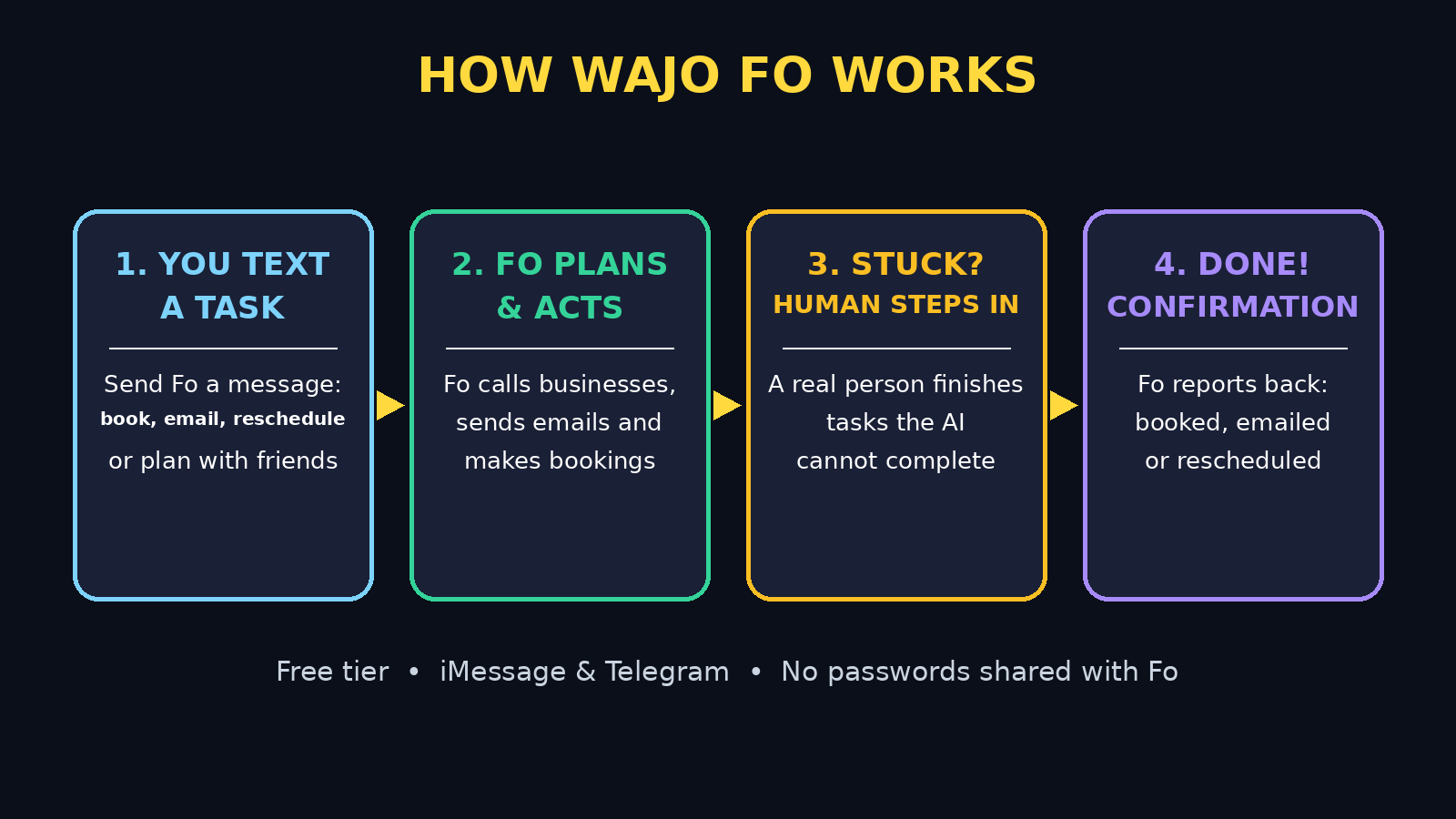
Once you send a task, Fo gets to work behind the scenes. Understanding this sequence helps you use it well:
- Fo plans the steps: for a booking, Fo figures out which business to contact, what to ask, and what information it needs from you.
- Fo contacts the business: it can call the business or send an email, using its own identity (Step 8) rather than your personal details.
- Fo confirms with you: before anything costly or hard to undo is finalized, Fo checks back with you. Read these confirmations carefully — they are your safety net.
- Fo reports the outcome: you get a message saying what happened: booked, rescheduled, emailed, or still in progress, with the details you need.
If a business does not answer, or the request turns out to be more complicated than expected, Fo does not just give up. Wajo’s human-in-the-loop design means a real person can pick up the task and finish it. That is Fo’s biggest selling point against pure-AI agents: a task that stalls does not die in a chat thread, it gets handed to a human who can talk, negotiate, and close it out.
Step 6: Add Fo to Group Chats and Plan Together
One of Fo’s most useful tricks is group coordination — the endless “where should we eat on Friday?” thread that normally eats an evening. On Telegram, you can add Fo to a group chat, and Fo helps the group decide and act.
- Add @hey_fo_bot to the group: in Telegram, add the bot to your existing group chat just like any member.
- Give Fo the job: type something like “Fo, help us pick a place for Friday and book it for six people.”
- Let Fo gather opinions: Fo can collect preferences, suggest options, and keep the thread moving instead of letting it stall.
- Let Fo book it: once the group agrees, Fo makes the booking and shares the confirmation in the group.
Group chats are where Fo’s “shared context” idea shines: instead of each person having a separate private assistant, the whole group shares one helper that remembers what was agreed. Keep group tasks simple at first — dinner bookings and meetup plans — before trusting Fo with a group trip.
Step 7: Set Approvals and Guardrails Before You Scale Up
An agent that can spend money and contact people on your behalf needs rules. Set these up in your first week, before you hand Fo anything important:
- Keep approvals on: make sure Fo asks you before it pays for anything, sends an email in your name, or confirms a non-refundable booking. A few extra taps are far cheaper than an unwanted purchase.
- Set a spending ceiling: decide the maximum Fo can spend without a second confirmation from you, and tell Fo that limit in plain words.
- Keep sensitive tasks off-limits: do not ask Fo to handle banking passwords, legal documents, or medical bookings until you have tested it thoroughly on ordinary tasks.
- Review the confirmations: when Fo reports a completed task, read the details — the date, the time, the price — before you assume it is right.
This is the same discipline you would apply to any assistant with real-world power. The technology is new, but the principle is old: trust is earned in small steps, and guardrails are what let you scale that trust safely.
Step 8: Understand Fo’s Own Identity — Email, Phone, and Card
Here is the part of Wajo’s design that surprises most beginners. Fo does not borrow your email password or your credit card. Instead, Fo has its own identity: its own email address, its own phone number, and its own payment card. When Fo contacts a business, it does so as Fo, not as you.
Why does this matter? Two reasons. First, privacy: you never hand your own credentials to an AI agent, so a leak or a mistake does not expose your accounts. Wajo claims this design makes Fo far less likely to leak private information than agents that operate inside your own accounts. Second, accountability: when a business replies, the reply goes to Fo’s identity, and Fo relays what matters to you — so you stay in the loop without your inbox becoming the agent’s workspace.
The trade-off is worth knowing: because Fo books as Fo, some businesses may ask for your name or details at the venue, and some confirmations may arrive under Fo’s name. Keep Fo’s confirmation messages handy when you show up, and double-check that the booking name matches what the business expects.
Step 9: Decide Whether You Need the Pro Tier
Fo launched with a free tier, and heavier workloads plus custom agents are offered through a paid Pro tier. For most beginners, the free tier is the right place to start — and staying there for a month teaches you whether Fo is actually saving you time.
- Stay free if: you send a handful of everyday tasks a week — bookings, emails, reschedules, group plans — and the free tier handles them.
- Consider Pro if: you regularly hit the free tier’s limits, you run many tasks at once, or you want custom agents tuned to your business or team.
- Judge on completion rate: before paying, count how many of your last ten tasks Fo finished without you rescuing them. If that number is high, Pro is worth testing; if it is low, more money will not fix a workflow problem.
Pricing for new AI agents changes fast, so check the current limits on Wajo’s site before you upgrade, and never upgrade just because a feature list looks impressive — upgrade because your own usage has outgrown the free tier.
Step 10: Review, Correct, and Build a Better Fo Over Time
Fo gets more useful the more it learns how you like things done — but only if you correct it. Treat the first month as training:
- Correct mistakes immediately: if Fo books the wrong time or emails the wrong person, tell it straight away what should have happened. Vague feedback (“that was wrong”) teaches nothing; specific feedback (“book for 7 pm, not 6 pm”) does.
- Save your preferences: tell Fo your standing preferences — your favourite cuisine, your usual meeting area, your no-go times — so future tasks need fewer questions.
- Keep a weekly check: once a week, scroll through what Fo did and spot patterns. Are bookings always right but emails sloppy? Adjust where you use Fo accordingly.
- Know when to take over: if a task is emotional, legal, or genuinely complex, do it yourself. Fo is a force multiplier for routine work, not a replacement for your judgment.
That is the honest shape of the tool in late 2026: genuinely useful for routine coordination, still earning trust on everything else. Used that way — small tasks first, approvals on, corrections given — Fo can quietly give you back hours every week.
Wajo Fo vs Other Text-Message AI Agents
Fo is not the only agent moving into your messages. Here is how it compares with the other names that broke out in the same October 2026 wave:
| Feature | Wajo Fo | Underdog | Tab |
|---|---|---|---|
| Where it lives | iMessage, Telegram, email, web app | Mac and Windows app (mobile planned) | iMessage and WhatsApp |
| Free tier | Yes — free basic version | Free initially (invite-only beta) | Free tier reported |
| Can call businesses | Yes | Planned focus on-device tasks | Yes — orders and bookings |
| Human backup | Yes — human finishes stuck tasks | No — fully on-device AI | Not advertised |
| Own email / phone / card | Yes | No — runs on your device | No |
| Group chats | Yes — Telegram groups | Not the focus | Yes — via messaging apps |
| Privacy model | Agent identity shields your credentials | On-device — data stays with you | Cloud-based agent |
| Best for | Bookings, emails, group plans | Privacy-first personal tasks | Orders, gifts, everyday errands |
The honest takeaway: if you want an agent that finishes real-world errands and has a human safety net, Fo is the strongest free starting point. If privacy is your top concern and you are happy to wait for mobile apps, Underdog’s on-device approach is the one to watch. The broader trend is clear either way — AI is moving out of the chat box and into your messages, and the agents that actually complete tasks will win this wave. For readers exploring how AI agents fit into a wider automation setup, a good AI automation services partner can help connect tools like Fo with the rest of your workflow, while a digital agency can advise on which agent tools are worth adopting for a small business.
Frequently Asked Questions About Wajo Fo AI
Is Wajo Fo AI really free?
Yes, Fo launched publicly in September 2026 with a free tier that covers everyday tasks like bookings, emails, and group coordination. Heavier workloads and custom agents are offered through a paid Pro tier, but you can learn and use Fo without paying.
How do I start using Wajo Fo?
Sign up at wajo.ai/join, add your phone number when prompted, then message Fo on iMessage or Telegram (@hey_fo_bot). You can also add Fo to Telegram group chats to plan with friends. There is no mandatory app to install first.
Is it safe to let Fo spend money or contact businesses for me?
Fo uses its own email address, phone number, and payment card rather than your credentials, which limits your exposure. Still, keep approvals switched on, set a spending limit, and start with low-stakes tasks until you trust its completion rate.
What happens if Fo cannot finish my task?
Wajo says a real human assistant steps in to complete tasks the AI cannot finish on its own. That human-in-the-loop backup is Fo’s main advantage over pure-AI agents, where a stuck task simply stalls.
Can Fo work in group chats?
Yes. On Telegram you can add @hey_fo_bot to a group, and Fo helps the group choose options and make bookings, with unlimited group chats available to all users on Telegram.
Do I need to share my passwords with Fo?
No. Fo operates under its own identity, so you do not hand over your email password or payment card details. You only provide your phone number during onboarding so Fo can message you.
Final Thoughts
Wajo Fo is one of the clearest examples yet of AI growing up from answering questions to getting things done. Texting an assistant that books your table, emails your gym, and coordinates your friends — with a human ready to step in when the AI stalls — feels like a genuine step toward the personal assistant we were promised years ago. It is not perfect, and it is still earning trust on high-stakes tasks, but for everyday coordination the free tier is an easy, low-risk experiment.
Start small: sign up free, send Fo one booking this week, keep approvals on, and judge it on whether the job actually got done. If it did, you have just found yourself a few extra hours every week. If it did not, you have lost nothing but a few text messages — and you will know exactly what to try next.
Explore More Free AI Tools
Want to keep building your free AI toolkit? Try the AI Title Generator, Meta Description Generator, AI Rewriter, and Keyword Density Checker — all free at AIToolSteps, alongside beginner guides for the newest AI tools every day.