

Got an audio recording, a video lecture, a podcast episode, or a voice memo that you need in writing? Typing it out by hand, however, is slow and painful. TurboScribe’s official website does it for you in minutes: you upload your audio or video file, and its Whisper-powered engine turns the spoken words into an editable transcript, a downloadable document, or ready-to-use subtitles.
In this beginner-friendly guide, you will learn exactly how to use TurboScribe AI — from signing up for the free plan and uploading your first file, to speaker recognition, translations, exports, and pro tips that make your transcripts nearly perfect. No technical skills needed.
Step 1: Understand What TurboScribe AI Is (and Isn’t)
TurboScribe AI is an online transcription tool. It does not record audio or join your meetings — you give it a pre-recorded file (an MP3, MP4, WAV, or similar), and it gives you back text.
For example, here is what it can do with that file:
- Transcribe speech to text in 98+ languages, with per-sentence timestamps
- Recognize different speakers and auto-label them as Speaker 1, Speaker 2, Speaker 3, and so on
- Translate transcripts and subtitles into 134+ languages
- Generate ChatGPT-powered summaries of your transcripts
- Fix poor-quality recordings with its “Restore Audio” option
- Export results as DOC, PDF, DOCX, TXT, or subtitle files (SRT)
However, here is the important limitation every beginner should know: TurboScribe processes file uploads only. It does not transcribe live meetings, phone calls, or Zoom sessions in real time. On the other hand, if you need live meeting transcription, tools like Otter.ai or Fireflies.ai are built for that. But if your work involves recorded audio — interviews, lectures, webinars, podcasts, voice notes — TurboScribe is one of the easiest free options available.
Step 2: Sign Up for TurboScribe AI’s Free Plan
Getting started takes about a minute:
- Go to turboscribe.ai in your browser.
- Click Sign Up (or Log In if you already have an account).
- Create your account with your email address.
- Verify your email if asked, then land on your dashboard.
First, learning how to use TurboScribe AI takes just a few minutes: the free plan starts working immediately, no credit card required. On the free plan you get:
- 3 transcriptions per day
- Each file can be up to 30 minutes long
- One file processed at a time
- Lower processing priority (files may take a little longer in the queue)
- All transcription modes, speaker recognition, and every export format included
In fact, that is a genuinely usable free tier: three 30-minute files a day is plenty for students, freelancers, and casual users transcribing lectures, interviews, or content repurposing tasks.
Step 3: Upload Your First File to TurboScribe AI
From your TurboScribe dashboard:
- Click the upload button (usually “Transcribe” or “Upload File”).
- Choose an audio or video file from your device — MP3, WAV, M4A, MP4, MOV, and most common formats work.
- Wait for the upload to finish. Because upload speed depends on your internet connection and file size, bigger files can take several minutes.
Practical tips for this step:
- Shorter is faster. A 5-minute clip comes back much quicker than a full 30-minute file.
- Check the length first. On the free plan, a 31-minute file will not qualify — trim it down before uploading.
- One at a time on free. Upload a single file, let it finish, then start the next. (The paid plan allows up to 50 files at once.)
- Finally, use clean source files. Audio recorded close to the speaker with minimal background noise gives the best accuracy.
Step 4: Choose Your Language and Transcription Mode
Knowing how to use TurboScribe AI well starts right here: before transcription starts, TurboScribe asks you to set a couple of options. This step matters more than most beginners realize.
Pick the right language. TurboScribe supports 98+ languages. Select the language actually spoken in your recording — matching it correctly improves word accuracy, punctuation, and formatting. Don’t leave it on “auto” if you know the language; explicit selection is more reliable.
Choose a transcription mode. TurboScribe offers multiple transcription modes that control how the raw speech gets rendered into text — think of them as writing styles:
- Precise mode: sticks as close as possible to exactly what was said, including filler words and repetitions. Best for legal, research, or verbatim interview work.
- Natural mode: cleans up filler words (“um”, “uh”, “you know”) while keeping the meaning intact. Best for most everyday use.
- Fluent mode: lightly rewrites for readability, smoothing out false starts and broken sentences. Best for blog posts, articles, and readable summaries derived from speech.
Therefore, if you are not sure, start with Natural — it hits the sweet spot between accuracy and readability for beginners.
Step 5: Use TurboScribe AI’s Speaker Recognition to Label Who Said What
One of TurboScribe’s most useful features is speaker recognition. Turn it on before (or after) transcription, and the AI will detect different voices and label them automatically:
- The transcript appears with labels like Speaker 1, Speaker 2, Speaker 3
- Combined with per-sentence timestamps, you can jump straight to any moment in the recording
- You can click each label and rename it to the person’s actual name (e.g., “Interviewer”, “Guest”, “Professor”)
This is a game-changer for interviews, panel discussions, podcasts with co-hosts, and meeting recordings. Renaming speakers takes ten seconds and turns a confusing wall of text into a clear, readable conversation. In addition, TurboScribe includes speaker recognition on the free plan, which many competing tools lock behind a paywall. Learning how to use TurboScribe AI for interviews is mostly about this feature: rename the speakers and the wall of text becomes a clear, readable conversation.
Step 6: Review and Edit Your Transcript in the Editor
However, AI transcription is fast but not flawless — so always review your result before using it. TurboScribe’s built-in editor makes this easy:
- Open the finished transcript from your dashboard.
- Play the audio alongside the text. Click any sentence to jump the audio to that exact moment — this is the fastest way to verify tricky words.
- Fix names and terms. Proper nouns, brand names, and technical jargon are where AI makes the most mistakes. Search for them and correct each occurrence.
- Adjust punctuation. Even good transcripts benefit from a quick pass on commas, periods, and paragraph breaks.
- Rename speakers (if you skipped this in Step 5).
Editing tips for best results:
- Read the transcript once without the audio for flow and formatting
- Then spot-check with audio playback for the sections that matter most (quotes, numbers, names)
- Numbers are the sneakiest errors — “fifteen” vs “fifty” can change meaning completely, so double-check every figure you plan to publish
Meanwhile, the editor auto-saves your changes, so your corrections stay attached to the transcript.
Step 7: Translate Your Transcript or Subtitles
Need your content in another language? TurboScribe can translate transcripts and subtitle files into 134+ languages — included in the free plan.
- Open your finished transcript.
- Look for the Translate option in the transcript menu.
- Choose your target language from the list.
- TurboScribe generates a translated version of the text (and of the SRT subtitles, if you created them).
Once you learn how to use TurboScribe AI for translation, reaching new audiences gets much easier. This is incredibly handy for content creators who want to reach international audiences, students working with foreign-language lectures, or researchers dealing with multilingual interviews. However, always have a native speaker review important translations before publishing — machine translation is excellent for understanding, but nuance can slip.
Step 8: Export Your TurboScribe AI Transcript in the Format You Need
Finally, once your transcript is reviewed, export it. TurboScribe supports five formats, and choosing the right one saves you conversion headaches later:
- DOC / DOCX — for Word documents you want to keep editing, format, or share
- PDF — for final, professional-looking documents and reports
- TXT — for plain text you can paste anywhere (notes apps, code, captions)
- SRT — for video subtitles with timestamps, ready to upload to YouTube, TikTok, or any video editor
How to export:
- Open your finished, edited transcript.
- Click Export (or Download).
- Choose your format — DOCX for documents, SRT for subtitles.
- Download the file to your device.
For subtitles, the SRT file includes TurboScribe’s per-sentence timestamps, so captions sync automatically when you import them into YouTube Studio, CapCut, Premiere Pro, or similar tools. As a result, creating accurate subtitles this way takes minutes instead of the hours manual captioning used to require.
Step 9: Use “Restore Audio” for Poor-Quality Recordings
Recorded something in a noisy room, on a cheap microphone, or over a bad connection? Before you give up on the audio, try TurboScribe’s Restore Audio option.
Restore Audio is a preprocessing feature that attempts to clean up difficult recordings — reducing background noise and enhancing voice clarity — before the transcription engine runs. To use it:
- When uploading a poor-quality file, look for the Restore Audio option in the upload or transcription settings.
- Enable it and let TurboScribe process the file.
- Compare the result against a non-restored transcription if the first pass still struggles.
Once you learn how to use TurboScribe AI’s Restore Audio option, poor-quality recordings become far less of a problem. It won’t perform miracles on completely garbled audio. On the other hand, for muffled voice notes, echoey rooms, or wind-distorted clips, it noticeably improves word accuracy. Think of it as a free audio cleanup pass bundled into your transcription workflow.
Step 10: Understand the Free Plan Limits (and When to Upgrade)
In fact, the free plan is generous, but it has boundaries. Here is exactly where they sit:
- 3 transcriptions per day — the counter resets daily, so plan heavier workloads across multiple days
- 30 minutes per file — longer files need trimming or splitting first
- One file at a time — no batch uploads
- Lower priority — your jobs wait behind paying users during busy periods
Consider the Unlimited plan when you hit these walls regularly. It costs $10/month billed annually ($120/year) or $20/month month-to-month, and removes every limit:
- Unlimited transcriptions
- Files up to 10 hours long or 5GB in size
- Up to 50 files transcribed at once
- Translation into 134+ languages
- Unlimited storage
- Highest processing priority
A good rule of thumb: if you are transcribing more than three files a day, working with hour-long recordings, or running a content business where turnaround speed matters, the annual plan pays for itself quickly. On the other hand, if you are a student or occasional user, the free plan may be all you ever need. You can read TurboScribe’s own side-by-side comparison with Happy Scribe here: TurboScribe’s official comparison.
Step 11: Pro Tips for Nearly Perfect TurboScribe AI Transcripts
In fact, once you know how to use TurboScribe AI, small habits make a big difference in transcription quality. These are the tips experienced TurboScribe users swear by:
- Record better source audio. Speak close to the microphone, reduce background noise, and avoid talking over each other. Garbage in, garbage out applies to AI too.
- Match the language setting to the recording instead of relying on auto-detect.
- Use Natural mode as your default; switch to Precise only when you need verbatim accuracy.
- Enable speaker recognition for anything with more than one voice — it saves enormous editing time.
- Build a correction pass into your workflow. Search for proper nouns, numbers, and technical terms and verify each one against the audio.
- Use Restore Audio on any file recorded in a car, outdoors, or on speakerphone.
- Generate the ChatGPT summary after editing — it is perfect for meeting notes, study guides, and video descriptions.
- Export SRT subtitles for every video you publish. Captioned videos get more engagement and are accessible to more viewers.
TurboScribe vs Otter.ai vs Happy Scribe: Quick Comparison
How does TurboScribe stack up against two popular alternatives? Here is an honest side-by-side for beginners:
| Feature | TurboScribe AI | Otter.ai | Happy Scribe |
|---|---|---|---|
| Free plan | 3 transcriptions/day, 30 min each | Limited monthly minutes (plan varies) | Very limited free trial |
| Transcription style | File upload (Whisper-powered) | Live meetings + file upload | File upload + human option |
| Live transcription | No — uploads only | Yes — joins Zoom/Meet/Teams | No (AI); human service available |
| Speaker recognition | Yes, on free plan | Yes | Yes |
| Subtitle export (SRT) | Yes | Limited | Yes |
| Translation | 134+ languages | Limited | 120+ languages |
| Best for | Beginners transcribing recorded audio/video for free | Professionals needing live meeting notes | Creators needing subtitles or human-level accuracy |
Bottom line: if your need is turning recorded files into text for free, TurboScribe wins on simplicity and free-tier value. If you need a bot that joins your live calls and takes notes, Otter.ai is the tool for that job. If you need broadcast-quality subtitles or human transcription, Happy Scribe is worth a look.
Frequently Asked Questions
Is TurboScribe AI really free?
Yes. The free plan gives you 3 transcriptions per day, each up to 30 minutes, with all transcription modes, speaker recognition, and every export format included. No credit card is required to sign up. A paid Unlimited plan ($10/month annually or $20/month monthly) removes the limits for heavy users.
Can TurboScribe transcribe live meetings or phone calls?
No. TurboScribe only processes pre-recorded file uploads — it cannot join a Zoom call or transcribe a live conversation. For live meeting transcription, use Otter.ai or Fireflies.ai instead.
Which languages does TurboScribe support?
Transcription supports 98+ languages, and transcript/subtitle translation covers 134+ languages. For best accuracy, manually select the language spoken in your recording rather than relying on auto-detection.
What file formats can I export from TurboScribe?
You can export transcripts as DOC, PDF, DOCX, or TXT, and subtitles as SRT files with timestamps — all included on the free plan.
How accurate is TurboScribe AI?
Accuracy is high for clear audio — Whisper-based transcription handles natural speech, accents, and multiple languages well. Results drop with background noise, overlapping speech, or heavy jargon, which is why the review step (Step 6) and the Restore Audio feature (Step 9) matter. Always verify names and numbers against the audio.
When should I upgrade from the free plan to Unlimited?
Upgrade when you consistently need more than 3 transcriptions a day, work with files longer than 30 minutes (up to 10 hours / 5GB on Unlimited), want batch uploads (up to 50 files at once), or need faster priority processing. The annual plan ($120/year) is the better deal for regular users.
Final Thoughts
TurboScribe AI is one of the easiest ways for a beginner to turn spoken audio into usable text. The free plan — three 30-minute transcriptions a day with speaker recognition, translations, and SRT subtitles included — covers the needs of most students, freelancers, and casual creators without spending a cent.
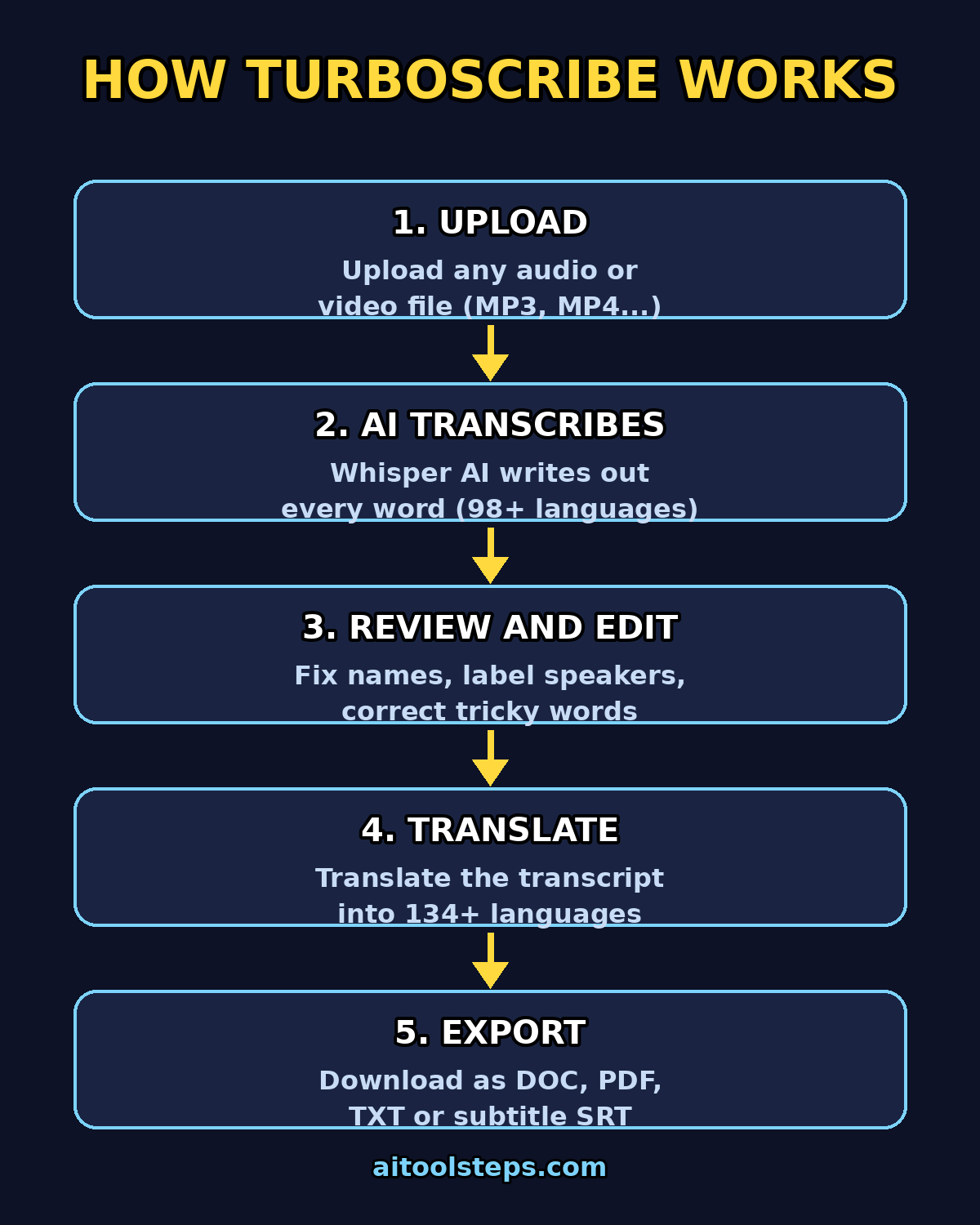
Finally, remember the core workflow: upload your file → set the language and mode → enable speaker recognition → review and edit → export. Master those five moves and you can transcribe interviews, lectures, podcasts, and videos in a fraction of the time manual typing takes. And when your workload outgrows the free tier, the Unlimited plan scales with you.
Explore More Free AI Tools
Want to do more with AI for free? Check out these handy tools:
- AI Title Generator — create catchy, SEO-friendly titles in seconds
- Meta Description Generator — write click-worthy meta descriptions automatically
- AI Rewriter — rewrite and polish your text instantly
- Keyword Density Checker — analyze keyword usage in your content