

You recorded a 60-minute podcast, a webinar, or a long YouTube video — and now the thought of cutting it into Shorts, Reels, and TikTok clips feels like a second full-time job. Scrubbing a timeline, hunting for hooks, cropping for vertical, typing captions, adding B-roll… most creators simply give up and post nothing.
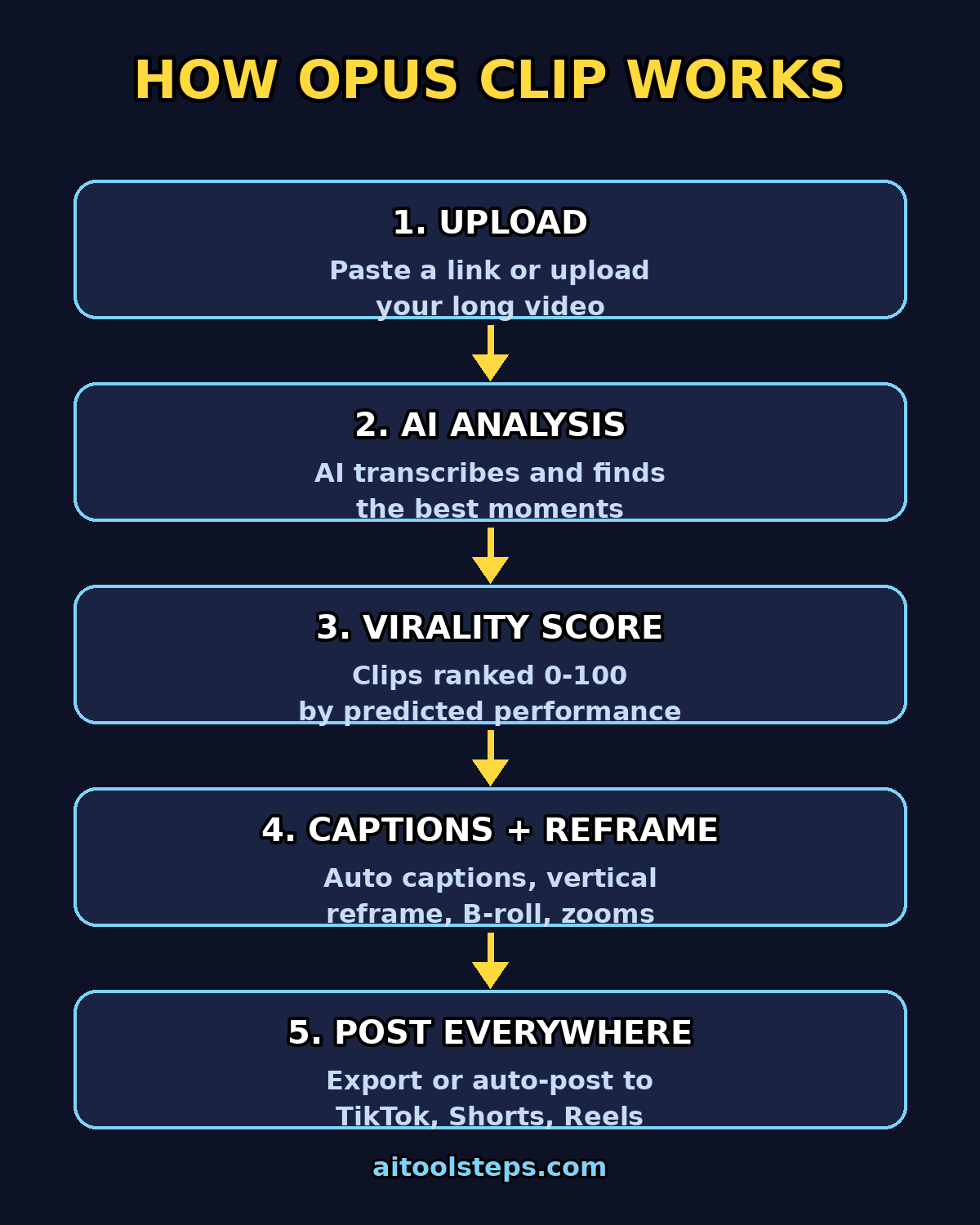
Opus Clip AI fixes exactly that problem. It is an AI video repurposing tool that takes one long video and automatically turns it into multiple short, vertical clips — with captions, reframing, and a predicted “virality score” for each one. In this beginner guide, you will learn how to use Opus Clip AI from zero: signing up, uploading your first video, choosing clips, customizing them, and publishing them everywhere.
By the end, you will be able to turn a single long recording into a week of short-form content in under 15 minutes — no editing experience required.
Step 1: Create Your Free Opus Clip Account
Start by heading to the official Opus Clip website and clicking Sign Up. You can register with your Google account, which takes about ten seconds, or with an email address and password.
- Go to the Opus Clip homepage.
- Click “Get Started” or “Sign Up Free”.
- Sign in with Google (fastest) or enter your email and create a password.
- Verify your email if prompted, then land on your dashboard.
The free plan gives you a limited amount of video processing time per month — enough to test the full workflow and publish real clips. You do not need a credit card to start.
Step 2: Upload Your Long Video (or Paste a Link)
On your dashboard, click “Get Clips” or the big upload button. Opus Clip gives you three ways to bring in your source video:
- Upload a file from your computer (MP4 works best).
- Paste a link to an existing YouTube video, Zoom recording, podcast, webinar, or interview.
- Import from Google Drive or a direct file URL.
Longer is fine — a 30-minute podcast, a 60-minute webinar, a 90-minute livestream. The AI handles the heavy lifting. Once your source is added, Opus Clip begins transcribing and analyzing it. Processing usually takes a few minutes depending on the video length; you will get a notification when your clips are ready.
Step 3: Let the AI Find the Best Moments
This is the magic part. Instead of watching your whole video again, Opus Clip’s AI scans the transcript and visuals to detect:
- Strong hooks — opening lines that grab attention in the first 3 seconds.
- Emotional peaks and opinions — hot takes, funny moments, surprising claims.
- Useful insights — tips, steps, and quotable advice that work standalone.
- Good retention segments — sections with energy and pacing that keep viewers watching.
Each candidate clip gets a Virality Score — a 0–100 rating predicting how likely that clip is to perform, based on signals like hook strength, pacing, and on-screen activity. You do not have to guess which moments are worth posting; the AI ranks them for you, highest first.
Step 4: Choose Your Clip Style and Length
Before generating, you set a few preferences that control how your clips look:
- Platform preset — TikTok, YouTube Shorts, or Instagram Reels (vertical 9:16 output).
- Clip length — under 30 seconds, 30–60 seconds, or 60–90 seconds. The 30–60 second range works best for most niches.
- Caption style — choose from animated caption templates (more on that below).
- Topic filter (optional) — add a keyword so the AI only pulls clips about a specific theme.
Pick one preset, keep the length on “Auto” or 30–60s for your first run, and click “Get Clips”. The AI will now reframe, caption, and score everything.
Step 5: Review Your Clips and Virality Scores
When processing finishes, you land on the results page: a grid of clips, each with a thumbnail, transcript snippet, and its virality score. This is where you act like an editor — but a fast one:
- Sort by virality score and start with the highest-ranked clips.
- Watch each clip once (30–60 seconds each) and check the hook lands fast.
- Trash weak ones — anything with a slow start, bad audio, or a confusing take. Not every clip is a winner, and that’s fine.
- Star your favorites — aim for 3–10 clips from one long video.
Pro tip: the score is a prediction, not a promise. A clip with a slightly lower score but a clear, punchy message often outperforms a high-scoring one. Trust your eyes and ears first.
Step 6: Add and Customize Auto Captions
Every clip comes with auto-generated captions — animated, word-by-word subtitles in the bold style viewers expect on Shorts and TikTok. Captions matter enormously: most people watch short video with sound off, and captioned clips get far better retention.
In the clip editor you can:
- Fix caption text — click any word in the transcript to correct AI misheard names or terms.
- Change caption style — switch templates (font, color, animation, highlight style).
- Highlight keywords — make important words pop in a different color for emphasis.
- Reposition captions — keep them clear of the platform’s UI buttons and your face.
Spend two minutes per clip on captions. Correct spelling of names and brands, because viewers WILL comment on mistakes.
Step 7: Let AI Reframe and Polish the Video
If your source was filmed in landscape, Opus Clip automatically reframes it to vertical 9:16, keeping the active speaker centered using face tracking — even if there are multiple guests or the speaker moves around.
Beyond reframing, the tool can:
- Remove filler words — automatic cuts for “um”, “uh”, “you know” tighten pacing.
- Add AI B-roll — suggested stock footage or cutaways matched to what is being said, so the clip stays visually fresh.
- Apply zoom and motion — subtle camera movement keeps static talking-head shots from feeling flat.
You can toggle these enhancements per clip. For your first video, leave the defaults on and review the result.
Step 8: Apply Your Brand Kit (Optional but Smart)
If you post regularly, consistency builds recognition. Opus Clip lets you create a brand template once and apply it to every clip:
- Your logo (positioned in a corner).
- Your brand fonts and colors for captions.
- A standard intro/outro overlay.
Set this up under the Brand section before your next batch, and every future clip comes out looking like it belongs to your channel — with zero extra work.
Step 9: Export Your Clips in the Right Format
Happy with a clip? Click Export / Download. Opus Clip renders it in vertical 9:16 (or 1:1 / 4:5 if you chose a different preset) with burned-in captions at full HD quality.
- Download to your device for manual posting, or
- Use the social scheduler to publish/schedule directly to YouTube Shorts, TikTok, Instagram Reels, and LinkedIn from inside Opus Clip.
Export each of your starred clips. Name files clearly (e.g., podcast-ep12-clip1-hook.mp4) so you can find them later.
Step 10: Post, Schedule, and Track What Works
Upload your clips to TikTok, YouTube Shorts, and Instagram Reels. A few posting tips that beginners overlook:
- Post the strongest hook first — your first 5–10 clips teach the algorithm what your content is.
- Keep the native title/caption short — repeat the hook in your own words plus 3–5 relevant hashtags.
- Space them out — one or two clips per day beats dumping all ten at once.
- Reply to comments quickly — early engagement is the biggest ranking signal on all three platforms.
- Track which clips pop — views, watch time, and shares tell you which topics deserve a follow-up long video.
Then repeat: every long video you record is now a batch of 5–15 shorts waiting to happen. That is the entire content-multiplier loop.
Opus Clip Free vs Paid: What Do You Actually Get?
| Feature | Free Plan | Paid Plans |
|---|---|---|
| Monthly processing time | Limited (enough to test) | Much more, tiered |
| Virality score ranking | Yes | Yes |
| Auto captions | Yes (basic templates) | Yes + premium styles |
| AI reframing to vertical | Yes | Yes |
| AI B-roll | Limited | Full library |
| Brand templates | Limited | Full customization |
| Export quality | HD | Higher quality options |
| Social scheduler / auto-post | Limited | Full scheduling |
| Watermark | May apply on free | Removed on paid |
Tips to Make Your Opus Clip Shorts Actually Go Viral
- Pick source videos with strong opinions. Boring in, boring out — AI cannot manufacture a hook that was never said.
- Ensure clean audio. The AI transcribes what it hears; mumbling becomes wrong captions.
- Cut the first 2 seconds ruthlessly. If the hook is not immediate, trim or pick another clip.
- One idea per clip. A 45-second clip making one punchy point beats a 90-second ramble.
- Fix names and terms in captions. Misspelled names destroy credibility in the comments.
- Use the topic filter on long multi-theme videos (webinars, podcasts) to get focused clip sets.
- Repurpose across all three platforms. The same 9:16 clip works on TikTok, Shorts, and TikTok — post everywhere.
FAQ
Is Opus Clip really free?
Yes — there is a free plan with a limited amount of monthly video processing time. It is enough to learn the workflow and publish real clips. Paid plans add more processing minutes, premium caption styles, full AI B-roll, brand templates, and the social scheduler.
How long does it take to turn a long video into clips?
Uploading takes a minute or two; AI processing usually takes a few minutes depending on video length. Reviewing and polishing 5–10 clips takes roughly 10–15 minutes total. The whole pipeline from long video to published shorts is well under an hour.
What kind of videos work best with Opus Clip?
Talking-head videos: podcasts, interviews, webinars, coaching calls, speeches, and YouTube videos where someone speaks directly. The AI finds hooks, opinions, and insights in spoken content. Highly visual or music-driven videos are not its strength.
Do I need video editing skills to use Opus Clip?
No. That is the entire point of the tool. Upload or paste a link, choose a style, and review the AI-generated clips. Basic tweaks (fixing a caption word, trimming a start) are point-and-click — nothing like a timeline editor.
Can Opus Clip post directly to TikTok, YouTube, and Instagram?
Yes. Opus Clip has a built-in social scheduler that can publish or schedule clips directly to YouTube Shorts, TikTok, Instagram Reels, and LinkedIn, so you do not have to download and re-upload manually.
Does Opus Clip add a watermark on the free plan?
The free plan may include a watermark on exports, while paid plans remove it. If you are posting to your own brand channel and the watermark bothers you, either upgrade or crop-check your exports before publishing.
Final Thoughts
Opus Clip AI is one of those rare tools that does exactly what it promises: it turns the boring, time-sucking part of short-form content (finding clips, cropping, captioning) into a 15-minute review session. For beginners, the learning curve is basically flat — if you can upload a video and click through a results page, you can use it.
Start with the free plan, run one long video through the full 10-step workflow above, and publish your three best clips this week. Watch which one performs, then feed the AI more of what worked. That feedback loop — long video in, data-backed shorts out — is how small creators quietly build big audiences in 2026.
Explore More Free AI Tools
Want to keep building your AI toolkit? Try these free tools from AIToolSteps:
- AI Title Generator — https://aitoolsteps.com/
- Meta Description Generator — https://aitoolsteps.com/
- AI Rewriter — https://aitoolsteps.com/
- Keyword Density Checker — https://aitoolsteps.com/