

You have probably heard of ChatGPT, but Microsoft has its own powerful AI assistant — and it may already be living inside your computer. It’s called Microsoft Copilot, and in 2026 it’s one of the easiest free AI tools a beginner can start with. No downloads, no credit card, no technical skills required.
Copilot can chat with you, answer questions with fresh information from the web, generate images from text, summarize long documents, rewrite your emails, and even help you inside Word, Excel, and PowerPoint. It lives on the web, inside Windows 11, in the Edge browser sidebar, and as a free app on your phone.
In this beginner-friendly guide, you’ll learn how to use Microsoft Copilot step by step — from creating your free account to writing prompts that get great answers, generating images, and knowing exactly what the free plan includes (and where its limits are).
Step 1: Understand What Microsoft Copilot Actually Is
Before you click anything, it helps to know what you’re dealing with. Microsoft Copilot is Microsoft’s free AI companion, powered by OpenAI’s latest AI models — the same family of technology behind ChatGPT — combined with Microsoft’s own systems and live web search.
Here’s what makes Copilot special for beginners:
- It’s genuinely free. The core assistant costs nothing — chat, image generation, and voice are all included without a subscription.
- It knows what’s happening now. Unlike older AI tools trained only on old data, Copilot searches the live web, so it can answer questions about 2026 news, prices, and events.
- It’s everywhere you already work. Copilot is built into Windows 11, the Edge browser, and Microsoft 365 apps, and it has free mobile apps for iPhone and Android.
- It remembers context. Within a conversation, Copilot follows up naturally — you can ask follow-up questions without repeating yourself.
Think of Copilot as a smart helper that sits next to you while you work, ready to write, explain, summarize, or create whatever you need.
Step 2: Create Your Free Microsoft Account and Sign In
You can try Copilot without an account, but signing in unlocks the good stuff: image generation, longer conversations, voice mode, and chat history that syncs across your devices. A Microsoft account is free and takes two minutes.
- Go to account.microsoft.com and click Create account.
- Enter your email address (any email works — Gmail, Yahoo, or Outlook) and create a password.
- Verify your email with the code Microsoft sends you.
- Done — this one account signs you into Copilot everywhere: web, Windows, Edge, and the mobile app.
Beginner tip: If you already use Outlook, Hotmail, Xbox, or OneDrive, you already have a Microsoft account — just sign in with it. No need to create a second one.
Step 3: Open Copilot on the Web (The Fastest Way to Start)
The web version is the quickest way to learn how to use Microsoft Copilot, and it works on any device with a browser — phone, tablet, Chromebook, or Mac.
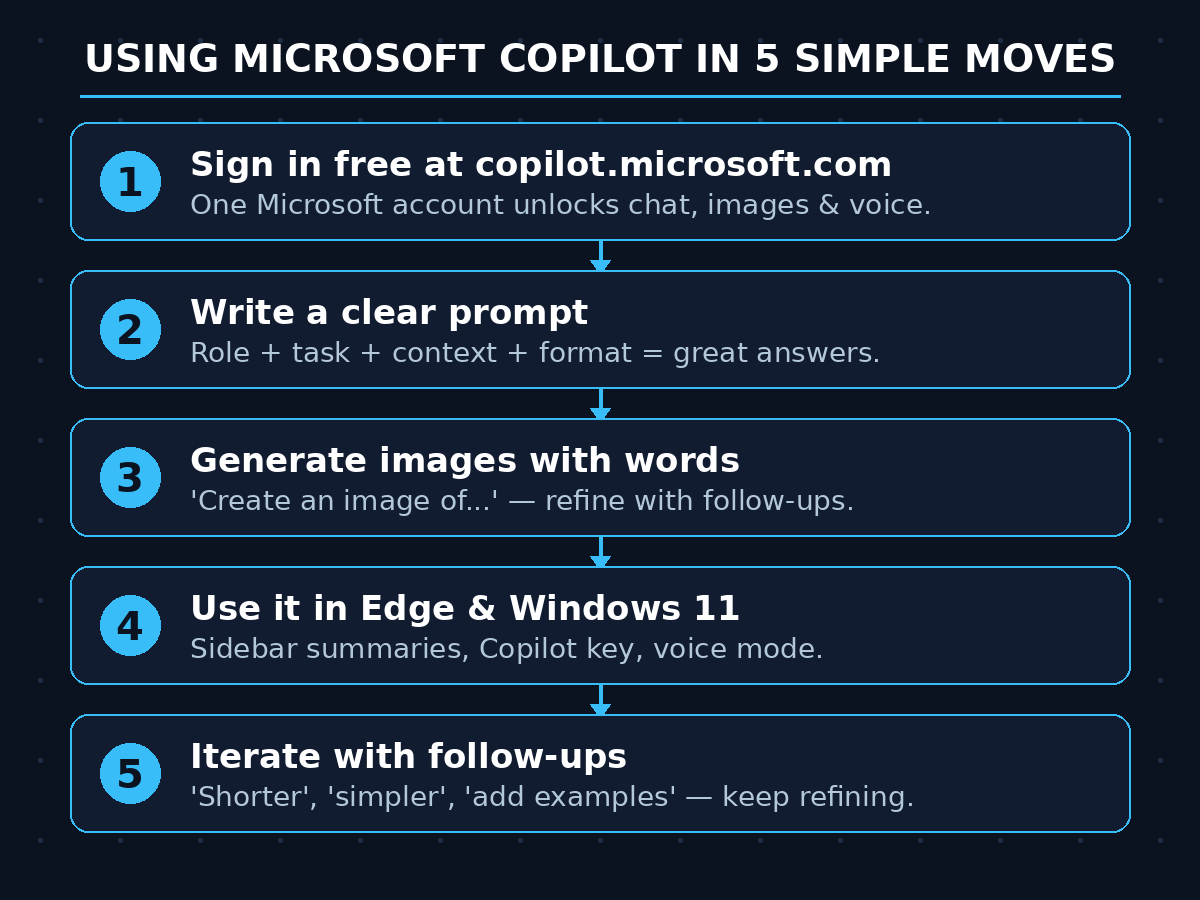
- Go to copilot.microsoft.com and sign in with your Microsoft account.
- You’ll see a clean chat screen: a big prompt box at the bottom, suggestion chips above it (like “Help me write” or “Create an image”), and your conversation history on the side.
- Copilot offers different thinking modes for different tasks — a fast Smart mode for everyday questions, a deeper reasoning mode for complex problems, and a Deep Research mode that writes detailed multi-page reports with sources. On the free plan, the deeper modes have daily limits, so use them for questions that truly need them.
- Click a suggestion chip or just type your question in the prompt box and press Enter.
Beginner tip: Bookmark copilot.microsoft.com and pin the tab. Most beginners who keep Copilot one click away end up using it daily; those who don’t, forget it exists.
Step 4: Write Your First Prompt the Right Way
Copilot is only as good as your instructions. The secret beginners miss: vague prompts get vague answers. Use this simple formula for dramatically better results:
Role + Task + Context + Format.
- Role: Who should Copilot act as? (“Act as a friendly career coach…”)
- Task: What exactly should it do? (“…write a cover letter…”)
- Context: What details does it need? (“…for a junior graphic designer job, I have 2 years of freelance experience…”)
- Format: How should the answer look? (“…in under 200 words, professional tone.”)
Try these three starter prompts to feel the difference:
- “Act as a cooking teacher. Explain how to make fluffy pancakes step by step for a total beginner. Keep it under 150 words.”
- “Write a polite email to my landlord asking for a rent receipt for last month. Friendly but professional tone, under 100 words.”
- “Explain how credit card interest works like I’m 15 years old. Use a simple example with numbers.”
Beginner tip: After Copilot answers, use follow-ups instead of starting over: “make it shorter,” “simpler words please,” or “add an example.” Iterating is faster than rewriting your prompt from scratch.
Step 5: Generate Images for Free with Copilot
One of the most fun free features is image generation. Copilot can create original images from a text description — no design skills needed.
- In the chat box, type a prompt starting with “Create an image of…” — for example: “Create an image of a cozy coffee shop on Mars, digital art style, warm lighting.”
- Wait 10–30 seconds while Copilot generates your image.
- Don’t love it? Refine with follow-ups: “make it more colorful,” “add a robot barista,” or “change to watercolor style.”
- Click the image to view it full-size, then download it with the download button.
Free-plan facts beginners should know:
- You get a daily allowance of fast image generations (Microsoft calls them “boosts”). Once they’re used up, image creation still works but gets slower — the allowance refreshes daily.
- Be specific about style: “photorealistic,” “3D cartoon,” “watercolor,” “minimalist logo” — style words change everything.
- Describe composition: what’s in the foreground, the mood, the lighting. “A cat” is weak; “a fluffy orange cat sleeping on a sunny windowsill, cozy morning light, photorealistic” is strong.
- Avoid asking for real people’s faces or trademarked characters — Copilot will refuse, and that’s by design.
Beginner tip: Save your best image prompts in a notes app. A good prompt is reusable — change one or two words and you have a brand-new image.
Step 6: Use Copilot Inside Microsoft Edge (The Hidden Superpower)
If you use Microsoft Edge, Copilot lives right inside your browser sidebar — and this is where it quietly becomes indispensable.
- Open Edge and press Ctrl + Shift + . (or click the Copilot icon in the top-right toolbar) to open the sidebar.
- With any webpage open, ask: “Summarize this page in 5 bullet points.”
- Ask follow-ups about the page: “What are the pros and cons mentioned?” or “Explain the pricing section in simple words.”
- Use Compose to draft emails, posts, or paragraphs without leaving the tab.
- Shopping or researching? Open two tabs and ask Copilot to compare them: “Compare the laptop on this tab with the one on the other tab — which is better for video editing under $1000?”
Beginner tip: The Edge sidebar is the fastest way to use Copilot while reading news, studying, or shopping. You never have to copy-paste text into a separate tab again.
Step 7: Use Copilot Built Into Windows 11
On Windows 11, Copilot is a first-class citizen — many new PCs even have a dedicated Copilot key on the keyboard.
- Press the Copilot key (or open the Copilot app from the Start menu) to launch it anytime.
- Use press-to-talk or the microphone button to speak instead of typing — great when your hands are busy.
- Ask Windows-specific questions: “How do I turn on night light?” “Why is my laptop fan so loud?” “Show me how to connect a Bluetooth speaker.” Copilot can walk you through settings step by step.
- Try Copilot Vision (on supported devices): with your permission, Copilot can see what’s on your screen or through your camera and help with what you’re looking at — like identifying an error message or explaining a confusing dialog box.
Beginner tip: Voice mode is the most underrated Copilot feature. Talking through a problem out loud while Copilot responds feels like thinking with a smart friend — try it once and you’ll be hooked.
Step 8: Try Copilot in Word, Excel, PowerPoint, and Outlook
This is where Copilot starts saving you real hours. How much you get depends on your plan:
- Free (copilot.microsoft.com): You can still draft documents, write formulas, and outline presentations in the chat — then copy the results into Word, Excel, or PowerPoint yourself.
- Copilot Pro or Microsoft 365 subscription: Copilot works inside the apps. Since Microsoft’s 2025 plan update, Microsoft 365 Personal and Family subscriptions include Copilot features in the desktop apps.
Practical beginner workflows:
- Word: “Draft a 300-word product description for handmade soy candles, warm and friendly tone.” Paste it in, then ask for rewrites via chat.
- Excel: “I have prices in column A and quantities in column B. Give me a formula for total revenue in column C.” Copilot explains the formula so you actually learn it.
- PowerPoint: “Outline a 6-slide presentation about why our town needs a community garden.” Then use PowerPoint’s Designer ideas to make it look professional.
- Outlook: Paste a rambling draft email into Copilot and ask: “Make this professional and cut it in half.”
Beginner tip: You don’t need the paid plan to benefit. Draft in free Copilot chat, polish with follow-ups, then paste into your document. The paid in-app version just removes the copy-paste step.
Step 9: Unlock Voice, Vision, and Daily Audio Briefings
Beyond text chat, Copilot has three modes beginners love once they discover them:
- Voice conversations: Tap the microphone and just talk. Copilot responds in natural spoken language. Perfect for brainstorming, practicing a presentation, or learning a language — ask it to role-play a job interviewer.
- Copilot Vision: Share your screen or camera (with your explicit permission each time) and Copilot sees what you see. Point your phone at a plant and ask what it is; share a confusing error message and get a fix.
- Daily briefings: Copilot can turn your day into a short personalized audio briefing — your calendar, top news, and reminders read aloud like a mini podcast while you get ready in the morning. (Rolling out through 2026 — check your Copilot app for availability.)
Beginner tip: Combine modes for real tasks. Example: take a photo of your messy handwritten notes → Vision reads them → ask Voice to “turn these into a clean to-do list” → copy the list into your notes app. That’s a full workflow in under a minute.
Step 10: Master 7 Prompt Formulas That Always Work
Once you know these seven patterns, you’ll get better answers from Copilot (and any AI assistant) for the rest of your life:
- The Expert: “Act as a personal finance coach and explain index funds to a beginner.” — Roles focus the answer’s tone and depth.
- The Format Lock: “Give me 5 dinner ideas under $10 in a numbered list with prep times.” — Always specify the format you want.
- The Step-by-Step: “Explain how to file taxes as a freelancer, step by step.” — Forces clear, ordered thinking.
- The Comparison: “Compare iPhone vs Samsung for photography in a table with a winner for each row.” — Tables beat paragraphs for decisions.
- The Rewrite: “Rewrite this to sound confident and professional: [paste text].” — Your personal editor on demand.
- The Summarizer: “Summarize this article in 5 bullets a 12-year-old would understand: [paste text].” — Tames any long read.
- The Follow-Up: “Shorter.” / “Add examples.” / “Now make it funny.” — Iteration beats perfectionism; the second answer is usually the best one.
Beginner tip: The biggest beginner mistake is accepting the first answer. Copilot expects you to push back — “not quite, try again with simpler words” is a completely normal and effective thing to say.
Step 11: Know the Free Limits (and When Copilot Pro Is Worth It)
The free plan is generous, but it’s not unlimited. Here’s the honest picture:
Copilot Free gives you:
- Unlimited-ish everyday text chats (with fair-use limits at peak times)
- Daily allowance of fast image generations (slower after the daily boosts run out)
- Voice conversations and web-grounded answers
- Access to deeper reasoning modes with daily caps
Where you’ll feel the limits:
- During busy hours, free users may wait longer or get shorter answers
- Image generation slows down after your daily fast allowance
- No Copilot inside Word, Excel, PowerPoint, and Outlook — you copy-paste from the chat instead
Copilot Pro ($20/month) adds:
- Priority access to the latest AI models, even at peak times
- Copilot built directly into Microsoft 365 apps (Word, Excel, PowerPoint, Outlook, OneNote)
- A much larger daily allowance of fast image generations
- Higher limits on voice and deep-reasoning features
Beginner tip: Start free for at least a month. Most beginners never hit the free limits. Upgrade only when you catch yourself thinking “I wish this were faster” or “I wish this worked inside Word” several times a week.
Step 12: Protect Your Privacy While Using Copilot
Copilot is helpful, but it’s still a cloud service — treat it with the same common sense as email:
- Your chats are saved to your conversation history so you can revisit them. Delete any chat anytime from the history panel.
- Don’t paste secrets. Never share passwords, bank details, ID numbers, or other people’s private information in prompts.
- Check personalization settings. Copilot can remember things about you to personalize answers — review what’s stored in your Microsoft privacy dashboard and turn off anything you’re uncomfortable with.
- Work data caution. If your employer has rules about AI tools, follow them — many companies provide their own managed Copilot with extra protections.
Beginner tip: Once a month, open your Copilot chat history and delete conversations you don’t need. It takes two minutes and keeps your digital footprint tidy.
Microsoft Copilot: Free vs Pro vs the Competition
How does Copilot stack up against the other free AI assistants? Here’s an honest beginner-level comparison:
| Feature | Copilot (Free) | Copilot Pro ($20/mo) | ChatGPT (Free) | Gemini (Free) |
|---|---|---|---|---|
| Price | $0 | $20/month | $0 | $0 |
| AI models | Latest OpenAI models | Priority access to latest | GPT models with limits | Gemini models with limits |
| Live web answers | Yes | Yes | Limited on free | Yes |
| Image generation | Yes, daily fast allowance | Yes, larger allowance | Very limited on free | Yes |
| Voice conversations | Yes | Higher limits | Yes | Yes |
| Built into Windows + Edge | Yes | Yes | No | No |
| Works inside Word/Excel/PowerPoint | No (chat only) | Yes | No | No (Docs/Sheets via paid AI plans) |
| Best for | Windows/Office users, free images | Heavy 365 users | General chat, huge ecosystem | Google Workspace users, research |
The bottom line: If you live in Windows, Edge, or Microsoft 365, Copilot is the most convenient free assistant you can get — it’s already where you work. If you’re deep in Google’s world, Gemini may feel more natural. There’s no wrong answer; many people use two.
Frequently Asked Questions
Is Microsoft Copilot really free?
Yes. The core Copilot assistant — chat, image generation, voice, and web-grounded answers — is completely free with a Microsoft account. There’s an optional paid tier, Copilot Pro ($20/month), that adds priority model access, higher limits, and Copilot built into Microsoft 365 apps, but beginners can do a huge amount without paying anything.
Is Copilot better than ChatGPT?
They’re powered by related AI technology, so answer quality is comparable for everyday tasks. Copilot’s advantages: it’s free with generous image generation, it searches the live web by default, and it’s built into Windows and Edge. ChatGPT’s advantages: a bigger ecosystem of custom GPTs and integrations. Try both free versions for a week and keep the one you open more.
Do I need a Windows PC to use Copilot?
No. Copilot works in any modern browser at copilot.microsoft.com, and there are free apps for iPhone, iPad, and Android. Windows 11 and Edge just make it more convenient with built-in buttons, the Copilot key, and the sidebar.
Can I use Copilot-generated images commercially?
Microsoft’s terms generally allow you to use images you create, but commercial-use rules can change and may differ by region and plan. For anything that earns money — a business logo, product packaging, ad creatives — read the current terms on Microsoft’s site first, and consider that AI-image ownership rules are still evolving in many countries.
Does Microsoft Copilot work offline?
No — Copilot needs an internet connection because the AI processing happens on Microsoft’s servers, and its answers are grounded in live web search. For offline AI, you’d need a locally installed model, which is a different (and more technical) setup.
How do I delete my Copilot chat history?
Open Copilot, find the conversation in your history panel, and delete it from there. For deeper control — including what’s remembered about you for personalization — visit your Microsoft privacy dashboard (account.microsoft.com/privacy), where you can review and clear your Copilot activity.
Final Thoughts
Learning how to use Microsoft Copilot is one of the highest-leverage things a beginner can do in 2026. It’s free, it’s already on your devices, and the learning curve is about ten minutes: sign in, type a clear prompt, and iterate.
Start with the web version today. Try one image generation, one Edge sidebar summary, and one voice conversation this week. Master the seven prompt formulas in Step 10, and you’ll suddenly find Copilot woven into your daily routine — drafting, summarizing, explaining, and creating alongside you.
The AI assistants that win aren’t the most powerful ones — they’re the ones you actually open every day. Make Copilot yours.
Explore More Free AI Tools
Want more free AI superpowers? Try our free tools at https://aitoolsteps.com/ — including the AI Title Generator, Meta Description Generator, AI Rewriter, and Keyword Density Checker. And keep following our guides to master one new AI tool every day.