

Learning how to use Gamma AI is one of the fastest ways to stop fighting with slide layouts forever. Gamma AI is a free AI presentation maker that turns a single sentence, a block of pasted notes, or an existing document into a polished, beautifully designed deck in under a minute. Instead of wrestling with text boxes in PowerPoint or Canva, you type what your presentation is about, and the AI writes the content, picks the layout, chooses images, and applies a professional theme automatically. In this beginner-friendly guide, you will learn exactly how to use Gamma AI from signup to sharing, what the free plan really includes, and how to get the best results from every deck you generate.
Step 1: Create Your Free Gamma Account
The first step in learning how to use Gamma AI is signing up, and it takes less than two minutes.
- Go to gamma.app and click “Sign up free.”
- Register with your Google account or an email address — no credit card is required on the free plan.
- Gamma gives every new account a one-time pool of 400 free AI credits at signup. These credits do not refresh each month, but they are enough to generate roughly ten full presentations, so you get a real taste of the platform before paying anything.
- After signup, you can also earn 200 bonus credits for every friend you refer, with a free-account balance cap of 2,000 credits.
Once you are in, Gamma asks what you want to create first. That leads straight into your dashboard.
Step 2: Tour the Gamma Workspace
Before generating anything, take sixty seconds to understand the workspace, because it explains a lot about how to use Gamma AI effectively.
- Dashboard: This is home base. Your recent decks, documents, and websites live here, and the big “Create new AI” button is always visible.
- The editor: Gamma does not use fixed slides. It uses cards — flexible content blocks that grow or shrink to fit your text, scrolling vertically like a web page. (Note: Gamma’s pricing page now calls them slides, but the flexible card concept is the same.)
- Left sidebar: Navigate between cards, add new ones, or restructure the whole deck by dragging cards up and down.
- AI assistant panel: A chat-style helper that can rewrite, shorten, expand, or re-theme content on command.
Understanding cards is the single biggest mindset shift for beginners. You never nudge a text box that is two pixels too low — you just add or remove content, and the design reflows itself.
Step 3: Generate Your First Deck From a Prompt
This is the magic moment in any how to use Gamma AI tutorial, and it is wonderfully simple.
- Click “Create new AI” on the dashboard.
- Choose “Generate” and pick Presentation as the format. (Gamma can also generate documents, websites, and social posts, but presentations are its flagship format.)
- Type a one-line prompt describing your deck, for example: “A 10-slide presentation for beginners about indoor plant care, friendly tone.”
- Set how many slides you want. Free-plan prompts are capped at 10 slides per prompt, so plan accordingly — a 20-slide pitch deck means building the back half by hand or upgrading.
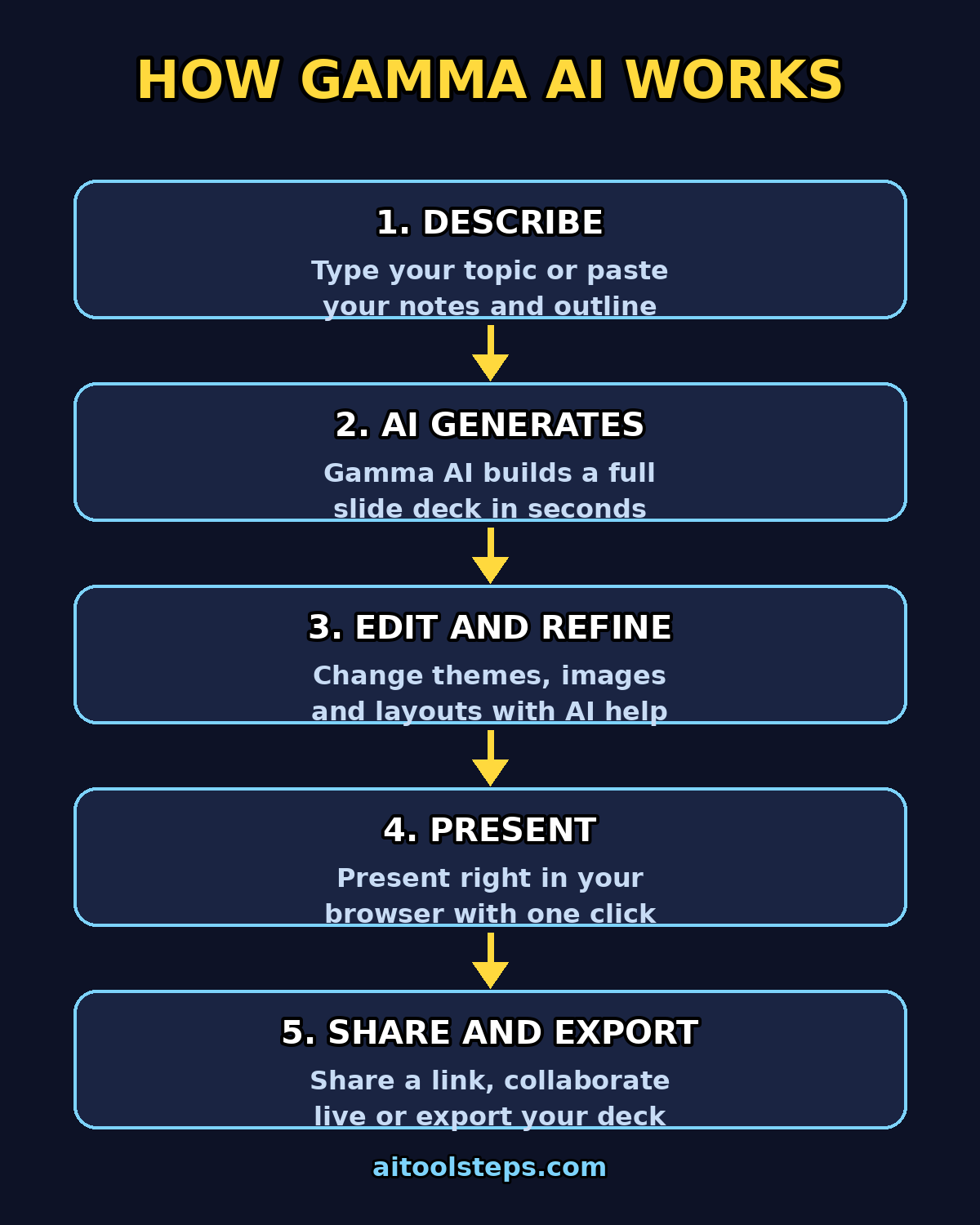
- Click Generate and wait about a minute while Gamma writes the outline, the copy, and the design.
Your first deck will appear fully themed, with images, icons, and layouts already in place. It will not be perfect — first drafts rarely are — but you will be 90 percent of the way there before you have lifted a finger.
Step 4: Paste or Import Your Existing Content
One-line prompts are fun, but the most powerful way to use Gamma AI is to bring your own material. Pasted notes produce far more accurate slides than a bare prompt, because the AI is structuring your thinking instead of inventing the substance.
- In the “Create new AI” flow, choose “Paste in text” instead of “Generate.”
- Paste your meeting notes, a blog post, a lesson plan, or bullet points — Gamma restructures the content into a polished deck automatically.
- You can also import a PDF, PPTX, or DOCX file, or even drop in a website URL, and Gamma will convert it into a deck.
- For best results, paste clean, organized text. The AI follows the structure you give it, so headings and bullet points in your source become sections and cards in the deck.
This import path is what makes Gamma genuinely useful for professionals: that 20-page report you already wrote becomes a shareable presentation in minutes.
Step 5: Choose and Customize Your Theme
Every Gamma deck ships with a theme — a coordinated set of fonts, colors, and layouts. Changing the whole look takes one click.
- Click the theme option in the editor to browse dozens of pre-built themes, from corporate minimal to bold and playful.
- Use the shuffle theme feature to audition different looks instantly. This is one of the biggest time-savers in the product if you dislike picking fonts and colors yourself.
- Adjust colors, fonts, and background styles to match your brand or taste.
- Pro tip: pick your theme early, because a restyle reflows the whole deck and can make text feel fresh or cramped in places — check each card after switching.
Free accounts get the full theme library, so you are not designing with one hand tied behind your back on the free plan.
Step 6: Edit and Refine Cards With AI
A generated deck is a starting point, not a finished product. Here is where learning how to use Gamma AI really pays off: the AI editing tools.
- Click any text to edit it directly, just like editing a document. No locked text boxes.
- Open the AI editing panel and give natural-language instructions such as:
- “Make this card a comparison table”
- “Shorten every card to three bullet points”
- “Rewrite this in a more casual tone”
- “Add a chart of these numbers”
- Change a single card’s layout with one click — switch between text-and-image, full-bleed image, quote, stats, and dozens of other layouts.
- Reorder the deck by dragging cards in the left sidebar.
Each AI edit costs a few credits (roughly 5–10 per action), so on the free plan, make your biggest structural edits in one or two passes rather than dozens of tiny tweaks. Hand-editing text, by contrast, costs nothing at all.
Step 7: Add Images, Charts, and Media
Gamma auto-generates images for your deck, but the smartest users curate them.
- Click any image placeholder to regenerate the image with AI, swap it for one of Gamma’s stock-style options, or upload your own photo or logo.
- Replace generic AI images that add no information with something real: a chart, a screenshot, a product photo, or a team picture. A concrete visual beats a decorative one every time.
- Insert charts and diagrams — pie charts, bar charts, smart layouts — which Gamma renders in a clean, consistent style by default.
- Embed videos, GIFs, tweets, and other interactive web content directly into cards. Because Gamma decks are web-native, embeds actually work and play.
One caution for beginners: always double-check any facts, numbers, or statistics the AI wrote. Generated text can include made-up figures. Replace anything you cannot source before you present.
Step 8: Present Your Deck
Gamma decks live on the web, which makes presenting refreshingly simple.
- Click Present to show your deck full-screen right in the browser — no software to install, nothing to download.
- The presentation mode preserves the interactive elements: embedded videos play, animations run, and content scrolls smoothly.
- Because everything is a link, you can present from any device with a browser, including a tablet or a borrowed laptop.
- Use the arrow keys or on-screen controls to move between cards.
If you need to speak from bullet points, consider exporting speaker notes separately or keeping a printed outline — Gamma’s web-first format is optimized for viewing, not for behind-the-scenes presenter tools.
Step 9: Share and Collaborate
Sharing is where Gamma pulls ahead of traditional slide software.
- Click Share to generate a live view link — anyone with the link can view your deck in a browser, beautifully formatted on phone or desktop.
- Control access: share publicly, restrict to specific people, or password-protect sensitive decks.
- Publish your deck as a website on a gamma.site address for landing pages or portfolios.
- Invite teammates to comment and edit in real time (note: full co-editing is limited on the free plan, with more collaboration features on paid tiers).
This link-first workflow is the reason many teams switched: instead of emailing a 40 MB PowerPoint file around, you send one link that always shows the latest version.
Step 10: Export and Download Your Deck
Sometimes you still need a file. Gamma exports on every plan, including free.
- Open the share/export menu and choose PDF, PowerPoint (PPTX), PNG, or Google Slides.
- Exported from Present Mode, so what you see in the browser is what gets rendered into the file.
- Always open the exported file and page through it once — layouts do not always carry over perfectly, because Gamma’s flexible cards are being squeezed into fixed PowerPoint frames.
- Remember the honest trade-off: if you share as a link, Gamma is exceptional. If you deliver a .pptx file as the final product, expect some cleanup. Design for the link first, and treat export as a backup format.
Free-plan exports carry a small “Made with Gamma” badge on shared outputs. Paid plans remove it.
Step 11: Understand the Free Plan Limits and Pro Tips
Now that you know how to use Gamma AI end to end, here is how to make the free plan last — and when to consider upgrading.
- The 400 free credits are one-time, not monthly. One AI-generated deck of about 10 slides costs roughly 40 credits, so the free pool covers around ten decks. AI edits cost roughly 5–10 credits each.
- Free prompts cap at 10 slides. Need longer decks? Build the rest manually or move to Plus (up to 100 slides per prompt).
- Hand-editing is free. Reserve your credits for generation and big AI rewrites; fix typos and wording by hand.
- Bring your own content. Pasted notes beat one-line prompts for accuracy every time.
- Cut text ruthlessly. AI drafts are wordy. Aim for one idea per card and a handful of short bullets.
- Check facts. Verify every number and claim the AI generated before presenting.
- Mind confidential data. Do not paste sensitive company or client information into any AI tool unless your organization allows it.
When the free credits run out, you can still edit, present, share, and export everything you made — only new AI generation stops. If you need more, Plus starts at about $9 per seat per month on annual billing ($12 month-to-month) with 1,000 monthly credits and the branding removed; Pro at about $18 per seat per month on annual billing ($25 month-to-month) adds custom branding, analytics, custom domains, and API access; and Ultra at about $90 per month on annual billing ($100 month-to-month) unlocks the most advanced models. Always check gamma.app for the latest prices, because pricing changes often.
Gamma Plans Compared: Free vs Plus vs Pro
| Feature | Free ($0) | Plus (~$9/mo annual) | Pro (~$18/mo annual) |
|---|---|---|---|
| AI credits | 400 one-time, never refresh | 1,000 per month | 4,000 per month |
| Slides per prompt | Up to 10 | Up to 100 | Up to 100 |
| Gamma branding | “Made with Gamma” badge | Removed | Removed |
| AI image models | Standard | Advanced | Premium |
| Export (PDF, PPTX, PNG, Google Slides) | Yes | Yes | Yes |
| Custom branding and fonts | No | No | Yes |
| Analytics and custom domains | No | No | Yes |
| API access | No | No | Yes |
| Import from PDF and PPTX | Yes | Yes | Yes |
| Best for | Trying the workflow | Regular creators and freelancers | Client-facing and brand work |
Prices are per seat in US dollars, annual billing; monthly billing runs higher. Figures based on gamma.app pricing information available as of October 2026 — always confirm current rates before you pay.
Frequently Asked Questions
Is Gamma AI really free?
Yes — the free plan costs $0 and requires no credit card. You get 400 one-time AI credits at signup (roughly ten presentations), plus import and export features. The catch is that free credits never refresh, and free decks carry a “Made with Gamma” badge. Think of it as a generous trial, not a permanent free tier.
How many presentations can I make on the free plan?
About ten full AI-generated decks of around ten slides each, since each deck costs roughly 40 credits. AI edits cost roughly 5–10 credits each, so heavy editing eats into the budget. You can earn 200 credits per referral (up to a 2,000-credit balance) to extend the free plan without paying.
Can I export Gamma presentations to PowerPoint?
Yes. Export to PPTX is available on every plan, including free. Open the share/export menu and choose PowerPoint. Just page through the exported file before delivering it, because Gamma’s flexible card layouts do not always convert cleanly into PowerPoint’s fixed slide frames.
What is the difference between a Gamma card and a PowerPoint slide?
A PowerPoint slide is a fixed 16:9 frame — content that overflows gets cut off. A Gamma card is a flexible block that stretches or shrinks to fit its content, scrolling vertically like a web page. That is why Gamma decks look great in a browser but sometimes need cleanup when exported to .pptx.
Does Gamma AI work for documents and websites too?
Yes. The same “Create new AI” flow can generate documents, websites, and social posts — not just presentations. The beginner workflow in this guide applies to those formats as well: prompt or paste content, pick a theme, refine with AI, then share or export.
Is my data safe on Gamma AI?
Gamma states it is SOC 2 Type II certified and GDPR and CCPA compliant, with data encrypted in transit. That said, avoid pasting confidential company or client information into any AI tool unless your organization has approved it.
Final Thoughts
Learning how to use Gamma AI takes an afternoon, and it permanently changes how you feel about making presentations. The beginner formula is simple: sign up free at gamma.app, bring your own notes whenever you can, generate the deck, pick a theme, trim the text, swap the weak images, and share it as a link. Respect the free plan’s limits — 400 one-time credits, 10 slides per prompt, the Gamma badge — and you will squeeze ten genuinely useful decks out of the free tier. When you start presenting regularly, the Plus plan is the natural next step. Stop nudging text boxes. Let the AI do the layout while you do the thinking.
Explore More Free AI Tools
Want to keep building your free AI toolkit? Try the AI Title Generator, Meta Description Generator, AI Rewriter, and Keyword Density Checker over at aitoolsteps.com — and browse the full library of beginner-friendly tutorials in the AI how-to guides section.