

Running your own work — freelancing, a solo business, a side hustle — sounds great until you look at your week. Hours disappear into email triage, meeting notes, to-do lists, expense filing, and follow-ups. It is repetitive admin, not the work you signed up for. What if an AI could simply watch you do one of those tasks once, learn it, and then do it for you every time after that?
That is exactly what IrisGo promises. IrisGo is an AI operating system for workflow automation launched in public beta, built specifically for solo entrepreneurs and small teams. Instead of writing prompts over and over, you show it a workflow once with its “Watch & Learn” feature, and IrisGo turns it into a reusable automation that runs on your device. It is free during the beta, and backed by serious AI credibility — AI Fund led its seed round, with support from NVIDIA and Google.
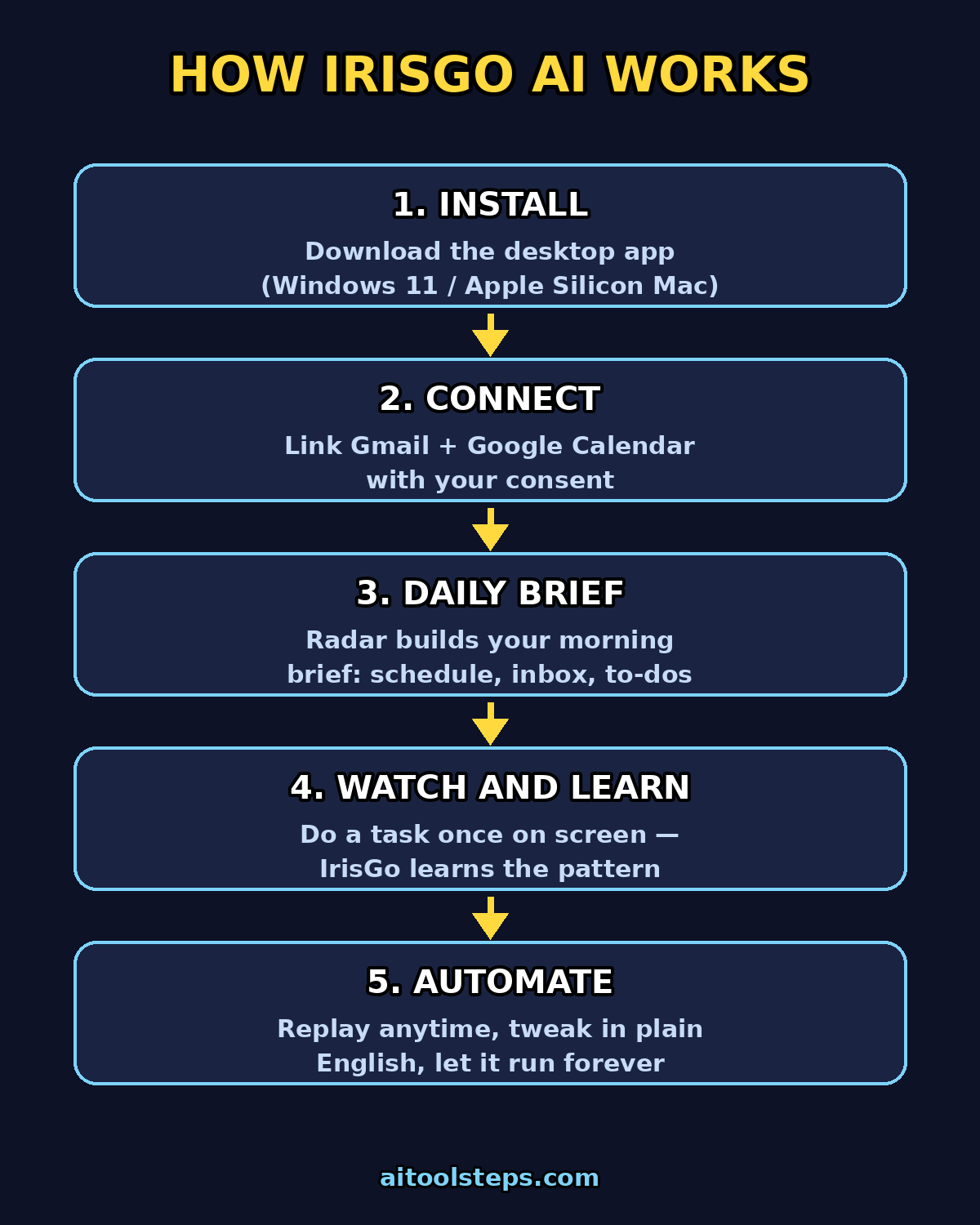
In this guide, you will learn how to use IrisGo AI step by step: installing it, connecting your email and calendar, getting your daily brief, sorting your inbox, and automating your first workflow. No coding, no integrations to wrestle with. Let’s get started.
Step 1: Install IrisGo on Your Computer (Free During Beta)
The first thing to know about how to use IrisGo AI is that it is a desktop app, not a website. Before you install, check the system requirements:
- Windows: Windows 11 (64-bit)
- Mac: Apple Silicon Macs
- Linux: in the longer-term plans, not yet available
Head to the official IrisGo site and open the page on your computer — the install link only works on a desktop device. Download the installer for your platform, run it, and follow the setup wizard. Updates install automatically, so you will always be on the latest beta.
The first launch walks you through a short setup process. It asks what kind of work you do and which tasks eat most of your time. Answer honestly — this helps IrisGo prioritize what it learns first. Sign in with your email to create your free beta account. In fact, there is no credit card required during the beta period.
Tip for beginners: For example, install it on the computer where you do your actual work. IrisGo learns by observing your workflows on that device, so installing it on a spare laptop you rarely open will not give it much to learn from.
Step 2: Set Your Data Permissions and Connect Email + Calendar
IrisGo works with your data, so the first thing it asks is: what can it see? It only accesses data and workflows you consent to. However, take a minute to review the permissions screen and toggle access for the sources you want to automate.
The two most important connections are:
- Gmail: IrisGo reads your inbox to triage email, pull out action items, and surface what needs your attention.
- Google Calendar: It uses your schedule to build daily briefs and prepare you for meetings.
Therefore, connect both during setup. IrisGo processes much of its work on-device, which is a privacy advantage over tools that ship everything to the cloud. When a task is too large for the device, cloud processing only happens when you explicitly authorize it, and it uses end-to-end encryption.
Privacy note: If you handle sensitive client data, start with read-only sources like your calendar and a secondary inbox first. Get comfortable with how IrisGo behaves before giving it access to your main business email.
Step 3: Get Your First Daily Brief with Radar
Once your email and calendar are connected, IrisGo’s Radar feature starts building you a daily brief. Open the app in the morning and you will see:
- Your schedule for the day, with key meetings highlighted
- Emails that need replies or decisions, pulled from your inbox
- To-dos and deadlines it extracted from messages
- A short summary of anything important you missed overnight
As a result, this is the fastest win in the whole guide. Instead of opening three apps and scanning everything yourself, you read one brief and know exactly where your day stands. Solo entrepreneurs in the beta community consistently call the daily brief the feature they would miss most.
Beginner habit: Make the daily brief the first thing you open with your morning coffee. Do not touch your inbox directly until you have read it — the brief tells you what actually needs attention, and the rest can wait.
Step 4: Triage Your Inbox with IrisGo
Email is the biggest time thief for solo entrepreneurs. IrisGo does not just summarize your inbox — it sorts it. Here is how to set up email triage in your first week:
- Open the Radar email view. You will see your recent messages grouped by priority instead of chronology.
- Next, review its suggestions. IrisGo flags emails needing a reply, invoices needing filing, and newsletters that can be ignored.
- Correct it when it is wrong. Drag an email to the right category, or mark something as unimportant. It learns from every correction.
- Approve the routine replies. For predictable messages — meeting confirmations, delivery notices, routine client questions — IrisGo can draft replies for you to approve with one click.
After a week of corrections, the sorting gets noticeably sharper. The key insight: you are not configuring rules like in an email filter. You are teaching — the same way you would train a human assistant. Show it the pattern once, correct it a few times, and it handles it.
Step 5: Track Your To-Dos in One Place
IrisGo pulls tasks from your inbox, calendar, and meeting notes into a single priority view. As a result, you do not need a separate task manager to benefit — just stop trying to remember everything yourself.
- Auto-captured tasks: “Send the invoice by Friday” in an email becomes a to-do with a deadline.
- Meeting action items: After a call in a supported meeting app, IrisGo can generate action items and key highlights from the transcript.
- Prioritization: It flags what is due soonest and what depends on a reply you have not sent yet.
Your job is to glance at the list each evening and mark things done. IrisGo handles the collection and the nagging.
Step 6: Record Your First Workflow with Watch & Learn
This is the feature that makes IrisGo different from every chatbot. Watch & Learn lets you automate any recurring on-screen task by demonstrating it once.
First, pick a small, annoying task you do regularly. Good first examples:
- Renaming downloaded files and moving them into client folders
- Copying invoice details from emails into a spreadsheet
- Checking the same supplier or dashboard every morning and noting price changes
- Organizing screenshots or attachments into dated folders
Then:
- Tell IrisGo to start watching. Open the workflow recorder and press record.
- Next, do the task exactly as you normally would. Click, type, drag — everything is observed as a pattern, not a rigid macro.
- Stop recording and name the workflow. Give it a clear name like “Sort client invoices”.
- Test it on new data. Run it once on fresh items and watch how it adapts.
However, the difference from an old-school screen recorder matters: IrisGo understands patterns, not fixed coordinates. If you demonstrated sorting 5 files, it can sort 12 — it recognizes the folder you are working from, processes each item one by one, and uses visual checks to know when it is done.
Step 7: Replay Workflows and Tweak Them in Plain Language
Once a workflow is recorded, running it is one click. But the real power is the replay-time tweaks: you can describe changes in natural language instead of re-recording.
- “Sort by project name instead of client name.”
- “Skip files smaller than 1 MB.”
- “Save the summary as a PDF, not a Word doc.”
After that, type the tweak, and IrisGo adjusts the replay. This makes your automated workflows resilient — when the task drifts slightly, you guide it with a sentence rather than starting over.
Beginner rule of thumb: Record a workflow as-is first, even if it is imperfect. A 70%-correct automation you can tweak is worth more than a perfect one you never build because it felt too complicated.
Step 8: Let Memory Give IrisGo Context
IrisGo has a Memory feature that builds up context about your work over time: your clients, your projects, your preferences, your recurring deadlines. Consequently, the more you use it, the less you have to explain.
You can check what it remembers and correct it. This is important — think of it like training a human assistant. In the first month, spend two minutes a week reviewing its memory and fixing anything wrong. Accurate context is what turns decent automated workflows into ones that feel almost telepathic.
Step 9: Turn Meeting Notes into Action Items with IrisGo
If you take client calls, IrisGo can pull transcripts from supported meeting apps and turn them into:
- A short summary of what was discussed
- A list of action items with owners
- Key highlights and decisions
Additionally, you can ask follow-up questions about a past meeting — for example, “What did the client say about the deadline last Tuesday?” — and get an answer from the transcript. Students have even used captured lecture transcripts to generate study guides.
Workflow tip: After each call, spend 60 seconds reviewing the generated action items before they flow into your to-do list. Catching one wrong item is cheaper than doing the wrong work all week.
Step 10: Review, Correct, and Improve Over Time
IrisGo improves the more you use it — but only if you close the loop. This is how to use IrisGo AI for continuous improvement. Build a simple weekly review habit:
- Check the daily brief accuracy. Did it surface the right priorities? Tell it what it missed.
- Approve or reject workflow replays. A quick thumbs up or down teaches it your standards.
- Clean up memory. Remove outdated projects, update client names, add new preferences.
- Add one new workflow per week. Keep expanding the set of tasks you never touch manually.
For instance, most users report the first week feels like training wheels, and by week three IrisGo is handling entire categories of admin work on its own. The investment is front-loaded; the payoff compounds.
Step 11: Know What NOT to Automate Yet
However, a beginner mistake is automating everything on day one. Keep these rules in mind:
- Never auto-send client-facing messages until you have reviewed dozens of drafts. Start with drafts-you-approve.
- Keep financial moves manual. Filing an invoice is fine; paying one should stay in your hands.
- Watch the edge cases. New situations confuse any automation. Review anything that looks different from the usual pattern.
- Stay in the loop on privacy. Revisit permissions every few months as the beta adds features.
Automation is a ladder: drafts before sends, summaries before decisions, filing before spending. Climb it in order.
IrisGo vs Other Ways to Handle Admin Work
| Method | Setup effort | What it automates | Price | Best for |
|---|---|---|---|---|
| IrisGo (Watch & Learn) | Low — demonstrate once | Any on-screen recurring task + email triage + daily briefs | Free during beta | Solo entrepreneurs, freelancers, small teams |
| ChatGPT / chatbot prompts | Low | Text tasks only (drafts, summaries) | Free tier available | Writing and one-off questions |
| No-code automation apps | Medium — build each automation | Connected-app workflows (form → sheet → email) | Free tier limited, paid tiers add up | Multi-app integrations you configure |
| Virtual assistant (human) | High — hire + train | Anything, with judgment | Monthly salary or hourly | Teams with budget and complex work |
In summary, the takeaway: chatbots cannot click buttons, no-code tools cannot automate apps they do not integrate with, and a human assistant costs real money every month. IrisGo’s niche is the long tail of small, specific, on-screen tasks that are too custom for integrations but too repetitive to keep doing by hand.
Frequently Asked Questions
Is IrisGo really free?
Currently, IrisGo is free during the public beta, on both Windows and Mac. The company has not announced final pricing, so enjoy the beta while it lasts and watch for pricing news before it ends.
Which computers can run IrisGo?
Windows 11 (64-bit) and Apple Silicon Macs. Linux is in the longer-term plans but not available yet. You need a real computer — the install link only works on desktop, not on phones or tablets.
Is my data safe with IrisGo?
IrisGo is designed to process a lot of work on-device, which is stronger privacy than tools that send everything to the cloud. Cloud processing only happens when you explicitly authorize it, using end-to-end encryption. You also control exactly which data sources it can see, and can start with read-only or secondary accounts.
Do I need to know how to code?
No. In fact, Watch & Learn is built for non-technical users: you demonstrate the task with your mouse and keyboard, and describe tweaks in plain English. There is nothing to install beyond the app itself.
How is IrisGo different from an AI agent like a chatbot?
A chatbot answers questions in a chat window. IrisGo works across your apps: it watches your screen, learns your workflows, sorts your email, builds daily briefs, and replays tasks for you. Think assistant, not search box.
Who is IrisGo best for?
Solo entrepreneurs, freelancers, and small business owners who juggle many roles and lose hours to recurring admin. If your work is mostly on-screen and repetitive — inboxes, files, spreadsheets, scheduling — IrisGo will save you the most time.
Final Thoughts
IrisGo’s bet is simple: the most valuable AI assistant is not the one with the cleverest answers, but the one that quietly takes recurring work off your plate. For a beginner learning how to use IrisGo AI, the path is straightforward — install the free beta, connect your email and calendar, read your daily brief, and record your first Watch & Learn workflow this week.
To begin, start with one annoying task. Show it once. Let it run. Then pick the next one. As a result, a month from now, count the hours you got back, and you will wonder why you ever did admin the manual way.
Explore More Free AI Tools
Want to keep building your free AI toolkit? Try these free tools from AIToolSteps:
- AI Title Generator — create catchy blog and video titles in seconds
- Meta Description Generator — write SEO-friendly meta descriptions instantly
- AI Rewriter — rewrite any text in a fresh, original way
- Keyword Density Checker — check your article’s keyword balance for SEO
Visit aitoolsteps.com to explore all our free AI tools and beginner guides.