

Imagine you have written an AI model in PyTorch, the framework almost every AI developer uses, and you want to run it more cheaply — without rewriting a single line of your code. That is exactly the problem TorchNeuron AI solves. On October 19, 2026, Amazon Web Services (AWS) released TorchNeuron AI as a free, open-source public beta, and it lets your existing PyTorch code run on AWS Trainium chips with a single configuration change instead of a months-long rewrite.
If you are new to AI infrastructure, do not worry. You do not need to understand chip design to use TorchNeuron AI. In this beginner-friendly guide, you will learn what TorchNeuron AI is, what you need before you start, how to install it, how to move your first model onto a Trainium chip, and how to decide whether it is the right choice for your project. By the end, you will be able to run a real PyTorch model on Trainium and measure the result yourself.
Step 1: Understand What TorchNeuron AI Is
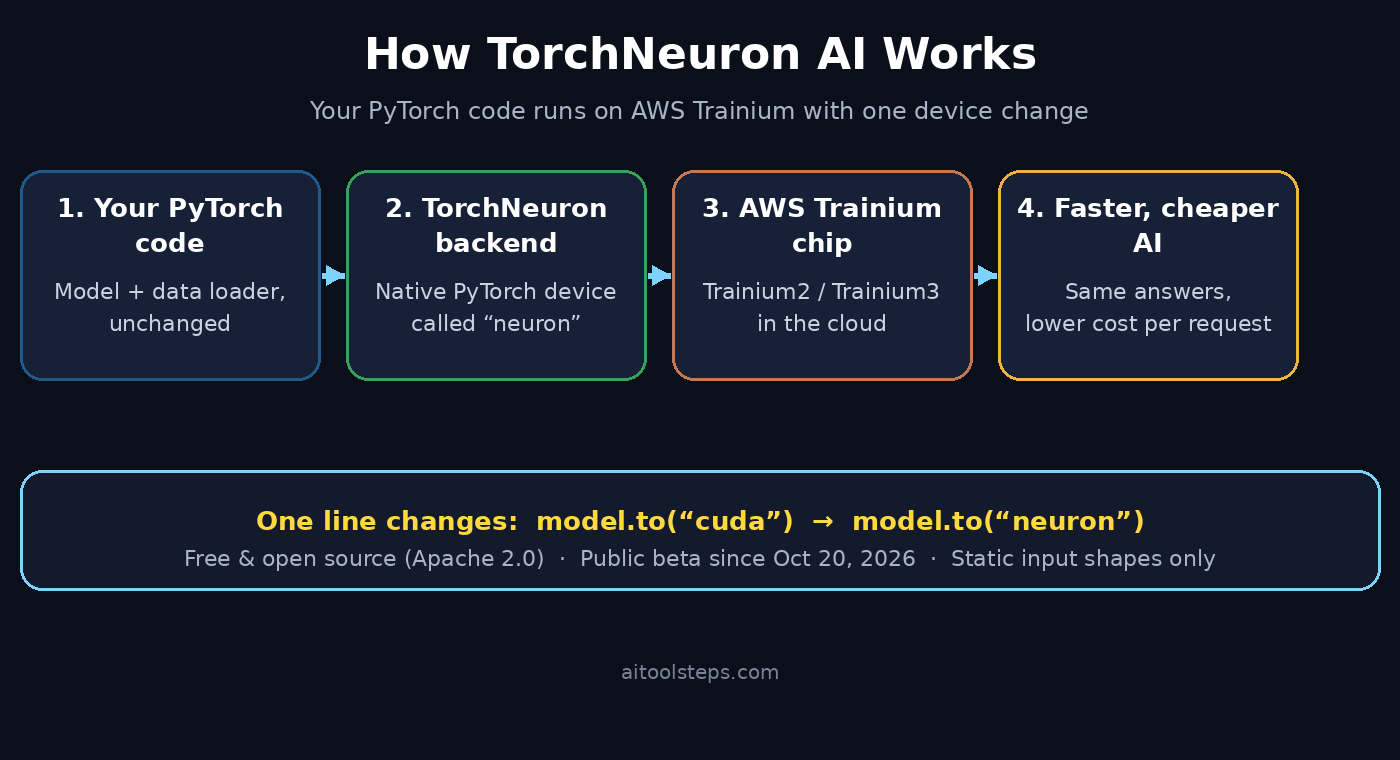
TorchNeuron AI is a native PyTorch backend for AWS Trainium chips. In plain language, it is the translator between the PyTorch code you already write and the Trainium hardware that runs it. Before TorchNeuron AI, running PyTorch on Trainium meant using an older XLA-based toolchain that felt different from normal PyTorch. TorchNeuron AI changes that: it plugs into PyTorch’s standard device system, so Trainium appears as just another device, called “neuron”, alongside the familiar “cuda” device used for NVIDIA GPUs.
The headline promise is simple: change one line of code and your model runs on Trainium. Where your code used to say model.to("cuda"), you now write model.to("neuron"). Everything else — your model definition, your data loading, your training loop — stays the same. AWS says it tests TorchNeuron AI against hundreds of thousands of models on every build, and early adopters such as the voice-AI company Cartesia moved their inference pipelines with minimal PyTorch changes.
Why does this matter? Because for more than a decade, NVIDIA’s CUDA software has been the default way to run AI models, and switching hardware used to mean rewriting software. TorchNeuron AI removes that barrier, which is why Amazon’s own announcement called it the end of lock-in for PyTorch developers. For beginners, the practical benefit is even simpler: you can learn real AI infrastructure skills on cheaper hardware, using the PyTorch skills you already have.
Step 2: Check What You Need Before You Start
Before you install anything, make sure you have the four basics ready. You do not need a powerful computer of your own, because the heavy work happens on AWS cloud machines.
- **An AWS account.** You need access to an AWS account with permission to launch EC2 instances. Trainium instances are available in selected AWS regions, so check that your region offers them.
- **A Trainium instance.** TorchNeuron AI runs on Trainium2 (trn2) and Trainium3 (trn3) instances only. Older Trainium1 and Inferentia chips still use the older torch-neuronx line, so pick a trn2 instance for your first test.
- **Basic Python and PyTorch knowledge.** You should be comfortable running Python scripts and importing PyTorch. You do not need to know CUDA or chip programming.
- **A small test model.** Start with a tiny model, such as a small Hugging Face Transformers model or a simple image classifier, rather than a giant production model. Small models compile faster and make problems easier to spot.
One honest warning for beginners: the software itself is free and open source under the Apache 2.0 license, but the cloud computer time is not free. A trn2 instance costs money per hour, so set a billing alarm in AWS before you start, run short tests, and shut the instance down when you finish. Treat your first session like a lab experiment: small, short, and watched closely.
Step 3: Set Up Your AWS Trainium Environment
With your AWS account ready, launch a Trainium2 instance from the EC2 console. Choose a Deep Learning AMI or a clean Ubuntu image with Python preinstalled, and make sure the instance type is a trn2 type. Once the instance is running, connect to it with SSH, just as you would with any other cloud server.
Next, confirm the instance can see its Trainium chips. AWS provides a simple system tool for this, and the AWS Neuron documentation walks through the check. If the chips are visible, your environment is ready. If they are not, double-check that you launched a trn2 instance type in a region where Trainium is available — this is the most common beginner mistake, and it has nothing to do with your code.
Keep your setup tidy from the start. Create a project folder, use a Python virtual environment, and note down the exact instance type and region you used. When you later compare costs or ask for help in a forum, those two details are the first things anyone will ask for. Good notes turn a confusing first run into a repeatable workflow.
Step 4: Install TorchNeuron AI on Your Instance
Installing TorchNeuron AI is refreshingly normal: it installs with pip, the standard Python package manager, as part of the AWS Neuron SDK 2.33 release. On your Trainium instance, install PyTorch for Neuron following the AWS Neuron documentation, which pins compatible versions of PyTorch and the Neuron packages together. Version matching matters here, so install the exact combination the documentation lists rather than grabbing the newest PyTorch release on its own.
A typical install looks like this:
- Create and activate a Python virtual environment.
- Install the Neuron PyTorch packages with pip, as directed by the AWS Neuron install guide.
- Verify the install by importing torch in Python and listing the available devices.
If the import works and the neuron device shows up, installation is done. If it fails, the usual cause is a version mismatch between PyTorch and the Neuron SDK, so re-read the install page for your SDK version before changing anything else. Do not mix packages from the older XLA-based torch-neuronx line with the new TorchNeuron AI backend — they are different toolchains, and mixing them is a reliable way to waste an afternoon.
Step 5: Move Your First PyTorch Model to the Neuron Device
Here is the satisfying part. Take a small PyTorch model you already know how to run, and change exactly one thing: the device it runs on. Where your script previously moved the model with model.to("cuda"), change it to model.to("neuron"). If your code already uses the device-agnostic torch.accelerator API, you may not need to change anything at all.
Run the script in eager mode first — that is, without any compilation step. Eager mode runs your code line by line, which makes it much easier to see errors. Load your model, move it to the neuron device, feed it a small input, and print the output. If the output matches what the same model produces on your CPU, your first TorchNeuron AI run is a success.
This one-line change is the whole idea behind TorchNeuron AI, and it is worth pausing on. In the past, moving a model to a new chip family could take weeks of rewriting. TorchNeuron AI makes the move a configuration change, because it registers Trainium as a standard PyTorch device through the PrivateUse1 backend mechanism. Your existing PyTorch debugging tools, testing tools, and scaling tools keep working, because as far as PyTorch is concerned, Trainium is just another device.
Step 6: Compile Your Model with torch.compile for Full Speed
Eager mode proves your model works, but it is not the fastest way to run it. For full Trainium speed, add compilation with torch.compile(backend="neuron"). Compilation analyzes your whole model at once and generates optimized code for the Trainium chip, rather than running it line by line.
There are two practical rules for this step. First, use static shapes: keep your input sizes fixed, because the first public beta does not support dynamic shapes, and a changed input size means recompiling. For a beginner test, this simply means feeding the model the same size of input every time — for example, the same image size or the same text length. Second, drop CUDA-only options from your code, since those settings have no meaning on Trainium and can cause errors.
Your first compile will take a while — this is normal. Compilation is a one-time cost: once the model is compiled, repeated runs are much faster. Time both the first run and the steady-state runs, and write the numbers down. Those two numbers are the honest story of what TorchNeuron AI gives you, and they are far more useful than any marketing claim.
Step 7: Run Inference and Check the Results
Now run real inference: feed your model new inputs and examine what comes out. Compare the Trainium output against the output of the same model on your CPU. Small floating-point differences are normal between chips, but the answers should be effectively the same — the same predicted class, the same summary, the same transcription.
Test with a few different inputs, not just one. Try a short input and a longer one, a clean example and a tricky one. If the results match, you have confirmed that TorchNeuron AI runs your model correctly, not just once by luck. This checking habit matters more than any single benchmark: a fast model that gives wrong answers is useless, and beginners who skip verification are the ones who get surprised later.
If you are working with a Hugging Face Transformers model, there is extra good news. Hugging Face has added native Trainium support to its developer tools, so its users do not need AWS-specific code to try TorchNeuron AI. That means many popular models can move to Trainium with the same one-line device change described above.
Step 8: Handle Common Problems Like a Pro
Every new tool has rough edges, and the first TorchNeuron AI beta is no exception. Knowing the common problems in advance will save you hours.
- **Dynamic shapes fail or recompile constantly.** This is expected in the beta: inputs that change size are not supported yet. Fix it by padding or truncating inputs to a fixed size before they reach the model.
- **An operation has no Trainium version.** Some operations do not have a Trainium implementation yet. If you hit one, check the AWS Neuron documentation for the supported-operations list, and try a simpler equivalent operation or an older model version.
- **Compilation is slow.** The first compile is slow by design. Compile once, then reuse the compiled model for many runs instead of recompiling on every test.
- **Costs surprise you.** Trainium instances bill by the hour. Stop or terminate the instance when your test is done, and set an AWS billing alarm before you start experimenting.
When you get stuck, search for the exact error message together with “TorchNeuron” and your SDK version. Because the project is open source on GitHub, error messages and fixes are public, and the community around it is growing fast after the October 2026 launch.
Step 9: Measure Cost and Performance Against GPUs
TorchNeuron AI is only worth adopting if the numbers work for your project, so measure them yourself. AWS claims Trainium offers 30–40 percent better price performance than comparable GPU instances, and independent early reports give a useful sense of scale: one voice-AI company reported handling about 60 percent more audio per dollar on Trainium than on its GPU baselines. Treat those figures as claims to test, not facts to quote — your model, your batch size, and your region will change the result.
Run the same model, with the same inputs, on Trainium and on a GPU instance, and record three numbers for each: time per request, cost per thousand requests, and answer quality. The comparison table below gives you a starting framework for that test.
| TorchNeuron AI on Trainium | PyTorch on NVIDIA GPU (CUDA) | Older torch-neuronx (XLA) | |
|---|---|---|---|
| Code changes needed | One line: device “neuron” | None (default path) | Different toolchain, more rewriting |
| Software cost | Free, Apache 2.0 open source | Free PyTorch + CUDA stack | Free, AWS Neuron SDK |
| Hardware cost | Trainium2 chip-hour cheaper than H100 | H100-class GPU hours cost more | Trainium1/Inferentia only |
| Speed path | torch.compile(backend=”neuron”) | torch.compile with CUDA backends | XLA compilation |
| Dynamic shapes | Not supported in first beta | Supported | Supported with limits |
| Best for beginners | Learning cheap, modern AI infra | Maximum compatibility today | Legacy Trainium projects |
If your Trainium numbers beat your GPU numbers on cost per request without hurting quality, TorchNeuron AI has earned a place in your workflow. If they do not, you have still learned a valuable skill, and you can revisit Trainium when the beta matures.
Step 10: Decide When TorchNeuron AI Is Right for You
TorchNeuron AI is a great fit when you run PyTorch models regularly, care about cost per request, and are comfortable with a beta tool that still has missing features. It is ideal for students learning AI infrastructure, startups watching their cloud bill, and teams already running on AWS who want a cheaper path for inference. It is also a smart learning investment: the chip wars between AWS, Google, and Microsoft mean that portable, framework-native backends like TorchNeuron AI are exactly where the industry is heading — Google released its own equivalent, TorchTPU, just days later.
It is not the right choice yet if you need dynamic input shapes, rely on an operation Trainium does not support, or need maximum stability for a production launch tomorrow. In those cases, stay on GPUs for now and keep an eye on the TorchNeuron AI release notes — beta limitations tend to shrink quickly. For teams planning a bigger migration, getting help from a specialist can pay off: a digital agency such as the team at Digital 365 Agency can audit which of your workloads would actually benefit from a Trainium move, and an AI automation consultancy like Agentic Affairs can help you plan agent workloads that run efficiently on the new hardware.
Whatever you decide, the skill you built in this guide transfers. You now know how to take a PyTorch model, point it at a new device, compile it, verify it, and measure it — and that workflow will serve you on every accelerator that comes next.
Frequently Asked Questions About TorchNeuron AI
What is TorchNeuron AI in simple words?
TorchNeuron AI is free, open-source software from AWS that lets PyTorch code run on Trainium AI chips. It works as a native PyTorch backend, so Trainium shows up as a normal device called “neuron”, and most existing PyTorch code moves over with a single configuration change.
Is TorchNeuron AI really free?
Yes, the software is free and open source under the Apache 2.0 license, and it installs with pip. What you pay for is the AWS cloud computer time: the Trainium instance the code runs on, billed per hour. Always set a billing alarm before experimenting.
Does TorchNeuron AI really need only one line of code changed?
For eager-mode inference, mostly yes: change .to("cuda") to .to("neuron"), or change nothing if your code uses torch.accelerator. For production speed, you also add backend="neuron" to torch.compile, use fixed input shapes, and drop CUDA-only options.
Which chips does TorchNeuron AI support?
TorchNeuron AI supports Trainium2 (trn2) and Trainium3 (trn3) instances. Trainium1 and Inferentia users stay on the older XLA-based torch-neuronx line. It shipped as a public beta in AWS Neuron SDK 2.33 on October 20, 2026.
Is TorchNeuron AI good for beginners?
Yes, with one condition: start small. If you already know basic Python and PyTorch, the one-line device change makes TorchNeuron AI one of the gentlest introductions to real AI infrastructure. Just test with a tiny model, keep sessions short, and watch your cloud bill.
Will TorchNeuron AI replace NVIDIA GPUs?
Not immediately, and not for everyone. It attacks the software lock-in that kept NVIDIA the default, and Trainium can be much cheaper per request, but the first beta still lacks dynamic shapes and some operations. The honest answer is to benchmark your own model and decide on your numbers.
Final Thoughts
TorchNeuron AI is one of the most beginner-friendly infrastructure launches of 2026, precisely because it asks so little of you: one line of code, one pip install, and one honest benchmark. You do not need to become a chip expert to benefit from cheaper AI compute — you need a small model, a short cloud session, and the patience to verify your results.
Start today while the beta is fresh: launch a small Trainium2 instance, move a tiny model with the neuron device, compile it, and measure what you get. Even if you stay on GPUs for production, you will understand the new world of portable AI hardware better than most developers — and that understanding is only going to get more valuable.
Explore More Free AI Tools
Want to keep learning? Try the free tools on AIToolSteps: the AI Title Generator for headlines that get clicked, the Meta Description Generator for search snippets, the AI Rewriter for fresh drafts of your own writing, and the Keyword Density Checker to keep your SEO on target. Each one is free, beginner-friendly, and built for creators like you.