

Imagine opening one dashboard and getting access to hundreds of AI models — ChatGPT-style chat models, Claude-style writing models, DeepSeek, Gemini, Qwen, Kimi and many more — without juggling a dozen accounts, a dozen API keys and a dozen bills. That is exactly what OmniRoute AI promises, and it is why so many beginners, students, indie builders and small teams started talking about it in October 2026. OmniRoute is a free, open-source AI gateway: one endpoint that routes your requests to the model you choose, falls back to another model when one runs out of quota, and even compresses long tool outputs so you spend fewer tokens.
If that sounds technical, do not worry. You do not need to be a developer to understand the idea, and you do not need to pay anything to try the free providers. In this beginner guide you will learn what OmniRoute AI is, how to install it, how to connect your first free provider, how to pick a model, how to use it with coding tools like Claude Code, and how to avoid the common mistakes that waste time and money. By the end, you will have a simple, working setup you can actually use every day.
Step 1: Understand What OmniRoute AI Actually Does – How to Use OmniRoute AI
Think of OmniRoute as a universal remote for AI models. Normally, every AI provider has its own website, its own key and its own rules. If you want to try three models, you sign up three times and learn three dashboards. OmniRoute sits in the middle: you connect providers once, and then every tool you use talks to OmniRoute instead of talking to each provider directly.
The project describes itself as a free MIT-licensed gateway with one endpoint for more than 1,200 models across hundreds of providers, including more than 150 free tiers. Exact counts change as providers join and leave, so treat those numbers as directional, not as a promise. What matters for a beginner is the pattern: a large catalogue, a free tier you can start with, and no markup on inference — you pay the provider’s own rate, if you use a paid provider at all.
- One endpoint: your coding assistant, chat tool or agent sends every request to the same address, and OmniRoute forwards it.
- Model switching without rewiring: change the model name and you change the brain behind your tool, with no new setup.
- Quota-aware fallback: if your first-choice provider is out of quota or down, OmniRoute tries the next one in your chain.
- Token compression: its RTK and Caveman compression pipeline strips redundant tokens from long tool outputs, with claimed savings of 15 to 95 percent on tool-heavy work.
- Works with popular tools: Claude Code, Codex, Cursor, OpenCode, Cline, Copilot and any OpenAI-compatible tool.
This is different from a chatbot app. OmniRoute is infrastructure — the plumbing behind your AI tools. If you only want to chat with one assistant in a browser, you probably do not need it. If you want to compare models, run coding agents, or stop getting blocked by one provider’s rate limit, it starts to make a lot of sense. For small teams, the same idea helps in another way: a digital agency juggling client projects can standardise on one gateway instead of teaching every team member five different provider dashboards.
Step 2: Install OmniRoute on Your Computer
OmniRoute is designed to run on your own machine, which is part of why it can be free: you provide the computer, and the gateway software itself costs nothing. The most common beginner route is installing it with Node.js, the same runtime many developer tools use. If you do not have Node.js yet, install the current LTS version from the official Node.js website first, then restart your terminal.
Once Node.js is ready, the typical install is a single package command in your terminal. The project also offers a desktop app and a progressive web app for people who prefer not to live in the terminal. Whichever route you pick, keep two things in mind. First, install it only from the official project repository and documentation, not from a random download link in a video description. Second, give it a clean folder and a few quiet minutes — rushing the first install is how beginners end up with two half-installed copies and confusing errors later.
After installation, start the dashboard. The dashboard is your control room: you will see providers, models, API keys, usage and logs in one place. Do not skip this step. Beginners who try to connect a coding tool before ever opening the dashboard usually cannot tell whether a failure is in the tool, the key or the gateway — and the dashboard is what lets you tell the difference in seconds.
Step 3: Open the Dashboard and Learn the Layout – How to Use OmniRoute AI
When the dashboard opens, spend ten minutes clicking around before you connect anything important. You will usually find sections for providers, models, API keys, routing settings and monitoring or logs. That short tour pays off every time something goes wrong later, because you will already know where to look.
- Providers: the list of AI companies and free services you can connect, with a free or paid label.
- Models: the catalogue of individual models behind each provider, searchable by name or capability.
- API Keys: keys you create inside OmniRoute so your tools can talk to the gateway securely.
- Routing: the auto, cheap, balanced and combo settings that decide which model answers when.
- Monitoring and logs: recent requests, errors, token use and savings, so you can see what actually happened.
Write down one simple rule for yourself at this stage: never paste a real API key into a screenshot, a shared document or a public chat. Keys are passwords for your AI account. If one ever leaks, revoke it in the provider dashboard immediately and create a fresh one.
Step 4: Connect Your First Free Provider
Start with exactly one free provider. Beginners who connect ten providers on day one cannot tell which one is working, which one is slow, and which one just burned their free quota on a test prompt. One provider, one test, one success — then expand.
Good first choices highlighted in community guides include Kiro AI, which is often recommended because it needs no API key to start and gives access to Claude-class models, and other keyless or free-forever options such as Pollinations, OpenCode Zen and Z.AI GLM free tiers. Availability changes, so if your first choice asks for a card or shows no free tier, pick another free entry from the catalogue instead of forcing it.
The connection flow is usually the same: go to Providers, choose Add Provider, pick the provider name, and either connect with no key (for keyless free providers) or paste the API key you created on that provider’s own website. If a key is required, create it on the provider’s official console, copy it once, paste it into OmniRoute, and store it in a password manager. Then run a tiny test — ask for a one-sentence reply — and check the dashboard log. If the log shows a successful request, your gateway is alive. If it shows an error, read the error message before changing anything else: most first-run failures are a wrong key, a provider outage, or a model name typo.
Step 5: Add a Second Provider for Fallback – How to Use OmniRoute AI
Fallback is the feature that makes OmniRoute feel like magic, but it only works if there is somewhere to fall back to. Once your first provider works, add a second free provider the same way. Now you have options: when provider A hits its daily limit, OmniRoute can quietly try provider B instead of showing you an error and stopping your work.
Pick a second provider that is genuinely different from the first — a different company, not just a different model from the same company. That way a single provider outage does not take out both of your options at once. Two or three free providers is the sweet spot for most beginners. More than that adds dashboard clutter without adding much real resilience, and it makes it harder to remember which provider served which answer.
This fallback idea is also why AI automation services and agent workflows benefit from a gateway: an agent that runs overnight should not die at 2 a.m. because one provider throttled it. A gateway with a fallback chain keeps the workflow moving, and the log tells you in the morning which provider actually did the work.
Step 6: Pick a Model — Start With Auto
OmniRoute’s catalogue can feel overwhelming: hundreds of providers and more than a thousand models is a lot of choice. Do not try to learn them all. Start with the auto option, usually written as model auto or auto slash coding free for coding work. Auto lets OmniRoute choose a suitable free model based on the task, your budget settings and what is currently available.
Use this simple decision rule for your first week. For everyday writing, planning and questions, use auto. For code, use the auto coding option. Only pick a specific model when you have a reason: you want to compare two models on the same prompt, you need a model that is good at a particular language, or auto keeps picking a model that is too slow for your taste. When you do pick a specific model, write down its full provider and model name — for example, provider slash model — because a small typo in that name is the most common reason a request fails.
- Auto: balanced default, best for beginners.
- Auto cheap: cheapest viable model, best when you are watching costs.
- Specific model: best when you are testing, comparing or need a special capability.
- Fusion: sends one prompt to several models and synthesises the best answer — powerful, but expensive, so save it for hard problems.
Step 7: Connect Claude Code or Your Favourite Coding Tool – How to Use OmniRoute AI
This is where OmniRoute earns its keep for builders. Instead of configuring each coding tool with a different provider, you point the tool at OmniRoute’s local endpoint and tell it which model to use. The project supports launching supported tools in one command, for example launching Claude Code through OmniRoute with a chosen model, and it also supports writing the tool’s own configuration through an interactive configure command.
Start with one tool, not five. If you already use Claude Code, start there. If you use Cursor, OpenCode or Cline, start with the one you already know. The launch command pattern is consistent: run the tool through OmniRoute, name the model, and let OmniRoute inject the credentials for that process only. That per-process injection is a nice safety detail — credentials are not written into shared config files where another program might read them later.
Before you run a big task, run a tiny one. Ask the tool to reply with a single word, or to explain a five-line function. Check the OmniRoute dashboard to confirm which provider and model answered. That one-minute check prevents the classic beginner frustration of spending an hour debugging a coding tool when the real problem was a gateway setting.
Step 8: Use Combos and Routing Strategies Like a Pro
Once the basics work, combos are the next level. A combo is a chain of models in priority order: use your subscription or best model first, then a cheap backup, then a free emergency model. If the first step runs out, the chain slides to the next step automatically. Community examples show chains of three or four layers before you ever see a rate-limit error, which is a huge quality-of-life improvement when you are in the middle of a long coding session.
Routing strategies let you tune that behaviour. The balanced default is fine for most work. The cheap strategy is useful when you are running many routine tasks and do not need frontier quality for every one. Fusion is the showpiece — parallel models plus a judge — but treat it like a sports car: thrilling, expensive, and unnecessary for the school run. Turn it on deliberately for a genuinely hard reasoning problem, then turn it back off.
A practical beginner combo looks like this: first, your best free coding model; second, a different free provider’s coding model; third, a general free model as a last resort. Write that chain down in your notes. When a model disappears from the free catalogue — and free models do disappear — you will know exactly which link to replace, instead of rebuilding your whole setup from memory.
Step 9: Track Usage, Tokens and Compression Savings – How to Use OmniRoute AI
Free does not mean unlimited, and even paid use needs watching. Open the monitoring view at least once a day during your first week. You want to answer three questions: how many requests did I make, how many tokens did they use, and did compression actually help? Community tests report large savings on tool-heavy sessions — for example, code reviews and debugging logs compressing by 80 percent or more — while ordinary chat prompts save a more modest 15 to 30 percent. Your numbers will vary, and that is normal.
Set yourself a simple weekly habit: check which provider served most of your requests, which model failed most often, and whether any single task is eating an unusual share of tokens. If one provider keeps failing, demote it in your chain. If one task keeps exploding in token use, break it into smaller steps or turn compression on for that workflow. This is also how you keep a hobby project from quietly turning into a bill: the dashboard shows the truth before the invoice does.
For a real project, the same discipline scales. If you are building content, tools or client work on top of AI models, tracking usage is not bookkeeping for its own sake — it is how you price your work, choose your providers, and prove to a client that a workflow is efficient. A gateway that logs everything makes that conversation much easier than five separate provider bills.
Step 10: Fix Common Problems and Stay Safe
Most OmniRoute problems fall into a short list, and each has a short fix. A model-not-found error usually means a typo in the provider or model name — copy the exact name from the catalogue. An authentication error usually means a wrong, expired or revoked key — recreate the key on the provider’s site and reconnect. A quota error on one provider is exactly what fallback is for — check that your second provider is connected and that your routing chain includes it. A tool that works in the dashboard but not in your coding assistant usually means the assistant is still pointed at the old provider endpoint, not at OmniRoute’s local endpoint — re-check the base URL.
Safety deserves the same attention as setup. Keep your keys private, use a different key for each tool where the provider allows it, and revoke anything you no longer use. Do not send passwords, private customer data, medical records or unreleased business plans through a free model unless you have read that provider’s privacy terms and you are comfortable with them. Free tiers are wonderful for learning and for non-sensitive work, but sensitive work deserves a provider and a plan whose data handling you have actually checked. Finally, remember that OmniRoute does not turn a paid subscription into unlimited access: provider quotas, rate limits and terms still apply, no matter how clever the routing is.
OmniRoute vs OpenRouter vs a Single Provider
Beginners often ask whether they should use OmniRoute, OpenRouter or just one provider directly. The honest answer is that each fits a different person, and the table below makes the trade-off clear.
| Option | Best for | Cost model | Setup effort |
|---|---|---|---|
| OmniRoute | Builders who want free scale and full control | Free gateway; provider rates only | Higher — you run it yourself |
| OpenRouter | People who want one hosted key instantly | Prepaid credits plus a platform fee on top-ups | Low — hosted, no server to run |
| Single provider | Simple chat or one-tool use | That provider’s free or paid plan | Lowest — one account, one key |
Choose OmniRoute when you want maximum free access and you are happy to run software on your own machine. Choose OpenRouter when you want reliability without running anything yourself and you are happy to prepay. Choose a single provider when you only need one assistant and you do not want any extra moving parts. You can also mix them: many builders run OmniRoute as their main gateway and keep an OpenRouter key connected inside it as an optional paid fallback for heavy tasks.
Frequently Asked Questions
Is OmniRoute AI really free?
Yes, the gateway software itself is free and open source under the MIT licence, and many providers in its catalogue offer free tiers with no card required. You only pay if you choose a paid provider or exceed a free tier’s limits. Your own computer and internet connection are the only unavoidable costs.
Do I need to know how to code to use OmniRoute?
Not to understand it or to use the dashboard, but the most popular use cases — coding assistants and agents — do involve a terminal and some basic commands. If you are a complete beginner, start with the dashboard, connect one free provider, and follow the tool’s guided setup before attempting advanced routing or combos.
Can OmniRoute give me unlimited Claude or GPT access?
No, and any claim that it can should be treated with suspicion. OmniRoute routes requests and manages fallback and compression, but it does not remove provider quotas, rate limits or subscription terms. What it does give you is a smarter way to use the free and paid access you already have.
What happens when a free provider goes down or removes its free tier?
If you have a fallback chain, OmniRoute tries the next provider automatically and your work continues. If you only had one provider, you will see an error until you connect a replacement. That is why this guide recommends two or three free providers from day one, and why you should keep notes on your chain.
Is OmniRoute better than OpenRouter?
It is better for free, self-hosted scale and control, and worse if you want zero setup and instant hosted reliability. OpenRouter is a hosted service with prepaid credits; OmniRoute is software you run. Many experienced users keep both: OmniRoute as the gateway, OpenRouter as one connected provider inside it.
Final Thoughts
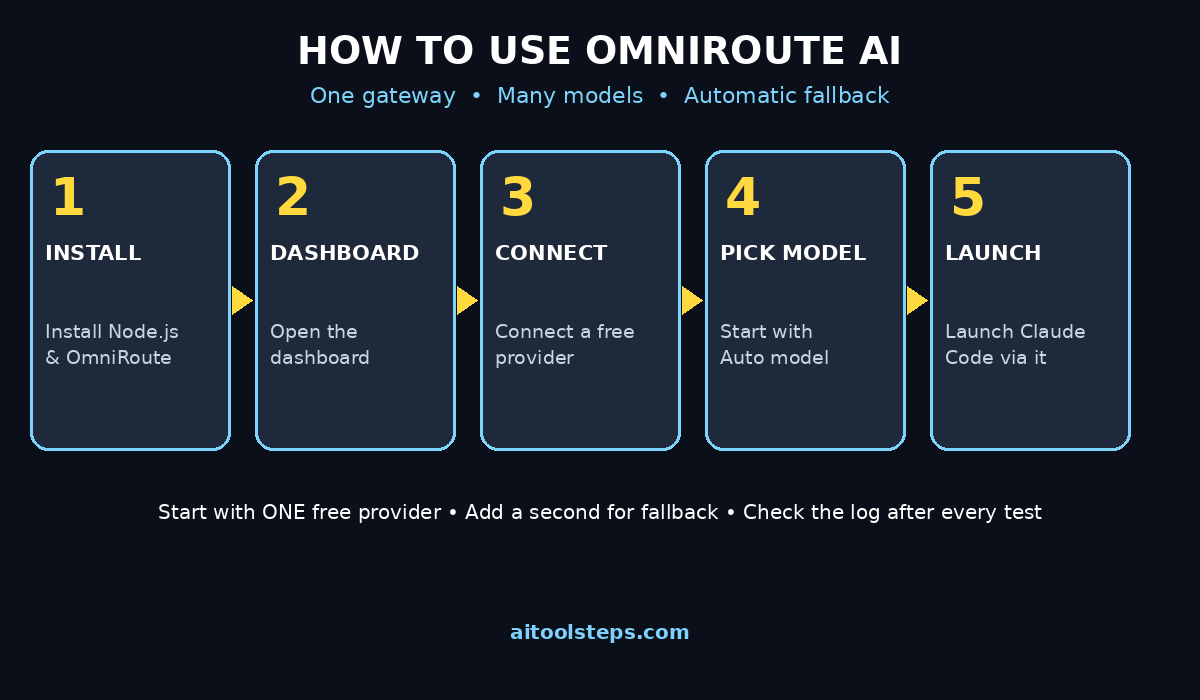
OmniRoute AI is not a chatbot you open for a quick answer. It is the control room behind your AI tools — one dashboard, one endpoint, many models, automatic fallback when a provider runs out, and compression that can cut token waste dramatically on tool-heavy work. That sounds like a lot, but the beginner path is deliberately simple: install it, open the dashboard, connect one free provider, test it, add a second provider, start with auto routing, and connect one coding tool. Everything after that — combos, strategies, fusion, deep monitoring — is optional polish you can add when you actually need it.
Start small today. Install OmniRoute, connect a single free provider, and run one real task through it — a code explanation, a draft outline, or a debugging session. Check the dashboard log, confirm which model answered, and notice how it feels to switch models without signing up anywhere new. That one working setup is worth more than a week of reading provider pricing pages, and it is the foundation every advanced OmniRoute workflow is built on.
Explore More Free AI Tools
Want to keep building your free AI toolkit? Try the AI Title Generator, Meta Description Generator, AI Rewriter and Keyword Density Checker on AIToolSteps — all free, all beginner-friendly, and all designed to pair with the workflows in this guide.