
If you have tried to create an image with AI and ended up with strange hands, unreadable text, or a product that looks different in every picture, you are not alone. Google Nano Banana Pro was built to fix exactly those problems. It is Google’s advanced image generation and editing model, known to developers as Gemini 3 Pro Image, and it lives inside the Gemini app — no separate download, no design degree, and no expensive software required.
The original Nano Banana became famous in late August 2026 for fast, conversational photo edits. Nano Banana Pro is its bigger, smarter sibling: slower to run, but noticeably better at detail, complex instructions, accurate text in images, and keeping the same person, product, or character looking consistent across many edits. It can output images at 1K, 2K, and even 4K resolution, work with up to 14 reference images in a single prompt, and handle diagrams, infographics, and product scenes that older generators often mangled.
This beginner-friendly guide walks you through the whole process step by step: opening Nano Banana Pro in the Gemini app, writing prompts that actually work, editing your own photos, choosing the right resolution and aspect ratio, and downloading images you can safely use. By the end, you will have created your first professional-looking 4K image — for free.
Step 1: Open the Gemini App and Sign In With Your Google Account
Everything starts in the Gemini app, because Nano Banana Pro is not a standalone website you need to hunt for. Open the Gemini app on your phone or visit gemini.google.com on your computer, then sign in with your Google account. If you already use Gmail, YouTube, or Google Drive, you already have everything you need.
Once you are signed in, look for the image creation area. In the Gemini app, tap “Create images” — on some versions this sits in the tools menu or appears as a suggestion when you start a new chat. Select the “Thinking” model option when it is offered, because that is how Nano Banana Pro is exposed in the Gemini app experience. If you do not see it straight away, update the app to the latest version and check again, as Google rolls features out in stages.
A quick tip for beginners: start on Wi-Fi and on a device with a decent screen. You will be comparing small details — text spelling, faces, product labels — and a larger screen makes it much easier to spot mistakes before you download.
Step 2: Understand What Nano Banana Pro Is Best At
Before you type your first prompt, it helps to know where this tool shines and where it does not. Nano Banana Pro is strongest at:
- Photo editing from plain words: Change a background, restyle a photo, remove an object, or change the season — while keeping the main subject looking the same.
- Text inside images: Posters, labels, book covers, and social graphics with readable words, which many older models garbled.
- Consistent characters and products: Use reference photos so the same person, pet, or product appears again and again without drifting into a stranger.
- Diagrams and infographics: Clean layouts, charts, and step-by-step visuals grounded in real-world knowledge.
- High-resolution output: Crisp 2K and 4K images for printing, presentations, and large screens.
It is less suited to generating photorealistic images of real, identifiable people you do not have permission to depict, or to creating misleading fake photos. Google adds an invisible SynthID watermark to images, and free and Pro tiers also show a visible sparkle watermark, so viewers and tools can tell an image was AI-generated. Treat that as a feature, not a flaw: it protects you and your audience.
Step 3: Write Your First Prompt the Right Way
A good prompt is not a single word like “dog” or “poster.” It is a short, clear brief: subject, action, setting, style, lighting, and any text that must appear. Think of it as telling a talented designer exactly what you want in one paragraph.
Try this structure for your first image:
- Subject: “A cozy coffee shop interior”
- Action or mood: “with warm morning light and a barista pouring latte art”
- Style: “photorealistic, warm tones”
- Composition: “wide shot, wooden tables in the foreground”
- Text (if any): “a small chalkboard sign that reads ‘Fresh Coffee Daily'”
Put it together: “A photorealistic wide shot of a cozy coffee shop interior in warm morning light, a barista pouring latte art, wooden tables in the foreground, and a small chalkboard sign that reads ‘Fresh Coffee Daily’.”
Then press send and wait. Nano Banana Pro thinks a little longer than the fast base model, because it is reasoning about your instructions before it draws. That extra thinking time is usually worth it — especially for images with text or many details.
When the result arrives, do not just accept it. Zoom in. Check the spelling of every word, the number of fingers and objects, and whether the lighting looks natural. If something is off, you will fix it in Step 7 — you rarely need to start from scratch.
Step 4: Edit a Photo You Already Have
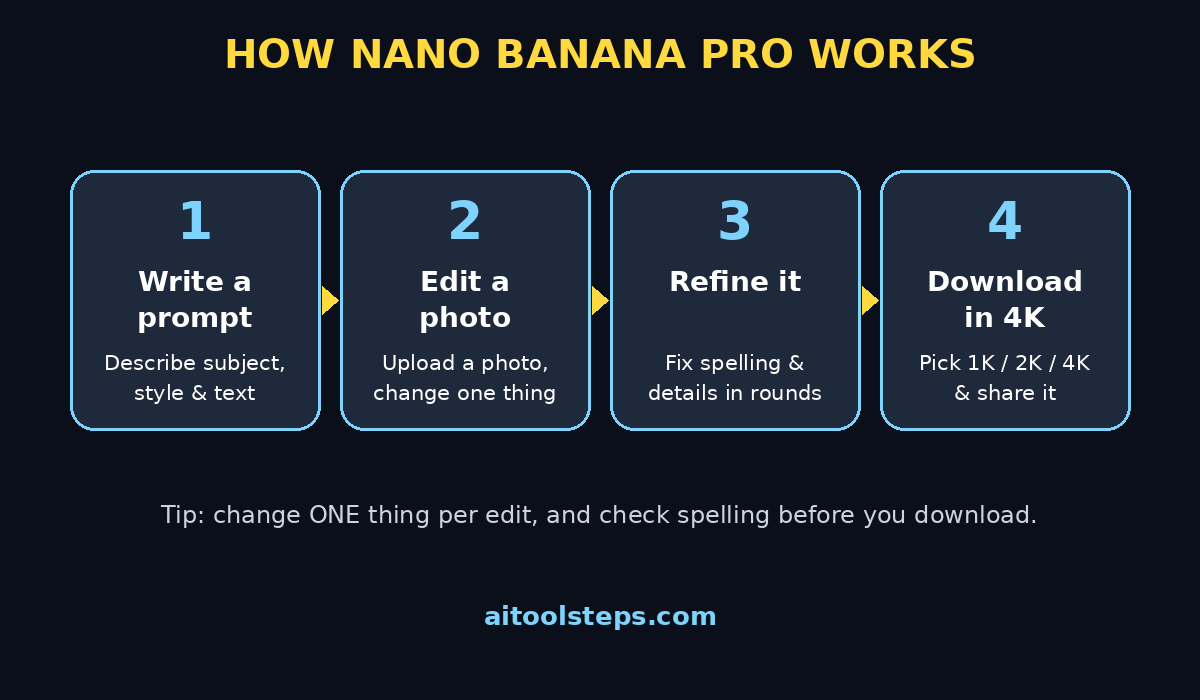
This is where Nano Banana Pro truly separates itself from basic generators. Upload a photo — your product, your portrait, your room, your pet — and describe the change in words. The model tries to keep the subject identical while making only the edit you asked for.
Here is a simple first edit to try:
- Upload a clear, well-lit photo of a product or a person.
- Type something like: “Keep the same product exactly as it is, but place it on a clean white studio background with soft shadows.”
- Review the result and compare it side by side with the original.
- If the product changed colour or shape, make your next instruction firmer: “Do not change the product’s shape, colour, or label. Only change the background.”
Other beginner-friendly edits include changing a photo from day to sunset, swapping a busy background for a beach or office, restyling a portrait in a watercolour or comic style, and removing a distracting person or object from the background. Always start with one change at a time. Asking for five changes at once makes it hard to tell which instruction the model misunderstood.
For small businesses, this is a genuine time and money saver. Instead of booking a new photo shoot for every season or campaign, a shop owner can reuse one good product photo in many settings. A local bakery, for example, can show the same cake on a festive table, in a gift box, or on a clean catalogue background — all from a single original shot. If you run a business and want help turning those images into a full online presence, a professional digital agency can help you plan how product visuals, landing pages, and ads work together.
Step 5: Use Multiple Reference Images for Consistency
One of Nano Banana Pro’s most powerful features is that it can look at up to 14 reference images in a single prompt. For beginners, two or three references are usually plenty — but knowing the feature exists changes what you can create.
Use multiple references when you want to:
- Keep a character consistent: Upload two or three photos of the same person or mascot from different angles, then ask for a new scene with that character.
- Match a product exactly: Upload front, side, and label photos of a product so the model does not invent a new design.
- Blend styles: Upload a photo for the subject and another image for the art style, then describe how to combine them.
- Build a series: Create a set of images for a story, a menu, or a social campaign where everything looks like it belongs together.
Be specific about what each reference is for. For example: “Use the first image for the character’s face and outfit. Use the second image for the art style. Create a new scene of the character reading a book in a library.” Without that guidance, the model may mix up which image should control what, and you will get a confusing blend instead of a clean result.
A word of caution: only upload photos you own or have permission to use, especially when they show real people. Consistency is powerful, and it comes with responsibility.
Step 6: Choose the Right Resolution and Aspect Ratio
Nano Banana Pro offers output resolutions of 1K, 2K, and 4K, and aspect ratios including 1:1, 4:3, 3:4, 16:9, and 9:16. Beginners often pick the biggest option every time — but the right choice depends on where the image will live.
- Social media posts: 1:1 for a feed post, 9:16 for Stories, Reels, and Shorts thumbnails.
- Blog headers and YouTube thumbnails: 16:9, which fills a wide screen nicely.
- Posters and portraits: 3:4 or 4:3, depending on whether you want a tall or slightly wider frame.
- Printing or large displays: 2K or 4K, so the image stays sharp when enlarged.
- Quick drafts and testing: 1K, which is faster and cheaper, then re-run your winning prompt at higher resolution.
If you are unsure, generate at 1K first while you refine the prompt, then switch to 2K or 4K for the final version. That saves time and, if you later use the paid API, money. On the Gemini app’s free tier, availability and daily limits can vary, so use your high-resolution generations for images you actually plan to publish.
Step 7: Refine With Follow-Up Prompts Instead of Starting Over
The biggest beginner mistake is deleting a nearly perfect image and starting again. Nano Banana Pro is conversational: you can reply to a result with a follow-up instruction, just as you would talk to a designer.
Useful follow-up prompts include:
- “Make the text larger and bolder, but keep everything else the same.”
- “Change the background to a sunset beach, do not change the person’s face.”
- “Remove the cup from the table.”
- “Make the colours warmer and the lighting softer.”
- “Fix the spelling: the sign should read ‘Bakery’, not ‘Bakrey’.”
Keep each follow-up to one or two changes. After each round, check the whole image again, not just the part you asked to fix — AI edits can sometimes shift an unrelated detail. Two or three refinement rounds usually turn a good draft into a publish-ready image. If you have gone five rounds and the image is getting worse, that is your signal to start a fresh generation with a clearer first prompt.
Step 8: Download, Check the Watermark, and Use Images Responsibly
When you are happy with an image, download it from the Gemini app. Before you post it anywhere, run through this quick checklist:
- Spelling: Every word is spelled correctly, including small labels.
- Faces and hands: Faces look natural, hands have the right number of fingers.
- Brand details: Logos, product labels, and colours match the real product.
- Watermark: Remember that Nano Banana Pro images carry SynthID and, on free and Pro tiers, a visible sparkle watermark. Do not try to crop it out or hide it deceptively.
- Disclosure: For social media and ads, say the image is AI-generated when the platform asks, or when a viewer could reasonably mistake it for a real photograph.
This checklist matters most when images are used commercially. A wrong price, a misspelled product name, or a misleading before-and-after photo can damage trust far faster than any tool can rebuild it. Teams that build automated content workflows around tools like this often pair them with AI automation services to add review steps, so a human checks every image before it goes live.
Step 9: Understand Free Access, Limits, and Paid Options
In the Gemini app, Nano Banana Pro is available to try without a separate purchase, but exact free limits, daily caps, and watermark rules can change as Google updates its plans. Reports in October 2026 describe a free tier of a few images per day in some contexts, with higher limits on paid Google AI plans. Do not rely on a single blog post’s number — check the current limits inside the Gemini app before you plan a big project.
If you need many images, or you want to build Nano Banana Pro into your own app or website, Google also offers it through the Gemini API and Google AI Studio under the model name gemini-3-pro-image-preview. API pricing is per image and varies by resolution — 4K costs more than 1K — so prototype with the app first, then move to the API only when you know your volume. For most beginners, the app is more than enough.
A practical budgeting tip: batch your ideas. Write five prompts in a notes app, generate them in one sitting, and pick the winners. Random one-off generations throughout the day burn through free limits without giving you a comparable set of images to choose from.
Step 10: Avoid the 7 Mistakes Every Beginner Makes
- Vague prompts: “A nice picture” gives the model nothing to work with. Add subject, setting, style, and lighting.
- Too many changes at once: Change one thing per edit, or you will never know what went wrong.
- Ignoring text errors: Always zoom in on words, especially on signs, packaging, and posters.
- No references for products: If a product must look exact, upload a reference photo. Words alone will not preserve a label.
- Wrong aspect ratio: A 1:1 image cropped for a vertical Story loses heads and headlines. Choose the ratio for the platform first.
- Skipping the watermark disclosure: Hiding AI origins erodes trust and can breach platform rules.
- Publishing the first draft: The first result is a draft. Refine it once or twice — the difference is usually dramatic.
Avoid these, and your tenth image will look noticeably more professional than your first. That learning curve is short: most beginners see a big jump after just a day of deliberate practice.
Step 11: Put Nano Banana Pro to Work — 5 Practical Project Ideas
- Small business product shots: Turn one product photo into a catalogue, a seasonal campaign, and social posts.
- Blog and YouTube visuals: Create consistent header images and thumbnails for a series, so viewers recognise your content instantly.
- Personalised gifts: Make a storybook-style portrait, a birthday poster, or a custom phone wallpaper for a friend.
- Study and teaching aids: Build clear diagrams, labelled illustrations, and flashcards for a topic you are learning.
- Social media series: Design a set of quote cards or tips graphics with the same character, colours, and style every day.
Start with one project, finish it, and publish it. A finished set of five consistent images teaches you more than fifty random generations you never use.
Nano Banana Pro vs Other Image Generators
| Tool | Best for | Free access | Standout strength | Watch out for |
|---|---|---|---|---|
| Google Nano Banana Pro | Editing photos, consistent characters, 4K output | Free in Gemini app (limits vary) | Up to 14 references, accurate text, 1K/2K/4K | Visible watermark on free/Pro tiers, slower than base model |
| Google Nano Banana 2.1 | Fast everyday edits | Free in Gemini app | Very fast, good text rendering, low API cost | Less detail than Pro on complex scenes |
| GPT Image 2 (ChatGPT) | Prompt accuracy, dense text | Limited free use | Excellent instruction following | Separate subscription for heavy use |
| Ideogram 3.0 | Posters, logos, text-heavy graphics | Free tier available | Reliable typography | Less strong for photorealistic editing |
| Midjourney | Artistic, stylised imagery | Paid only | Beautiful art direction out of the box | No free tier, steeper learning curve |
For beginners who already use Google apps, Nano Banana Pro is the easiest starting point: no new account, no new app to learn, and a conversational editing style that feels like chatting, not designing.
Frequently Asked Questions
Is Google Nano Banana Pro really free?
Yes, you can try it in the Gemini app without paying, but free limits and daily caps vary and change over time. Check the current limits in the app. Paid Google AI plans and the Gemini API offer higher limits and 4K output at a per-image price.
How is Nano Banana Pro different from the original Nano Banana?
The original Nano Banana (the base model) is faster and great for quick edits. Pro is a larger Gemini 3 Pro image model that is better at fine detail, complex instructions, accurate text, and keeping subjects consistent, and it can output up to 4K resolution. Use the base model for drafts and Pro for final, publish-ready images.
Can I edit my own photos with Nano Banana Pro?
Yes. Upload your photo and describe the change in words — a new background, a different style, or removing an object. The model tries to keep the main subject unchanged. For best results, upload a clear photo and change one thing at a time.
What image sizes can Nano Banana Pro create?
It supports 1K, 2K, and 4K resolutions and aspect ratios including 1:1, 4:3, 3:4, 16:9, and 9:16. Choose 9:16 for vertical video thumbnails, 16:9 for blog headers, and 2K or 4K for print or large screens.
Do Nano Banana Pro images have a watermark?
Yes. Google applies an invisible SynthID watermark to all images, and free and Pro tiers also include a visible sparkle watermark. Do not remove or hide watermarks deceptively, and disclose AI-generated images where platforms require it.
Can I use Nano Banana Pro images commercially?
Generally, images you create in the Gemini app can be used in your own content, but always check Google’s current terms for your plan and region, and never use images that misrepresent a real product, person, or event. When in doubt, get a quick legal or platform-policy check before running ads.
Final Thoughts
Google Nano Banana Pro lowers the barrier between having an idea and having a professional image. You do not need design skills, expensive software, or a studio — just a Google account, a clear prompt, and a willingness to refine your result once or twice. Start with a simple photo edit today, try a multi-reference character tomorrow, and build a small series by the end of the week. The skill that matters most is not prompting magic; it is looking closely, spotting the one detail that is wrong, and describing the fix in plain words.
If you found this guide helpful, try your first Nano Banana Pro image today and share what you made. And if you want more beginner-friendly AI tutorials, keep exploring AIToolSteps — new free-tool guides arrive every day.