

This guide to Meta Muse AI for beginners starts with the basics:
Meta Muse AI is Meta’s new personal AI agent — an assistant that does more than answer single questions. It can help you plan, organise, remember, and get things done, and it can do it together with the people around you. Meta launched Muse in the United States and Canada in September 2026, and on October 23, 2026 it expanded to Japan, its first market outside North America, with basic functions offered free on iOS, Android, and the web.
If you have never used a personal AI agent before, Muse can feel like a big jump from a normal chatbot. The good news is that you do not need any technical background to start. You open the app, sign in, tell Muse what you want, and it helps you turn that idea into a plan, a list, a booking search, or a small app-like tool you can share with family and friends.
This beginner guide walks you through everything step by step: what Meta Muse AI is, how to set it up safely, how to create your first shared thread, how to use it for everyday planning, and how to avoid the common mistakes new users make. By the end, you will be able to use Muse confidently for real daily tasks, not just test chats.
Step 1: Understand What Meta Muse AI Actually Does
A normal chatbot waits for one question and gives one answer. A personal AI agent like Muse is built to follow a task through several steps. For example, instead of only suggesting holiday ideas, Muse can help you compare dates, build a day-by-day plan, keep a packing list, and share the whole plan with your family in one shared thread.
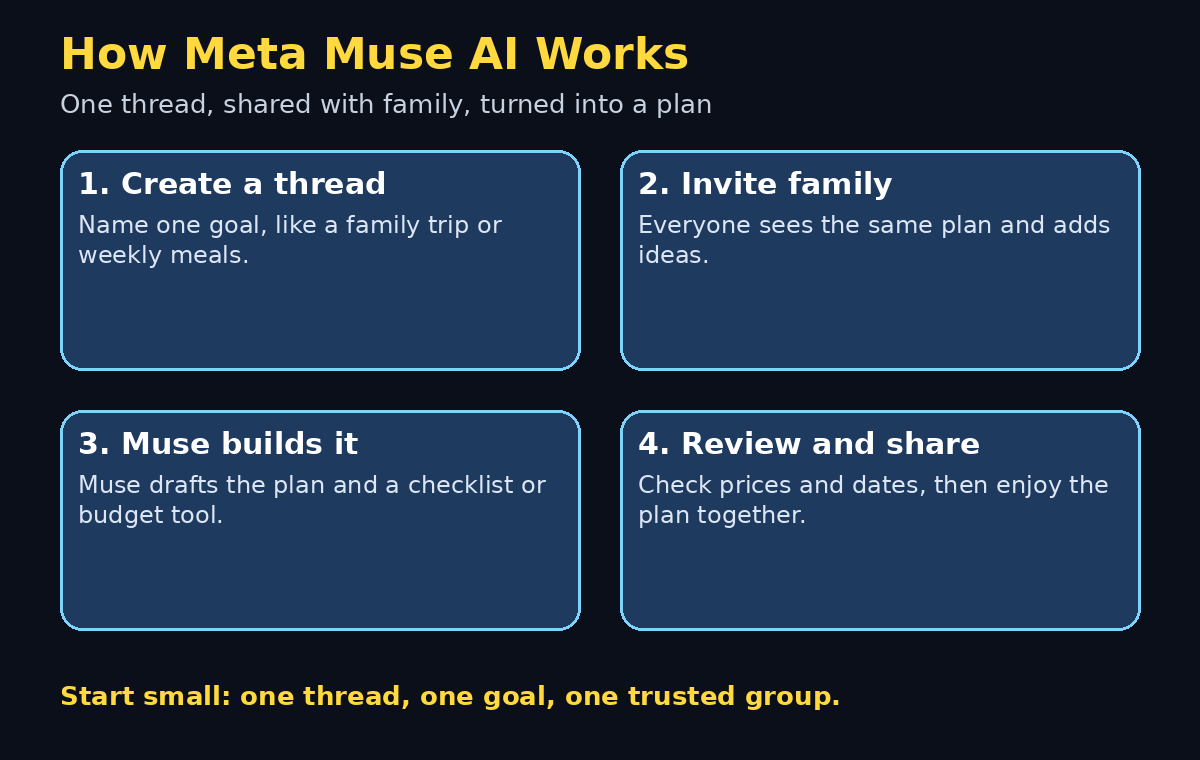
Muse is built around shared threads. Think of a thread as a group chat where an AI assistant sits alongside the people you invite. Everyone can see the plan, add ideas, and ask Muse questions, and Muse keeps the conversation organised instead of letting it scatter across ten different chats.
That shared design is what makes Muse different. It was created by the team behind Meta’s new personal agent push, and it is designed for couples, families, friends, and small teams who plan things together — holidays, weekly meals, fitness routines, study plans, and household tasks.
You do not need to learn prompts or coding. You talk to Muse the way you would talk to a helpful friend: clearly, with a little context, and one task at a time.
Step 2: Download Meta Muse AI and Create Your Account
Muse is available as a free download on iOS, Android, and the web. Availability can vary by country as the rollout continues, so if you cannot find it yet in your app store, check again after a few days and make sure your phone software is up to date.
To get started, open the App Store on iPhone, Google Play on Android, or the official Muse website on your computer, and search for “Meta Muse”. Always check the developer name before installing, so you download the official app and not a copycat.
Once installed, sign in with your Meta account or create one if you do not have one. Use a strong password you do not reuse elsewhere, and turn on two-factor authentication if it is offered. This matters because a personal agent may eventually connect to your calendar, email, or shopping accounts, and a strong login is your first layer of protection.
After signing in, Muse will ask for basic permissions and preferences. Do not rush through this screen. Read each permission, allow only what you are comfortable with, and remember that you can change most permissions later in your phone settings or inside the app.
Step 3: Set Up Your Profile and Preferences
Your first setup takes only a few minutes, but it shapes how useful Muse becomes. Add your first name, your time zone, and your general interests — for example, travel, cooking, fitness, or studying. Muse uses this context to give more relevant suggestions, and you can keep the details general if you prefer not to share a lot.
Next, choose how you want Muse to talk to you. Short answers are best when you are in a hurry. Longer, detailed answers are better when you are planning something big. You can change this at any time by simply telling Muse, “Keep it short,” or, “Give me more detail.”
It is also worth setting a few ground rules early. Tell Muse things like, “Always show me the cheapest options first,” or, “Never book anything without asking me first.” Clear rules prevent surprises later, especially when Muse starts helping with shopping, travel, or calendar changes.
Finally, explore the settings menu once. Find where connected accounts live, where chat history is stored, and where you can delete a thread. Knowing where these controls are before you need them will save you stress later.
Step 4: Create Your First Shared Thread
A thread is where the magic happens. To create one, open Muse, tap to start a new thread, and give it a clear name, such as “Family Trip to Murree” or “Weekly Meal Plan”. A clear name helps everyone invited understand the goal at a glance.
Start with a simple first message. Instead of writing “Plan a trip,” write something specific: “Help us plan a 3-day family trip to Murree in November for 4 people, with a budget of about 60,000 rupees, and keep it kid-friendly.” Specific details give Muse something real to work with.
Muse will reply with ideas, questions, or a first draft plan. Read it, then refine it. You can say, “Make day 2 less busy,” or, “Add a rainy-day option.” This back-and-forth is normal. The first answer is a draft, not a final decision.
Once the draft looks good, invite the people who need to see it. Share the thread link only with people you trust, and tell them they can add ideas or ask Muse questions too. When everyone can see the same plan, you stop repeating the same updates in five different chats.
Step 5: Ask Muse to Build a Mini-App or Tool for Your Plan
One of Muse’s most interesting features is that it can build small app-like tools inside a thread. For example, it can turn a trip plan into a checklist, a budget tracker, or a simple voting board where family members pick between two hotels.
To try this, ask directly: “Turn this plan into a checklist we can tick off,” or, “Make a simple budget tracker for this trip.” Muse will create the tool inside the thread, and everyone invited can use it.
Start with one small tool, not five at once. Test it, see if it helps, and only then ask for more. If a tool looks wrong, say so plainly: “This budget total is wrong — recalculate it with the hotel at 12,000 per night.” Correcting Muse early teaches you how it handles numbers, and it teaches Muse your preferences.
These mini-tools are best for organising, not for final decisions. Always double-check prices, dates, and booking details on the official website before you pay for anything. Muse can organise the research, but you make the purchase.
Step 6: Use Meta Muse AI for Everyday Planning
Once you are comfortable with one thread, Muse becomes useful for daily life. Here are beginner-friendly ways to use it every week:
- Weekly planning: “Help me plan my week: gym on Monday and Thursday, study on Tuesday evening, and a family dinner on Sunday.”
- Meal planning: “Plan 5 simple dinners for this week using chicken, rice, and vegetables, and make a shopping list.”
- Study and work: “Break this project into 6 small tasks I can finish in 30 minutes each.”
- Travel: “Compare two travel dates and tell me which one is cheaper and less crowded, then list the trade-offs.”
- Household tasks: “Make a shared cleaning checklist for our home and assign one task to each person.”
The trick is to keep each thread focused on one goal. A thread called “Everything” becomes messy fast. Separate threads for travel, meals, and work stay clean and easy to find later.
If you run a small business or a side project, the same habit helps even more. Many creators and small teams use AI assistants to draft content plans, organise client work, and keep simple trackers in one place. For a broader view of how digital teams organise this kind of work, you can explore what a digital agency offers on its homepage, and see how AI automation services are described for growing businesses — both are useful reference points when you start turning personal plans into bigger projects.
Step 7: Connect Calendars, Email, and Shopping Carefully
Muse becomes more powerful when it can see your calendar or help with shopping and travel services, but this is also where you need to be most careful. Connect one service at a time, and only if you actually need it for a task.
Before connecting anything, ask yourself three questions: Do I need this connection for this plan? Do I trust this app with this data? Can I disconnect it easily later? If the answer to any of these is no, skip the connection for now.
When you do connect a calendar, start with read-only habits: let Muse check your free days and suggest times, but do not let it move or delete events until you trust it. For shopping, let Muse compare options and build lists, but complete the purchase yourself on the official store website.
Review your connected accounts once a month. Disconnect anything you no longer use, and check what permissions each connection still has. A personal agent should make life easier, not quietly collect access you forgot about.
This careful approach also applies to content and business tools. If you later use AI tools to publish guides or promote a project, keep your main accounts and your experimental tools separate, and review permissions regularly. A good habit is to learn from AI automation services and how they frame safe, permission-based workflows, so your own setup stays under your control.
Step 8: Write Better Prompts Without Learning Prompt Engineering
You do not need to study prompt engineering to get good results from Muse. You just need to give it four things: the goal, the context, the limits, and the format you want.
A weak prompt looks like this: “Plan something fun.” A strong prompt looks like this: “Plan a fun Saturday in Lahore for 2 adults and 2 kids, under 15,000 rupees, outdoors if the weather is good, and give me a morning, afternoon, and evening plan with travel times.”
Use this simple formula for almost every task:
- Goal: What do you want?
- Context: Who is it for, when, and where?
- Limits: Budget, time, or things to avoid.
- Format: List, table, checklist, or short summary?
If the answer is not right, do not start over from scratch. Edit one part: change the budget, add a missing detail, or ask for a shorter version. Small edits usually fix the answer faster than a brand-new prompt.
Step 9: Stay Safe, Private, and in Control
Personal AI agents work best when you stay in charge. Never share passwords, bank card numbers, identity document numbers, or one-time codes with Muse or in any shared thread. Muse does not need those details to plan a trip or build a checklist, and sharing them in a chat creates risk for no benefit.
Be careful with sensitive personal information in shared threads, too. A thread you share with family is visible to everyone invited. Keep medical details, financial details, and private addresses out of shared threads, or use a private thread for those topics.
Check important facts before acting on them. AI assistants can get prices, opening hours, and dates wrong, especially for new or fast-changing information. For travel, money, health, or legal decisions, confirm the key facts on an official website or with a trusted professional before you commit.
Finally, remember that Muse’s rollout is still expanding. Features, pricing, and availability can change, and new countries may get access at different times. If a feature you read about is not in your app yet, it may simply not have reached your region. Check the app itself for the most current options.
Step 10: Review, Save, and Reuse What Works
The best Muse users do not start from zero every time. When a thread works well — a great trip plan, a useful weekly template, or a checklist your family actually used — save it, copy it, or turn it into a template for next time.
Once a week, spend five minutes reviewing your threads. Archive finished plans, delete test threads you no longer need, and keep only the templates you will reuse. A tidy Muse workspace is much easier to use than a long list of half-finished chats.
You can also reuse successful prompts. If a meal-plan prompt gave you a perfect week, save that wording and change only the ingredients or the budget next time. Small reuse habits compound quickly, and after a month you will have a personal library of plans that actually fit your life.
If a thread stops being useful, do not be afraid to start a fresh one. A clean thread with a clear goal almost always beats a long, messy thread that has drifted across five topics.
Meta Muse AI vs Other AI Assistants: A Quick Comparison
| Feature | Meta Muse AI | Normal Chatbot | On-Device Assistant |
|---|---|---|---|
| Best for | Shared planning with family and friends | Quick single questions | Private, offline tasks |
| Shared threads | Yes, built in | Usually no | Usually no |
| Mini-app tools | Yes, inside threads | Limited | Limited |
| Calendar and service connections | Optional, permission-based | Limited | Depends on device |
| Cost to start | Free basic functions | Often free | Often free or device-bundled |
| Beginner friendliness | High, once threads are understood | Very high | High |
| Best caution | Check shared-thread privacy | Check facts before acting | Check device storage limits |
The honest takeaway is simple: use a normal chatbot for quick questions, use Muse when a plan involves other people, and use an on-device assistant when privacy matters most. You do not have to pick only one tool forever.
Frequently Asked Questions
Is Meta Muse AI free?
Yes, basic functions are offered free, according to reporting on the launch. As with most AI apps, paid tiers or extra capabilities may arrive later, so check the app for the current pricing in your country before you rely on a feature for a big project.
Is Meta Muse AI available in Pakistan?
Availability is rolling out by country. Muse launched in the United States and Canada in September 2026 and expanded to Japan on October 23, 2026. If it is not yet in your app store, it may not have reached your region yet. Keep the app store listing and official announcements as your source of truth, not rumours.
Do I need a Meta account to use Muse?
Yes, you sign in with a Meta account. Use a strong, unique password and two-factor authentication if offered, especially if you later connect a calendar or other services.
Can Muse book flights or hotels for me?
Muse can help you research, compare, and organise travel plans, but you should complete bookings yourself on official websites until you are confident about how permissions and payments work in your version of the app. Never share payment details in a chat thread.
Is my data safe in a shared thread?
A shared thread is visible to everyone invited to it, so treat it like a group chat. Keep passwords, financial details, and sensitive personal information out of shared threads, review invited members before sharing a plan, and use private threads for personal topics.
What should I try first with Meta Muse AI?
Start with one simple shared thread: a weekend plan, a weekly meal plan, or a study checklist. Add one mini-tool, invite one or two people you trust, and refine the plan together. That first small success teaches you more than ten test chats alone.
Final Thoughts
Meta Muse AI is not just another chatbot — it is a personal agent built for planning together. Its shared threads and mini-app tools make it genuinely useful for families, friends, and small teams, as long as you start small, stay specific, and keep control of your permissions and purchases.
Begin with one thread, one clear goal, and one trusted group of people. Learn how Muse handles your first plan, save what works, and expand slowly from there. That patient, step-by-step approach is how beginners turn a new AI tool into a daily habit instead of a one-day experiment.
Try Muse this week with a real plan you already need to make — a family outing, a study week, or a simple household checklist — and see how much easier shared planning feels when everyone, including the AI, is looking at the same page.
Explore More Free AI Tools
Want to keep learning? Try these free tools from AIToolSteps: AI Title Generator, Meta Description Generator, AI Rewriter, and Keyword Density Checker — all available at https://aitoolsteps.com/. They pair perfectly with Muse: draft a plan in Muse, then polish your titles, descriptions, and content before you publish or share anything.