

If your inbox feels like a firehose — thousands of unread messages, endless reply-all threads, newsletters you never subscribed to — you are not alone. Most of us spend hours every week just managing email instead of doing the work the email was about. Talanoa is a free AI email client built to fix exactly that problem, and it does it in a way no traditional inbox does: it turns your email threads into calm, chat-style conversations.Instead of a chronological list of subject lines and quoted replies, Talanoa organizes your mail around people. Every conversation with one person becomes a single continuous chat flow, even if it spans different subject lines and months. Newsletters and automated notifications get separated from real human messages. And any email can be turned into a Kanban task with a due date, so nothing slips through the cracks. Best of all, the whole thing runs locally on your computer — your emails and login tokens never sit on Talanoa’s servers.
This beginner guide walks you through everything, step by step: downloading the app, connecting your first account, reading mail the new way, taming newsletters, managing tasks, and understanding the privacy design. No technical background needed.
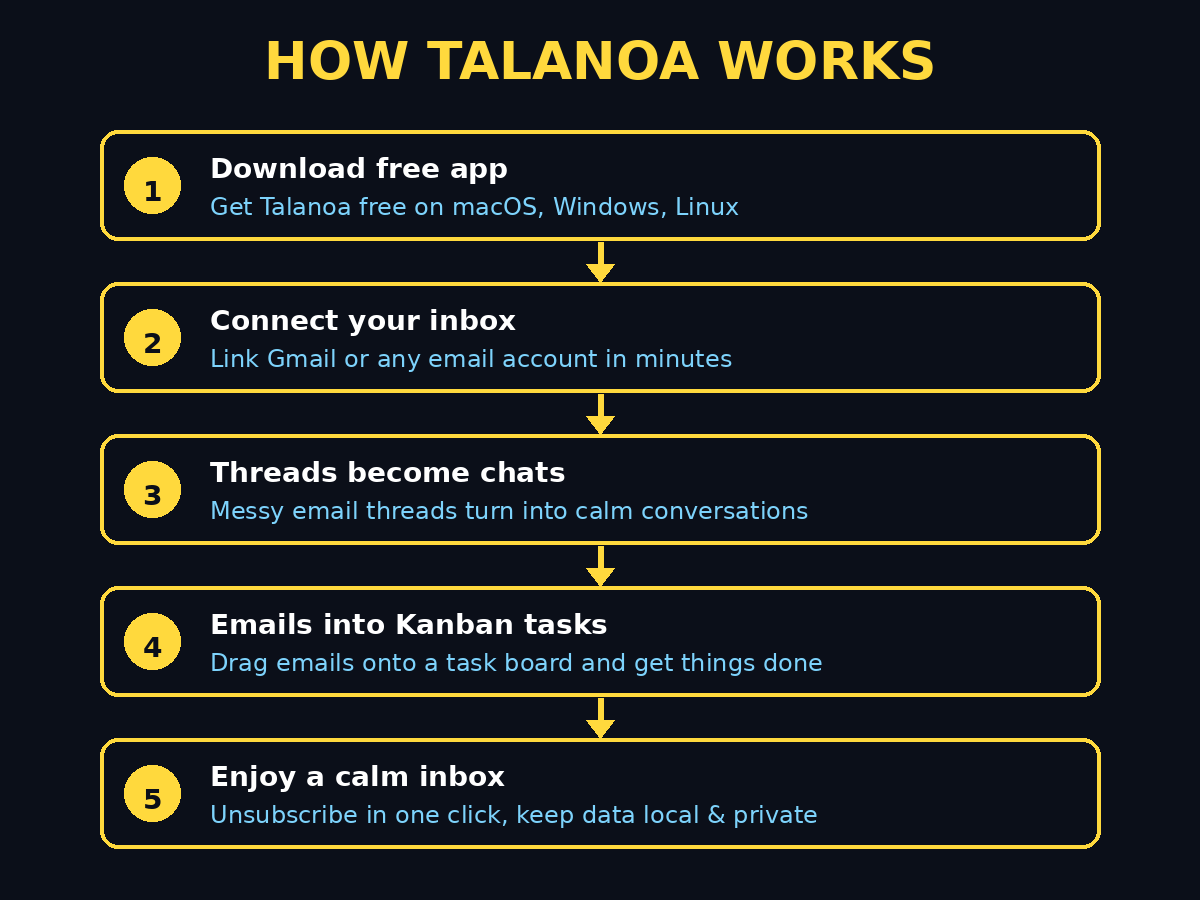
Step 1: Download Talanoa for Free (No Credit Card)
Everything starts at the official website, talanoa.email. Talanoa is a desktop app available for macOS, Windows, and Linux — there is no web version and no mobile app on the free plan (mobile apps for iOS and Android are part of the paid Pro plan).
- Go to talanoa.email and click the download button for your operating system.
- Install it like any normal desktop app: drag to Applications on a Mac, run the installer on Windows, or install the package on Linux.
- Open the app. You will be greeted by a short welcome flow — no account creation forms, no credit card fields.
- Choose the Free plan. It genuinely costs nothing and requires no payment details: you get one email account, the people-first inbox view, 2 blocks or unsubscribes per month, and up to 5 Kanban tasks. It is a fully working experience, not a time-limited trial.
Beginner tip: If you are privacy-conscious, note this from the very first screen: Talanoa is a local-first app. Nothing you are about to connect is uploaded to Talanoa’s servers — we will come back to exactly how that works in Step 7.
Step 2: Connect Your First Email Account
The Free plan covers one email account, so pick the one that causes you the most stress — usually your main personal Gmail or your work address.
- In the welcome flow, choose your provider: Gmail, Outlook, iCloud, Yahoo, or any standard IMAP/SMTP account (your own domain email or a self-hosted mail server also works).
- For Gmail, Outlook, iCloud, and Yahoo, you connect with OAuth — the familiar “Sign in with Google/Microsoft/Apple” popup. You never type your email password into Talanoa itself.
- For custom IMAP/SMTP accounts, enter the server address, port, and credentials manually. Most providers publish these settings on their help pages.
- Grant the requested permissions. This is the step that makes people nervous — but remember: your OAuth tokens are stored only on your device. Talanoa does not transmit them to its own servers, and the app is independently CASA Tier 2 certified, which verifies that security posture.
Once connected, Talanoa syncs your mailbox. Depending on how much history you have, the first sync can take a few minutes. Give it time — it is building the people-first view of your mail, which is the whole point of the app.
Beginner tip: Start with the account that has the messiest inbox. The contrast between the old thread view and Talanoa’s conversation view is most dramatic there, and you will understand the app’s value within minutes.
Step 3: Meet the People-First Inbox
This is where Talanoa stops feeling like “another email app” and starts feeling like a rethink. Traditional inboxes sort by time and subject line: one conversation with your client can be scattered across a dozen separate threads titled “Re: Re: Re: project update.”
Talanoa flips the model:
- One person, one conversation. Everything you have ever exchanged with someone appears in a single continuous flow — even if the emails had different subject lines or happened months apart. No more searching through dozens of threads to remember what you talked about.
- Real conversations first. Talanoa separates messages from real people from newsletters, automated notifications, and promotional noise, so your attention lands on the humans waiting for you.
- Zero thread archaeology. You will never again scroll through a 47-message chain of quoted replies to find the one paragraph that matters.
Spend ten minutes clicking through a few conversations. The mental shift is real: instead of asking “which threads are unread?”, you start asking “who is waiting for a reply from me?” — and that is a much calmer question.
Step 4: Read and Reply in Chat Style
Opening a conversation feels like opening a chat app — and that is deliberate. Messy quoted headers, repeated signatures, and stacked subject lines disappear. What remains is a clean exchange: messages become chat bubbles, with your replies on one side and theirs on the other.
- Reading: scroll the conversation top to bottom like a chat history. Attachments and inline images stay attached to the message they arrived with.
- Replying: type in the reply box at the bottom and send. Behind the scenes it is still a normal email — the recipient sees a perfectly ordinary message in Gmail, Outlook, or wherever they read mail. Nobody needs to install Talanoa for you to use it.
- New conversations: the compose button works exactly like any email client — address, subject, body — but once the thread is going, it lives in the chat view.
Beginner tip: For the first week, resist the urge to keep a browser tab with your old inbox open “just in case.” The chat view takes about two days to feel natural, and after that the old thread view will feel like reading a fax.
Step 5: Silence Newsletters and Notification Noise
Here is the feature that pays for itself in attention: Talanoa’s noise controls. That promo newsletter you “subscribed” to by buying one pair of shoes three years ago, the seventeen “your order has shipped” style notifications, the daily digest from a forum you visited once — all of it can go.
- One-click unsubscribe: Talanoa finds the unsubscribe link buried in promotional emails and surfaces it as a single button. Click once and you are off the list.
- Block: for senders with no unsubscribe option, blocking stops their mail from reaching your conversations.
- On the Free plan you get 2 blocks/unsubscribes per month, so use them on your two worst offenders first. The paid Pro plan unlocks unlimited blocks.
- The noise filter works automatically too: Talanoa separates newsletters and automated notifications from real human conversations, so even the mail you keep does not compete with messages from actual people.
Beginner tip: Do a “noise audit” in your first session: sort by sender, find the three senders who email you most without you ever reading them, and unsubscribe or block the worst two. Your inbox will feel 30% calmer immediately.
Step 6: Turn Emails Into Kanban Tasks
Some emails need more than a reply — they need doing. “Please review the contract by Friday.” “Send me the invoice when you get a chance.” In a normal inbox, these die quietly under newer mail. In Talanoa, you convert them into tasks:
- Open any email and choose Create task. The email becomes a card on your Kanban board with the original conversation attached.
- Add a due date so it shows up when it matters, and drag the card across columns (To do, Doing, Done) as you make progress.
- The original email thread stays linked to the task, so you never lose context — the request, the attachments, and the whole conversation travel with the card.
- The Free plan includes up to 5 Kanban tasks; Pro unlocks unlimited tasks.
This single feature changes how you treat your inbox: email stops being a to-do list written by other people and becomes raw material for your task board. Try it with three “I need to do this” emails today and watch the board fill up.
Beginner tip: Set a weekly 10-minute ritual — every Friday, drag finished cards to Done and archive their conversations. It is deeply satisfying, and it keeps the board honest.
Step 7: Understand the Privacy Design (Why Local-First Matters)
Your inbox holds your most sensitive data — financial statements, medical results, private conversations, password resets. Most modern email clients process that data on company servers. Talanoa takes the opposite approach, and it is worth understanding because it is the app’s biggest differentiator:
- Your emails stay on your device. Talanoa downloads your mail to your own computer and works with it there. It never stores your emails on its own servers.
- Your login tokens stay on your device too. The OAuth tokens that let Talanoa read your Gmail or Outlook are kept locally and never transmitted to Talanoa’s infrastructure.
- No ad targeting, no content scanning for advertisers. Talanoa does not track your email content and does not use your messages for advertising.
- Independently verified: the app is CASA Tier 2 certified, which means an independent assessment verified this security posture — it is not just a marketing claim.
The practical upshot: if Talanoa’s company servers were ever breached, your emails would not be in the breach — because they were never there. For freelancers handling client contracts, founders with investor threads, or anyone who simply believes their mail is their business, this is the feature that seals the deal.
Step 8: Search, Shortcuts, and Your Daily Workflow
Once the basics feel natural, these power habits make Talanoa genuinely faster than a traditional inbox:
- Search by person, not keyword. Because everything with one person lives in one conversation, searching a name usually finds what you need faster than searching for a keyword buried in a subject line.
- The unified-history view is your memory. Before a call with a client, open their conversation and scroll — you will see the full arc of the relationship: the first intro, the contract, the last three follow-ups. It is like a lightweight CRM you never had to maintain.
- Triage twice a day. Check the people-first inbox in the morning and late afternoon instead of living inside it. Real conversations surface to the top; noise stays out of your way. Convert action emails to tasks immediately (Step 6) and archive the rest.
- Learn the keyboard shortcuts. Every serious email client rewards shortcut users, and Talanoa is no exception — check the settings or help menu for the full list and learn reply, archive, and task-creation first.
Beginner tip: For the first two weeks, keep a sticky note on your monitor: “Convert, don’t hoard.” Every email should end up as a reply, a task, or an archive — never as an unread message you will “deal with later.”
Step 9: Free vs Pro — Do You Need to Pay?
The Free plan is surprisingly complete, but here is the honest breakdown so you can decide for yourself:
| Free | Pro | |
|---|---|---|
| Price | $0 forever, no credit card | $10/month, or $7.50/month billed annually ($90/year) |
| Email accounts | 1 | Unlimited |
| People-first inbox + chat view | Yes | Yes |
| Blocks / unsubscribes | 2 per month | Unlimited |
| Kanban tasks | Up to 5 | Unlimited |
| Mobile apps (iOS & Android) | No | Yes |
| Support | Standard | Priority |
Most beginners will be perfectly happy on Free for months. Upgrade when you hit one of three walls: you need a second account (work + personal), you burn through your 2 monthly unsubscribes too fast, or you want the mobile apps. You can upgrade, downgrade, or cancel any time from settings — and if you cancel Pro, you keep access until the end of your billing period.
Talanoa vs Other Email Clients: Quick Comparison
How does Talanoa stack up against the inbox you already use and the premium alternatives?
| Feature | Talanoa | Gmail (web) | Superhuman | HEY | |
|---|---|---|---|---|---|
| Price | Free plan; Pro $7.50–10/mo | Free | ~$30/month | ~$12/month | |
| Chat-style conversation view | Yes | No | No | No | |
| People-first organization | Yes | No | No | No | Partial (Imbox feed) |
| Built-in Kanban tasks from email | Yes | No (needs add-ons) | No | No | |
| Local-first: mail never on vendor servers | Yes | No | No | No | |
| Multi-account unified inbox | Yes (Pro) | Yes | Yes | Yes | |
| Mobile apps | Pro only | Yes | Yes | Yes | |
| Best for | Privacy-minded beginners who hate thread chaos | Everyone already in Google’s world | Executives who live in email and can pay for speed | People who want opinionated inbox triage |
The honest take: Gmail is free and everywhere, but it will never reorganize itself around people, and Google’s business is advertising. Superhuman is blazing fast but costs roughly three times Talanoa Pro. HEY has strong opinions about triage but forces you into its own email address philosophy. Talanoa’s unique pitch is the combination of free + private-by-design + chat-style calm — and for a beginner, that is a very easy yes.
Frequently Asked Questions
Is Talanoa really free? What is the catch?
Yes — the Free plan costs nothing, needs no credit card, and is not a time-limited trial. You get one email account, the people-first inbox with the chat-style conversation view, 2 blocks or unsubscribes per month, and up to 5 Kanban tasks. The “catch” is simply that power features (unlimited accounts, unlimited blocks and tasks, mobile apps) are reserved for the Pro plan at $10/month or $7.50/month billed annually.
Does Talanoa read my emails or sell my data?
No. Talanoa is a fully local desktop app: your emails and OAuth login tokens are stored only on your device and are never transmitted to Talanoa’s servers. The company does not track your email content and does not use your messages for advertising. The app is CASA Tier 2 certified, which independently verifies this security posture.
Which email providers work with Talanoa?
Gmail, Outlook, iCloud, and Yahoo connect via OAuth, and any provider with standard IMAP/SMTP works too — including your own domain email or a self-hosted mail server. On the Free plan you can connect one account; Pro supports unlimited accounts in one unified inbox.
Do the people I email need Talanoa too?
Not at all. When you reply from Talanoa, the recipient receives a perfectly normal email in whatever client they use. The chat-style view is only how you see your mail — nothing changes on their end.
Is there a Talanoa mobile app?
Mobile apps for iOS and Android exist, but they are part of the Pro plan. The Free plan is desktop-only (macOS, Windows, Linux). If you mostly triage email at your desk, the free desktop app is more than enough to start.
What happens to my data if I stop using Talanoa or cancel Pro?
Because everything lives on your device, your emails do not disappear when you cancel — your mail is still in your Gmail/Outlook/iCloud account exactly where it always was. Talanoa holds no copy on its servers, so there is nothing to “export back.” Downgrading from Pro to Free simply returns you to the free limits.
Final Thoughts
Email was always a conversation — somewhere along the way, we let it become a filing cabinet. Talanoa’s bet is that your inbox should feel like chatting with people, not excavating threads, and after a week with the people-first view, it is hard to go back. The setup takes ten minutes, the Free plan asks for nothing (not even a credit card), and the privacy design means your most sensitive data never leaves your own computer.
Download it today, connect your messiest account, run the noise audit from Step 5, and convert three nagging emails into Kanban tasks. That is the whole onboarding — and it might be the calmest your inbox has felt in years.
Explore More Free AI Tools
Want to keep upgrading your workflow without spending a rupee? Try these free AI tools next:
- AI Title Generator — craft click-worthy headlines in seconds: https://aitoolsteps.com/
- Meta Description Generator — write perfect SEO snippets automatically: https://aitoolsteps.com/
- AI Rewriter — polish rough drafts into clean, natural copy: https://aitoolsteps.com/
- Keyword Density Checker — keep your SEO on target: https://aitoolsteps.com/