

On October 12, 2026, Meta did something it had never done before: it launched its first frontier AI model, called Muse Wonder. For years, Meta’s AI story was about free assistants and open research models. Muse Wonder is different. It is built to compete head-on with GPT-6, Claude, and Gemini on the hardest tasks in AI — coding, planning, and multi-step work that requires real reasoning. This Meta Muse Wonder beginners guide walks you through everything, step by step.
If you have been using free chatbots and are curious about what Meta’s most powerful AI can actually do for you, this guide is for you. We will walk through everything step by step: what Muse Wonder is, how to access it (including free options), how to write prompts that get great answers, how to use it for coding and planning, what the pricing looks like, and the pro tips that separate beginners from power users.
No technical background needed. Let’s dive in.
Step 1: Meta Muse Wonder Beginners — What Is This Model?
Meta Muse Wonder is a large language model released by Meta’s Superintelligence Labs on October 12, 2026. Alongside it came an even more powerful version called Muse Wonder Full.
Here is what makes Wonder special compared to the assistants you may already know:
- Agentic by design: Wonder is built for multi-step tasks. Instead of answering one question at a time, it can plan a project, break it into steps, use tools, and keep working until the job is done.
- Long-term memory: Meta calls these features Active Memory and Active Focus. Wonder can remember context across long conversations and keep track of what matters in a complex task.
- Frontier-class reasoning: Meta claims Wonder matches Claude Fable 5.1 and GPT-6 Astra on its own benchmarks. Independent testing by Artificial Analysis placed Muse Wonder Full at 56 on the Intelligence Index — two points behind Claude Opus 5.5 at 58. In plain English: it is genuinely in the same league as the best models in the world.
- A serious safety effort: Meta published model cards covering red-teaming for cybersecurity, biological risk, and persuasion benchmarks — transparency that beginners can appreciate because it shows the model was tested before release.
Think of Muse Wonder as Meta’s answer to the question: “What would it look like if an AI could actually think through a hard problem with you, not just chat?”
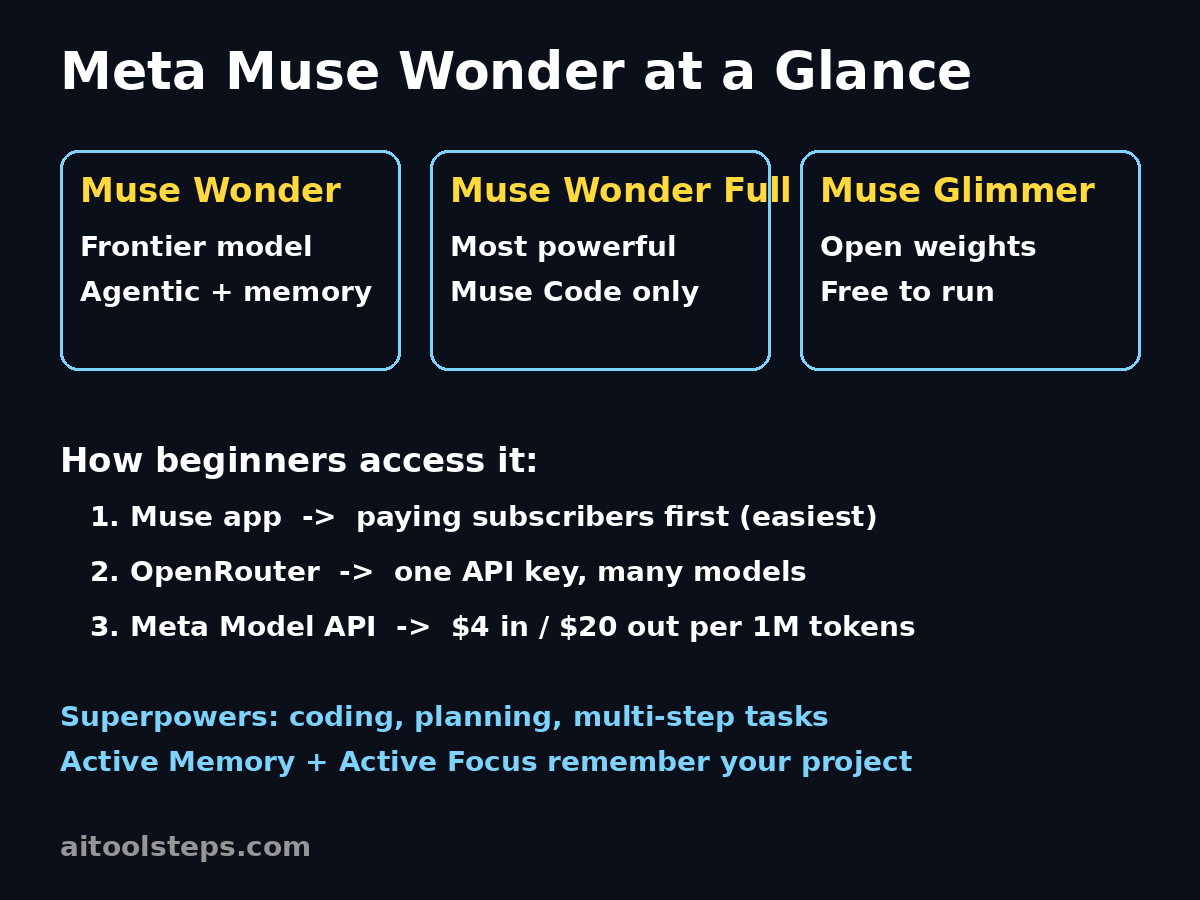
The diagram above summarizes the key facts every Meta Muse Wonder beginner should know.
Step 2: Check If You Have Access
Before anything else, let’s figure out which door is open for you. There are three main ways to use Muse Wonder:
- The Muse app (easiest): Meta’s AI assistant app is rolling Muse Wonder out to paying subscribers first. If you already pay for a Meta AI subscription, you may already see Wonder as a model option. Free users get the standard models first, with Wonder access expanding over time.
- OpenRouter (great for tinkerers): Developers and hobbyists can use Wonder through OpenRouter, a marketplace that gives you one API key for many models. This is a paid route, but it is flexible.
- The Meta Model API (for developers): If you build apps, you can call Wonder directly through Meta’s own API.
There is also good news for the open-source crowd: Meta released the weights of a smaller model called Muse Glimmer on Hugging Face, with integrations for Ollama, LM Studio, llama.cpp, ExecuTorch, and MLX. And Meta has teased that Muse Spark 1.2 weights are coming soon. Glimmer is not Wonder, but it shows Meta is keeping one foot in the open-model world.
For this Meta Muse Wonder beginners guide, we will focus on the Muse app route, since it is the simplest.
Step 3: Open Muse Wonder in the Muse App
Here is the exact process to get started:
- Install or update the Muse app on your phone or open it in your browser.
- Sign in with your Meta account. If you are a paying subscriber, you should see model options near the top of the chat window.
- Select Muse Wonder from the model picker. If you only see the standard model, your account may not have Wonder access yet — check for app updates or subscription options.
- Start a new chat. You are ready.
One tip: if you do not see Wonder yet, do not worry. Meta rolls new models out gradually. Keep your app updated, and check back. In the meantime, the standard Muse models are still excellent for everyday tasks.
Step 4: Meta Muse Wonder Beginners — Writing Your First Prompts
A frontier model is only as good as the instructions you give it. Muse Wonder shines when you give it rich, detailed prompts. For example, compare these two prompts:
- Weak prompt: “Help me plan a trip.”
- Strong prompt: “Help me plan a 5-day trip to Istanbul in November on a $1,200 budget. I love history and street food, and I want one rest day. Give me a day-by-day plan with estimated costs.”
Wonder’s agentic design means the strong prompt lets it plan, research, and organize — exactly what it was built for. Follow these beginner rules:
- Be specific about the outcome. Tell it what the finished result should look like.
- Give it context. Budget, audience, tone, constraints — the more it knows, the better it plans.
- Let it ask questions. Try: “Ask me any clarifying questions before you start.” Wonder is good at figuring out what it needs to know.
- Break big jobs into phases. “First outline the report, then write section one.” This plays to its multi-step strengths.
Step 5: Use Wonder for Coding and Planning Tasks
This is where Muse Wonder earns its “frontier” label. Two beginner-friendly use cases:
Coding help
You do not need to be a programmer, because Wonder explains every step. Try prompts like:
- “I have never coded. Walk me through building a simple personal budget tracker website, step by step, and explain each part.”
- “Here is my Python script [paste it]. Find the bug and explain it like I am a beginner.”
Wonder can write code, explain it, debug it, and plan whole projects. Ask it to go slowly and explain — it is patient.
Planning complex projects
- “I want to launch a small online bakery. Create a 90-day plan covering the website, pricing, and marketing, with weekly milestones.”
- “Plan my study schedule for final exams: 4 subjects, 3 weeks, 2 hours a day.”
Because of its Active Focus feature, Wonder keeps track of the plan’s moving parts instead of losing the thread halfway through. When it finishes, ask follow-ups like “What did you assume?” or “What is the riskiest part of this plan?” — great answers come from great follow-ups.
Step 6: Turn On Active Memory for Long-Term Help
Active Memory is one of Wonder’s headline features. In simple terms: the model can remember important facts across a long conversation — your preferences, your project’s goals, decisions you made earlier.
How to use it as a beginner:
- Tell it what to remember. “Remember that I am a beginner at coding and prefer simple explanations.” “Remember my budget is $500.”
- Check its memory. “What do you remember about my project so far?” If something is wrong, correct it: “Actually, my budget is $800, not $500.”
- Use it for ongoing work. Returning to the same chat over several days turns Wonder into a project partner that does not forget where you left off.
A word of caution: do not share passwords, financial account numbers, or other sensitive secrets with any AI, Wonder included. Memory is convenient, not a vault.
Step 7: Try the Developer Route: API and OpenRouter
If you are a little technical — or want to become a little technical — you can use Wonder in your own projects:
- Sign up for the Meta Model API (for direct access) or OpenRouter (for one key that works with many models).
- Get your API key from the dashboard.
- Send your first request. Both services have quick-start guides with copy-paste code samples. A simple test: ask the model to summarize a paragraph.
- Watch your usage. API access is metered (see Step 8), so start with small experiments.
Why bother? The API route lets you build Wonder into apps, automate tasks, and experiment with settings like temperature and effort controls. It is the same model, with a workshop attached.
Step 8: Understand the Pricing
Here is the honest pricing picture as of launch:
- Muse app: Wonder is rolling out to paying subscribers first. Check the app for current subscription pricing in your region.
- Meta Model API: Wonder costs $4 per million input tokens and $20 per million output tokens. A “token” is roughly a word fragment — a million tokens is a LOT of text (several novels’ worth). For casual experimenting, costs stay small.
- Muse Wonder Full: the top-tier version is NOT sold through the API at all. It is only available to Muse Code subscribers.
Beginner advice: start in the app, where pricing is simple and predictable. Move to the API only when you have a project that needs it. And always set a spending limit in your API dashboard — a good habit from day one.
Step 9: Pro Tips for Best Results
These are the habits that separate Meta Muse Wonder beginners from power users:
- Iterate, don’t restart. When an answer is close but not perfect, say “Good, but make it shorter” or “Keep the plan, change the budget to $800.” Iteration beats starting over.
- Ask for alternatives. “Give me three different approaches, then recommend one.” Frontier models are great at comparing options.
- Use it as a teacher. “Explain your reasoning step by step.” You will learn how it thinks — and spot mistakes.
- Combine strengths. Draft with Wonder, then fact-check key claims with a search tool. AI models can be confidently wrong about recent events.
- Save great prompts. Keep a note of prompts that worked well. Your personal prompt library becomes more valuable over time.
- Respect the limits. Wonder is powerful, but it is not a lawyer, doctor, or financial advisor. Use it to learn and draft, then verify with professionals for high-stakes decisions.
Further reading for Meta Muse Wonder beginners: launch coverage at Axeetech’s Muse Wonder launch report and ToolPilot’s October 12 AI news roundup.
Muse Wonder vs Other Frontier Models
| Model | Best for | Price (API) | Access |
|---|---|---|---|
| Meta Muse Wonder | Agentic coding, planning, long multi-step tasks | $4 / $20 per 1M tokens | Muse app (subscribers first), OpenRouter, Meta Model API |
| GPT-6 Astra | General reasoning, broad ecosystem | Varies by tier | ChatGPT, OpenAI API |
| Claude Opus 5.5 | Coding, careful long-form work | Higher tier | Claude app, Anthropic API |
| Gemini 4 Argon | Deep reasoning, research tasks | Limited access | Fairwind program (trusted researchers) |
Benchmark note: Artificial Analysis ranks Muse Wonder Full at 56 on the Intelligence Index, just behind Claude Opus 5.5 at 58. Rankings shift as models update — treat this as a snapshot, not a final verdict.
Frequently Asked Questions
Is Meta Muse Wonder free?
Wonder is rolling out to paying Muse app subscribers first, so full access currently requires a subscription. Meta has not announced a free tier for Wonder specifically. However, Meta’s standard AI models remain free, and the open-weight Muse Glimmer model is free to download and run. Watch for free access expansions over time.
What is the difference between Muse Wonder and Muse Wonder Full?
Wonder Full is the more powerful version. The key practical difference: Wonder is available through the Meta Model API ($4/$20 per million tokens), while Wonder Full is not sold via API at all — it is exclusive to Muse Code subscribers.
Can beginners really use a frontier model?
Absolutely — this Meta Muse Wonder beginners guide was written for you. “Frontier” describes the model’s capability, not its difficulty. If you can chat, you can use Wonder. The beginner tips in this guide — specific prompts, iteration, and using it as a teacher — work from your very first conversation.
Is Muse Wonder better than GPT-6 or Claude?
It depends on the task. Meta’s own benchmarks put Wonder alongside GPT-6 Astra and Claude Fable 5.1, while independent testing ranks Wonder Full just behind Claude Opus 5.5. For agentic, multi-step work — planning projects, coding with tools — Wonder is genuinely competitive. Try the same task on two models and compare; your use case is the only benchmark that matters.
Does Muse Wonder remember my conversations?
It has Active Memory and Active Focus features designed for long-term context within conversations and projects. You can tell it what to remember and ask what it remembers. As with any AI service, avoid sharing sensitive secrets like passwords.
Where can I download Meta’s open models?
Muse Glimmer’s weights are on Hugging Face, with integrations for Ollama, LM Studio, llama.cpp, ExecuTorch, and MLX. These are separate, smaller open models — not the full Wonder model — but they are free to experiment with.
Final Thoughts for Meta Muse Wonder Beginners
Meta Muse Wonder is a milestone: Meta’s first true frontier model, built for the kind of thinking work — coding, planning, multi-step reasoning — that used to require the most expensive AI on the market. For beginners, the exciting part is that none of that power requires expertise to touch. Install the app, pick the model, and start with a detailed prompt about something you actually care about.
Start simple, iterate often, and let Wonder’s memory turn one-off chats into ongoing projects. The models will keep improving — your prompting skills will too.
Explore More Free AI Tools
Want to keep exploring? Try these free tools on AIToolSteps:
- AI Title Generator – https://aitoolsteps.com/
- Meta Description Generator – https://aitoolsteps.com/
- AI Rewriter – https://aitoolsteps.com/
- Keyword Density Checker – https://aitoolsteps.com/