
If you have ever thought video creation was too complicated or too expensive, Google Vids is about to change your mind. Google Vids is Google’s AI-powered video creation app, and it is part of the Google Workspace family. The easiest way to think of it is this: Google Vids is to video what Google Slides is to presentations.
Since the September 2026 update, anyone with a personal Google account or a Google Workspace account can generate AI video clips for free using Gemini Omni 1.1 Flash. There is a free monthly generation allowance, and if you need more, Business and Enterprise plans or paid Google AI plans unlock higher limits. That makes learning how to use Google Vids one of the smartest free skills you can pick up this year — whether you want to make YouTube Shorts, product promos, school projects, or eye-catching presentation videos.
This beginner guide walks you through the entire process, step by step, from signing in to exporting your finished MP4. No downloads, no installs, no experience required.
Step 1: Sign In at vids.new
Everything happens in your browser — Google Vids needs no downloads or installs. Here is how to get in:
- Open your desktop browser (Chrome works best) and go to vids.new. That shortcut takes you straight to Google Vids.
- Sign in with your Google account. Both personal Google accounts and Google Workspace accounts work.
- You will land on the Vids home screen, which looks a lot like the Google Drive or Docs home — clean, familiar, and beginner-friendly.
- Look for the “Create AI videos” tile on the home screen and click it. This is the starting point for AI-generated clips.
Beginner tip: If you already use Gmail, Docs, or Drive, the whole interface will feel instantly familiar. The menus, the Share button, and the autosave behavior all work the way you expect.
Step 2: Start a New AI Video Project
Once you click “Create AI videos,” Google Vids opens a fresh project with a blank timeline. Think of the timeline as your workbench — every clip, image, and audio track you add lives here.
- The project autosaves to your Google Drive automatically, so you will never lose your work.
- At the top, you will see a simple toolbar with options to add scenes, text, images, video, and audio.
- Before generating anything, give your project a clear name like “Bakery Promo October 2026” so you can find it later.
- Decide what your video is for before you start. Common beginner projects include:
- Product promos for a small business
- YouTube intros, B-roll, or Shorts
- School projects and class presentations
- Local business announcements
- Community event videos
Beginner tip: Write a one-sentence goal on a sticky note or in your head — “Show off our new croissants in 30 seconds.” A clear goal makes every step below ten times easier.
Step 3: Write Your First AI Scene Prompt
This is where the magic happens. Google Vids can generate a video scene from a plain-text description, powered by Gemini Omni 1.1 Flash.
- Click to add an AI scene, and type what you want to see. Be specific about the subject, the action, and the setting.
- Weak prompt: “a bakery video.”
- Strong prompt: “A warm, cozy bakery interior at sunrise, golden light streaming through the windows, a baker placing fresh croissants on a wooden counter, close-up shot, cinematic feel.”
- Mention the camera angle if you have one in mind — “wide shot,” “close-up,” “aerial view” all work.
- Describe lighting and mood, because these details dramatically improve the result.
- If the first result is not quite right, regenerate. It is free, and trying two or three variations is completely normal.
Beginner tip: Describe it the way you would describe a photo to a friend. If you can picture it clearly in words, the AI usually can too.
Step 4: Extend a Scene Without Breaking Consistency
One of the most impressive features for beginners is scene extension. Real video editing is hard because keeping things consistent between cuts is hard — the same person, the same lighting, the same room. Google Vids handles this for you.
- Select a scene you already generated and choose the extend option.
- Describe what happens next, and the AI keeps the visual context: the same lighting, the same character appearance, and the same environment.
- This is perfect for multi-shot sequences, like “baker opens the shop” followed by “baker greets the first customer.”
- Each extended scene flows naturally into the last, so your video looks like it was shot in one session.
Beginner tip: Extend scenes instead of generating lots of unrelated clips. Consistent characters and lighting are what separate amateur-looking videos from professional-looking ones.
Step 5: Set the Exact Clip Duration
Not every platform wants the same video length. A YouTube Short needs to be short; a presentation segment can breathe a little more. Google Vids lets you set the exact duration of each AI-generated clip.
- When you generate or extend a scene, choose how long the clip should run.
- Match your durations to your platform:
- YouTube Shorts or Instagram Reels-style clips: keep individual scenes snappy
- Product promos: 20–45 seconds total usually performs best
- Presentation inserts: 10–20 second clips slot neatly between slides
- Remember that your free monthly generation allowance is shared across all clips, so planning durations in advance helps you stay within it.
Beginner tip: Plan your video in beats. For a 30-second promo: 5 seconds of hook, 15 seconds of showing the product, 10 seconds of call to action. Assign durations to scenes accordingly.
Step 6: Generate or Upscale Clips in 1080p HD
Quality matters, and Google Vids delivers. You can generate or upscale your AI clips in full 1080p HD, so your finished video looks sharp on phones, laptops, and big screens.
- HD generation is built into the AI video workflow — choose the HD option when creating or upscaling a clip.
- Every AI-generated clip carries an imperceptible SynthID watermark that identifies it as AI-made. You cannot see it, and it does not affect how your video looks — it is simply Google’s way of keeping AI content transparent and responsible.
- Because the watermark is invisible, your exported video looks completely clean and professional.
Beginner tip: Always work in HD from the start. Upscaling later works, but generating at 1080p from the beginning gives you the crispest result.
Step 7: Add a Voiceover — AI or Your Own Voice
A silent video rarely performs well. Google Vids gives you two great ways to add narration.
- AI voiceovers: Google has announced Gemini 3.8 Flash-Lite text-to-speech voiceovers in more than 100 languages, rolling out now. You type your script, and the AI reads it aloud in a natural-sounding voice — perfect for tutorials, promos, and explainers in almost any language.
- Your own voice: Prefer the personal touch? Hit record and narrate directly inside Vids. Great for business owners, teachers, and anyone whose audience wants to hear a real human.
- Write your script first, then record or generate. A 30-second video needs roughly 65–75 spoken words.
- Place the voiceover on its own audio track on the timeline so you can adjust its volume independently of background music.
Pro tip: always review your voiceover with headphones on — these Bluetooth headphones help you catch background hiss and volume imbalances before you export. Disclosure: as an Amazon Associate, AIToolSteps earns from qualifying purchases.
Beginner tip: Record in a quiet room and speak a little slower than feels natural. Calm, clear narration beats rushed mumbling every time.
Step 8: Edit on the Timeline — Drag, Trim, Rearrange
The timeline editor is where your clips become a real video. If you have ever rearranged slides in Google Slides, you already understand the logic.
- Drag and drop clips to reorder scenes — just grab a scene and slide it where you want it.
- Trim clips by dragging their edges to cut out the boring bits.
- Layer audio tracks — stack your voiceover over background music and adjust each track’s volume so the narration stays clear.
- Add text overlays for titles, prices, dates, or calls to action.
- Record yourself directly into a scene — handy for video messages, intros, or talking-head segments.
- Upload media from Google Drive, Google Photos, or your device to mix real footage with AI-generated scenes.
- You can even import PowerPoint slides as scenes, which is a game-changer for turning an existing presentation into a video.
Beginner tip: Edit with the sound on. Half of good editing is timing — cuts that land on the beat of the music or the pause in narration feel professional instantly.
Step 9: Polish with Stock Music, Media, and Effects
Google Vids includes a stock library with background music, images, stickers, and sound effects — all built in, so you do not need to hunt the internet for assets.
- Browse the stock library for background music that matches your video’s mood — upbeat for promos, calm for tutorials.
- Add stickers and sound effects sparingly. A subtle “ding” on a price reveal works; ten sound effects in thirty seconds does not.
- Use the built-in templates if you want a head start. Templates give you a professional layout for intros, outros, and announcements that you can customize with your own clips.
- Keep your branding consistent: the same colors, the same font style for text overlays, and a logo or website name at the end of every video.
Beginner tip: Less is more. Pick one music track, one font style, and one or two effects per video. Consistency looks professional; clutter does not.
Step 10: Preview, Share, and Export Your MP4
You are almost done. This final step is about checking your work and getting it out into the world.
- Hit Preview and watch your video from start to finish. Check for:
- Audio levels — can you hear the voiceover clearly over the music?
- Spelling in any text overlays
- Scene transitions — does everything flow?
- Total length — does it fit your target platform?
- When you are happy, click Share. You can export your video as an MP4 file.
- Export options include saving to Google Drive or downloading the MP4 directly to your computer.
- From there, upload it wherever your audience is: YouTube, TikTok, Instagram, Facebook, or your website.
Beginner tip: Watch your preview on your phone too. Most of your audience will see your video on a phone screen, so if text is too small or audio is muddy on mobile, fix it before you publish.
Google Vids Free vs Paid — and How It Compares
Understanding what is free and what costs money helps you plan. Here is how Google Vids stacks up against other beginner video tools.
| Feature | Google Vids (Free) | Google Vids (Paid plans) | CapCut (Free) | Canva Video (Free) | Lumen5 (Free) |
|---|---|---|---|---|---|
| AI video generation | Yes — free monthly allowance via Gemini Omni 1.1 Flash | Higher monthly limits | Limited AI features | Limited AI features | Yes, limited |
| HD 1080p output | Yes | Yes | Yes | 720p on free plan | 720p on free plan |
| AI voiceovers | Yes — 100+ languages (rolling out) | Yes | Yes, limited | Limited | Yes |
| Timeline editing | Full editor included | Full editor included | Full editor included | Full editor included | Template-based |
| Stock music & media | Included library | Included library | Included library | Included library | Template-based |
| Imports | Drive, Photos, device, PowerPoint slides | Same | Device, cloud | Uploads | Uploads |
| Export format | MP4 to Drive or download | MP4 to Drive or download | MP4 | MP4 | MP4 |
| Price | Free with a Google account | Business/Enterprise or paid Google AI plans for higher limits | Free (watermark-free exports) | Free with limits | Free with watermark |
The big differentiator for Google Vids is the combination: genuinely free AI video generation from text prompts, full 1080p HD, AI voiceovers in 100+ languages, and a real timeline editor — all inside the Google account you already have.
Real-World Ideas to Try First
If you are not sure what to make first, start small and practical:
- A 30-second product promo for a local shop — one AI scene of the product, one of the storefront, voiceover with the address and hours.
- A YouTube intro — 5 seconds of AI-generated visuals with your channel name as a text overlay.
- B-roll for a tutorial — generate establishing shots while you narrate over them.
- A school project — turn a history or science topic into a narrated video instead of a plain slideshow.
- A community event announcement — date, time, and location with upbeat stock music underneath.
Each of these takes under an hour once you know the workflow above, and each one teaches you a new part of the editor.
FAQ
Is Google Vids really free?
Yes. Since the September 2026 update, anyone with a personal Google account or a Google Workspace account gets a free monthly allowance of AI video generation powered by Gemini Omni 1.1 Flash. The editor itself — timeline, templates, stock library, voiceover recording — is free to use. If you need more generations than the free allowance covers, Business and Enterprise plans or paid Google AI plans raise your limits.
Do I need to install anything to use Google Vids?
No. Google Vids runs entirely in your desktop browser. Go to vids.new, sign in with your Google account, and you are in. There are no downloads, no installs, and no plugins required.
How is Google Vids different from Google Slides?
Google Slides makes slide presentations; Google Vids makes videos. But the comparison is fair because the interface feels very similar — if you can build a slide deck, you can build a video in Vids. The timeline replaces the slide sorter, and instead of static slides you work with video scenes, audio tracks, and motion.
Will people know my video was made with AI?
Google Vids embeds an imperceptible SynthID watermark in AI-generated clips, which identifies them as AI-made to systems that can read it. It is invisible to viewers and does not affect the look of your video in any way. Beyond that, whether a video “looks AI-made” depends on your prompts, editing, and polish — follow the steps in this guide and most viewers will simply see a good video.
Can I use my own footage and photos in Google Vids?
Absolutely. You can upload media from Google Drive, Google Photos, or your device, record yourself directly in the app, and even import PowerPoint slides as scenes. Many of the best beginner videos mix AI-generated scenes with real photos or footage — for example, an AI-generated intro followed by real product photos.
What video length should beginners aim for?
Start short. A 20–45 second video is the sweet spot for promos and social clips, and it keeps your project manageable while you learn. You can set exact clip durations for each AI-generated scene, so plan your beats — hook, main content, call to action — before you generate anything.
Final Thoughts
Learning how to use Google Vids is one of the highest-value free skills a beginner can pick up right now. In a single afternoon, you can go from “I have never edited a video” to publishing a polished, narrated, 1080p HD video with AI-generated scenes — using nothing but your browser and the Google account you already own.
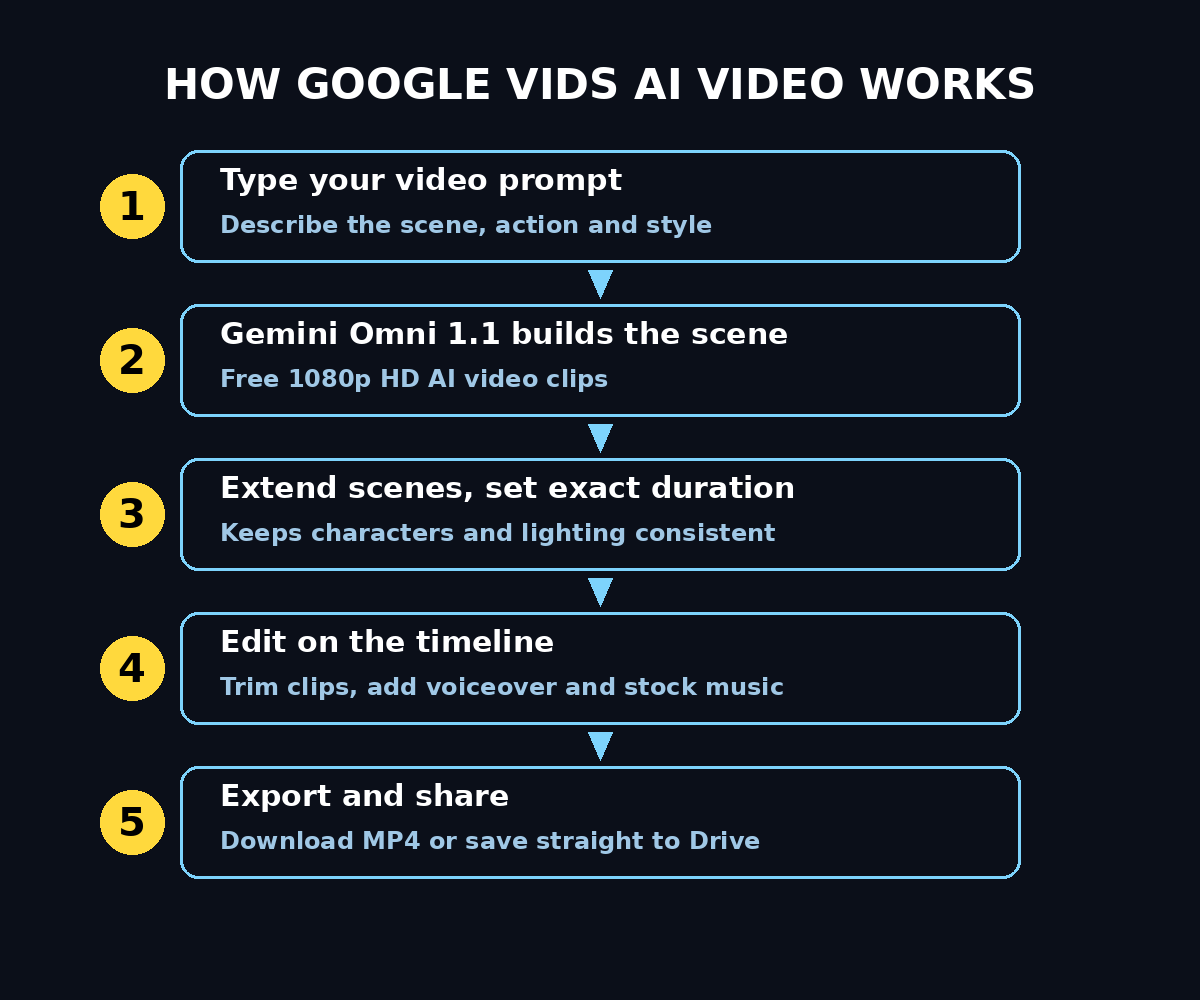
The workflow is simple: sign in at vids.new, describe the scenes you want, extend them to keep characters and lighting consistent, set your durations, add a voiceover in one of 100+ languages (or record your own), polish with stock music, and export your MP4. Each video you make teaches you the next feature, and the free monthly allowance means experimenting costs you nothing.
Start with one small project this week — a 30-second promo, a class presentation, or a YouTube intro. By the time you finish it, the timeline, the prompts, and the voiceovers will all feel natural. That is the real power of Google Vids: it removes every excuse between your idea and a finished video.
Explore More Free AI Tools
Want to keep building your free AI toolkit? Check out these handy tools at aitoolsteps.com:
- AI Title Generator — craft catchy, SEO-friendly titles in seconds at aitoolsteps.com
- Meta Description Generator — write perfect meta descriptions that get clicks at aitoolsteps.com
- AI Rewriter — refresh and improve any text instantly at aitoolsteps.com
- Keyword Density Checker — analyze and optimize your content for SEO at aitoolsteps.com
Visit aitoolsteps.com for more free AI tools and beginner-friendly guides.