

Imagine waking up to a personal assistant that already knows what you need to do today — because it spent the night reading your notes, your emails, your calendar, and your files, and wrote down everything it learned in plain files you can open and edit yourself. That is the promise of Sentient OS AI, a free, open-source AI assistant for Mac that launched on October 27, 2026. Unlike the chatbots you already know, it does not live in a browser tab or send your data to a distant server. It runs a local language model directly on your Mac, learns your life while you sleep, and helps you get work done during the day — with its own mouse cursor.
In this beginner-friendly guide, you will learn exactly what Sentient OS AI is, how to set it up on your Mac, and how to use its two standout features: Sidekick, the computer-use agent that takes over tasks for you, and the double-tap reply draft that writes messages in your own writing style. By the end, you will know whether this unusual new tool deserves a place on your Mac.
Step 1: Understand What Sentient OS AI Actually Is
Sentient OS AI is an on-device AI operating layer for the Mac, built by Aditya Vellanki and backed by Y Combinator in its Fall 2026 batch. The idea is simple but different from almost every AI tool you have used before. Instead of asking a chatbot questions one at a time, you give Sentient OS permission to look at the stuff already on your computer — your notes, emails, messages, calendar, files, and screenshots — and it builds a picture of your life from them.
The key detail is where that learning happens. Sentient OS runs a local large language model on your Mac, so your data stays on your machine instead of being uploaded to a cloud server. That is a big deal if you care about privacy, and it is one of the main reasons people are talking about the tool.
It is also open source, released under the AGPL-3.0 license, which means anyone can inspect the code. The project had already picked up around 690 stars on GitHub shortly after launch, a strong early signal for a brand-new tool. You can find the official site at sentient-os.ai, where the Mac download and the Windows waitlist live.
Before you install anything, it helps to know what kind of tool this is. Sentient OS is not a chatbot with a prettier window. It is closer to a quiet colleague who reads everything, remembers what matters, and is ready to act when you ask. If you have ever wished your computer understood your context without you explaining it every single time, that is the gap Sentient OS is trying to fill.
Step 2: Check That Your Mac Can Run It
Sentient OS AI only works on Apple silicon Macs, so check your machine before you download anything. You need:
- An Apple silicon Mac — M1 or newer (M1, M2, M3, or M4 chips all qualify)
- macOS 15.4 or later
- Enough free disk space for the app and its local model
- A stable internet connection for the first download
To check your chip, click the Apple menu in the top-left corner of your screen and choose About This Mac. If the chip line says Apple M1, M2, M3, or M4, you are good to go. If you are still on an Intel Mac, Sentient OS will not run, and there is no workaround for that right now — the local model is built for Apple silicon.
Windows users are not left out forever, but they are on a waitlist for now. If you use Windows, head to the official site and join the waitlist rather than looking for unofficial downloads, which can be unsafe.
One more practical note: because the model runs locally, the first launch may take a little while as the app prepares itself. That is normal. Once it is ready, most of the work happens on your machine, which also means it keeps working even when your internet connection is slow or drops out.
Step 3: Download and Install Sentient OS AI
Installing Sentient OS AI is refreshingly simple, and it takes only a few minutes.
- Visit the official website at sentient-os.ai from your Mac.
- Download the Mac app and open the installer file.
- Drag the app into your Applications folder, just like any other Mac app.
- Open Sentient OS from Launchpad or Spotlight and follow the on-screen setup.
During setup, the app will ask for permission to access your notes, emails, messages, calendar, files, and screenshots. This is the heart of how it works, so take a moment to think about what you are comfortable sharing. You can start with a smaller set of permissions — say, just notes and calendar — and add more later once you trust the tool. Because everything is processed on your device, granting access does not mean your data is being sent to a server, but you should still only share what you are comfortable with.
You will also see the free-for-life offer during setup. Entering the code FINAL_1000 inside the app keeps Sentient OS free for life. Do this early, while the offer is available, so you do not have to worry about pricing later. If you are ever unsure about pricing, check the pricing page inside the app rather than trusting a screenshot or a social media post.
Step 4: Let It Learn Your Life Overnight
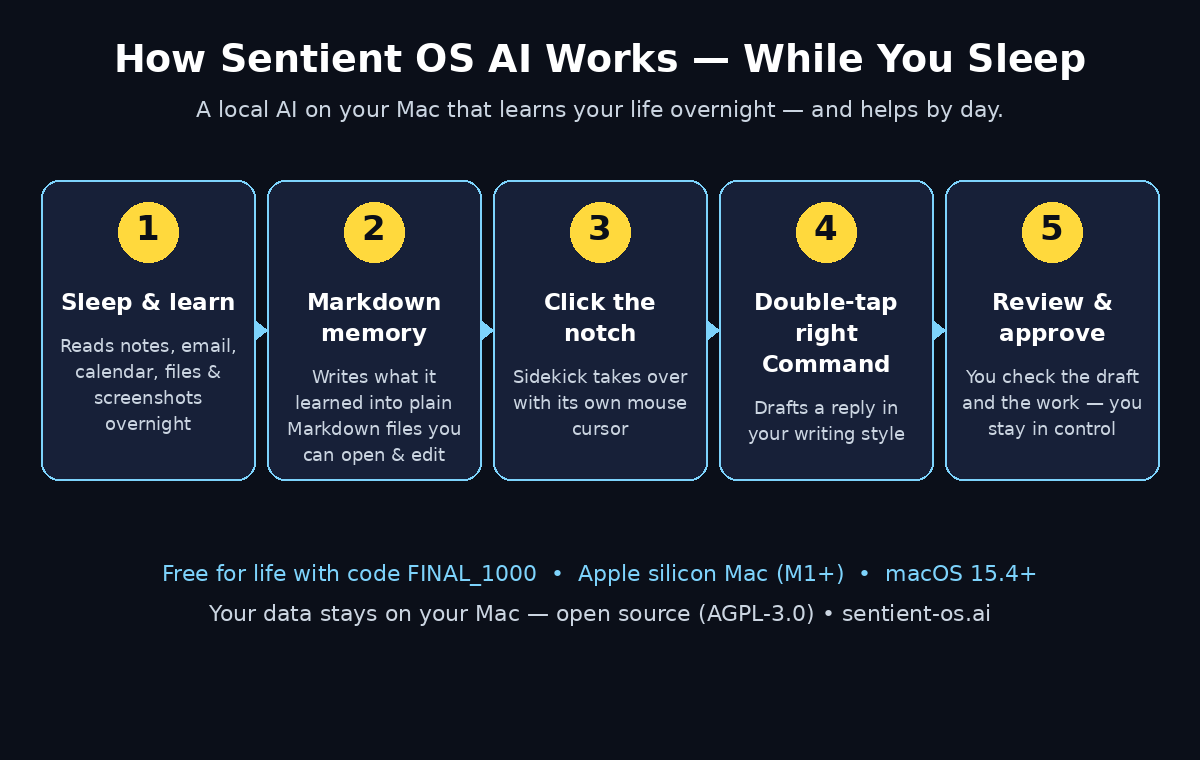
Here is where Sentient OS gets interesting. Once it is installed and has your permissions, it does its most important work while you sleep. Overnight, the local model reads through your notes, emails, messages, calendar events, files, and screenshots, and figures out what matters: the project you are working on, the people you need to reply to, the deadline coming up on Thursday, the idea you scribbled in a note three weeks ago.
By morning, it writes what it learned into a folder of plain Markdown files. These are ordinary text files you can open in any text editor, search, and edit by hand. Nothing is locked away in a proprietary database. If Sentient OS gets something wrong — and it will sometimes, because no AI is perfect — you can simply open the file and fix it.
This Markdown memory is one of the smartest design choices in the whole product. Most AI assistants remember things in ways you can never see or correct. Sentient OS makes its memory visible and editable, which means you stay in control of what it knows about you.
A good habit for your first week is to open that folder every morning and skim what it wrote. You will quickly learn what it picks up well and what it misses, and you can adjust your notes or permissions to match. Think of it like training a new assistant: the clearer your source material, the better its understanding becomes.
Step 5: Wake Up to a Briefing You Can Actually Use
The payoff for the overnight learning is the morning briefing. Instead of opening five different apps to figure out your day, Sentient OS gives you a summary of what it found: meetings, pending replies, open tasks, and anything that looks urgent.
- Scan the briefing first thing, before you open your inbox.
- Check the calendar items it flagged — these are the commitments it pulled from your messages and files.
- Look at the people it says are waiting for a reply from you.
- Cross-check anything that looks wrong against the original email or message.
The briefing is only as good as the information feeding it, so if your calendar is a mess or your notes are scattered, expect a messier summary. The tool rewards people who keep reasonably organized notes and calendars, and it can actually motivate you to tidy those up. Many users find that simply knowing an AI reads their notes every night makes them write clearer notes — a small habit change with a real payoff.
If you run a small business or freelance practice, this morning routine is where Sentient OS starts to feel like a genuine assistant rather than a novelty. For example, if you work with clients through a digital agency or manage projects across several tools, a single briefing that pulls the threads together can save you half an hour of app-hopping every morning.
Step 6: Click the Notch to Wake Up Sidekick
Sidekick is Sentient OS’s computer-use agent, and it is the feature that makes people say “wait, it can do that?” When you click the notch at the top of your Mac screen, Sidekick wakes up and takes over a task — with its own mouse cursor that you can watch moving around your screen.
Here is how to use it for the first time:
- Click the notch at the top of your Mac display to open Sidekick.
- Type or say what you want done, in plain language: “Summarize the three longest emails from today” or “Find the invoice from last week and open it.”
- Watch its cursor work. Sidekick clicks, scrolls, and types on your behalf.
- Step in at any point if it heads in the wrong direction.
Start with small, low-risk tasks while you learn what Sidekick is good at. Asking it to organize files or pull information together is a great first test. Handing it a task that sends money or messages to clients can wait until you have seen it work reliably a few times.
The visible mouse cursor is a thoughtful touch. Many AI agents work invisibly in the background, which makes it hard to tell what they are doing. Sidekick shows you every move, so you can catch a mistake early instead of discovering it after the fact. That transparency is exactly what a beginner needs, and it is one of the reasons the tool feels more trustworthy than a black-box automation.
Step 7: Double-Tap Right Command to Draft Replies in Your Style
The second standout feature is even simpler to use. Double-tap the right Command key on your keyboard, and Sentient OS drafts a reply — in your writing style — to whatever you are looking at.
This works because the overnight learning includes how you write. The local model has read your past messages and emails, so it knows whether you write short and direct or warm and detailed, whether you use “Hi” or “Hey,” and how you sign off. The draft it produces sounds like you on a good day, not like a generic chatbot.
Try it like this:
- Open an email or message you need to answer.
- Double-tap the right Command key.
- Read the draft carefully before you send it.
- Edit anything that does not sound like you, then send.
That third step matters. Never send an AI draft without reading it first. The draft is a starting point, not a finished message, and your name is on whatever goes out. A thirty-second read is the difference between a tool that saves you time and a tool that embarrasses you.
Writers, freelancers, and anyone who answers a lot of similar emails will feel the benefit fastest. If you also use tools like the ones in our guide to Noteowl AI, which turns meetings into organized notes, you will recognize the pattern: the best AI tools do the boring first draft, and you keep the final say.
Step 8: Review and Edit Your Markdown Memory
Your Markdown memory folder is not a one-way street. You can — and should — edit it. This is what keeps Sentient OS honest and useful over time.
Open the folder and look for entries that are wrong, outdated, or no longer relevant. Maybe it recorded a project as active when you finished it last month, or it misunderstood a nickname. Fix those lines directly in the file. The next time the model reads your memory, it will use the corrected version.
You can also add your own notes to the folder. If there is something you want Sentient OS to remember — a preference, a fact about a client, a goal for the quarter — write it in plain language in a Markdown file and it becomes part of what the assistant knows. This turns the memory from a passive record into a tool you actively shape.
Think of it as the difference between a diary and a briefing document. A diary just records what happened. A briefing document is something you curate so that anyone reading it — human or AI — understands what matters. Your Markdown memory works best when you treat it like the second one.
This is also where the open-source, local-first design pays off in a practical way. Because your memory lives in plain files on your own computer, you are never locked in. If you ever stop using Sentient OS, your notes, summaries, and corrections stay with you. That kind of portability is rare in AI tools, and it is worth appreciating.
Step 9: Put Sidekick to Work on Real Tasks
Once you trust the basics, it is time to give Sidekick real work. The best tasks share a few traits: they are repetitive, they involve several steps across apps, and the cost of a small mistake is low.
Good starter tasks include:
- Gathering all the attachments from a project thread into one folder
- Drafting a summary of a long document or email chain
- Checking your calendar against your messages to find scheduling conflicts
- Pulling together the key numbers from a set of files into one note
- Preparing a first draft of a routine update or status email
Tasks to avoid until you are confident include anything involving payments, deleting files, or sending messages to people you have never contacted before. Build up slowly, and keep a habit of checking Sidekick’s work for the first few weeks. Speed comes later; reliability comes first.
If you work with AI tools professionally — for example, if you offer AI automation services to clients or you run experiments with new AI products every week — Sidekick becomes a way to test ideas quickly. You can ask it to try a workflow, watch how it handles it, and decide whether that workflow is worth automating properly. It is a fast way to learn what is possible before you invest in a bigger setup.
A useful rule of thumb: if a task takes you ten minutes of clicking around every day, it is worth teaching Sidekick to do it. If it takes ten minutes once a month, just do it yourself.
Step 10: Stay in Control and Know the Limits
Sentient OS AI is genuinely exciting, but it is also brand new — it launched on October 27, 2026, so it is still early days. A smart beginner uses it with open eyes.
- Review the morning briefing and the Markdown memory regularly, especially in the first month.
- Read every AI-drafted reply before sending it.
- Watch Sidekick’s cursor on important tasks instead of walking away.
- Keep your own backups of anything important; a local AI is not a backup system.
- Remember it is Mac-only for now, and Windows users are on a waitlist.
There are also honest limits to keep in mind. The local model will not know things that are not in your files, notes, or messages, so if your digital life is spread across apps it cannot see, its understanding will have gaps. Its summaries are only as clear as the source material. And like every AI assistant, it can misunderstand context or make confident-sounding mistakes, which is why the review step is not optional.
Privacy is a strength here, but it is not magic. Your data stays on your Mac because the model runs locally, and the open-source license means the code can be inspected — but you should still read the permissions you grant and the privacy information in the app, and only connect the sources you are comfortable with.
The bigger picture is what makes Sentient OS worth watching. Most AI assistants live in the cloud and rent you their intelligence by the month. Sentient OS points at a different future: an assistant that lives on your computer, learns from your actual life, keeps its notes in files you own, and costs nothing to keep. If you have ever wanted an AI that feels like yours rather than a service you borrow, this is the closest thing to it right now. For a broader look at how personal AI assistants are evolving, our guide to CuriousLM AI shows another approach to an assistant that learns from your own data.
Sentient OS AI vs Cloud AI Assistants
| Feature | Sentient OS AI | Cloud AI Assistants |
|---|---|---|
| Where your data lives | On your Mac, processed locally | On company servers in the cloud |
| Cost | Free — code FINAL_1000 keeps it free for life | Often a monthly subscription |
| Works offline | Yes, the local model runs on-device | Usually needs an internet connection |
| Memory you can edit | Plain Markdown files you own | Hidden profile stored by the provider |
| Computer-use agent | Sidekick with a visible mouse cursor | Varies; often no direct control |
| Requirements | Apple silicon Mac (M1+), macOS 15.4+ | Browser or app on almost any device |
| Open source | Yes, AGPL-3.0 | Usually closed source |
Frequently Asked Questions
Is Sentient OS AI really free?
Yes. Sentient OS AI is free, and entering the code FINAL_1000 inside the app keeps it free for life. If you are ever unsure about pricing or the offer changes, check the pricing page inside the app rather than relying on an old article or post.
Does Sentient OS AI work on Windows?
Not yet. Sentient OS AI is Mac-only at launch, and Windows users can join a waitlist on the official site at sentient-os.ai. There is no official Windows download yet, so avoid unofficial copies.
What Mac do I need to run Sentient OS AI?
You need an Apple silicon Mac — M1 or newer — running macOS 15.4 or later. Intel Macs are not supported because the local language model is built for Apple silicon.
Is my data safe with Sentient OS AI?
Your data is processed by a local model on your Mac, so it is not uploaded to a cloud server for the core learning features. The app is also open source under the AGPL-3.0 license, which means the code can be inspected. Even so, you should review the permissions you grant and only connect the sources you are comfortable sharing.
Can Sidekick really control my Mac?
Yes. Clicking the notch opens Sidekick, which takes over tasks using its own visible mouse cursor — clicking, scrolling, and typing on your behalf. You can watch everything it does and step in at any time, so start with small, low-risk tasks until you trust it.
Final Thoughts
Sentient OS AI is one of the most interesting new AI tools of late 2026, and not just because it is free. It represents a different idea about what a personal assistant should be: one that lives on your computer, learns from your real life while you sleep, keeps what it learns in files you can read and edit, and helps you during the day with a visible cursor you can watch. The combination of overnight learning, Markdown memory, Sidekick, and in-your-style reply drafts is genuinely new, and the local-first, open-source approach answers the privacy worries that hold many people back from AI assistants.
That said, it is still a young product. It launched on October 27, 2026, it only runs on newer Macs, and it will make mistakes — especially in its first weeks with you. The people who will get the most from it are the ones who treat it like a new colleague: give it good material, check its work, correct its memory, and let the trust build over time.
If you have an Apple silicon Mac, the cost of trying it is zero and the setup takes minutes. Install it, enter the code FINAL_1000, let it learn overnight, and read your first morning briefing. You may find that the most useful thing your computer does tomorrow is something it did while you were asleep.
Explore More Free AI Tools
Want to keep building your free AI toolkit? Try the AI Title Generator, the Meta Description Generator, the AI Rewriter, and the Keyword Density Checker — all free on AIToolSteps, no sign-up needed.