

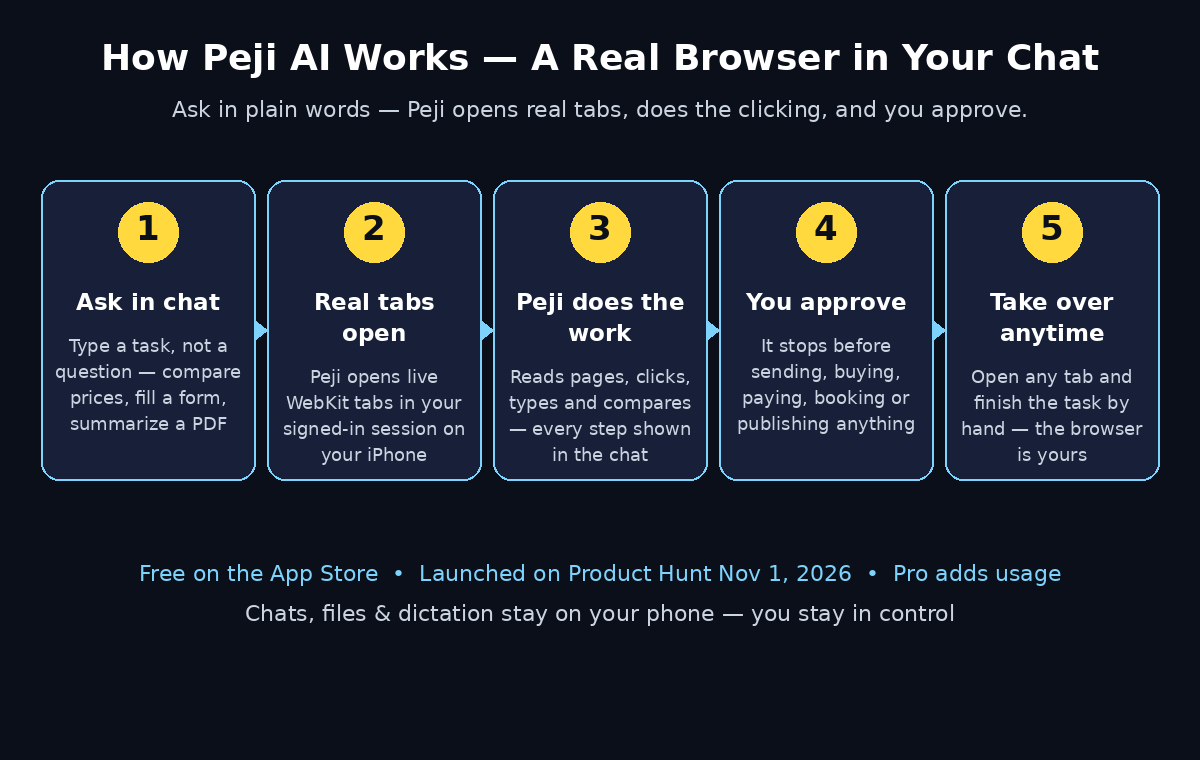
Ask a regular AI chatbot to compare the price of a pair of headphones across three shops, and you will get a polite summary written from memory — maybe right, maybe out of date, and with no way to check. Ask it to fill in a form on a website, and it will simply tell you it cannot do that. Peji AI was built to fix exactly that gap. Launched on Product Hunt on November 1, 2026, Peji is an AI chat app for iPhone with a real browser inside it. Instead of guessing what a website says, Peji opens real WebKit tabs on your phone, reads the live page, clicks, types, and keeps going until the job is done — and it shows you every step in the chat as it works.
The idea is simple but different from every chatbot you have used before. Peji drives the browser in the session you already use, so the sites you are signed in to just work — no re-logging in, no pasted passwords, no separate account to manage. You can open any tab it is working in and continue the task by hand yourself. And before Peji does anything that cannot be undone — sending a message, buying something, paying, booking, deleting, or publishing — it stops and waits for your tap. You stay in control; the AI does the clicking.
In this beginner-friendly guide, you will learn exactly how to use Peji AI: what it is, how to install it free from the App Store, how to ask it to compare prices, fill in forms, summarize documents, and save routines for the tasks you repeat every week. You do not need any technical skills, and you do not need a credit card to start — Peji is free on the App Store, with a Pro plan that adds more usage.
Step 1: Understand What Peji AI Actually Is
Peji AI is an AI chat app for iPhone that comes with a real browser built in. When you send Peji a message like “compare the price of these shoes on three sites,” it does not answer from training data. It opens real browser tabs on your phone, loads each shop, reads the live prices, and reports back with a table or chart — complete with source links so you can check every number yourself.
That is the core difference between Peji and a normal chatbot. A normal chatbot knows things; Peji does things. It can read a page, click a button, fill in a field, scroll through results, and summarize what it found. The browser it uses is WebKit — the same engine behind Safari on your iPhone — running in your own session. That means if you are already signed in to a shop, a travel site, or a work tool in Safari, Peji can use that same signed-in session instead of asking you to log in again.
Peji also keeps your private stuff private. Your chats, files, and dictation stay on your phone. That matters because the tasks you hand to a browser agent often involve personal details — your address on a form, your travel dates, the shops you buy from. Peji’s on-device approach means that information does not have to travel to a distant server to get the job done.
One more thing that sets Peji apart: it never acts on its own when the action is final. It will research, compare, draft, and prepare — but before it sends, buys, pays, books, deletes, or publishes anything, it waits for your tap. That single rule is what makes Peji safe for beginners. You can let it work freely on research and still be the one who approves every real-world action.
Step 2: Check That Your iPhone Can Run It
Peji AI is an iPhone app, so the first thing to check is your device. Here is what you need:
- An iPhone running a recent version of iOS (check the App Store listing for the exact minimum version)
- Enough free storage space for the app
- An internet connection for browsing and AI replies
- An Apple ID signed in on the App Store so you can download free apps
Peji is built around WebKit tabs on iPhone, which means it is designed for the phone first. There is no Android version and no desktop version announced at launch, so if you use Android, Peji is not an option for you yet — check the App Store listing or the Product Hunt page for any platform updates before you go looking for unofficial downloads, which can be unsafe.
A quick practical note: because Peji opens real browser tabs, it works best when your iPhone is signed in to the sites you use most. If you normally shop or book travel while signed in to Safari, Peji will pick up those sessions automatically. If you use private browsing for everything, Peji will still work, but you may need to sign in inside its tabs the first time.
Step 3: Download Peji AI from the App Store
Getting Peji on your iPhone takes only a couple of minutes, and it is free.
- Open the App Store on your iPhone.
- Search for “Peji” and look for the app described as “An AI chat with a real browser you control.”
- Tap Get to download and install it — the app is free, so no payment is needed.
- Open Peji from your home screen and follow the short on-screen setup.
During setup, Peji will ask for the permissions it needs to work — things like access to files you want it to summarize and dictation if you want to talk to it instead of typing. Grant only what you are comfortable with. You can always add permissions later from the iPhone Settings app if you change your mind.
If you cannot find Peji in the App Store in your country yet, check the Product Hunt launch page for the official download link. New apps sometimes roll out region by region, so the listing may appear a few days after launch in some countries. Never download Peji from a third-party app store or a random website — the App Store is the only safe source.
Step 4: Set Up Peji AI and Send Your First Message
Once Peji is installed, your first job is to learn how to talk to it. Open the app and you will see a chat screen with a composer at the bottom — just like any messaging app. Type a task, not a question. The difference matters: “What are good headphones?” is a question, and Peji can answer it. “Compare the price of the Sony WH-1000XM5 on Amazon, Best Buy, and Walmart” is a task, and that is where Peji shines.
Try this as your first task: “Find the cheapest price for [a product you actually want] across three shops and show me a table with the price and a link for each shop.” Then watch the chat. Peji will show you every step as it works — which tab it opened, what it read, what it clicked. That visible step-by-step log is one of Peji’s best features for beginners, because you can see exactly what the AI is doing instead of trusting a black box.
If something looks wrong mid-task, you can jump in. Tap the tab Peji is working in and it opens in front of you, and you can continue by hand — scroll, click, type — then hand it back to Peji. That handover between AI and human is the whole point of the app: the browser is yours, and Peji is just driving it for you.
A good habit for your first week: start with low-stakes tasks. Price comparisons, summaries, and research are perfect. Leave buying, booking, and paying until you have watched Peji work a few times and trust how it asks for approval.
Step 5: Ask Peji AI to Compare Prices Across Shops
Price comparison is the task Peji was built for, and it is the best way to see the difference between a browser agent and a chatbot.
- Open Peji and type a clear request: the exact product name, the shops you want checked, and what you want back. For example: “Compare the price of the Apple AirPods Pro 2 on Amazon, Walmart, and Best Buy. Show me a table with the shop, the price, and the link.”
- Watch Peji open a tab for each shop, load the live product page, and read the current price.
- When it finishes, you get a table or chart with the prices and source links — not a paragraph from memory.
Because Peji reads live pages, it can also spot things a chatbot would miss: a discount code on the product page, a different price for a different colour or storage size, or a “only 2 left in stock” warning. If the prices look odd, tap any source link to open the shop’s page yourself and verify the number before you buy.
This is also where Peji saves real money over time. Checking three shops by hand takes ten minutes of tab-switching; Peji does it in one message. If you run a small business, this same trick works for supplier prices and competitor listings — and if you need help turning those comparisons into a proper online presence, a digital agency can help you build the storefront while Peji handles the day-to-day price checks.
Step 6: Let Peji AI Fill In a Form for You
Forms are the second task where Peji earns its keep. Signing up for a service, requesting a quote, or registering for an event usually means typing the same details — name, email, address, phone number — into yet another web form. Peji can do the typing for you.
- Tell Peji what form to fill in: “Fill in the contact form on [website] with my name, email, and phone number.”
- Peji opens the page, finds the fields, and types your details in.
- Before it submits anything, it stops and shows you what it filled in — and waits for your tap.
That approval step is the important part. Peji will never submit a form, send a message, or create an account without you confirming first. Check the preview carefully: a wrong phone number or a mistyped email address is easy to miss when someone else did the typing. If anything is wrong, correct it in the chat and Peji will fix the field before you approve.
One safety rule to keep in mind: only ask Peji to fill in forms on sites you trust, and never share passwords, card numbers, or one-time codes in the chat. Peji uses your existing signed-in browser session, so it does not need your passwords — and a good rule for any AI tool is that sensitive credentials stay out of the conversation entirely.
Step 7: Ask Peji AI to Summarize a PDF or a Web Page
Peji is not only for shopping and forms. It can also read long documents and turn them into short, useful summaries.
- Share a PDF with Peji from another app, or paste a link to a long article or report.
- Ask for the summary you actually need: “Summarize this PDF in five bullet points” or “What does this article say about pricing? Give me the key numbers.”
- Peji reads the file or page and answers with the summary — and because it works from the real document, it can link back to the source.
This works well for product manuals, research reports, long terms-and-conditions pages, and news articles. It is also handy at work: if your team publishes guides or documentation and you want them summarized for a meeting, Peji can do the reading while you do the thinking. Teams that publish a lot of content often pair tools like this with professional AI automation services to keep their research and publishing workflows moving without adding headcount.
A practical tip: be specific about the format you want. “Summarize this” gives you a generic paragraph. “Give me a table of the prices mentioned, with the page number for each” gives you something you can act on. The clearer your instruction, the better Peji’s answer.
Step 8: Save a Routine for Tasks You Repeat Every Week
If you ask Peji to do the same task every week — check the price of the same product, summarize the same newsletter, compare the same flights — you do not have to retype the request each time. That is what Routines are for.
Routines are saved messages with a title, sitting under the composer in the app. Save a task as a routine once, give it a clear name like “Weekly headphone price check” or “Summarize the Monday newsletter,” and then just tap it whenever you want to run it again.
Setting up a routine is simple:
- Write the task exactly the way you want it run, with all the details included — the product, the shops, the format you want back.
- Save it as a routine and give it a short, descriptive title.
- Next time, tap the routine instead of typing the whole message again.
Routines are most useful for the boring, repeatable jobs: weekly price checks, regular summaries, and recurring research. Think of them as shortcuts for the tasks you already know you will repeat. Start with one or two routines, use them for a couple of weeks, and add more only when a task proves it is worth saving.
Step 9: Take Over a Tab and Finish the Task by Hand
Peji’s most unusual feature is also its most reassuring: at any point, you can take the browser back. Every step Peji takes shows up in the chat, and every tab it opens is a real tab you can open yourself.
Here is how a takeover works in practice. Peji is halfway through comparing flight prices and one airline’s site shows a confusing fare breakdown. Tap the tab, read the fare rules yourself, pick the flight you want, and then either finish the booking by hand or tell Peji what you decided and let it continue. You never have to start over, and you never have to accept a result you do not understand.
This matters more than it sounds. Most AI agents are black boxes: they work or they fail, and you cannot see why. Peji’s open tabs mean you can always check its work, correct a wrong turn, or take over when a site behaves strangely. For beginners, that transparency is the difference between trusting an AI tool and abandoning it after the first mistake.
Make it a habit: whenever Peji returns a result that involves money — a price, a fare, a booking — tap through to at least one source link and confirm it yourself before you approve anything. It takes ten seconds, and it is the single best habit for using any browser agent safely.
Step 10: Understand the Free Plan and When Peji Pro Makes Sense
Peji is free on the App Store, and the free version covers the core experience: chat with a real browser, price comparisons, form filling, summaries, and routines. Pro adds more usage — more tasks, more browsing, more of everything — for people who use Peji heavily every day.
For most beginners, the free plan is the right place to start. Use it for a few weeks on real tasks and watch two things: how often you hit a usage limit, and which tasks you actually repeat. If you run price checks and summaries every day and keep bumping into the free limits, Pro is probably worth it. If you use Peji a few times a week for the occasional comparison, the free plan may be all you ever need.
One caution applies to any new app: free limits and paid tiers can change as the product grows, so check the pricing inside the app before you build a workflow that depends on heavy daily use. And remember the launch context — Peji arrived on Product Hunt on November 1, 2026, as a brand-new product. Early apps improve fast, and they also change fast, so treat the App Store listing and the in-app pricing page as the source of truth, not a screenshot from launch week.
Peji AI vs Other AI Tools
| Feature | Peji AI | ChatGPT App | Normal Browser |
|---|---|---|---|
| Opens real websites and reads live pages | Yes — real WebKit tabs | No — answers from memory | Yes — but you do all the work |
| Compares live prices across shops | Yes, with source links | No live prices | Manually, one tab at a time |
| Fills in web forms for you | Yes, with your approval | No | Manually |
| Shows every step it takes | Yes, in the chat | No | Not applicable |
| Lets you take over a tab mid-task | Yes, anytime | No | You are already doing it |
| Chats, files and dictation stay on your phone | Yes | Data goes to the cloud | Depends on the site |
| Price to start | Free on the App Store | Free tier available | Free |
| Best for | Web tasks: prices, forms, summaries | Questions and writing | Browsing you control yourself |
Frequently Asked Questions
Is Peji AI really free?
Yes, to start. Peji is free on the App Store, and the free version includes the core experience: AI chat with a real browser, price comparisons, form filling, summaries, and routines. Pro adds more usage for heavy daily users. As with any new launch, free limits and paid tiers can change, so check the pricing page inside the app before you build a workflow that depends on heavy use.
Is Peji AI available on Android or desktop?
Not at launch. Peji is an iPhone app built around WebKit tabs on iOS, and it launched on Product Hunt on November 1, 2026, as an iPhone-only product. No Android or desktop version has been announced. Check the official Product Hunt page or the App Store listing for platform updates, and avoid unofficial downloads from third-party sites.
Is it safe to let Peji AI use my signed-in browser?
Peji drives WebKit tabs in the browser session you already use, so sites you are signed in to work without re-logging in. Your chats, files, and dictation stay on your phone. The key safety rule is the approval step: Peji waits for your tap before it sends, buys, pays, books, deletes, or publishes anything. Never share passwords or card numbers in the chat, and always check the preview before approving a form submission or a purchase.
Does Peji AI buy things or send messages without asking?
No. Peji is designed to stop and wait for your tap before any action that cannot be undone — sending, buying, paying, booking, deleting, or publishing. It will research, compare, draft, and prepare on its own, but the final action is always yours. If you ever see Peji about to do something you did not approve, you can open the tab and take over by hand.
What kinds of tasks is Peji AI best at?
Peji is best at web tasks where live information matters: comparing prices across shops, filling in forms, summarizing PDFs and long pages, checking flights, and repeating those jobs with routines. It is not a replacement for a general chatbot when you just want a quick answer or help writing something — for that, a normal AI chat app is faster. Use Peji when the job needs a real browser.
Final Thoughts
Peji AI is a small idea with a big consequence: an AI chat that does not guess what the web says, but actually opens it. By putting a real browser inside the chat — with every step visible, every tab open to you, and every final action waiting for your tap — Peji solves the two problems that hold most AI agents back: stale answers and blind trust. The launch on November 1, 2026, is only the beginning, and like any brand-new app it will change quickly. But the core promise is already useful today: ask it to compare prices, fill in a form, or summarize a long document, and it does the clicking while you stay in charge.
Download Peji free from the App Store, start with one low-stakes task like a price comparison, save it as a routine if you repeat it, and build from there. The best way to learn a browser agent is to watch it work — and Peji, more than most AI tools, lets you do exactly that.
Explore More Free AI Tools
Want to keep building your free AI toolkit? Try the AI Title Generator, the Meta Description Generator, the AI Rewriter, and the Keyword Density Checker — all free on AIToolSteps, no sign-up needed.