

Notion locks its AI meeting notes behind a $20-per-member Business plan. Rodeo AI does the opposite. It is a Notion-style workspace — nested pages, a block editor, databases with seven views — and it puts AI meeting notes on every plan, including the free one.
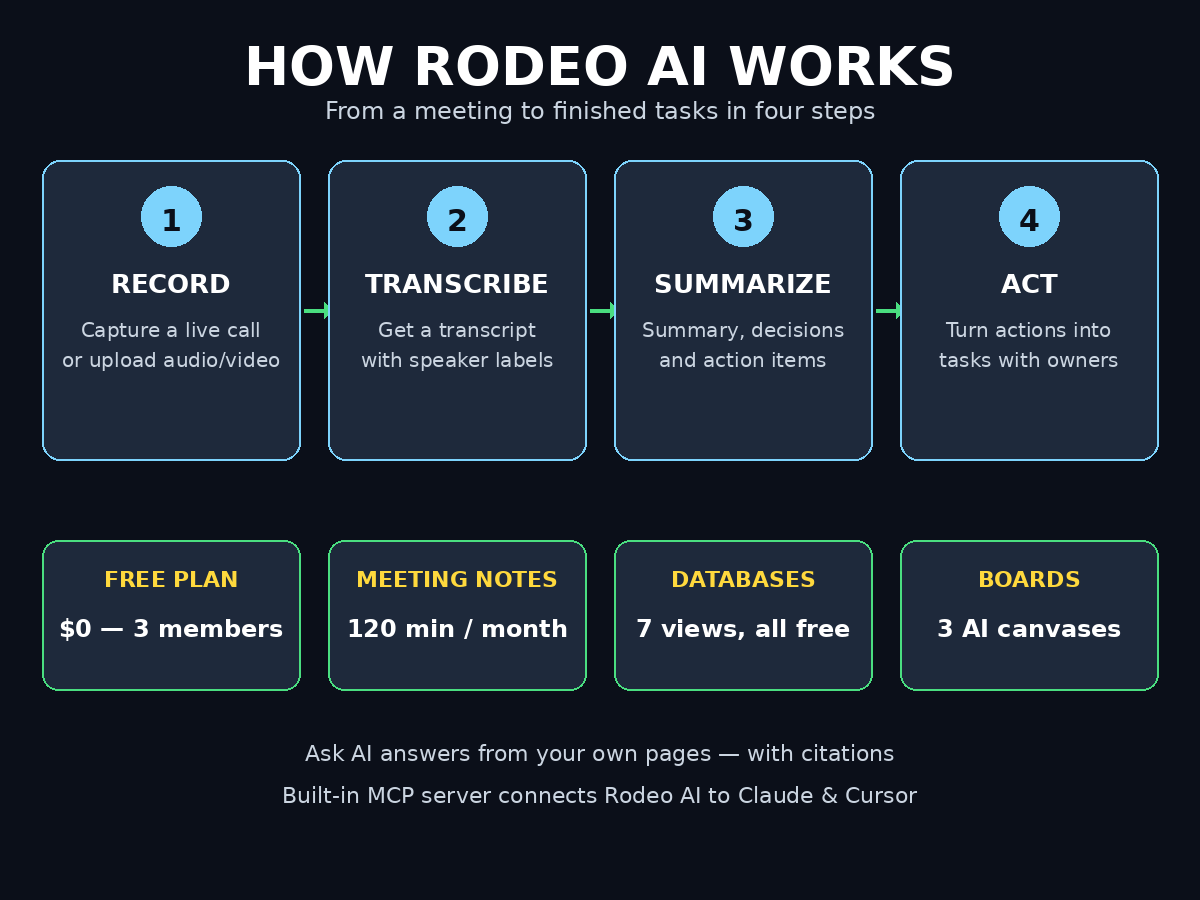
Rodeo AI launched on Product Hunt on November 10, 2026. It is a workspace for docs, wikis, and databases that your team edits together in real time. The free plan covers up to 3 members, unlimited pages and databases, every database view and template, 120 minutes of AI meeting notes a month, and 3 Boards. Paid plans start at just $3 per member a month.
This beginner guide shows you how to use Rodeo AI from a blank account to your first AI meeting notes, your first database, and your first AI canvas. No coding is needed. No credit card is needed to start.
Step 1: Create Your Free Rodeo AI Account
Getting started takes about two minutes. The app runs in the browser, and there are Mac and Windows apps too.
- Go to the Rodeo AI website and click Sign up or Get started free.
- Sign up with your email address or your Google account.
- Confirm your email and choose a strong password.
- Pick a display name so teammates can find you in shared pages.
You start on the free plan. There is no trial clock ticking down. The free plan stays free, and you upgrade only when you need more members, more meeting minutes, or more Boards. Use a work email rather than a personal one, so your workspace stays yours if you change jobs.
Step 2: Set Up Your First Workspace
A workspace is your home base in Rodeo AI. It holds every page, database, and meeting note your team creates.
- Click New workspace and give it a name — usually your business or team name.
- Add up to 2 more members on the free plan. Invite them by email.
- Create your first three pages: a team wiki, a meeting notes hub, and a projects tracker.
- First, set a simple structure now, because a messy workspace grows messy fast.
For example, think of the workspace like an office. Pages are rooms. Databases are filing cabinets. Meeting notes are the minutes pinned on the wall. If you run a digital agency, create one workspace per client so their pages, notes, and tasks never mix. That separation saves hours of searching later.
Step 3: Create Pages with the Rodeo AI Block Editor
The app works the way Notion does. You build pages from blocks, not from one long text box.
- Type
/anywhere on a page to open the block menu. - Add headings, checklists, tables, images, highlight boxes, and code blocks.
- Drag any block to reorder it. Nest pages inside pages for clean structure.
- Use templates for the pages you repeat: meeting notes, project briefs, and weekly plans.
First, start with a simple daily notes page. Add a heading, a checklist for the day, and a short paragraph. Then add a linked database for your tasks. In addition, the block editor feels familiar within minutes if you have used Notion before. If you have never used a block editor, the / menu is your best friend — type what you want, and Rodeo AI finds the block for you.
Step 4: Build Your First Database
Databases turn Rodeo AI from a notes app into a real work system. A database is a table of items with properties you define.
- Click New database and pick a starting template, or start blank.
- Add properties: status, owner, due date, priority, and tags.
- Switch between 7 views: table, board, calendar, timeline, gallery, list, and chart.
- Add formulas, relations, and summary totals to connect databases together.
- Set up a simple automation, such as moving a task to “Done” when its checkbox is ticked.
For example, a good first database is a content tracker. Columns for title, status, owner, and publish date. The board view shows work by status. The calendar view shows what ships this week. The chart view shows how much you finished. Rodeo AI gives you every view on the free plan, which is rare — most tools charge for views like timeline and chart.
Step 5: Record Your First AI Meeting Notes in Rodeo AI
This is the feature that makes the tool special. AI meeting notes are included on the free plan, with 120 minutes a month.
- Open the Meeting Notes section in your Rodeo AI workspace.
- Click Record to capture a live call, or Upload to add an audio or video file.
- Let Rodeo AI record the meeting while you focus on the conversation.
- When the call ends, Rodeo AI writes a transcript with speaker labels.
- In addition, you get a summary, the decisions made, and a list of action items.
For example, the transcript shows who said what. The summary gives you the key points in a few lines. The decisions section records what was agreed, so nobody argues about it later. The action items come with owners, so follow-up is clear. However, review the notes once before you share them. AI is good, but names and numbers still deserve a quick human check.
Step 6: Turn Meeting Notes into Tasks
Notes are only useful if they lead to action. Rodeo AI turns action items into real tasks in one click.
- Open any meeting note and find the Action items section.
- Click an action item to turn it into a task in your chosen database.
- Assign an owner and a due date right there in the note.
- Link the task back to the meeting, so anyone can see where it came from.
- Check your task database after each meeting to confirm nothing was missed.
As a result, this loop is the whole point of AI meeting notes. You talk, Rodeo AI listens, and the work lands in your task list by itself. Teams that run many meetings save the most time here. A one-hour meeting used to cost another 20 minutes of writing notes. With Rodeo AI, that cost drops to a two-minute review. If your team also uses AI automation services to handle repetitive work, meeting notes that become tasks automatically fit the same pattern: less typing, more doing.
Step 7: Ask Rodeo AI Anything About Your Workspace
Ask AI is the workspace’s search-and-answer feature. It reads your own pages and answers from them, with citations.
- Click Ask AI in the sidebar.
- Type a question in plain words, such as “What did we decide about pricing last month?”
- Ask AI answers from your own pages and cites the exact pages it used.
- It only reads pages you can open, so private pages stay private.
- Follow the citation link to check the source before you act on the answer.
This beats normal search. Normal search finds keywords. However, Ask AI finds meaning. For example, ask it for the status of a project, the decision from a meeting, or the deadline you forgot. It answers in seconds, and the citations let you verify every claim. In addition, new team members love this feature. Instead of asking a colleague where a document lives, they ask Rodeo AI and get the answer with the source attached.
Step 8: Use Boards, the AI Canvas
Boards are Rodeo AI’s AI canvas. They are a free-form space for thinking, planning, and brainstorming.
- Open Boards and create a new board for a project or idea.
- Drop sources and notes onto the canvas: pages, links, images, and text.
- Wire your sources to a chat and ask questions about them.
- Turn the result into a finished page with one click.
- Share the board with your team so everyone sees the same picture.
For example, use a board when a normal page feels too linear. Plan a product launch by dropping competitor pages, meeting notes, and draft copy onto one canvas. Ask the chat to spot gaps in the plan. Then turn the best version into a page your team can follow. The free plan includes 3 boards, which is enough to learn the workflow and run a real project on it.
Step 9: Import Your Notion Workspace
Already using Notion? Rodeo AI imports your whole workspace, links included.
- Export your Notion workspace as Markdown and CSV files.
- In Rodeo AI, open Settings and choose Import.
- Upload your Notion export files.
- Check that page links survived the import — Rodeo AI keeps links between pages.
- Fix any formatting quirks, then archive the old Notion workspace.
In addition, the import is the honest test of any Notion alternative. Rodeo AI keeps your nested pages, your databases, and your links, so you do not rebuild everything by hand. Try it with a small workspace first. Import one project, check it carefully, and then move the rest. In addition, keep your Notion export file as a backup until you are sure the move is complete.
Step 10: Connect Rodeo AI to Claude with the MCP Server
The app ships with a built-in MCP server. That means Claude, Cursor, and other MCP clients can read and write your workspace with your permissions.
- Open Settings and find the MCP server section.
- Copy the MCP server details for your workspace.
- Add them to your Claude or Cursor MCP configuration.
- Ask Claude to find a page, summarize a meeting, or create a task in Rodeo AI.
- Check the permissions first. The MCP server only does what you allow it to do.
As a result, this turns Rodeo AI into a workspace your AI tools can actually use. Claude can pull context from your pages before it writes. It can file meeting follow-ups without you copying text between apps. There is also a REST API and live integrations for builders who want deeper automation. If you are new to MCP, start with read-only access because it is safer, and add write access later, once you trust the setup.
Rodeo AI vs the Alternatives
| Feature | Rodeo AI | Notion | Granola | Noota |
|---|---|---|---|---|
| AI meeting notes on free plan | Yes, 120 min/month | Limited trial only | Yes, basic plan | Yes, 300 min/month |
| Free plan price | $0, up to 3 members | $0 | $0 | $0, up to 3 seats |
| Databases with 7 views | Yes, all free | Yes | No | No |
| Ask AI from your own pages | Yes, with citations | Yes, paid plans | Chat across meetings | No |
| Built-in MCP server | Yes | No | Yes, Business plan | No |
| Notion import | Yes, Markdown + CSV | N/A | One note at a time | No |
| Paid plan starts at | $3/member/month | $10/member/month | $14/user/month | $19/user/month |
For example, Rodeo AI wins for small teams that want meeting notes without paying $20 a seat. Notion wins if you need its huge template gallery and integrations. Granola wins if you only need meeting notes and nothing else. Noota wins on free transcription minutes, but it is a meeting tool, not a full workspace. Rodeo AI is the only option here that gives you a full workspace, free AI meeting notes, and an MCP server in one place.
Frequently Asked Questions
Is Rodeo AI really free?
Yes. The free plan costs $0 and includes up to 3 members, unlimited pages and databases, every database view and template, 120 minutes of AI meeting notes a month, and 3 Boards. Paid plans start at $3 per member a month, which is far cheaper than Notion Business at $20.
Is Rodeo AI a Notion clone?
It works the way Notion does — nested pages, a block editor with a / menu, and databases — but it is not a copy. Rodeo AI adds free AI meeting notes, an AI canvas called Boards, and a built-in MCP server. It also bills in dollars or local currency, which matters for teams outside the US and Europe.
How do Rodeo AI meeting notes work?
Record a live call or upload an audio or video file. Rodeo AI transcribes it with speaker labels, then writes a summary, lists the decisions made, and pulls out action items you can turn into tasks. The free plan covers 120 minutes a month, which is about four one-hour meetings.
Can I use Rodeo AI on my phone?
Phone apps are not in the app stores yet, but they are coming. For now, Rodeo AI runs in the browser, and there are Mac and Windows apps you can download. The web app works on a mobile browser for quick checks and edits.
Does Rodeo AI import my Notion data?
Yes. Export your Notion workspace as Markdown and CSV, then import it into Rodeo AI. Your nested pages, databases, and links between pages come across. Test the import with one small project first, and keep your Notion export as a backup.
Is my data safe with Rodeo AI Ask AI?
Ask AI only reads pages you can open, and it cites the pages it used for every answer. Private pages stay private. For the MCP server, you control the permissions, so connected AI tools can only read or write what you allow.
Final Thoughts
Rodeo AI solves a real problem. Notion is a great workspace, but its AI meeting notes cost $20 per member a month. That price locks small teams out of the feature they need most. Rodeo AI gives the same workspace, puts AI meeting notes on the free plan, and adds an AI canvas and an MCP server on top.
Finally, start with the free plan. Set up one workspace, record one meeting, and turn its action items into tasks. Ask Rodeo AI a question about your own pages. If the answers are useful — and the citations check out — you have found a workspace that does the work of three tools for free. Upgrade to the $3 plan only when you need more members or more meeting minutes. For most small teams, the free plan is enough to run on for months.
Explore More Free AI Tools
Want more free AI tools like Rodeo AI? Try the free tools on AI Tool Steps — the AI Title Generator, Meta Description Generator, AI Rewriter, and Keyword Density Checker are all free, and you can use them right in your browser. For more beginner guides like this one, browse the AI how-to guides and find your next tool today.