

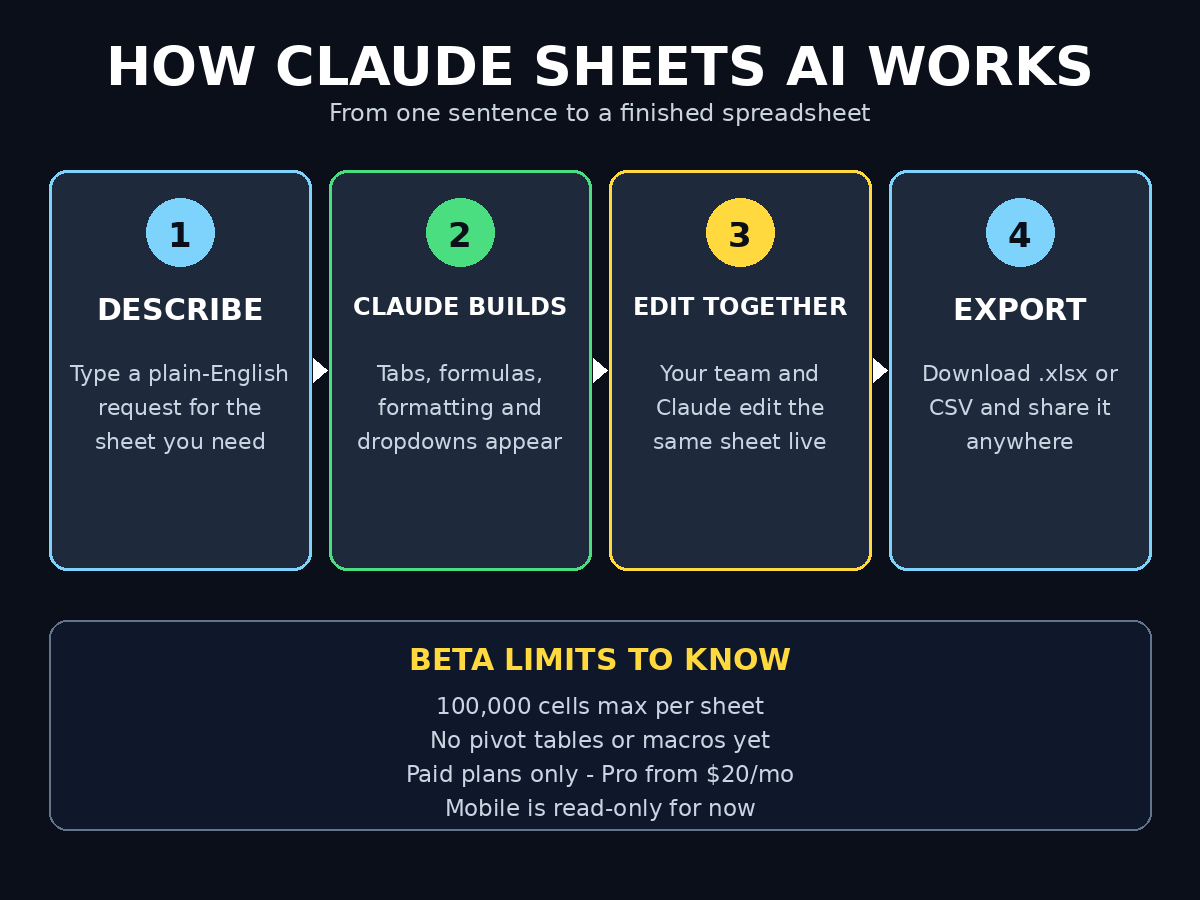
Spreadsheets usually mean formulas, menus, and long afternoons of clicking cells. Claude Sheets AI flips that around. You describe the sheet you want in plain English. Claude builds it for you — tabs, formulas, formatting, and dropdowns included.
Anthropic launched Claude Sheets AI in beta on November 10, 2026, alongside Claude Whiteboards. It turns Claude into something closer to an office suite. Your docs, boards, sheets, and dashboards can now stay inside Claude, where your team keeps editing them together.
This beginner guide shows you how to use Claude Sheets AI from your first prompt to a finished, shared spreadsheet. You will build a tracker. You will add formulas without typing them, format it so it reads well, and export it to Excel. No coding is needed. No spreadsheet experience is needed either.
Step 1: Check Your Plan and Open Claude Sheets AI
Claude Sheets AI is available on paid plans only. That is the first thing to know. The free plan does not include it.
- You need Claude Pro, Max, Ultra, Team, or Enterprise. The cheapest way in is Claude Pro at $20 a month.
- Open Claude on the web, on desktop, or on mobile. Sheets work on all three, but mobile is read-only for now.
- On Team plans, Sheets are switched on by default. On Enterprise plans, they start switched off until an admin turns them on.
- If you do not see Sheets yet, wait a day or two. Anthropic started rolling it out on November 10, 2026, so it may take a few days to reach your account.
First, sign in to Claude and look for the option to create a sheet. It lives with the other artifacts, in the same family as Claude Docs, Slides, and Design. In addition, check your plan page if you are unsure which plan you are on. A free account will not show the Sheets option at all. That is normal — it is not a bug.
Step 2: Create Your First Sheet with a Prompt
You do not start Claude Sheets AI from a blank grid. You start from a sentence.
- Type a plain request, such as “Build me a monthly budget tracker with income, spending categories, and a total row.”
- Add the details that matter: the columns you want, the time period, and any totals.
- Claude builds the sheet in front of you. It adds tabs, headers, formulas, and formatting.
- Review every cell Claude touched. Claude highlights the cells it edits, so you can see exactly what changed.
For example, ask for a content calendar and you get columns for title, status, owner, and publish date. Ask for a hiring budget and you get salary rows, a totals row, and a monthly view. The prompt is the whole interface. However, vague prompts give vague sheets, so name your columns and your totals in the request.
Try this first prompt: “Make a weekly meal planner with 7 days, breakfast, lunch, and dinner columns, and a shopping list tab.” It is small, it is fun, and it shows you how tabs and structure work in under a minute.
Step 3: Add Tabs to Organise Your Work
One sheet can hold many tabs. Tabs keep a big job tidy.
- Ask Claude to add a tab: “Add a tab called Summary with monthly totals.”
- Use one tab per topic: raw data on one tab, totals on another, charts or notes on a third.
- Name tabs clearly. “Q1 Sales” beats “Sheet2” every time.
- Move between tabs with a click. Claude keeps the formulas working across tabs too.
For example, a small business tracker might have four tabs: Sales, Expenses, Summary, and Goals. The Summary tab pulls numbers from Sales and Expenses with formulas. As a result, you update one tab and the totals update everywhere. In addition, a tidy tab layout makes the sheet easy to share. A teammate can find the right tab in seconds.
Step 4: Add Formulas Without Typing Them
Formulas scare most beginners. Claude Sheets AI removes the fear, because you ask for the result and Claude writes the formula.
- Say what you want: “Add a formula that totals column B” or “Show the average of the sales column.”
- Claude Sheets AI supports 144 functions, so common jobs like SUM, AVERAGE, and COUNT are covered.
- Click any formula cell to see the formula Claude wrote. You can edit it by hand if you want to learn.
- Ask Claude to explain a formula in plain English if it looks strange.
First, try a simple total. Then try a percentage. Ask “What share of spending is rent?” Finally, try a conditional formula. Ask it to “Count how many tasks are marked Done.” Because Claude writes the syntax, you skip the hardest part of spreadsheets — remembering brackets, commas, and cell ranges. However, always check the result against a quick mental sum. A formula is only as good as the cells it points to.
Step 5: Format Your Sheet So It Reads Well
A sheet that looks good gets used. A grey wall of numbers gets ignored.
- Ask Claude to format headers in bold with a fill colour.
- Use currency formatting for money columns and date formatting for date columns.
- Freeze the header row so it stays visible when you scroll.
- Keep numbers aligned right and text aligned left, the way readers expect.
For example, tell Claude to format the header row in bold with a dark background and white text. Then ask it to format column C as currency and freeze the top row. In addition, ask for banded rows if the sheet is long — alternating row colours make long lists much easier to scan. A clean sheet is not vanity. It is how you stop misreading your own data.
Step 6: Add Dropdowns for Clean Data
Dropdowns stop typos from breaking your sheet. They limit a cell to a short list of choices.
- Ask Claude to add a dropdown to a column: “Add a status dropdown with To Do, Doing, and Done.”
- Use dropdowns for status, priority, category, and owner fields.
- Every entry then matches exactly, so filters and counts work properly.
- Note the beta limit: multi-select dropdowns are not available yet. One choice per cell for now.
For example, a task tracker with a free-text status column will soon hold four spellings of the same thing: “done”, “Done”, “DONE”, and “finished”. A dropdown keeps it to one. As a result, your totals and filters stay correct. This small step saves more time than any fancy formula.
Step 7: Edit Together with Your Team
Claude Sheets AI is built for shared editing. You, your team, and Claude can edit the same sheet together.
- Share the sheet from inside Claude, the same way you share a Claude Doc.
- Teammates can edit cells while Claude keeps working on the structure.
- Ask Claude to update the sheet after a meeting: “Add the three new expenses from today’s meeting notes.”
- Keep one sheet as the source of truth, instead of emailing copies around.
If you run a digital agency, a shared sheet is ideal for client budgets and campaign trackers. Everyone sees the same numbers, and Claude keeps the totals honest. In addition, shared editing pairs well with AI automation services when your team wants reports built from the same data every week. However, agree on who edits what before you share. Two people editing the same cell at the same time still causes confusion, AI or not.
Step 8: Start from a CSV, Excel File, or Google Sheet
You do not have to start from scratch. Claude Sheets AI can start from data you already have.
- Upload a CSV file and ask Claude to turn it into a formatted sheet.
- Upload an Excel file and ask Claude to rebuild it with tabs and formulas.
- Paste data straight from a Google Sheet into the chat.
- Ask Claude to clean the data as it imports: fix dates, remove duplicates, and standardise names.
For example, paste a messy export from your shop or your email tool and say: “Turn this into a clean sales tracker with a monthly totals tab.” First, Claude reads the columns. Then it builds the sheet. Finally, it flags anything it could not match, so you can fix it by hand. This is the fastest way to move old work into Claude Sheets AI without retyping a single row.
Step 9: Export Your Sheet to Excel or CSV
Your data is never locked inside Claude. Export takes seconds.
- Export to
.xlsxwhen you need to share with Excel users or keep working offline. - Export to CSV when another tool needs to read the data.
- Export before any big change, so you always have a backup copy.
- Remember that the export is a snapshot. Later edits in Claude Sheets AI do not update the exported file.
For example, build the tracker in Claude, export it to Excel, and send it to a client who has never heard of Claude. They get a normal spreadsheet that opens anywhere. In addition, keep a monthly export in a backup folder. A beta product can change fast, and a local copy is cheap insurance.
Step 10: Know the Limits Before You Rely on It
Claude Sheets AI is a beta, and Anthropic is honest about that. It covers common spreadsheet work today, with more coming over time.
- A sheet holds up to 100,000 cells. That is plenty for trackers and budgets, but not for huge datasets.
- There are no pivot tables yet. No protected ranges, no find and replace, and no multi-column sort.
- Filter views and PDF export are missing at launch. Macros are missing too.
- There is no live data from connected apps yet, so the sheet cannot pull fresh numbers on its own.
- Mobile is read-only, so edits need the web or desktop app.
- As a beta, it does not yet support HIPAA, customer-managed encryption keys, or zero data retention.
Anthropic says Sheets have “simple spreadsheet functionality” for now. If you need full Excel power, Anthropic points you to Claude for Excel instead, or to an export. However, for everyday trackers, budgets, and lists, the beta already does the job. Just do not build your whole business on a feature that is still marked beta.
Claude Sheets AI vs the Alternatives
| Feature | Claude Sheets AI | Claude for Excel | Google Sheets |
|---|---|---|---|
| Where it lives | Inside Claude | Inside Microsoft Excel | Google Workspace |
| Built by prompt | Yes | Yes, with Claude inside Excel | No |
| Tabs and formulas | Yes, 144 functions | Full Excel formulas | Full formulas |
| Shared editing | Yes, with Claude | Yes, via Excel sharing | Yes |
| Export | .xlsx and CSV | Native Excel file | .xlsx, CSV, PDF |
| Pivot tables | Not yet | Yes | Yes |
| Price | Paid Claude plans only | Paid Claude plans | Free with Google account |
| Best for | Quick trackers built by chat | Heavy Excel work with AI help | Free collaboration |
Claude Sheets AI wins when you want a sheet fast and you want to build it by talking. Google Sheets wins when you need it free. Claude for Excel wins when the work itself lives in Excel and needs full Excel power.
Frequently Asked Questions About Claude Sheets AI
Is Claude Sheets AI free?
No. Claude Sheets AI is available on paid plans only: Pro, Max, Ultra, Team, and Enterprise. The cheapest way in is Claude Pro at $20 a month. The free plan does not include Sheets, Whiteboards, or Claude Data.
When did Claude Sheets AI launch?
Anthropic launched Claude Sheets AI in beta on November 10, 2026, together with Claude Whiteboards. Claude Data, the new name for Claude Dashboards, became generally available the same day. The rollout is gradual, so some accounts see it a few days later.
Can Claude Sheets AI replace Excel or Google Sheets?
Not yet. Anthropic says Sheets have simple spreadsheet functionality for now. There are no pivot tables, macros, or protected ranges, and a sheet tops out at 100,000 cells. For everyday trackers and budgets it is enough. For heavy Excel work, use Claude for Excel or export your sheet.
Can I export my Claude Sheets AI spreadsheet?
Yes. You can export to .xlsx or CSV at any time. The .xlsx file opens in Excel and Google Sheets, so you can share it with anyone. Remember that the export is a snapshot — later edits in Claude do not update the file you already sent.
Does Claude Sheets AI work on mobile?
You can open and view sheets on mobile, but editing on mobile is read-only for now. To edit a sheet, use Claude on the web or on desktop. This may change as the beta grows, so check the help pages for the latest status.
What should I build first in Claude Sheets AI?
Start small. A weekly budget, a content calendar, or a simple task tracker is ideal. These teach you prompts, tabs, formulas, and dropdowns in one sitting. Once that feels easy, move on to a real work tracker, such as a sales pipeline or a client budget.
Final Thoughts
Claude Sheets AI is the spreadsheet for people who hate spreadsheets. You describe what you need, Claude builds it, and you edit the result together. Tabs, formulas, dropdowns, and exports are all there. The beta limits are real, but they are honest limits — and for everyday trackers, budgets, and lists, the tool already earns its place.
Finally, start with one small sheet today. A weekly budget or a task tracker takes ten minutes. Once you see Claude build a working sheet from a single sentence, you will never start from a blank grid again.
Explore More Free AI Tools
Want more free tools like this one? Try the AI Title Generator, Meta Description Generator, AI Rewriter, and Keyword Density Checker at https://aitoolsteps.com/. They are free, they work in your browser, and they pair perfectly with the guides on this site.