

Imagine you see a jacket in a photo, on the street, or in a video, and you love it — but you have no idea what brand it is, what it is called, or where to buy it. Typing a description like “black oversized jacket with silver buttons” into a search box rarely finds the exact item. That is the problem Musinsa Lens AI solves. Launched on October 29, 2026, Musinsa Lens is an AI-powered image search service inside the Musinsa Store app that lets you find products with a single photo. You upload a picture, and its in-house AI recognises the products in it and shows you identical or similar items you can buy.
If you have never used visual search before, this beginner guide will walk you through everything: what Musinsa Lens is, how to set it up, how to search with a photo step by step, how to get better results, and what its limits are. You do not need any technical skill — if you can take a photo and tap a screen, you can use it.
Step 1: Understand What Musinsa Lens AI Actually Does
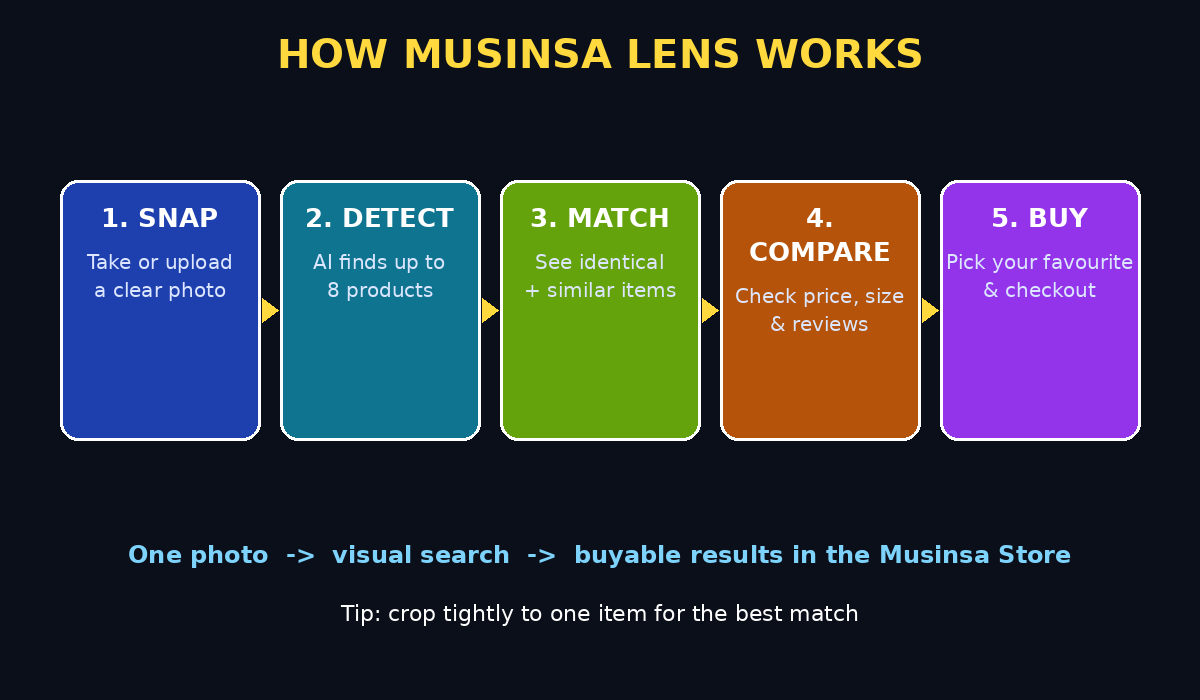
Musinsa Lens is not a chatbot and it is not a photo filter. It is a visual search tool built for fashion shopping. When you give it a photo, two AI models work together. The first is a product detection model that finds individual products inside the image — it can recognise up to eight products in a single photo, so a full outfit shot can return a jacket, a shirt, trousers, and shoes separately. The second is a visual similarity model that compares what it found with items sold in the Musinsa Store and ranks the closest matches.
That matters because fashion is hard to describe in words. Colour, cut, fabric texture, and overall feel are visual qualities, and Musinsa Lens searches by those qualities directly. Instead of guessing keywords, you show the AI what you want. This is the same shift happening across AI tools in general: people are moving from typing the perfect prompt to simply showing an example. For shoppers, that means less scrolling, fewer wrong purchases, and a much faster path from inspiration to checkout.
Musinsa Lens follows the launch of AI Trend Curation in June 2026, another AI discovery feature from Musinsa. Where trend curation suggests products first, Lens flips the direction: you start with something you already like, and the AI finds it for you. Musinsa says filters and sorting options will be added in the fourth quarter of 2026, and image search will expand to its sister platform 29CM as well.
Step 2: Check What You Need Before You Start
Before you open the app, make sure you have the basics in place:
- A Musinsa account: Musinsa Lens is available to members logged in to the Musinsa App, so you need an account and to be signed in.
- The Musinsa App: Lens lives inside the app, not on a separate website. Update the app to the latest version so the lens icon appears in the search bar.
- A clear photo: You can use a photo from your camera roll, a screenshot, or a picture you take on the spot. Clear, well-lit photos give far better results than dark or blurry ones.
- A stable connection: Image search uploads your photo for analysis, so Wi-Fi or a decent mobile connection helps.
You do not need to pay to try it. Lens is included for app members, and there is no separate subscription mentioned at launch. If you are a student or a casual shopper, that makes it a genuinely free way to experiment with AI visual search without signing up for yet another paid tool.
Step 3: Open the Musinsa App and Find the Lens Icon
Open the Musinsa App on your phone and sign in if you are not already signed in. Look at the search bar at the top of the screen — you will see a lens (camera) icon inside it. Tap that icon to open Musinsa Lens.
If you cannot see the lens icon, try these fixes in order: update the app from your app store, force-close and reopen the app, and check that you are signed in to a member account. New features sometimes roll out gradually, so if it is still missing, wait a day and check again after another update. Do not download lookalike apps promising “Musinsa Lens” from outside the official store — the real feature lives inside the official Musinsa App only.
Step 4: Upload or Take Your Photo
Once Lens is open, you have two choices:
- Upload a photo: Choose an image from your gallery — a screenshot from social media, a photo a friend sent you, or a picture you saved earlier.
- Take a photo: Point your camera at the item in front of you and capture it directly.
Either way, the photo is your search query. Think of it like this: with text search you describe the product, but with Lens you show it. A photo of the actual jacket will beat ten lines of description every time, because the AI sees the collar shape, the button placement, and the fabric pattern at once.
One practical tip: if your photo contains several items, Lens can detect up to eight of them. That is useful for outfit photos, but it also means a busy background can confuse it. If you only care about one item, crop the photo so that item fills most of the frame before you upload it.
Step 5: Let the AI Detect the Products in Your Photo
After you upload the photo, Musinsa’s AI scans it and marks the products it recognises. This usually takes just a few seconds. You will see the detected items highlighted, and you can tap the one you want to search for.
This step is where Lens differs from a simple reverse image search. A general reverse image search looks for the same picture on the web. Lens looks for the same product in a store catalogue, even if your photo was taken at a different angle, in different lighting, or by a different person. That product-level understanding is why it can return a buyable result instead of just similar-looking pictures.
If the AI misses your item, do not give up immediately. Try a closer crop, a brighter version of the photo, or a different photo of the same item. Detection works best when the product is clearly visible and not hidden behind other objects or heavy shadows.
Step 6: Browse Identical and Similar Matches
Next, Lens shows you results in two useful groups: identical items (the exact product, when it is sold in the Musinsa Store) and similar items (close alternatives in style, colour, or silhouette). Browse both groups before you decide.
Identical matches are the jackpot — same product, ready to buy. Similar matches are often just as useful, because they give you the same look at a different price, in a different size range, or from a brand you prefer. Compare the photos carefully: check the colour, the fit in the model photo, the material description, and the price. A similar item that fits your budget and size is often a better buy than an exact match that is sold out in your size.
This is also a good moment to slow down. Visual search makes buying very fast, and fast buying can lead to impulse purchases. Use the results as a shortlist, open the two or three best options, and compare them properly before you add anything to your cart.
Step 7: Refine Your Results and Compare Options
At launch, Lens focuses on the core search experience, with filters and sorting planned for later in 2026. Until those arrive, you can still refine your search yourself:
- Try a different photo: A front view, a detail shot of the fabric, or a cleaner background can change the ranking completely.
- Crop tighter: Removing background clutter helps the AI focus on the product you actually want.
- Compare side by side: Open similar items in separate tabs or save them, then compare price, sizes, reviews, and delivery details.
- Check the seller and reviews: A visually perfect match is only a good buy if the size, quality, and return policy suit you.
Think of Lens as a discovery assistant, not a decision-maker. It narrows hundreds of thousands of products down to a handful of strong candidates, but the final choice — fit, budget, and whether you actually need it — is still yours. That human check is what turns a clever AI demo into a purchase you will not regret.
Step 8: Share Results and Save Items You Like
Musinsa Lens lets you share search results via a link, which is handy when you want a second opinion. Send the link to a friend and ask whether the similar item really looks the same, or whether the colour will suit you. Sharing also helps when you are shopping for someone else: instead of describing a gift, you can share the exact visual match.
Save or favourite the items you like, even if you are not ready to buy. Prices, stock, and sizes change, and a saved item is much easier to revisit than a photo you searched with last week. Building a small saved list also helps you spot patterns — if you keep saving the same style, you are learning what you actually like, not just what an algorithm pushed at you.
Step 9: Use Lens as Part of a Smarter Shopping Routine
The real value of Musinsa Lens appears when it becomes a habit, not a one-off trick. Here is a simple routine beginners can follow:
- Capture inspiration as you see it: Screenshot outfits, street style, or items in videos instead of trying to remember them.
- Search once, compare properly: Run the photo through Lens, then compare the top three matches on price, size, and reviews.
- Wait before you buy: Leave the item in your cart or saved list for a day. If you still want it tomorrow, it was a real want, not a momentary impulse.
- Check returns before checkout: Make sure you know the return window and cost, especially for sale items.
Used this way, Lens saves time without encouraging wasteful spending. It is also a good example of how AI tools are quietly becoming practical: not flashy chatbots, but small features inside apps you already use that remove one annoying step. Businesses watching this trend closely — including a digital agency helping brands improve how customers discover products online — see visual search as part of a bigger move toward search that starts with an image, not a keyword. Likewise, teams building AI automation services for shops and marketplaces are paying attention, because a tool that turns a photo into a product page shortens the whole journey from inspiration to sale.
Step 10: Know the Limits and Stay Safe
No AI tool is perfect, and Lens has limits worth knowing:
- Catalogue limits: Lens searches the Musinsa Store catalogue. If an item is not sold there, you will get similar items, not an exact match — and that is still a useful result.
- Photo quality matters: Dark, blurry, heavily filtered, or very low-resolution photos give weaker matches.
- Similar is not identical: Check the product details before buying. Two jackets can look alike in a thumbnail and differ completely in fabric, fit, or quality.
- Privacy: Only upload photos you are comfortable sharing with the app. Avoid photos that show other people’s faces, private documents, or your exact location if you do not need them in the frame. Crop to the product.
- Availability: Lens is rolling out in the Musinsa App for logged-in members, with expansion to 29CM planned. Features and availability can change, so check the app itself for the latest status.
Staying aware of these limits keeps visual search fun instead of frustrating. When a search fails, it is usually a photo problem or a catalogue gap, not a sign that the tool is broken — try another photo and compare the similar matches.
Comparison Table: Musinsa Lens vs Text Search vs Reverse Image Search
| Feature | Musinsa Lens AI | Text Search | General Reverse Image Search |
|---|---|---|---|
| What you provide | A photo | Keywords you type | A photo or image URL |
| What it finds | Identical + similar products to buy | Products matching your words | Same or similar pictures on the web |
| Handles up to 8 items per photo | Yes | No | No |
| Works when you do not know the name | Yes | Hard | Sometimes |
| Gives buyable store results | Yes, in Musinsa Store | Yes | Not directly |
| Best for | Fashion discovery and shopping | When you know exact terms | Finding where an image came from |
Frequently Asked Questions
Is Musinsa Lens AI free to use?
Yes, at launch Lens is available to members signed in to the Musinsa App, with no separate subscription mentioned. You need a free Musinsa account and the latest version of the app. Always check the app itself for the latest pricing or membership terms, as they can change.
Do I need to know Korean to use Musinsa Lens?
No. The core action — tapping the lens icon and uploading a photo — is visual and works regardless of language. Product names and descriptions in the Musinsa Store may be in Korean, so a browser translation tool can help if you need to read detailed size or material information.
Can Musinsa Lens find items from any photo?
It can analyse most photos, but it searches the Musinsa Store catalogue, so exact matches only appear when the product is sold there. Otherwise it returns similar items. Clear, well-lit, tightly cropped photos give the best results, and it can detect up to eight products in one photo.
What if Musinsa Lens does not find my item?
Try a closer crop, a brighter photo, or a different angle of the same item. If the product is not in the Musinsa catalogue, browse the similar matches — they often capture the same style at a comparable price. You can also save the search and try again later, as the catalogue grows over time.
Is it safe to upload my photos to Musinsa Lens?
Only upload photos you are comfortable sharing with the app, and crop out faces, documents, or location details you do not need. Lens is designed to analyse products, but good practice is to share the minimum: crop tightly to the item you want to find.
Will Musinsa Lens come to 29CM?
Musinsa has said it plans to introduce image search to 29CM as well, after the Musinsa Store launch, along with filters and sorting options in the fourth quarter of 2026. Check the official app announcements for the exact rollout timing.
Final Thoughts
Musinsa Lens AI is a small feature with a big idea: stop describing what you want and start showing it. For beginners, that makes fashion shopping faster, easier, and less frustrating — especially when you spot something you love but cannot name it. Upload a clear photo, tap the detected product, compare identical and similar matches, and take a moment before you buy. That simple routine turns a clever AI launch into a genuinely useful everyday tool, and it hints at where shopping search is heading: visual first, keyword second.
If you enjoyed this guide, try Lens on the next outfit photo that catches your eye, and share the result with a friend for a second opinion. The best way to learn any AI tool is to use it on a real example, not just read about it.
Explore More Free AI Tools
Want to keep exploring? Try the free tools on AIToolSteps, including the AI Title Generator, Meta Description Generator, AI Rewriter, and Keyword Density Checker — all designed to help beginners create better content with AI, for free.