

Picking the right AI model for every coding task used to be a job in itself. One model was fast but sloppy, another was brilliant but expensive, and switching between them broke your flow. GitHub Copilot Fusion, launched on October 29, 2026 at GitHub Universe, removes that decision completely. It watches your task, picks the best model for it, and keeps your bill as low as possible while you code.
In this beginner guide, you will learn exactly how to use GitHub Copilot Fusion: what it is, how to set it up in Visual Studio Code, how its effort levels work, how to write your first prompts, and how to review the code it writes so you stay in control. You do not need to be an expert programmer. If you can open an editor and describe what you want to build, you can follow every step below.
What Is GitHub Copilot Fusion?
GitHub Copilot Fusion is a new way of using GitHub Copilot, the AI coding assistant from GitHub. Instead of locking you into one AI model, Fusion combines two ideas that GitHub had been testing: Project HydraFusion, a research preview for routing tasks to the right model, and Copilot’s automatic model selection. The result is a single assistant that adapts itself to each job.
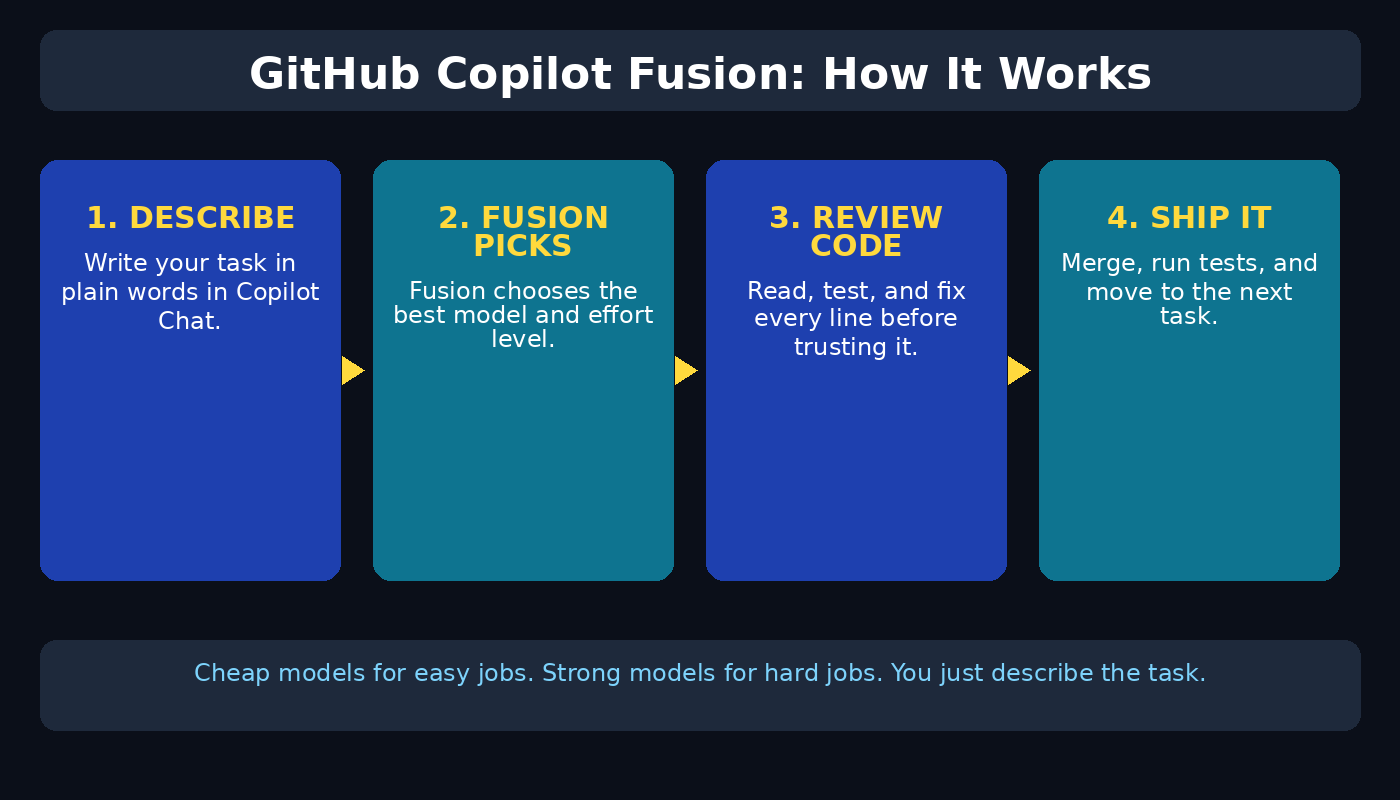
Here is the simple version. When you ask Copilot to do something easy, like rename a variable or write a short function, Fusion uses a fast, cheap model and answers in seconds. When you hand it something hard, like refactoring a whole feature or debugging a tricky error, Fusion switches to a more powerful model that can reason through the problem. You never open a model menu, and you never pay top price for a trivial task.
Fusion is available on all Copilot plans in Visual Studio Code, the GitHub Copilot app, the Copilot command-line tool, and JetBrains IDEs, with support for more clients coming. For a limited period, paid Copilot subscribers also get a 30 percent discount on model costs when using Fusion, which makes it one of the cheapest ways to try serious AI-assisted coding right now.
The launch timing matters. GitHub’s annual Octoverse report, published the same day, showed that more than 40 percent of pull requests in September 2026 began as an agent’s draft, up from 17 percent in March. AI coding is no longer an experiment. Fusion is GitHub’s answer to the next question every beginner asks: how do I use this power without wasting money or losing control of my code?
Step 1: Install GitHub Copilot in Your Editor
Everything starts with Copilot itself, because Fusion runs inside it rather than as a separate app. If you already use Copilot, you can skip to Step 2.
- Open Visual Studio Code and go to the Extensions panel on the left sidebar.
- Search for “GitHub Copilot” and install the official extension published by GitHub.
- Install the “GitHub Copilot Chat” extension as well, so you can talk to the assistant in a chat panel.
- Sign in with your GitHub account when prompted, and accept the permissions Copilot asks for.
- Open any project folder, or create a new empty folder, so Copilot has code context to work with.
JetBrains users can install the GitHub Copilot plugin from their IDE’s marketplace instead, and the steps that follow work the same way. If you prefer the terminal, the Copilot command-line tool also supports Fusion, which is handy for quick scripts and server work.
Step 2: Turn On Copilot Fusion
Once Copilot is installed, enabling Fusion is a small settings change, not a new installation.
- Open the Copilot Chat panel in your editor.
- Look for the model picker at the top of the chat panel, where Copilot normally shows the active model name.
- Select Fusion from the list. Existing preview users are moved automatically to the matching Fusion effort level, so you may already see it selected.
- If you do not see Fusion yet, update the Copilot extension to the latest version and restart your editor.
- Send a test message, such as “Hello, what can you help me build today?”, and confirm you get a reply.
That is the whole setup. There is no separate Fusion app to download, no API key to paste, and no configuration file to edit. If you work in a team, your administrator may already control which models Fusion can draw from, which we cover in Step 9.
Step 3: Understand Fusion Effort Levels
Fusion does not just pick a model. It also picks how much effort to spend on your task. Think of effort levels like gears on a bicycle: low gear for quick trips, high gear for steep climbs.
For a simple job, such as completing a line of code or fixing a typo in a comment, Fusion stays light and fast. For a bigger job, such as planning a new feature across several files, it spends more reasoning time before answering. Preview users were moved to the matching Fusion effort level automatically, so the upgrade feels seamless rather than disruptive.
As a beginner, the practical rule is simple: describe the size of the job honestly. If you say “fix this one line,” Fusion will stay cheap and fast. If you say “redesign this whole checkout flow,” it will take its time and use a stronger model. You control the cost mainly through the size of what you ask for, not through menus and toggles.
Step 4: Write Your First Prompt the Right Way
Fusion is only as good as your instructions. Vague prompts produce vague code, while clear prompts produce code you can actually use. Follow this beginner formula: goal, context, constraints.
- Goal: say exactly what you want, for example “add a login form” rather than “make this better.”
- Context: mention the file, the framework, or the feature it belongs to, so Fusion does not guess.
- Constraints: add limits such as “use plain JavaScript, no new libraries” or “keep the existing function names.”
Try this first prompt in a new file: “Create a simple to-do list web page with HTML, CSS, and JavaScript. It should let me add a task, mark it complete, and delete it. Keep all the code in one file.” Fusion will generate the page, and you can run it in your browser immediately. That instant result is the best way to build confidence before tackling a real project.
When a result is close but not perfect, do not start over. Reply in the same chat with a correction, such as “Keep everything, but make completed tasks show a strikethrough instead of disappearing.” Iterative prompts like this are how experienced developers steer AI coding tools, and they work especially well with Fusion because it remembers the conversation.
Step 5: Review Every Line Before You Trust It
AI-generated code is a draft, not a finished product. Fusion can write code that looks correct but hides a bug, a security hole, or a wrong assumption about your project. Reviewing is not optional, even for beginners.
- Read the generated code once from top to bottom before running it, and check that function names and variables match your project.
- Ask Copilot to explain anything you do not understand, for example “Explain this function line by line in simple words.”
- Watch for invented library functions or made-up API calls, and verify them in the official documentation.
- Never paste passwords, API keys, or private customer data into a prompt.
- Run the code, test it with real inputs, and fix what breaks before moving on.
This habit is what separates developers who benefit from AI from developers who get burned by it. Fusion saves you typing time, but the judgment stays with you. Teams that treat AI output as a first draft, including a professional digital agency reviewing client code, catch problems early instead of shipping them to users.
Step 6: Debug Errors With Fusion Instead of Googling
Debugging is where Fusion earns its keep for beginners, because error messages are often the hardest part of learning to code. Instead of copying an error into a search engine and reading ten forum threads, paste the error into Copilot Chat along with the code that caused it.
A good debugging prompt looks like this: “This code gives me the error below. Explain what the error means in simple words, then fix the code and tell me what you changed.” Fusion will usually explain the cause, patch the code, and describe the change, which teaches you the concept at the same time as it fixes the bug.
If the first fix does not work, tell Fusion what happened: “Now I get a different error,” followed by the new message. This back-and-forth loop is normal. Even experienced developers go through several rounds on a hard bug, and Fusion’s stronger models are chosen automatically when the problem turns out to be complex.
Step 7: Let Fusion Handle Multi-File Agent Tasks
Beyond chat and autocomplete, Copilot can now work as an agent: you describe a task, and it edits several files, runs commands, and reports back. Fusion makes this practical because it can hand the planning to a powerful model and the routine edits to faster ones.
- Start small: ask the agent to “add a dark mode toggle to this site” before asking it to rebuild a whole app.
- Check the agent’s plan before it runs, and narrow the scope if it tries to change files you did not mention.
- Review the diff, which is the list of changes, file by file, before accepting anything.
- Run your tests after every agent task, even a small one.
- Use the GitHub Copilot app for agent work that spans multiple repositories, such as updating the same change in several projects.
Agent mode is powerful, but it rewards small, clear tasks. A beginner who asks for one feature at a time will get far better results than one who asks for an entire app in a single prompt.
Step 8: Keep Your Costs Down
Fusion’s whole point is cheaper AI coding, but you still control most of the bill through your habits. The 30 percent discount for paid subscribers during the launch period helps, yet good prompting habits save far more over a month.
- Ask for one small change at a time instead of regenerating whole files repeatedly.
- Use chat for planning and questions, and autocomplete for routine code, rather than running a heavy agent task for every line.
- When Fusion’s answer is good enough, accept it and move on instead of asking for five variations.
- Keep your project tidy, because clean, well-named code gives Fusion better context and fewer wasted attempts.
- Check your Copilot usage dashboard regularly so you learn which habits cost the most.
For students and hobby builders, the free tier is enough to learn the entire workflow in this guide. For freelancers and small teams watching every expense, these habits are the difference between a tool that pays for itself and a bill that surprises you. Many small businesses pair smart tooling with outside help, and AI automation services can show how agent workflows fit into a wider business process once you are comfortable with the basics.
Step 9: Use Fusion in a Team Without Chaos
On a team, Fusion’s enterprise controls matter as much as its coding skill. Administrators decide which models Fusion can draw from, and Fusion only uses models enabled under the organisation’s existing policies. Enterprise admins can also make Fusion the default for their developers, so the whole team gets the same behaviour.
As a team member, agree on three simple rules before everyone starts using agent mode: every AI change gets a human review, every pull request says whether AI helped write it, and nobody merges agent output without running the tests. These rules sound basic, but they prevent the most common team problem with AI coding, which is a large, unreviewed change that nobody fully understands.
AT&T’s experience, shared at launch, shows why the cost angle matters at scale: developers often pick a powerful model for a hard task and forget to switch back for routine work, and Fusion Standard cut that unnecessary spending. For a beginner joining such a team, the lesson is encouraging. You do not need to learn model names or pricing tiers. Fusion handles that part, and your job is to write clear tasks and review the results.
Step 10: Know the Limits and Keep Learning
Fusion is a strong beginner tool, but it has honest limits. It can misunderstand a vague requirement, it can suggest outdated library versions, and it cannot know your company’s private business rules unless you explain them. It also cannot replace learning the fundamentals. The developers who get the most from Copilot are the ones who can read its output and spot when something is off.
Use Fusion as a tutor, not just a typist. After it writes something, ask it to explain the concept, then try writing a similar piece of code yourself without help. That loop, generate, explain, practise, is the fastest way to grow from a beginner who copies AI output into a developer who directs it with confidence.
Finally, keep an eye on what changes. Fusion is new, support for more clients is coming, and GitHub has already moved preview users onto the new system. Expect effort levels, pricing, and available models to evolve over the next few months, and revisit the model picker occasionally to see what is new.
GitHub Copilot Fusion vs the Alternatives
| Feature | GitHub Copilot Fusion | Single-model AI assistant | Manual coding only |
|---|---|---|---|
| Model selection | Automatic per task | You pick one model | No AI help |
| Cost control | Cheap models for easy tasks, 30% launch discount for paid plans | Same price for every task | Free, but slowest |
| Speed on simple tasks | Fast | Often slower than needed | Slowest |
| Multi-file agent work | Yes, across repositories | Varies by tool | Manual only |
| Team model controls | Admin-managed allowlist | Varies by tool | Not applicable |
| Best for | Beginners and teams who want power without model juggling | Developers loyal to one model | Learning fundamentals from scratch |
The honest takeaway is that Fusion is not magic, it is management. It manages model choice and effort so you can manage the actual software: the features, the quality, and the users. For a beginner, that is exactly the right division of labour.
Frequently Asked Questions
Is GitHub Copilot Fusion really free?
Fusion is available on all Copilot plans, including the free plan within its limits, so beginners can learn the full workflow without paying. Paid subscribers get the 30 percent discount on model costs for a limited period, and heavy professional use may need a paid plan.
Do I need to choose an AI model anymore?
No. That is the core idea. Fusion picks the model and the effort level for each task automatically, based on how hard the job looks. You describe the task, and Fusion handles the routing.
Which editors support Copilot Fusion?
At launch, Fusion works in Visual Studio Code, the GitHub Copilot app, the Copilot command-line tool, and JetBrains IDEs. GitHub says support for more clients is coming, so check the model picker in your editor after updates.
Is code written by Fusion safe to use?
It is a strong starting draft, but you must review it, test it, and check it for security issues before shipping. Never paste secrets into prompts, and never merge agent output without running your tests.
What happened to Project HydraFusion?
Project HydraFusion was the research preview for smart model routing. Fusion combines that routing with Copilot’s automatic model selection into one product, and preview users were moved to the matching Fusion effort level.
Can Fusion replace learning to code?
No, and it works best when it does not try to. Use it to move faster and to explain concepts, but keep practising the fundamentals yourself so you can judge, fix, and improve everything it produces.
Final Thoughts
GitHub Copilot Fusion is the most beginner-friendly version of AI coding GitHub has shipped, precisely because it removes the hardest beginner decision: which model to use. Install Copilot, select Fusion, describe one small task clearly, review the result, and repeat. Within a week of that loop, you will have built real features, fixed real bugs, and learned faster than you would by coding alone.
Start today with one tiny project, such as the to-do list in Step 4, and let Fusion show you what it can do. Keep your prompts clear, your reviews careful, and your tasks small, and Fusion will quietly handle the rest.
Explore More Free AI Tools
Keep building your AI toolkit with more beginner-friendly guides from AI Tool Steps, including the AI Title Generator, Meta Description Generator, AI Rewriter, and Keyword Density Checker at https://aitoolsteps.com/.