

Most AI assistants live in a distant data center. Every question you type travels to a server, gets processed there, and travels back — and you pay for that trip with a subscription, your privacy, and a delay. Liquid AI LFM3 flips that model upside down. Announced on 27 October 2026, LFM3 is a family of six tiny open-weight AI models, each around 2 billion parameters, designed to run where the big models cannot: on your phone, your laptop, even a Raspberry Pi.
The headline number says it all. The text model, LFM3-1.7B, needs only about 1 GB of memory at 4-bit precision. On Liquid AI’s own tests it decoded 43.6 tokens per second on an iPhone 17 Pro using just 1.90 GB of memory — roughly 2.8 times faster than the next model tested. And because the weights are free to download from Hugging Face, you can try a real AI agent without a subscription, without an account, and without sending your data anywhere.
In this beginner guide, you will learn exactly how to use Liquid AI LFM3 from your first try to your first private local agent: what the six models do, how to test LFM3 free in the browser playground, how to download it from Hugging Face, how to run it on a laptop with llama.cpp, how to run it on a phone, and where its limits are. No coding experience is needed to start, and the playground route needs no install at all.
Step 1: Understand What Liquid AI LFM3 Actually Is
Liquid AI is an MIT CSAIL spin-off that builds small models meant to run on the device rather than in the cloud. LFM3 is its third generation of Liquid Foundation Models, and the idea behind it is the opposite of the usual bigger-is-better launch.
Instead of one giant model, LFM3 gives you six small ones that all branch from one shared backbone, LFM3-1.7B-Base, pre-trained on 22 trillion tokens. Learn one family and every variant behaves consistently, because they share the same brain. The family covers every modality:
-
- Text — chat, writing, tool calling and local agents
-
- Vision — reading images, video, documents and screens
-
- Audio — understanding speech, producing speech and translating it
-
- Omni — text, image, video and audio in one model
-
- Decisions — fast, calibrated answers instead of long replies
The key point for beginners is this: LFM3 is not a chatbot website. It is a set of downloadable models. You can try them in a browser playground, call them through an API, or download the files and run them entirely on your own hardware. That last option is what makes LFM3 special — your prompts, files and conversations never leave your device.
Step 2: Meet the Six Models in the Family
Before you download anything, pick the right model for your job. Each one is small — around 2 billion parameters — but each has a different skill.
-
- LFM3-1.7B — the text model. It handles chat, instructions and tool calling, with a 256K-token context window and support for 16 languages. This is the one most beginners should start with.
-
- LFM3-VL-2B — the vision model. It reads images and video, understands documents and screens, and explains its thinking step by step. It has a 128K-token context.
-
- LFM3-Audio-2B — the speech model. It transcribes speech, produces natural spoken replies and translates across 18 languages, with a 32K-token context.
-
- LFM3-Omni-2B — the all-in-one model. It takes text, images, video and audio together and answers in text or speech, also with a 32K-token context.
-
- d1-2B — a decision model. Instead of writing a long reply, it returns a fast, calibrated answer about a ticket or document — Liquid quotes 5.7 milliseconds per decision on an NVIDIA H100.
-
- d1-Omni-2B — the same decision skill, but with vision and audio input as well.
For a first project, start with LFM3-1.7B. It is the smallest file, the fastest, and the easiest to run. Add the vision or audio model later, only when your project actually needs eyes or ears.
Step 3: Check If Your Device Can Run Liquid AI LFM3
One of the best things about LFM3 is how little hardware it asks for. Liquid tested the family across 14 device and software combinations, from a Samsung Galaxy S26 Ultra and a Raspberry Pi 5 to laptops, cloud CPUs and the Qualcomm Hexagon NPU.
Here is what you need in practice:
-
- Any modern phone — the text model takes about 1 GB at 4-bit, so a phone with 6 GB of RAM or more is comfortable.
-
- Any laptop from the last five years — 8 GB of RAM is plenty for the text model, and the 4-bit file is only about 1.05 GB to download.
-
- An 8 GB graphics card — enough for the full 16-bit text model if you want maximum quality on a desktop.
-
- A Raspberry Pi 5 — yes, it runs there too, which makes LFM3 a genuine option for tiny home servers and hobby robots.
A full 128K-token context needs about 1.6 GB of extra cache for the text model, so keep some headroom if you plan to feed it very long documents. For normal chatting, the base 1 GB footprint is all you need. If your device can run a web browser smoothly, it can almost certainly run LFM3-1.7B.
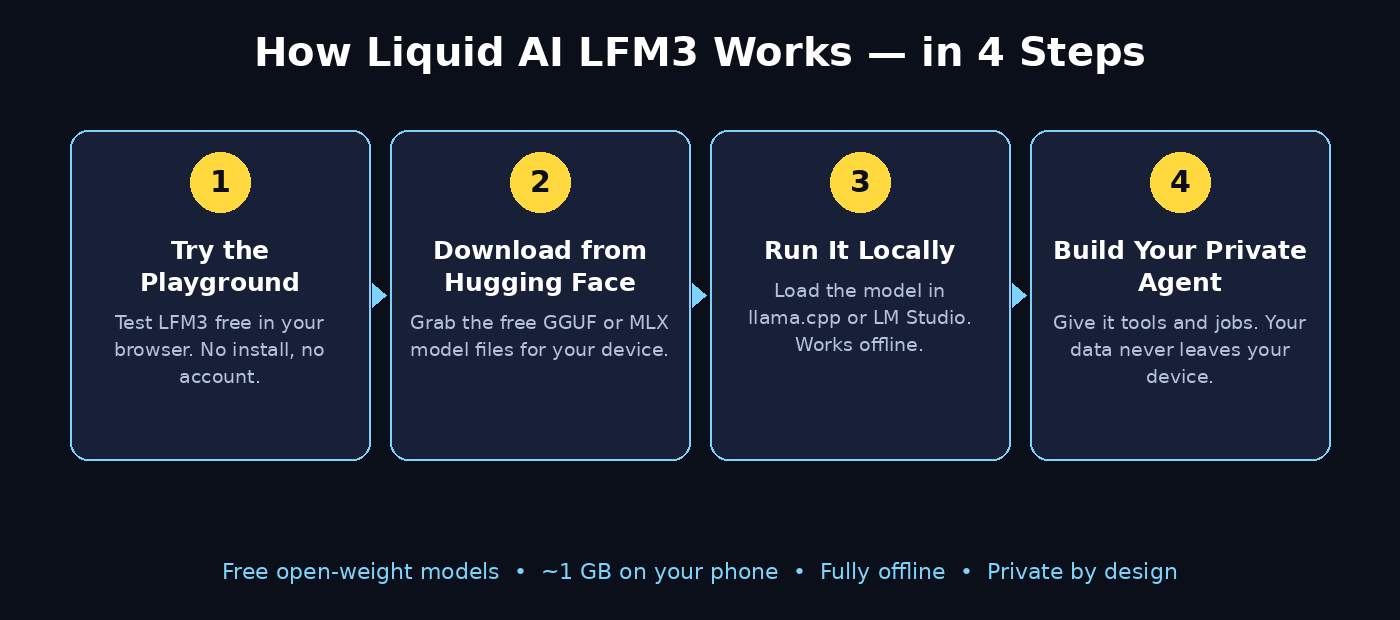
Step 4: Try Liquid AI LFM3 Free in the Browser Playground (No Install)
The fastest way to meet LFM3 is Liquid’s browser playground. It needs no download, no account and no command line — perfect for a first try.
-
- Open the Liquid AI website and find the LFM3 playground.
-
- Pick a model from the list — start with LFM3-1.7B for text chat.
-
- Type a prompt the way you would in ChatGPT. Ask it to summarize a paragraph, draft an email, or plan a day.
-
- Try a tool-style task, such as asking it to output a to-do list as JSON. LFM3 was tuned for native tool calling, so structured outputs are one of its strengths.
-
- Compare its speed and style with the chatbot you normally use. Notice that a 1.7-billion-parameter model answers in a way that feels surprisingly close to models five times its size on everyday agent tasks.
The playground is only a demo, so your chats are not private and you cannot upload sensitive files there. Treat it as a test drive. When you are ready to use LFM3 on real work, move to the local route in Step 6, where everything stays on your machine.
Step 5: Download the Models from Hugging Face
Hugging Face is the home of the LFM3 weights. Every model is published there in several formats, so you can pick the one that matches your device.
-
- Create a free Hugging Face account if you do not have one, and open the Liquid AI organization page.
-
- Find the LFM3 collection. You will see each model listed with BF16, GGUF, MLX, ONNX and server formats such as FP8 and NVFP4.
-
- For a laptop or phone, download the GGUF version — it works with llama.cpp and most local AI apps. The 4-bit file for the text model is about 1.05 GB.
-
- For a Mac with Apple silicon, pick the MLX 4-bit build instead. It is tuned for Apple chips and runs very efficiently.
-
- Read the license file sitting next to the model before you use it commercially. LFM3 ships under the LFM Open License v1.0, not Apache 2.0: commercial use is free only for companies under $10 million in annual revenue. Solo developers, students, startups and small agencies are effectively covered, but larger companies need a separate agreement with Liquid AI.
Keep the download in a folder you can find again, such as a `models` folder on your desktop. You will point your runner app at this file in the next step.
Step 6: Run LFM3 on Your Laptop with llama.cpp
The quickest local route is llama.cpp, a free open-source program that runs GGUF models on almost any computer. The LFM3 model card gives the exact command with Liquid’s recommended settings, but the beginner flow is simple.
-
- Download a recent llama.cpp build that supports LFM3. Older builds will not recognize the model, so make sure yours is up to date.
-
- Open a terminal and point llama.cpp at your downloaded GGUF file. The basic command starts a small local chat server on your own machine.
-
- Open the local address in your browser — usually something like localhost on port 8080 — and you will see a simple chat page.
-
- Type your first prompt. The model now runs entirely on your laptop. Turn off your Wi-Fi and it still answers, because nothing is being sent to a server.
-
- Experiment with the settings. A lower temperature gives careful, predictable answers; a higher temperature gives more creative ones. For everyday tasks, the defaults are fine.
If the command line feels intimidating, use a friendly local AI app instead. Many free apps — such as LM Studio or Ollama-style tools — let you pick a GGUF file from a menu and chat in a normal window. The model file is the same either way; only the wrapper changes. The result is the same private, offline assistant.
Step 7: Run Liquid AI LFM3 on Your Phone
A phone-sized AI agent is the most exciting part of LFM3. Because the text model fits in about 1 GB, it can live inside a phone app and answer without the internet.
-
- Install a local AI app on your phone that supports GGUF models — several free llama.cpp-based apps exist for both Android and iPhone.
-
- Transfer the 4-bit GGUF file to your phone, or download it directly in the app if the app offers model downloads.
-
- Load LFM3-1.7B in the app and start chatting. Expect a small delay on the first reply while the model loads into memory, then fast, smooth answers.
-
- Try it in airplane mode. This is the moment the idea clicks: a real AI assistant that works on a plane, in a tunnel, or anywhere with no signal.
-
- Use it for private tasks you would never paste into a cloud chatbot — personal notes, health questions, or work documents you cannot upload anywhere.
On Liquid’s own tests, the text model decoded 43.6 tokens per second on an iPhone 17 Pro. That is fast enough for comfortable, real-time conversation. Older phones will be slower, but the model still works — just give it a second longer to think.
Step 8: Build Your First Private Local AI Agent
Once LFM3 runs on your machine, the next step is giving it jobs. Because it was tuned for tool calling, it is built for local agents — small programs that act instead of just chatting.
-
- Pick one boring, repeated job. Good first choices are sorting files, summarizing a document, or answering questions about a folder of notes.
-
- Connect the model to your tools. LFM3 supports native function calling, so you can teach it to call a search tool, a calendar, or a file reader, and it will choose the right tool for each request.
-
- Keep the agent local. A local agent that reads your inbox or your contracts is safe precisely because the data never leaves your laptop. This is the privacy advantage no cloud chatbot can match.
-
- Start with one tool and one task. Add more tools only after the first one works reliably. Small agents that do one thing well beat big agents that do everything badly.
Small businesses get the same benefit at a larger scale. A local agent can draft replies, summarize customer tickets or organize internal documents without the data ever touching a third-party server. If you work with a digital agency such as D365A, ask how a private on-device agent could fit into your existing workflow — the setup cost is low because the models themselves are free and the hardware is a laptop you already own.
Step 9: Use the Vision, Audio and Omni Models
Text is only the beginning. The rest of the family adds eyes and ears, and the setup is the same: download the right file, load it in the same runner, and prompt it.
-
- With LFM3-VL-2B, drop in a photo of a document, a screenshot, or a short video clip and ask questions about it. It can read handwriting, describe a chart, or explain what is happening on a screen. This is useful for students, researchers and anyone who works with scanned paperwork.
-
- With LFM3-Audio-2B, speak instead of typing. It transcribes speech, answers in spoken form, and translates across 18 languages — handy for language learners and for hands-free work.
-
- With LFM3-Omni-2B, combine everything: show it an image and talk about it at the same time. It is Liquid’s first model that handles all four inputs together.
-
- With the d1 decision models, ask for a verdict instead of an essay. Feed in a support ticket or a document and get a fast, calibrated classification — ideal for triage systems where speed matters more than prose.
The wider agent ecosystem is moving the same way, and teams building multi-tool workflows can learn a lot from the agentic approach covered by Agentic Affairs — the same ideas about agents, tools and automation apply whether the model runs in the cloud or on your own device.
Step 10: Know the Limits Before You Rely on Liquid AI LFM3
LFM3 is genuinely impressive for its size, but it is a small model, and honest guides say so. Here is what to watch out for.
-
- Do not use it for agentic coding. Liquid’s own model card says not to use LFM3-1.7B for coding agents or complex multi-step reasoning. Use a larger cloud model for that work.
-
- Do not trust it for knowledge-heavy questions without retrieval. Small models know less. Pair LFM3 with your own documents or a search tool instead of asking it to recall facts from memory.
-
- Remember the license threshold. Commercial use is free below $10 million in annual revenue. If your company is at or above that line — or growing toward it — talk to Liquid AI before shipping anything built on LFM3.
-
- Treat benchmarks with care. Liquid’s headline numbers, including an average of 49.37 across 29 benchmarks against 47.24 for Qwen3.5-9B, a model five times its size, are vendor-reported and have not been independently verified yet. The model is strong on tool use and instruction following, and weaker on knowledge, coding and very long context.
-
- Keep expectations realistic on old hardware. A Raspberry Pi 5 or an old phone will run LFM3, but slowly. The smooth experience Liquid advertises assumes a modern phone or laptop.
Used inside those limits — local agents, tool calling, document understanding, voice tasks and private chat — LFM3 is one of the most practical free AI releases of the year.
LFM3 vs Cloud Chatbots: A Quick Comparison
| FeatureLiquid AI LFM3Cloud Chatbots (ChatGPT, Gemini)Price to startFree — weights on Hugging FaceFree tier, then ~$20/month for ProWhere it runsYour phone, laptop or Raspberry PiA distant data centerInternet neededNo — works fully offlineYes — always onlinePrivacyData never leaves your devicePrompts are sent to company serversSpeed on device~43.6 tokens/sec on iPhone 17 ProDepends on your connectionModel size~2 billion parametersHundreds of billions (undisclosed)Best forPrivate local agents, tool callingCoding, deep reasoning, broad knowledgeWeakest atAgentic coding, complex reasoningPrivacy, offline use, per-token cost |
|---|
The two approaches are complements, not rivals. Use a cloud chatbot for hard reasoning and coding, and use LFM3 for private, offline, everyday agent work that never needs to leave your device.
Frequently Asked Questions
Is Liquid AI LFM3 really free?
Yes, to start. All six models are free to download from Hugging Face, and you can try them in the browser playground without paying. The license is the LFM Open License v1.0: commercial use is free for companies under $10 million in annual revenue, and larger companies need a separate agreement. There is no published API price for LFM3 yet.
Can LFM3 run on my phone?
Yes, if your phone is reasonably modern. The text model takes about 1 GB of memory at 4-bit, and Liquid tested it on phones such as the Samsung Galaxy S26 Ultra and the iPhone 17 Pro. Use a llama.cpp-based local AI app, load the GGUF file, and it will run — even in airplane mode.
Does LFM3 need the internet?
Only to download the model the first time. After that, it runs fully offline on your device. That is the whole point of a phone-sized model: your prompts and files never leave your hardware.
Is LFM3 better than ChatGPT or Gemini?
It depends on the job. On Liquid’s own agent benchmarks, the tiny LFM3-1.7B matched models five times its size on tool use and instruction following. But for coding, complex reasoning and broad knowledge, the big cloud models are still far ahead — and Liquid’s model card says so itself. Think of LFM3 as the best private, offline assistant, not a replacement for a frontier chatbot.
What is the $10 million license rule?
LFM3 is open-weight, not open-source in the Apache sense. Anyone may download, use, modify and share it, including fine-tuned versions. But commercial use is free only below $10 million in annual revenue. Qualified non-profits are exempt for non-commercial or research use. Read the license file beside the model on Hugging Face before deploying anything commercial.
Can a complete beginner use LFM3 without coding?
Yes. The browser playground needs no install and no code, and friendly apps such as LM Studio let you load the model with a few clicks. The command-line llama.cpp route is only needed if you want the most control — most beginners can skip it entirely.
Final Thoughts
Liquid AI LFM3 is a glimpse of where AI is heading: smaller, cheaper, private and on your own hardware. Six models around 2 billion parameters, one shared backbone trained on 22 trillion tokens, a text model that fits in 1 GB and runs at 43.6 tokens per second on a phone — and all of it free to download. The launch partners tell the same story: AMD, NVIDIA, Qualcomm, Arm, Intel, OpenRouter and Vercel, with Mercedes-Benz and Shopify testing it before release.
The smart way to start is the playground today, the local install this weekend, and one small private agent next week. Keep the limits in mind, respect the license, and let the big cloud models handle the jobs that genuinely need them. For everything else — the private notes, the offline work, the agent that lives on your laptop — LFM3 is already good enough, and it is already free.
Explore More Free AI Tools
Want to keep building your content toolkit? Try these free tools from AI Tool Steps: the AI Title Generator, the Meta Description Generator, the AI Rewriter, and the Keyword Density Checker. Each one is free, runs in your browser, and pairs well with the private AI workflow in this guide — write the title, description and keywords for your next post before you publish it.