

Editing a photo used to mean one of two slow choices: learn a complicated desktop editor, or wait while a cloud tool slowly re-rendered your whole image every time you changed one small thing. Krea 3 AI changes that trade-off. Launched by Krea in October 2026 as a new image-editing model, Krea 3 AI for beginners takes a photo — or a set of reference photos — and changes exactly what you describe in plain words, returning a high-quality 2K edit in under 8 seconds, according to Krea. That speed, plus the ability to edit one region while leaving the rest of the picture untouched, makes it one of the most beginner-friendly image editors of 2026.
In this Krea 3 AI for beginners guide, you will learn how to use Krea 3 AI from your very first visit: creating a free account, uploading your first photo, writing prompts that actually work, editing just one part of an image, using reference images to keep a product or character consistent, and exporting results you can use on a website, a shop listing, or social media. You do not need design experience, a powerful computer, or a paid plan to follow along — the free plan is enough to learn the whole workflow. By the end, you will also know the honest limits of the tool, so you can judge when Krea 3 is the right choice and when a traditional editor still makes sense.
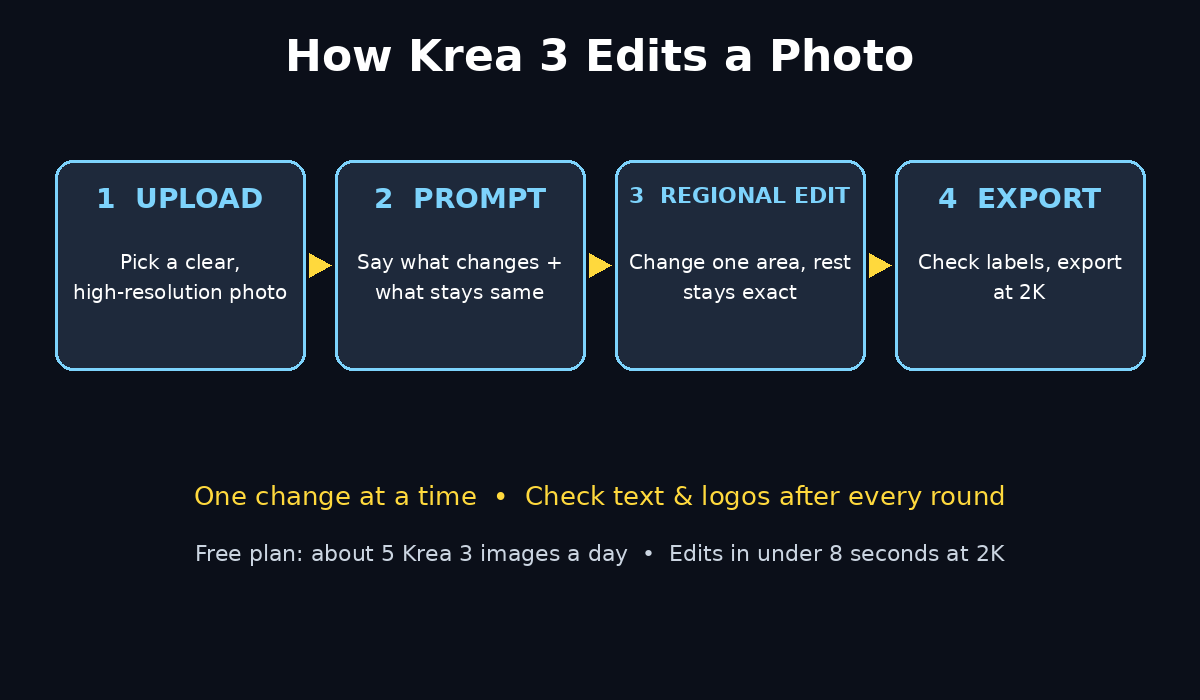
Step 1: Create Your Free Krea Account
Everything starts at krea.ai. Open your browser, go to the Krea website, and sign up for a free account — no credit card is required on the free plan. Krea’s free plan gives you a daily allowance of compute units, and Krea 3 is included in the free experience, with about five Krea 3 images a day in the web app according to Krea’s pricing page. That is plenty for learning: you can practise the whole workflow in this guide over a couple of days without paying anything.
After signing in, take a minute to look around the dashboard. You will see Krea’s different models and tools, but for this guide you only need the Krea 3 editing experience. Do not be distracted by the full model library, video tools, or 3D options — those are useful later, but they are not part of a beginner’s first edit. Find the image editing area, and you are ready to upload your first photo.
- Use a desktop or laptop browser for your first edits — the larger screen makes region selection much easier.
- Bookmark krea.ai so your workspace is one click away next time.
- Keep your daily free allowance in mind: practise on one photo at a time instead of generating ten versions at once.
- If you hit the free limit, come back the next day — your projects and history stay saved.
Step 2: Understand What Krea 3 Actually Does
Before you edit anything, it helps to understand what kind of tool Krea 3 is. It is an image-editing model, not a traditional photo editor with layers, brushes, and sliders. You do not paint over pixels yourself. Instead, you give Krea 3 an input image and a written instruction — for example, “change the background to a sunny beach, keep the person exactly the same” — and the model produces the edited image.
Three features make Krea 3 stand out for beginners. First, speed: Krea says most edits return in under 8 seconds at native 2K resolution, with 4K available for print and large-screen work. Second, regional editing: you can change only a selected part of an image and keep the rest pixel-exact, so one small fix does not ruin a part you already liked. Third, multi-reference editing: each edit can draw on several reference images, so a product, a character, or a style stays consistent across many edits. Krea says Krea 3 can also be fine-tuned with LoRAs for a specific product, person, or style, although that is an advanced feature you can safely ignore as a beginner.
Think of Krea 3 AI for beginners as a very fast, very obedient junior designer. It is brilliant at following clear instructions, but it cannot read your mind. The clearer your instruction about what should change and what must stay the same, the better your result will be — a principle you will use in every step below.
Step 3: Upload Your First Photo
Start with a simple, well-lit photo: a product shot, a portrait, or a room interior. Avoid starting with a dark, blurry, or extremely cluttered image, because even the best editing model has less to work with when the original is poor. Good input in, good output out — that rule never changes in AI editing.
Upload your photo into the Krea 3 editor. Give the file a moment to load at full quality, and check that the preview looks sharp. If you are editing a product photo for a shop, use the cleanest original you have, not a screenshot or a compressed social-media copy. Compression throws away detail that Krea 3 cannot invent back reliably, and it is the most common reason beginners get soft or strange results.
- Use the highest-resolution original you have.
- Start with one clear subject, not a crowded scene.
- Check the preview before prompting — a bad upload wastes a free generation.
- Keep your original file safe; always edit a copy, never your only version.
Step 4: Write Your First Edit Prompt
Now write your first instruction. The golden rule is simple: say what should change, and say what must stay the same, in one short paragraph. Beginners usually write only half the instruction — “make this nicer” — and then wonder why the result looks nothing like their photo. Krea 3 needs specifics.
Try a prompt like this: “Change the background to a bright, modern studio with soft daylight. Keep the red coffee mug exactly the same — same shape, same label, same colors. Do not change the steam or the table.” Notice how the prompt names the change (background), protects the important part (the mug), and rules out unwanted changes (steam and table). That structure — change + keep + do not change — works for almost every edit you will ever do in Krea 3 AI for beginners.
Run the edit and compare the result side by side with your original. Ask yourself three questions: did the requested change happen, did the protected parts stay the same, and does anything look odd at a glance? If the answer to the first two is yes, you have a usable edit. If something drifted — a label changed, a face shifted — tighten the “keep exactly the same” part of your prompt and try again.
Step 5: Edit Just One Region of the Image
Regional editing is the feature that saves beginners the most frustration. Suppose you love a portrait but want to change only the shirt color, or you love a product photo but want to replace only the background behind the product. Instead of asking Krea 3 to redo the whole image — and risking changes to the parts you loved — you select the region you want to change and prompt only that region.
In practice, look for the region or bounding-box control in the Krea 3 editor, draw or select the area you want to change, and write a prompt for that area alone. Krea says regional edits keep the rest of the image pixel-exact, which means you can chain several small edits one after another without the quality slowly degrading. Change the background first, then the shirt, then the lighting — checking each step as you go — instead of asking for everything in a single giant prompt.
This step-by-step habit is the single biggest difference between beginners who get clean results and beginners who get muddled ones. Small, checked edits beat one huge, hopeful edit every time. If a regional edit goes wrong, only that region is affected, and you can redo just that step.
Step 6: Use Reference Images to Keep Things Consistent
Consistency is where Krea 3 AI for beginners really earns its keep, especially for sellers, creators, and small businesses. Imagine you sell a handmade candle: you want the same candle, with the same label and colors, shown in a kitchen, on a gift table, and in a winter scene. Generating each scene from scratch would give you three slightly different candles. Krea 3 lets you attach reference images so the model knows exactly what must stay consistent.
Krea’s app supports up to six reference images per edit, and its API documentation allows up to eight, so attach a few clear references of your product or character from different angles. Then prompt with the consistency instruction stated plainly: “Use the attached reference photos. Keep the candle, label, and colors exactly the same in every scene. Only change the background and props.” Check the label and colors against your reference after every edit — for a shop listing, a changed label is not a creative variation, it is an error.
The same trick works for characters and styles. A creator can keep a mascot consistent across a series of thumbnails, and a designer can keep a brand’s color and material style consistent across a campaign. When you need that kind of repeatability at volume, a digital agency workflow built around consistent reference images is exactly how professional teams turn one approved photo into a whole set of assets without a new photoshoot each time.
Step 7: Try Multi-Turn Edits — One Change at a Time
Krea 3 supports precise multi-turn editing, which simply means you can keep editing the same image over several rounds. This is how professionals actually work: they do not expect perfection in one generation. They make a first edit, review it, then ask for the next change on top of the result.
Try this exercise on one photo: first change the background, then adjust the lighting to match the new background, then add a small prop, then sharpen the overall look. After each round, stop and compare. If round three introduces a problem, you know exactly which instruction caused it, and you can step back one round instead of starting over. Keep your prompts short in each round — one change per round is the rule that keeps multi-turn editing clean.
There is one warning worth remembering: every round is a chance for small details to drift, especially text, logos, and fine patterns. After each round, zoom in on text and logos and check them against the original. If a label starts to warp, revert to the previous round and reword that step with a stronger “keep exactly the same” instruction.
Step 8: Compare Krea 3 With Other Editors Before You Commit
Krea 3 AI for beginners is fast and strong, but it is not the only editor in town, and an honest comparison helps you choose wisely. Google’s Nano Banana models are the closest rivals, and Krea 3 Ultra ranked fourth on the Artificial Analysis multi-image edit leaderboard with a score of 1,435, just behind GPT Image models and just ahead of Nano Banana 2.1 — a genuinely competitive position, though independent testing is still thin and vendor claims should always be checked on your own images.
Krea 3 AI for Beginners: Quick Comparison Table
The practical difference for a beginner is workflow, not leaderboard points. Krea 3’s strengths are speed, regional control, and consistency from references. Its free plan is genuinely usable for learning, while heavier API use is paid per image — about $0.03 at 1K and $0.06 at 2K through Krea’s API. If you only need a few edits a week, the free web app is enough. If you need hundreds of product images a month, compare the paid plans and the per-image API cost before committing, and test the same photo in two tools to see which one keeps your product more faithful.
| Tool | Best for beginners | Free option | Watch out for |
|---|---|---|---|
| Krea 3 | Fast 2K edits, regional changes, consistent products | Free plan with daily units, about 5 Krea 3 images a day | Text and logos can drift over many rounds |
| Google Nano Banana Pro | Strong all-round editing, many references | Free access inside the Gemini app with limits | Can be slower for quick single edits |
| Traditional editors (Photoshop-style) | Pixel-perfect manual control | Free trials, some free alternatives | Steep learning curve, slow for batches |
| Phone photo editors | Quick filters on the go | Free tiers widely available | Little control over regions or consistency |
For a small business that needs consistent listings week after week, pairing a tool like Krea 3 with AI automation services for repetitive image work is often the practical middle path: the AI handles the volume, and a human checks the labels before anything goes live.
Step 9: Export, Check, and Use Your Edited Image
When an edit looks right, export it at the highest quality available. Krea 3 outputs natively at 2K, which is plenty for websites, shop listings, and social media, and 4K is available when you need print or large-screen quality. Download the file, give it a descriptive name — for example, “candle-winter-scene-krea3.jpg” — and keep it in a folder with your original.
Before you publish anything, run a final 30-second check: zoom in on any text, logos, and faces; compare colors with the original; and view the image at the size your audience will actually see it, not just full-screen. A flaw that is invisible at thumbnail size can be obvious on a product page, and the reverse is also true — do not reject a good edit because of a pixel-level detail nobody will ever see. Check the commercial-use terms of your plan too: Krea’s free plan does not include the full commercial license, which starts on paid plans, so confirm the terms before using free-plan images in paid advertising.
- Export at 2K for web and social, 4K only when you truly need print quality.
- Name files descriptively so you can find them again in a month.
- Keep the original and every good edit — you may want to re-edit later.
- Never publish an image with a warped logo or unreadable label.
Step 10: Build a Repeatable Weekly Workflow with Krea 3 AI for Beginners
The real value of Krea 3 AI for beginners appears when you turn one-off edits into a routine. Pick a weekly slot — say, Sunday evening for a shop, or Monday morning for content — and batch your edits: gather the week’s photos, apply the same background style with the same references, check labels in one pass, and export everything in one session. Because Krea 3 edits take seconds rather than minutes, a batch that once took an afternoon can now take under an hour.
Keep a tiny prompt notebook: the exact prompts that worked for your product, your backgrounds, and your lighting. Reusing a proven prompt is far more reliable than inventing a new one each time, and it is how you keep a whole catalogue looking like it came from one shoot. Finally, review your results monthly. If a new Krea 3 mode or a rival model improves consistency for your kind of image, test it on the same photo and compare — the tool landscape moves fast, and a 15-minute monthly test keeps your workflow current without constant tool-hopping.
Krea 3 AI for Beginners FAQ
Is Krea 3 AI free to use?
Partly. Krea’s free plan includes Krea 3 in the web app with a daily compute allowance — about five Krea 3 images a day according to Krea’s pricing page — and no credit card is required. Heavier use, the full model library, and the commercial license sit on paid plans, and API use is billed per image.
How fast is Krea 3 really?
Krea says high-quality 2K edits return in under 8 seconds end to end. That is Krea’s own figure, and real speed depends on your connection, image size, and server load, but in practice Krea 3 is noticeably faster than re-rendering a whole image in a traditional editor for a small change.
Can Krea 3 keep my product exactly the same?
It can come very close when you attach clear reference images and state the consistency requirement in your prompt, and when you check labels after every edit. It is not perfect: text, logos, and fine patterns can drift over many editing rounds, so always verify before publishing.
What is the difference between Krea 3 and Krea 3 Ultra?
Krea 3 is the standard editing model available in the app and API. Krea 3 Ultra is a higher-quality mode in the Krea app on Max plans and above, and its leaderboard scores do not describe what you get from the standard API model — so do not judge the free experience by Ultra’s ranking.
Do I need design skills to use Krea 3?
No. If you can describe a change in plain words — “change the background to a beach, keep the mug the same” — you can use Krea 3. The skills that matter are clear prompting, checking results carefully, and editing one region at a time.
Can I use Krea 3 images commercially?
It depends on your plan. The free plan does not include the full commercial license, which starts on paid plans, so read Krea’s current terms for your plan before using images in paid ads or client work, and keep a record of the plan you generated them on.
Final Thoughts for Krea 3 AI for Beginners
Krea 3 AI for beginners is a genuinely useful step forward for beginners because it removes the two biggest barriers in photo editing: time and skill. Edits that once needed a trained designer and an afternoon now take a clear sentence and a few seconds, and regional editing means a small fix no longer risks the whole image. Used with the habits in this guide — clear prompts, one change at a time, reference images for consistency, and a careful label check before publishing — Krea 3 can carry a small shop, a creator’s thumbnails, or a family’s photo collection a long way.
Start today with one photo and the free plan. Try a background change, then a regional edit, then a reference-based edit, and keep the prompts that worked. Within a week you will know whether Krea 3 earns a permanent place in your workflow — and you will have the edited images to prove it.
Explore More Free AI Tools
Want more free tools like this one? Try the AI Title Generator, the Meta Description Generator, the AI Rewriter, and the Keyword Density Checker — all free on AIToolSteps, and all built to make everyday content work faster.