
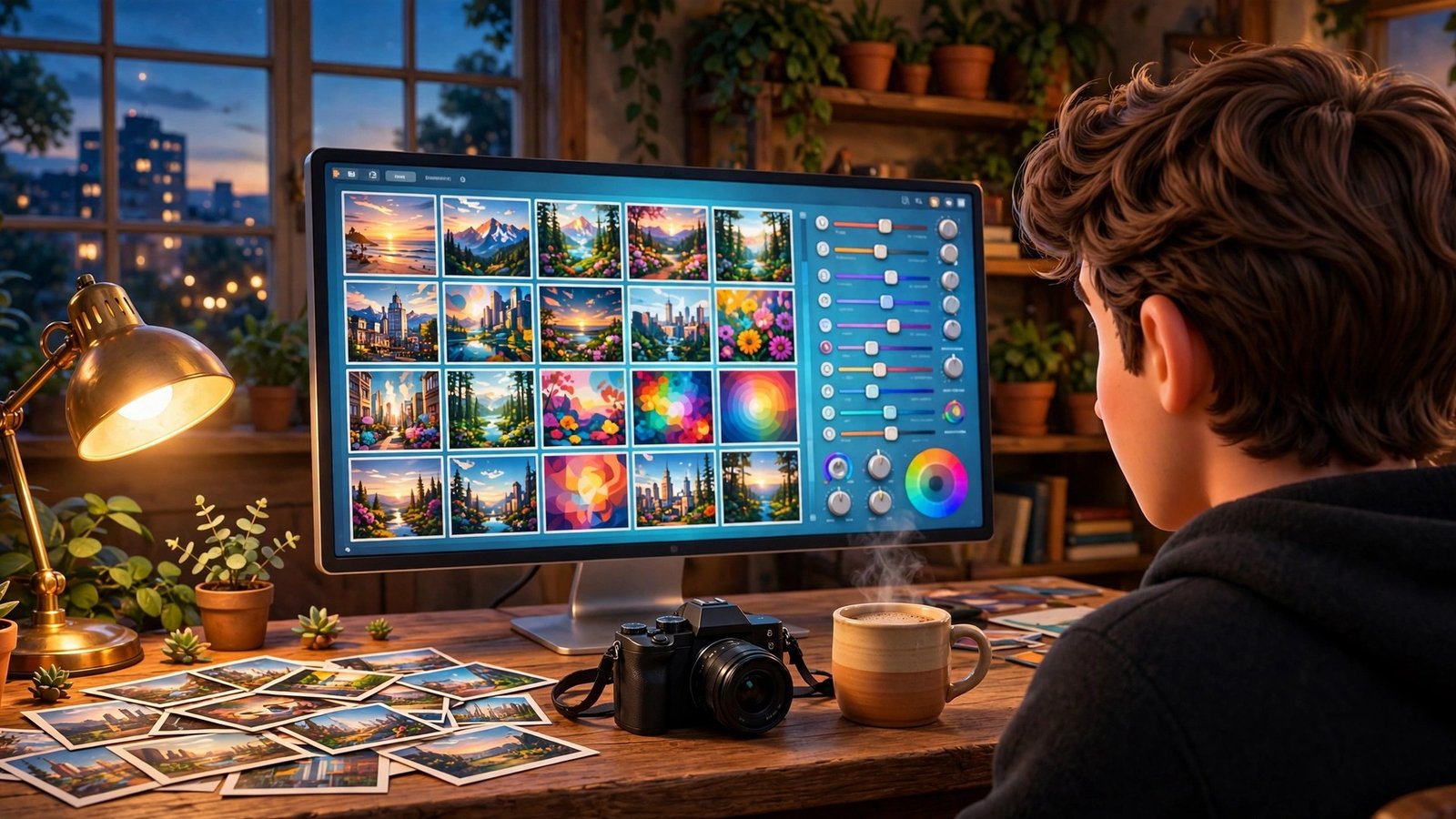
Editing photos used to mean one of two compromises: install a heavy desktop program, or upload your private pictures to a cloud server and hope for the best. Fotoreto AI changes that trade-off. Launched in October 2026 by developer Phuc Nguyen, Fotoreto is a browser-based photo editor that processes your images locally, right on your own device. That means your RAW files and family photos never have to leave your computer just to get a colour grade, a clean-up, or a batch edit.
In this beginner-friendly guide, you will learn exactly how to use Fotoreto AI from your very first visit: opening it without an account, importing photos, sorting out duplicates and blurry shots, applying one of its 111 colour styles to a whole set at once, fine-tuning the result, and exporting finished images you can share anywhere. You do not need photography experience, a powerful computer, or a paid subscription to follow along. The free version works without an account, and once the editor has loaded, it can even keep working offline. If you have ever felt overwhelmed by professional editing software, this is the gentle, private way in.
By the end, you will know when Fotoreto is the right tool, when a heavier editor still makes sense, and how to build a simple five-minute workflow you can repeat for every shoot, trip, or product batch. Let us start with the basics and build your confidence step by step.
Step 1: Open Fotoreto AI in Your Browser — No Install, No Account
Open your usual web browser — Chrome, Edge, Firefox, or Safari all work — and go to the Fotoreto website. There is nothing to download and nothing to install, which is the first pleasant surprise. Traditional editors can take up gigabytes of disk space and demand regular updates; Fotoreto loads like a website and is ready in seconds. Because the heavy lifting happens in your browser, it also works on modest laptops and Chromebooks that would struggle with a full desktop suite.
You can start with the free version without creating an account. That matters for two reasons. First, you can test the editor on your own real photos before committing any personal details. Second, it keeps the barrier to trying AI photo editing as low as possible for beginners. If you later want the extra benefits of the paid plans — an annual subscription or a one-time lifetime purchase — you can upgrade when you are ready, but you should never feel pushed to pay before you know the tool suits you.
- Use an up-to-date browser for the best speed and stability.
- Give the editor a moment to load fully before importing a large batch.
- Bookmark the page so your editing workspace is one click away next time.
- Close other heavy browser tabs if your computer feels slow during editing.
Step 2: Understand Local Processing — Why Your Photos Stay Private
The single most important idea in Fotoreto AI is local processing. When you import a photo, the file is read and edited on your own device, not uploaded to a remote server. For photographers, families, and small businesses, that is a genuine privacy advantage. Client photos, children’s pictures, and unreleased product shots never travel across the internet just to be colour-graded.
This design also explains why Fotoreto can work offline once it has loaded. Your browser has already fetched the editing tools, so the actual work — applying styles, checking sharpness, and preparing exports — can continue without a live connection. If your internet drops during a countryside trip or on a train, your editing session does not have to stop with it. Just remember to keep the browser tab open until you have exported your finished files, because closing it before saving could lose unsaved work.
Local processing does have one trade-off to understand honestly: your computer does the work, so a very old or overloaded device may feel slower with huge RAW batches than a cloud service with server power behind it. The practical fix is simple — edit in smaller batches, close unused apps, and let the editor finish one job before starting the next. For most everyday photo sets, the speed is perfectly comfortable.
Step 3: Import Your Photos and RAW Files the Easy Way
Importing is deliberately simple. Choose the photos you want to work on from your computer and bring them into the editor. Fotoreto supports RAW files, which is excellent news if you shoot in RAW for maximum editing flexibility. RAW files hold far more colour and highlight information than a compressed JPEG, and Fotoreto’s 16-bit RAW processing helps you recover detail in bright skies and dark shadows without the harsh banding that cheaper editors can introduce.
Start small on your first session. Import ten to twenty photos from a single shoot rather than your entire library. That keeps the workspace tidy, lets you learn the controls without waiting on hundreds of files, and gives you a quick win you can actually finish. Name your session in a way you will recognise later — for example, by event, date, or client — so exported files are easy to find again.
- Import one shoot at a time instead of your whole photo library.
- Prefer RAW files when you plan to make big brightness or colour changes.
- Keep originals backed up separately before you start editing.
- Check that every photo you need has actually loaded before you begin culling.
Step 4: Clean Up First — Find Duplicates and Blurry Shots Automatically
Before you beautify anything, clean up. Fotoreto automatically identifies duplicate photos and detects blur, two jobs that normally eat up hours of manual scrolling. Duplicates creep in when you burst-shoot, import the same card twice, or save several near-identical versions. Blur creeps in when a subject moves, your hand shakes, or focus lands just slightly off. Both problems are much easier to fix at the start than after you have edited fifty images.
Work through the flagged photos with a calm, simple rule: keep the sharpest, best-composed version of each moment and remove the rest. Do not delete originals permanently from your computer until you are sure — Fotoreto’s clean-up is about choosing the keepers for this edit, not about destroying your archive. If you run a small online shop, this step alone can save real time: a digital agency workflow often starts with exactly this kind of ruthless culling, because a tidy set of twenty strong product photos sells better than two hundred near-duplicates.
Once the duplicates and soft shots are out of the way, your remaining photos will feel manageable. You will also get a clearer sense of the story your shoot tells, which makes the next step — choosing a consistent look — much easier.
Step 5: Apply a Colour Style to a Whole Set in One Go
Now for the fun part. Fotoreto offers 111 distinct colour styles for batch editing, which means you can apply a single, consistent look to an entire set of photos at once. Consistency is what separates amateur-looking galleries from professional ones. When every photo in a holiday album, portfolio, or product listing shares the same warm, clean, or moody grade, the whole collection feels intentional.
Browse the styles with a test photo first. Pick one image that represents the set well — good light, typical colours, a normal subject — and preview several styles on it before committing to the batch. A style that flatters a sunny beach photo might feel too cold on an indoor portrait, so always judge on a representative shot. When you find a look you love, apply it to the full set, then check a few different photos to make sure skin tones, skies, and product colours still look natural.
- Preview styles on one representative photo before batch-applying them.
- Check skin tones and product colours after applying any strong style.
- Use one style per set for a consistent, professional gallery.
- Save your favourite styles so repeat shoots take seconds, not minutes.
Step 6: Fine-Tune Brightness, Contrast, and Colour Like a Pro
A colour style is a starting point, not a finished photo. The best edits come from small, patient adjustments afterwards. Begin with exposure: is the photo too dark or too bright overall? Then look at contrast, which controls the difference between light and dark areas, and saturation, which controls how vivid the colours feel. Tiny moves here matter more than dramatic ones — a gentle lift in brightness and a touch less saturation often looks far more professional than pushing every slider to its limit.
Pay special attention to white balance, the setting that decides whether white looks truly white or slightly blue or yellow. Photos shot indoors under warm lights often need cooling, while shade outdoors can need warming. Correcting white balance first makes every other adjustment more predictable. Finally, check highlights and shadows separately: pull back blown-out skies a little, and lift deep shadows just enough to reveal detail without making the photo look flat or washed out.
Work in this order and you will avoid the most common beginner mistake, which is fixing colours before fixing light. Light first, colour second, and a final check at full size before export will give you clean, natural results almost every time.
Step 7: Use AI Tools to Speed Up Repetitive Edits
Fotoreto’s AI-driven tools are designed to remove the boring parts of editing, not to replace your judgement. Duplicate detection and blur detection are the clearest examples, but the broader idea is the same: let the software handle the scanning, sorting, and first-pass work, while you make the creative calls about which photos matter and how they should feel. That division of labour is exactly how modern AI automation services work best — machines do the repetitive checks at scale, humans decide what good looks like.
Build the habit of reviewing, not blindly accepting, every automated suggestion. If the editor flags a photo as blurry, zoom in and check: sometimes a soft background is intentional, and the subject is perfectly sharp. If it flags a duplicate, confirm the two shots really are the same before removing one. A thirty-second human check protects you from losing a genuinely better frame that an algorithm judged too quickly. Over time, you will learn which suggestions to trust instantly and which deserve a closer look.
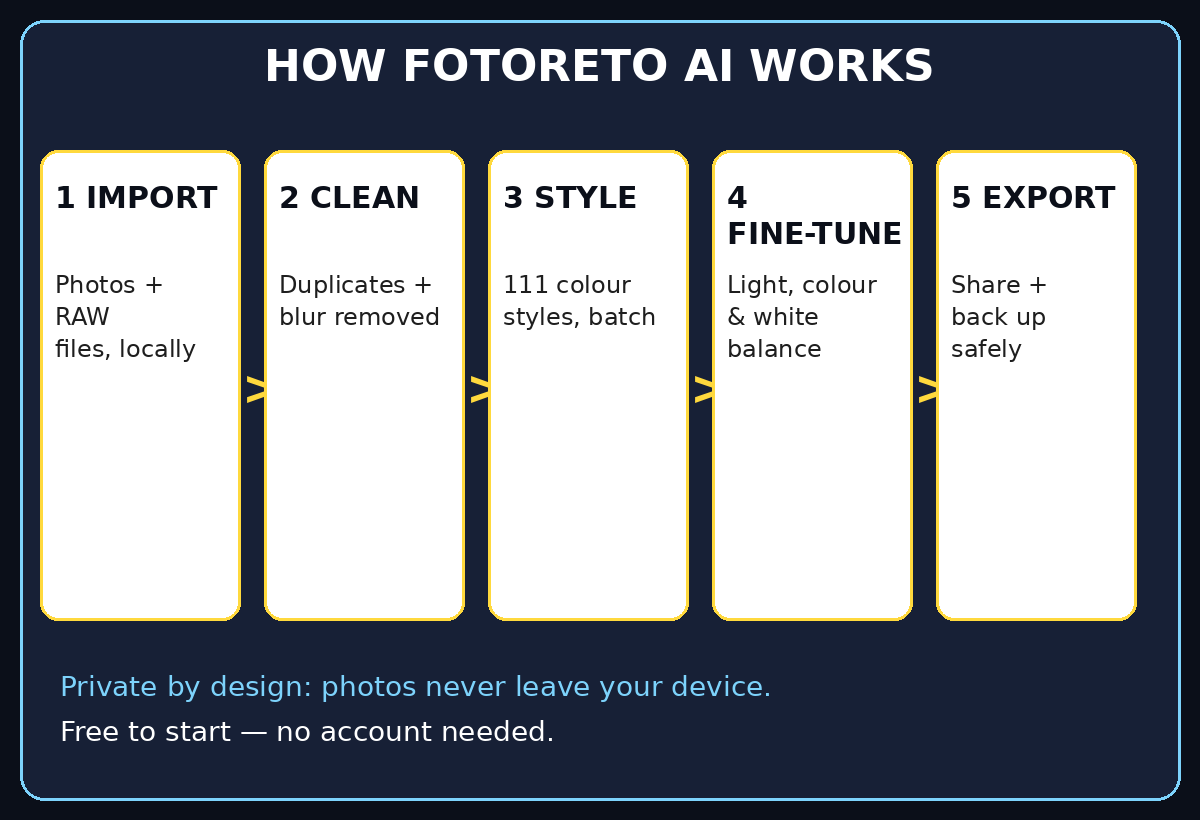
As you grow more confident, combine these helpers into a repeatable routine: import, clean up, apply a style, fine-tune, review, export. A routine you can repeat without thinking is worth more than any single clever trick, because it turns editing from a chore into a habit.
Step 8: Organise Your Workflow for Batches, Clients, and Shops
If you edit photos for a shop, a blog, or social media, organisation is a skill in itself. Create a simple folder habit: originals in one folder, working edits in another, and final exports in a third, each labelled by date and project. That way you can always return to an original, re-export a different size, or fix a mistake without hunting through downloads.
Batch editing is where Fotoreto AI earns its keep for sellers and creators. Apply one colour style across a product range so every listing looks like it belongs to the same brand, then export consistent sizes for your shop, your social posts, and your website. Consistent product photography builds trust: buyers can compare items fairly when lighting and colour do not change wildly from one listing to the next. The same logic applies to a blog or portfolio — a consistent visual identity makes your work instantly recognisable.
- Keep originals, working files, and exports in separate labelled folders.
- Use the same style and export size across a product range or series.
- Export a small web version and keep a larger master version for print.
- Review the full set as thumbnails before you publish anything.
Step 9: Export, Share, and Back Up Your Finished Photos
Exporting is the moment your work becomes shareable, so take it seriously. Choose an export size that fits the destination: full quality for printing or archiving, and a sensibly compressed version for websites and social media, where huge files only slow down loading. Give exported files clear names — a date, a project, and a short description beat a camera’s automatic numbering every time.
Before you share, do a final full-size check of each keeper. Zoom to 100 percent and look at faces, text, and fine details. Check edges for accidental cropping, and confirm colours on the screen you will actually publish from, since phone and laptop screens can differ. This two-minute check catches the small errors that are embarrassing after publication but trivial to fix beforehand.
Finally, back up. Keep your originals and your finished exports in at least two places — for example, your computer plus an external drive or a trusted cloud backup. Local editing protects your privacy during the creative process, but a backup protects your work afterwards. The two ideas go together: private while you edit, safe once you finish.
Step 10: Know the Costs, Limits, and When to Upgrade
Fotoreto’s free version, available without an account, is genuinely useful for learning and for everyday edits. Paid options exist for people who want more: an annual subscription priced at $12.99, or a one-time lifetime purchase at $19.99. Both are refreshingly simple compared with monthly creative-suite subscriptions that can cost many times more over a year. Before paying, list what you actually need — if the free version already covers your shoots, there is no rush to upgrade.
Be honest about limits, too. Fotoreto is a fast, private, browser-based editor, not a replacement for every feature of a heavyweight desktop suite. Complex layered compositing, advanced retouching, and deep plugin ecosystems may still belong in specialist software. The smart approach is to use Fotoreto for what it does brilliantly — fast, consistent, private batch editing — and reach for a heavier tool only for the rare jobs that truly need it. Most beginners will find that covers nearly everything they do.
Check pricing and features on the official site before you buy, since plans can change after launch. A tool that respects your privacy and your budget is worth keeping, and Fotoreto’s lifetime option makes it easy to support without a recurring bill.
Comparison Table: Fotoreto AI vs Other Photo Editing Options
| Feature | Fotoreto AI | Cloud Photo Editor | Heavy Desktop Suite |
|---|---|---|---|
| Where photos are processed | Locally on your device | On remote servers | Locally, after a large install |
| Account needed to start | No, free version without an account | Usually yes | Usually yes, plus licence |
| RAW support | Yes, 16-bit RAW processing | Varies by plan | Yes, very deep |
| Batch colour styles | 111 colour styles | Varies, often limited | Yes, via presets and actions |
| Duplicate and blur detection | Built in automatically | Sometimes, as an add-on | Manual or via plugins |
| Works offline after loading | Yes | No | Yes |
| Typical cost | Free, or $12.99/year or $19.99 lifetime | Monthly subscription | Monthly subscription or high one-off price |
| Best for beginners | Excellent — simple and private | Good, if you accept uploads | Powerful but overwhelming |
Frequently Asked Questions About Fotoreto AI
Is Fotoreto AI really free?
Yes, there is a free version you can use without an account. Paid options — $12.99 per year or a $19.99 one-time lifetime purchase — exist for users who want more, but beginners can learn the full workflow and complete real edits without paying first.
Do my photos get uploaded to the internet when I edit them?
No. Fotoreto processes image files locally in your browser, so your photos stay on your own device during editing. That privacy-first design is one of its main advantages over cloud editors, and it also lets the editor keep working offline once it has loaded.
Can Fotoreto AI edit RAW photos?
Yes. It offers 16-bit RAW file processing, which preserves more highlight and shadow detail than a standard JPEG edit. That makes it a strong choice if you shoot RAW and want to recover detail in bright skies or dark scenes without introducing banding.
How do the 111 colour styles work for batch editing?
Choose a style, preview it on a representative photo, and apply it to your whole set for a consistent look. Always check a few different photos afterwards — especially skin tones and product colours — and fine-tune brightness or white balance if a particular shot needs it.
Is Fotoreto AI good for beginners who have never edited photos?
Absolutely. There is no install, no account barrier, and no overwhelming panel of professional tools on day one. Import a small set, let the editor flag duplicates and blur, try a colour style, and export. That simple loop teaches the core skills of editing while producing shareable results.
When should I use a different editor instead?
Use a heavier desktop editor for complex layered compositing, advanced retouching, or specialist plugin workflows. For fast, private, consistent batch editing — the work most beginners and small sellers do every week — Fotoreto is usually the simpler and faster choice.
Final Thoughts
Fotoreto AI is a reminder that good photo editing does not have to be complicated, expensive, or invasive. By processing your photos locally in the browser, it removes the two worries that stop many beginners: “Will my private photos be uploaded somewhere?” and “Do I need an expensive program to do this properly?” The answers here are no and no. You can start free, without an account, and build a clean, repeatable workflow in a single afternoon.
The habit to take away is simple: import small, clean up first, choose one consistent style, fine-tune light before colour, and always back up before you share. Repeat that loop for every shoot and your photos will quickly look more professional — not because you bought a bigger tool, but because you followed a better process. Try Fotoreto on your next set of photos today, and judge it on your own images, not on anyone else’s promises.
Explore More Free AI Tools
Keep exploring free AI tools on AIToolSteps: try the AI Title Generator, the Meta Description Generator, the AI Rewriter, and the Keyword Density Checker — all free, all beginner-friendly, and all designed to help your content look its best.