

If you spend your whole day inside Chrome, you no longer need to leave your browser tabs to ask ChatGPT for help. With ChatGPT in Chrome, the assistant sits right beside the page you are reading, so you can ask questions about what is actually on your screen, compare several open tabs at once, and turn what you find into a draft, a summary, or a plan without copy-pasting back and forth.
In this beginner guide, you will learn exactly how to use ChatGPT in Chrome: how to set it up in minutes, how to ask about a single tab or many tabs, how to use it for research, shopping, studying, and writing, and how to stay safe with your privacy while you do it. You do not need any technical skills, and the basic experience is free with a ChatGPT account.
Think of it this way. Before, your browser showed you information and ChatGPT answered questions in a separate place, and you were the bridge between them. Now the bridge is built in. You point ChatGPT at the page, or the tabs, you care about, and it works with that real context instead of guessing from a description you typed.
Step 1: Understand What ChatGPT in Chrome Actually Is
ChatGPT in Chrome is ChatGPT working inside your Chrome browser through the official ChatGPT extension and, on supported setups, the ChatGPT desktop app. Instead of opening a separate website and describing a page from memory, you open a side panel next to your tabs and talk to ChatGPT about the pages you already have open.
Here is what that changes in practice:
- It sees your context. Ask about "this article" or "these three tabs" and ChatGPT knows which pages you mean.
- It compares for you. Open several product pages, articles, or job listings, and ask for a side-by-side comparison.
- It drafts from real sources. Summaries, emails, and outlines are based on the pages in front of you, not on a vague memory of them.
- It saves switching. Research, reading, and writing happen in one window instead of five.
It is important to understand what it is not. ChatGPT in Chrome is not a replacement for reading, and it is not magic. It can misunderstand a page, miss a detail buried in a table, or confidently repeat something that is only partly true. Treat it as a very fast research assistant: useful, tireless, and still worth checking on anything important.
Step 2: Install the ChatGPT Extension in Chrome
Everything starts with the official extension. Only install it from the Chrome Web Store, and check that the publisher is OpenAI, because copycat extensions with similar names do exist.
Open Google Chrome on your computer.
Go to the Chrome Web Store and search for "ChatGPT".
Open the official ChatGPT extension listing and click "Add to Chrome".
Confirm by clicking "Add extension" in the pop-up.
When the ChatGPT icon appears in your toolbar, click it and sign in with your ChatGPT account. If you do not have one yet, create a free account first.
Once you are signed in, pin the extension to your toolbar so you can reach it in one click. Click the puzzle-piece extensions icon, find ChatGPT, and click the pin. This small step matters more than it sounds: a tool you can reach in one click is a tool you will actually use every day.
If you do not see a feature described in this guide, do not panic. OpenAI rolls features out gradually, and some capabilities arrive on different plans or in different regions at different times. Update Chrome and the extension, then check again in a few days.
Step 3: Open the Side Panel and Ask About the Current Page
The side panel is where most of your work will happen. It keeps ChatGPT visible while your page stays open beside it, which is the whole point.
Open any web page you want help with, such as a news article, a product page, or a long guide.
Click the ChatGPT icon in your toolbar to open the side panel.
Type a question about the page, for example: "Summarize this article in five bullet points" or "Explain the main argument of this page in simple words."
Press Enter and read the answer while the page stays in view.
Good first prompts to try:
- "Summarize this page for a beginner, and list the three most important points."
- "What does this page say about pricing, and what is missing?"
- "Explain this section like I am fifteen years old."
- "Turn the key points of this page into a checklist I can follow."
Notice the pattern: you name the page ("this page", "this article") and you name the output you want (summary, checklist, simple explanation). Vague prompts get vague answers. Specific prompts get useful ones.
Step 4: Compare Multiple Open Tabs at Once
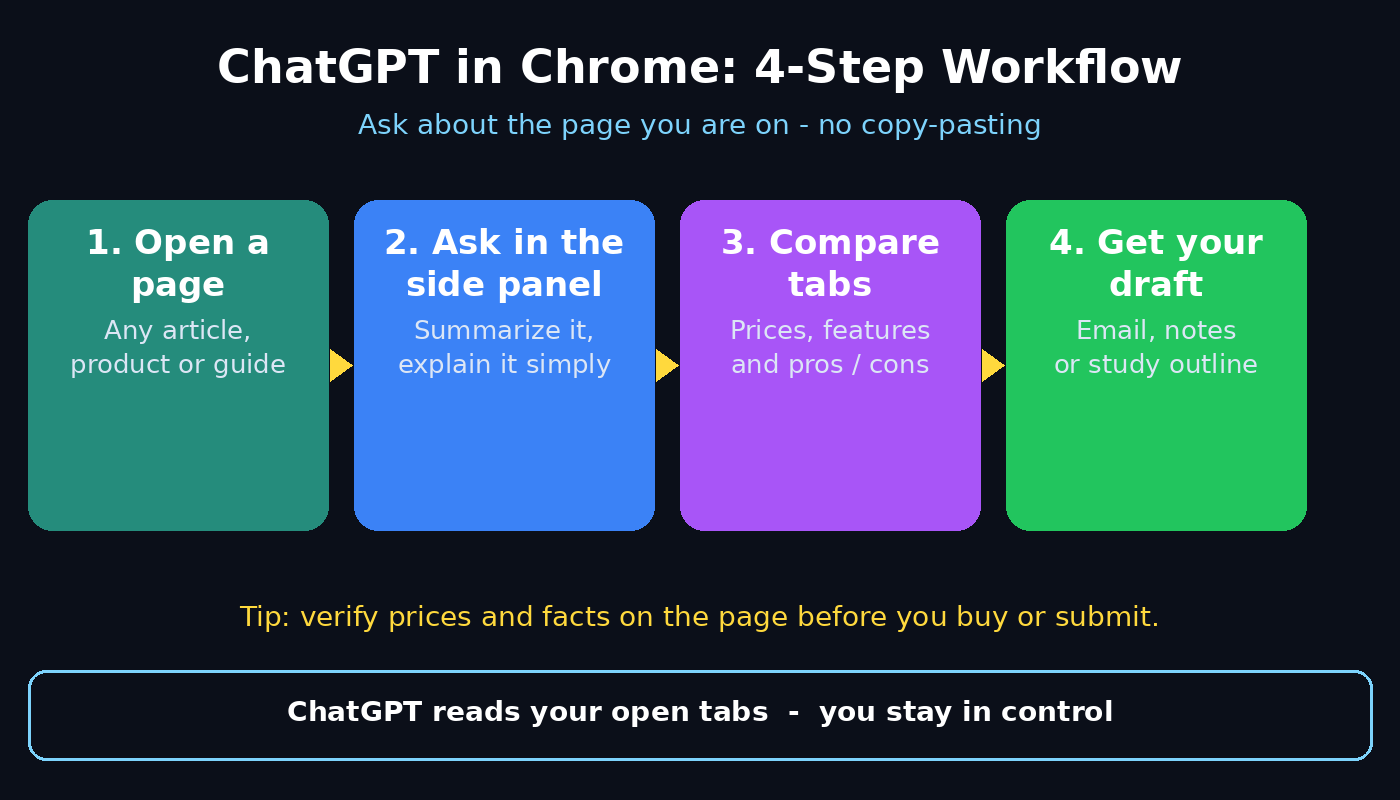
This is where ChatGPT in Chrome earns its keep. Comparing things across tabs by hand is slow and error-prone. Letting ChatGPT read all of them at once is fast, and it is the feature beginners underuse most.
Open the pages you want to compare in separate tabs. For example, three laptops, three courses, or three job adverts.
Open the ChatGPT side panel.
Mention the tabs clearly, for example: "Compare the three laptop tabs I have open by price, battery life, weight, and warranty."
Ask a follow-up to narrow it down: "Which one is best for a student on a tight budget, and why?"
A few practical tips make comparisons much better:
- Keep the tabs tidy. Close unrelated tabs first so ChatGPT compares the right pages.
- Name what matters. If battery life matters more than weight, say so. ChatGPT will weight its answer accordingly.
- Ask for a table. "Put the comparison in a table" turns a wall of text into something you can scan in seconds.
- Verify the deciding detail. If one price or date decides your choice, click through to that page and check it yourself before you buy or apply.
Shopping is the classic example, but the same trick works for research papers, rental listings, university courses, and software plans. Any time you catch yourself flipping between tabs and taking notes, that is a job for a tab comparison.
Step 5: Research Faster Without Losing the Sources
ChatGPT in Chrome is a research accelerator, not a research replacement. Used well, it helps you find the signal in a long page, a stack of tabs, or a dense report. Used badly, it helps you confidently quote something nobody actually said.
Here is a reliable research workflow for beginners:
Start with a question, not a keyword. Write one sentence: "I want to know whether solar panels save money for a small home in a cloudy climate."
Open three to five solid sources. Prefer official pages, reputable publishers, and primary sources over random blogs.
Ask ChatGPT to summarize each source separately first. This stops it blending five pages into one blurry answer.
Then ask for the synthesis. "Across these tabs, where do the sources agree, where do they disagree, and what is still uncertain?"
Keep the links. Ask ChatGPT to cite which tab each claim came from, and save the pages that matter.
This workflow also protects you from one of the most common beginner mistakes: treating an AI summary as a source. The page is the source. The summary is a map of the source. When something matters, for an essay, a purchase, or a work decision, always check the map against the territory.
If you run a business or create content, this same workflow scales nicely. For example, when you are researching how agencies package AI services, reading how a professional describes its work can show you what clients actually pay for, and when you are exploring how AI agents are sold as services, browsing specialist helps you compare positioning before you write a single word of your own.
Step 6: Draft, Rewrite, and Polish Without Leaving the Page
Once you have gathered information, ChatGPT in Chrome can help you turn it into something finished: an email, a social post, a study note, or a first draft.
Try prompts like these:
- "Draft a polite email to my manager based on this page, asking for approval, in under 150 words."
- "Rewrite this paragraph in a friendlier tone, keeping all the facts the same."
- "Turn these notes into a study outline with headings and three quiz questions per section."
- "Write a short social media caption about this article, with a hook in the first line."
Two rules keep this step honest and effective. First, always edit the draft yourself. AI drafts are starting points, and your voice, your facts, and your judgment are what make them good. Second, never paste private information into a prompt: no passwords, no account numbers, no private messages, and no confidential work documents. If a draft needs a private detail, add it yourself after ChatGPT has done the writing.
For writers and students, one more habit pays off: ask ChatGPT to explain its changes. "Why did you change this sentence?" turns every rewrite into a small writing lesson, and over weeks that feedback improves your own drafting more than any single perfect paragraph will.
Step 7: Study, Learn, and Prepare with Open Tabs
Students get some of the biggest wins from ChatGPT in Chrome, because studying is mostly reading, comparing, and testing yourself, and all three happen in tabs.
- Explain a hard page. Open a textbook chapter, a tutorial, or a lecture page, and ask: "Explain this like I am a beginner, with one everyday example per idea."
- Quiz yourself. After reading, ask: "Quiz me on this page with five questions, one at a time, and do not show the answers yet."
- Build a revision sheet. Ask for a one-page summary with definitions, examples, and common mistakes.
- Compare explanations. Open two tutorials on the same topic and ask which one explains the tricky part more clearly, and why.
Teachers and trainers can use the same pattern in reverse: open your own lesson page and ask ChatGPT where a beginner would get stuck, then fix those spots before you publish. That single check catches confusing jumps, missing definitions, and unexplained jargon surprisingly well.
Step 8: Use Agent-Style Help Carefully
Some ChatGPT in Chrome setups go further than answering questions: with your permission, ChatGPT can take steps in the browser, such as filling in a form, gathering details across pages, or working through a multi-step task while you watch. This is powerful, and it is exactly where beginners should slow down.
Follow these safety rules every time:
- Stay in the loop. Watch what it does, and never let it act while you are away from the computer.
- Never hand over logins. Type passwords and verification codes yourself, in the browser, never in the chat.
- Approve anything real. Before it books, buys, sends, or submits anything, review every detail yourself.
- Keep it to low-stakes tasks first. Research and drafting are great starting points. Purchases and account changes are not.
- Know how to stop it. Learn the stop button before you need it, and use it the moment something looks wrong.
Think of agent-style help like a very keen intern: brilliant at gathering and drafting, but not someone you leave alone with your wallet or your inbox. With that boundary in place, it saves real time. Without it, it creates real risk.
Step 9: Manage Privacy, Memory, and Permissions
Because ChatGPT in Chrome works with your open tabs, it is worth spending five minutes on privacy before you build a daily habit around it.
- Check what it can see. Review the extension permissions in Chrome and the settings inside ChatGPT, and turn off anything you do not need, such as access to tabs you never want analyzed.
- Close tabs you do not want included. If a tab is open, assume it may be part of the context. Close banking, email, and private documents before asking broad questions like "summarize all my tabs."
- Use memory deliberately. If ChatGPT offers to remember preferences, only let it remember things you are happy for it to keep, such as your writing tone or your field of study.
- Sign out on shared computers. On any computer that is not yours, sign out of both Chrome and ChatGPT when you finish.
- Read the privacy notice for your plan. Free and paid plans can differ, and the details change over time, so check the current page rather than relying on an old article, including this one.
None of this is meant to scare you off. It is the same common sense you already use with any browser tool: share what helps, withhold what is private, and review the settings once in a while.
Step 10: Build a Daily Habit That Actually Sticks
Tools fail when they are impressive once and forgotten by Friday. ChatGPT in Chrome sticks when it replaces a specific annoyance in your day.
Pick one daily job for your first week:
- Morning research: summarize the three articles you need to read before work.
- Inbox triage: draft replies based on the pages and documents you already have open.
- Learning: explain one hard page per day in simple words, and save the explanation.
- Shopping or planning: compare options across tabs before every purchase or booking.
After a week, add a second job. Keep a small list of prompts that worked well for you, and reuse them. Most experienced users do not have cleverer prompts than beginners; they just have a tested set they reach for without thinking.
If you hit a limit, such as a capped feature or a slow answer, remember that free tiers are designed for learning, not for unlimited heavy use. A short break, a clearer prompt, or fewer tabs at once usually fixes more than upgrading on day one.
ChatGPT in Chrome vs the Alternatives
| Feature | ChatGPT in Chrome | ChatGPT website only | Regular Chrome without AI |
|---|---|---|---|
| Ask about the page you are reading | Yes, with tab context | Only if you paste or describe it | No |
| Compare several open tabs | Yes | No, unless you paste each one | Manual, tab by tab |
| Draft from page content | Yes, in the side panel | Yes, but needs copy-paste | No |
| Take browser actions for you | Sometimes, with permission | No | No |
| Works without an account | No, sign-in required | No, sign-in required | Yes |
| Best for | Research, comparison, drafting | General questions and writing | Private browsing, simple tasks |
| Cost to start | Free with a ChatGPT account | Free with a ChatGPT account | Free |
The honest summary: if your work lives in tabs, ChatGPT in Chrome is the fastest of the three. If you only ask occasional general questions, the normal ChatGPT website is enough. And if you are doing something private, plain Chrome with no AI involved is still the right choice.
Frequently Asked Questions
Is ChatGPT in Chrome really free?
Yes, you can start for free with a free ChatGPT account, using the official extension and the side-panel features covered in this guide. Some advanced capabilities, higher limits, or newer models may sit behind paid plans, and availability can vary by region and rollout, so check the current extension listing and your account page for what your plan includes.
Do I need the ChatGPT desktop app as well?
Not for the basic side-panel experience, which works through the Chrome extension. Some deeper browser-control features are tied to the desktop app on supported setups. Start with the extension alone, and only add the desktop app if you want a feature that specifically asks for it.
Can ChatGPT in Chrome see all my tabs and history?
It works with the tabs and pages you point it at, within the permissions you grant the extension. It does not need your entire history to summarize one article. To stay safe, close private tabs before broad questions, review extension permissions, and never ask it to work across banking, email, or other sensitive tabs.
Can it fill in forms, book things, or buy things for me?
Some setups can help with multi-step browser tasks when you explicitly allow it and supervise it. Treat purchases, bookings, and submissions as things you approve step by step, never as things to leave running alone. Always review prices, dates, and details yourself before anything is confirmed.
What should I do if a feature from this guide is missing?
First, update Chrome and the extension, then sign out and back in. If the feature is still missing, it is most likely rolling out gradually or limited to certain plans or regions. Try the core features that are available, such as summarizing a page and comparing tabs, and check again after a few days rather than installing unofficial lookalike extensions.
Is my data used to train AI models?
That depends on your plan, your settings, and the current policy for your account, which can change over time. Check the privacy and data controls inside your ChatGPT settings before you share anything sensitive, and keep private documents, passwords, and personal data out of prompts as a habit.
Final Thoughts
ChatGPT in Chrome turns the browser from a place where you find information into a place where you work with information. You can read a page and question it in the same window, compare a handful of tabs without losing track, and turn what you learn into a draft worth sending.
Start small: install the official extension, summarize one article today, and compare two tabs tomorrow. Keep the safety habits from Steps 8 and 9, verify anything that matters, and let the habit grow one daily job at a time. The users who get the most from this tool are not the ones with the fanciest prompts. They are the ones who use it every day, on real work, with their eyes open.
Explore More Free AI Tools
Want to keep building your free AI toolkit? Try the AI Title Generator, Meta Description Generator, AI Rewriter, and Keyword Density Checker at . Each one is free, works in your browser, and pairs perfectly with the research and drafting workflow in this guide, so your next article, post, or assignment starts stronger.