

OpenAI has just changed what it means to “use” ChatGPT. Instead of asking a question, getting an answer, and starting over every time, you can now hand a whole job to an AI agent and walk away while it keeps working. That agent is called a Dot. In this beginner guide, you will learn exactly how to use OpenAI Dots AI: what it is, who can access it, how to create your first Dot, how to connect your apps safely, and how to avoid the mistakes that trip up first-time users.
Here is the timing that makes this guide urgent. OpenAI announced Dots at its DevDay event on September 29, 2026, and from October 26, 2026, it stopped accepting new Custom GPTs — the custom chatbots millions of people built over the last two years. Dots are the replacement, and they work very differently. A Custom GPT waited for you to talk to it. A Dot keeps working after you leave. If you learn the new way of working now, you will be ahead of almost everyone else still treating AI like a chatbot.
The good news is that you do not need coding skills, a developer account, or any technical background to use Dots. If you can write a clear instruction in plain English and use ChatGPT, Slack, or Microsoft Teams, you can delegate work to a Dot today. This guide walks you through every step, slowly and in order, so your first Dot actually finishes a useful job instead of wandering off in the wrong direction.
Step 1: Understand What OpenAI Dots Actually Is
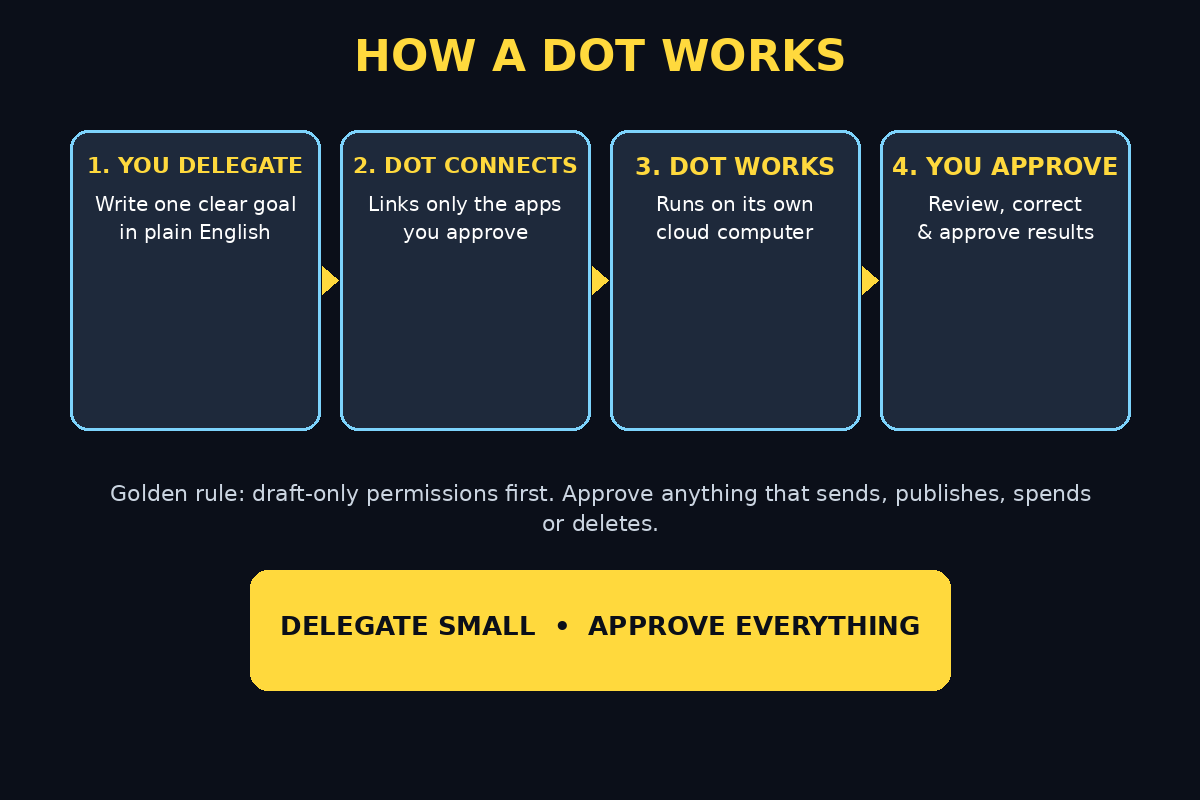
A Dot is an always-on AI agent that runs on its own cloud computer. Think of it less like a chatbot and more like a very capable junior assistant who never sleeps, never gets bored, and never forgets what you asked. You give it a goal — for example, “prepare my weekly sales summary every Friday” — and it works toward that goal on its own, using the apps and information you allow it to touch.
Each Dot is powered by GPT-6 Astra, OpenAI’s flagship model family, and it can connect to more than 4,000 apps within boundaries you set. That connection range is what makes Dots different from a normal ChatGPT conversation. A normal chat can draft an email for you. A Dot can draft the email, check your calendar, pull the numbers from a spreadsheet, and send a summary to your team — without you sitting there driving every click.
You reach your Dots through ChatGPT, Slack, or Microsoft Teams, so you do not have to learn a brand-new app. You talk to a Dot the same way you would message a colleague: in plain language, in a chat window you already know. The difference is what happens after you send the message. The Dot does not just reply. It goes and does the work.
- Always-on: a Dot keeps working in the background, even when you close the app or walk away from your computer.
- Delegated, not conversational: you hand over an outcome, not a single question.
- App-connected: with your permission, it can work across more than 4,000 apps.
- Bounded: you decide what it can access and what it must never touch.
Step 2: Check Whether You Can Access Dots
Before you try to create a Dot, check your access, because availability depends on your plan and on how OpenAI is rolling the feature out. Dots were announced for ChatGPT users, with access through ChatGPT, Slack, and Teams. Rollouts like this often reach paid plans first and expand gradually, so if you do not see Dots yet, that does not mean you did something wrong.
Start by opening ChatGPT on the web or in the app and signing in with your usual account. Look for a Dots section, agent option, or new entry point in the sidebar or main menu. If it is not there, update the app to the latest version and check again. OpenAI’s rollout announcements and help pages are the best place to confirm current availability for your plan and region, because the details change as the rollout widens.
If you are on a free plan and Dots are not available to you yet, you can still prepare. Write down the three most repetitive jobs in your week — the ones you do the same way every time. Those are your first Dot candidates, and you will be ready to delegate them the moment access appears. If you run a small business, this preparation matters even more: the businesses that benefit first from agents are the ones that already know which tasks eat their time. A digital agency can also help you map those repetitive workflows before you hand them to an agent, so your first Dot starts on a job that actually saves hours.
Step 3: Open ChatGPT and Find Dots in OpenAI Dots AI
Once Dots are available on your account, open ChatGPT and look for the Dots area. This is your control room. From here you can see your existing Dots, create a new one, and check what each Dot is working on. Spend two minutes just looking around before you create anything. Notice where active tasks appear, where completed work lands, and where settings live.
This quick look matters because Dots behave differently from chats. A chat history is a record of a conversation. A Dot’s workspace is a record of work in progress: tasks running, tasks finished, and tasks waiting for your approval. Getting comfortable with that view now will save you confusion later, when a Dot is juggling several jobs at once and you want to know exactly where each one stands.
Step 4: Create Your First Dot
Now create your first Dot — and keep it deliberately small. Your first Dot should do one simple, low-risk job, not run your whole business. Good first jobs include summarizing a document, organizing notes from a meeting, drafting a weekly update from a template, or tracking a list of links and reporting back with a summary.
When you create the Dot, give it a clear name that says what it does, such as “Weekly Report Dot” or “Meeting Notes Dot.” A clear name sounds trivial, but it becomes essential later when you have five or ten Dots and need to tell them apart at a glance. Then write its job description in plain language, as if you were briefing a new team member on their first day.
- Name the Dot after its job, not after the tool it uses.
- Write one sentence saying what success looks like.
- List the exact sources it should use, and nothing else.
- State how often it should run: once, daily, weekly, or whenever you ask.
For example, instead of writing “help me with reports,” write: “Every Friday at 4 pm, read the sales notes I add to our shared document, turn them into a one-page weekly summary using last week’s format, and send the draft to me for approval before sharing it with anyone.” The second version leaves almost nothing to guesswork, and that is exactly what a new Dot needs.
Step 5: Set Boundaries and Permissions Before Anything Else
This is the most important step in the whole guide, so do not skip it. A Dot is powerful precisely because it can act across apps — which means the boundaries you set are the safety system. Before your Dot touches any real data, decide three things: what it can read, what it can change, and what it must always ask you about first.
A safe beginner rule is simple: let your first Dot read and draft, but never send, publish, spend, or delete without your approval. Drafting is easy to check and easy to fix. Sending is hard to undo. As you learn how a Dot behaves, you can widen its permissions one step at a time, job by job. Teams that follow how AI agents are changing work often stress this same point — for a broader view of the agent landscape, see coverage from AI automation services and agent-industry news, which tracks how always-on agents are being used across businesses.
Be especially careful with money, private messages, and anything that affects other people. A Dot should never move funds, message a client, or change a shared document on its own until you have watched it do the same job correctly several times with your approval step in place. OpenAI’s own system-card disclosure is a useful warning here: when Dots handle long chains of related tasks, the rate of permission slips rises — in one test, nearly one in five extended task chains produced a meaningful error, such as carrying context into an unrelated task or editing a document that was never targeted. That is not a reason to avoid Dots. It is the reason to keep approvals switched on while you learn.
Step 6: Give Your First Delegated Task with OpenAI Dots AI
With boundaries set, give your Dot its first real task. Write the task the way you would brief a person: goal first, then context, then constraints, then what “done” looks like. Avoid vague verbs. “Look into marketing” is vague. “Find three recent articles about email marketing for small shops, summarize each in two sentences, and list the source link under each summary” is a task a Dot can actually finish.
Include the details a human would need: where the information lives, what format you want the result in, and what to do if something is missing. A good habit is to end every task with an instruction for the unknown case, such as: “If a source is missing, say so clearly instead of guessing.” That one sentence prevents a whole category of AI mistakes, because it tells the Dot that admitting a gap is better than inventing an answer.
Then send the task and resist the urge to micromanage it. The point of a Dot is that it works while you do something else. Check in once after a reasonable interval, review what it produced, and note what was good and what needs correcting. That review is how your Dot gets better — your corrections teach it your standards.
Step 7: Connect Your Apps — One at a Time in OpenAI Dots AI
Dots connect to more than 4,000 apps, but you should not connect them all at once. Connect one app for one job, test that job, and only then add the next app. Each connection is a door you are opening for the Dot, and you want to know exactly which doors are open.
Start with the app your first job actually needs. If your Dot summarizes documents, connect your document app. If it prepares a team update, connect the chat app your team uses, such as Slack or Teams. When you connect an app, check what level of access you are granting — read-only is safer than read-and-write — and revoke any connection you are not actively using.
Keep a simple list of your connections: which app, which Dot uses it, and what it is allowed to do there. This list takes two minutes to write and saves real trouble later, especially if a Dot ever behaves unexpectedly and you need to narrow down where it could have acted.
Step 8: Let It Work While You Walk Away
This step feels strange the first time, and that is normal. After years of chatbots that only respond while you watch, letting an agent work unsupervised feels like leaving the office with a new hire alone at your desk. Start small to build trust: give the Dot a task that takes fifteen to thirty minutes, go and do another job, and come back to review the result.
While the Dot works, it runs on its own cloud computer, so closing ChatGPT or turning off your own device does not stop it. When you return, check the Dot’s workspace for its progress and its output. Read the result properly — not just the headline, but the details — because your review is the quality control. Over time, as a Dot proves itself on small jobs, you can trust it with longer and more valuable ones.
One practical tip: schedule your Dot’s recurring jobs for times when you are free to review them soon after. A Friday report that lands while you are still at your desk is far more useful than one that lands on Sunday night, because you can correct it while the week is still fresh in your mind.
Step 9: Review, Correct, and Approve Results in OpenAI Dots AI
Reviewing is not optional with Dots — it is the job. Every output deserves a check before it goes anywhere else, and your corrections are what turn a generic agent into your agent. When you review, check three things in order: facts, scope, and tone.
- Facts: Are the numbers, names, dates, and claims correct? Open at least one source and verify it.
- Scope: Did the Dot do what you asked — no more, no less? Watch for extra edits to files you never mentioned.
- Tone: Does it sound like you and fit the audience? A client update and an internal note should not read the same way.
When something is wrong, say exactly what was wrong and what the right version looks like. “This is wrong” teaches nothing. “You used last month’s figures — the correct source is the October sheet, second tab” teaches the Dot something it can use next time. Keep approvals switched on for anything that leaves your computer: messages, posts, shared documents, and anything a client or colleague will see.
Step 10: Manage Multiple Dots Without Chaos in OpenAI Dots AI
Once your first Dot works well, you will want more — and this is where beginners usually create a mess. The rule is one Dot per job, with a clear name and a clear owner. Do not build one giant Dot that does “everything,” because when it makes a mistake you will not know which part of the job went wrong, and when you change one instruction you may accidentally break another job.
A tidy starter set looks like this: one Dot for reports, one for research summaries, one for meeting notes, and one for tracking a topic you follow. Each has its own apps, its own schedule, and its own approval setting. Once a month, spend ten minutes reviewing the set: pause Dots you no longer use, tighten permissions on Dots you now trust, and delete experiments that never worked. A small, well-kept team of Dots beats a large, forgotten one every time.
Step 11: What to Do When a Dot Makes a Mistake in OpenAI Dots AI
Every Dot will make a mistake eventually, so plan for it instead of being surprised by it. When it happens, pause the Dot first, then investigate: what did it do, which app did it touch, and which instruction led it there? In many cases the cause is a vague instruction or a permission that was wider than the job needed, and both are easy to fix.
Fix the instruction, narrow the permission, and re-run the job on a small test before trusting the Dot with the real thing again. If a Dot edited the wrong document or contacted the wrong person, correct that output directly and tell the people affected honestly — a quick, clear correction protects far more trust than hoping nobody notices. And keep a short log of mistakes and fixes. Patterns in that log tell you which jobs are safe to automate further and which ones still need a human in the loop.
Step 12: Move On From Custom GPTs
If you built Custom GPTs, here is your migration path. From October 26, 2026, OpenAI no longer accepts new Custom GPTs, so the old way of building a specialized chatbot is closed to newcomers. Your existing Custom GPTs and their instructions are a useful starting point, not a waste: the prompts, knowledge, and workflows you built for them describe exactly what a Dot should do.
Pick your most-used Custom GPT and rebuild it as a Dot, but rebuild it as a job, not as a chat. Instead of “a GPT that answers questions about my shop,” define “a Dot that every Monday drafts the shop update from last week’s notes and sends me the draft for approval.” Add the app connections the job needs, set the approval rule, and test it on a small task. Repeat for your next most-used GPT. Within a few weeks, your old chatbot collection becomes a small team of agents that do work instead of waiting for questions.
OpenAI Dots vs the Alternatives
| Feature | OpenAI Dots | Custom GPTs | Normal ChatGPT Chat |
|---|---|---|---|
| Keeps working after you leave | Yes — always-on | No — waits for you | No — one conversation |
| Connects to your apps | Yes — 4,000+ apps | Limited | Limited |
| Best for | Delegated, recurring jobs | Specialized Q&A | Quick questions and drafts |
| New ones can be created | Yes | No — closed Oct 26, 2026 | Always available |
| Needs approval control | Yes — essential | Low risk | Low risk |
| Skill level needed | Beginner-friendly | Beginner-friendly | Beginner-friendly |
The honest summary is this: Dots do not replace normal ChatGPT. Quick questions still belong in a chat. Dots replace the repetitive, multi-step jobs you used to do by hand — and the Custom GPTs that could only answer, never act.
Frequently Asked Questions About OpenAI Dots AI
What is OpenAI Dots AI in simple words?
OpenAI Dots AI is a family of always-on AI agents announced at OpenAI’s DevDay on September 29, 2026. Each Dot runs on its own cloud computer, connects to apps you approve, and keeps working on delegated jobs after you walk away — unlike a chatbot that only replies while you are talking to it.
Is OpenAI Dots AI free?
Access depends on your ChatGPT plan and on OpenAI’s rollout, which may reach paid plans first. Check the Dots section in your ChatGPT account for your current availability, and start with one small job so you learn the system before it touches important work.
How is a Dot different from a Custom GPT?
A Custom GPT was a specialized chatbot that waited for your questions. A Dot is an agent that takes a whole job and does it across your apps, in the background. OpenAI stopped accepting new Custom GPTs on October 26, 2026, and Dots are the replacement for people who want work done, not just answers.
Can a Dot really work while I am away?
Yes. Each Dot runs on its own cloud computer, so closing ChatGPT or switching off your device does not stop it. You return later to review its finished work, correct anything that needs fixing, and approve anything that should go to someone else.
Is it safe to let a Dot access my apps?
It is safe when you set boundaries: connect one app at a time, prefer read-only or draft-only permissions at first, and keep approval switched on for anything that sends, publishes, spends, or deletes. Long task chains carry a higher error rate, so approvals are your safety net while you learn.
What should my first Dot do?
Pick one small, repeatable, low-risk job: a weekly summary from a template, meeting-note organization, or a research roundup with source links. A small first win teaches you how Dots behave and gives you a success to build on.
Final Thoughts
OpenAI Dots AI marks a real shift: from asking AI questions to delegating AI jobs. The beginners who benefit most will not be the ones who build the most Dots the fastest. They will be the ones who start with one small job, set clear boundaries, review carefully, and grow their team of agents one proven job at a time. That is the whole method in one sentence: delegate small, approve everything, and widen trust only when it is earned.
Your action plan for today is simple. Check whether Dots are available in your ChatGPT account. Write down your three most repetitive weekly jobs. Build one Dot for the smallest of them, with draft-only permissions and your approval switched on. Let it run, review it honestly, and fix what needs fixing. Do that, and you will have done more than most people who read about AI agents this week — you will actually have one working for you.
Explore More Free AI Tools
Want to keep building your AI toolkit? Try the AI Title Generator, Meta Description Generator, AI Rewriter, and Keyword Density Checker — all free on AIToolSteps, and all built to make the kind of content work your Dots will soon be helping you with even faster.