

Most AI chatbots answer questions. GPT-6.1 Terra AI does something different: it can look at a screen, understand what is on it, and then actually do the boring computer work for you — clicking buttons, filling in forms, and working through multi-step tasks in apps and browsers. OpenAI launched GPT-6.1 Terra on October 26, 2026, as a new mid-tier model built for visual reasoning and computer use, replacing the earlier GPT-5.6 Terra. It is not OpenAI’s smartest model, and it does not try to be. Its job is to be fast, affordable, and good enough to handle the repetitive on-screen work that eats up real workdays.
In this beginner guide, you will learn how to use GPT-6.1 Terra AI from scratch: what computer use really means, where you can try Terra today, how to give it a task it can actually complete, how to keep it safe with approvals and checks, and how it compares with its siblings in the GPT-6.1 family. You do not need coding skills to follow along — the ChatGPT route needs none at all — and by the end you will know exactly when Terra is the right tool and when a bigger, smarter model is worth the extra cost.
Step 1: Understand What GPT-6.1 Terra AI Actually Is
GPT-6.1 Terra is part of OpenAI’s GPT-6.1 model family, and its specialty is working with computers the way a person does: by seeing the screen. Older chat models mostly worked with text you typed or pasted. Terra adds strong visual reasoning, which means it can read a screenshot, understand buttons, menus, forms, and layouts, and then decide what to click or type next. That combination — seeing plus acting — is what the industry calls “computer use” or an “agentic” workflow.
Think of it this way. A normal chatbot is like a brilliant colleague who can only talk to you. Terra is like a capable assistant who can also sit at the keyboard and do the task while you watch. It is designed for practical jobs: gathering information from several web pages, filling out a spreadsheet, booking-style form workflows, testing a website’s buttons, and grinding through repetitive admin tasks. According to OpenAI’s launch coverage, Terra is priced at around $1 per million input tokens through the API, which positions it as the affordable workhorse of the family rather than the flagship thinker.
That positioning matters for beginners. You would not ask Terra to write your company’s strategy document or solve a hard research problem — that is what the larger models are for. You ask Terra to do the fifty small clicks you were about to do yourself. Keeping that distinction in mind will save you both money and frustration.
Step 2: Choose Where to Try Terra First
Terra is not a separate app you download. You reach it through OpenAI’s existing products, and for a beginner the choice comes down to three doors:
- ChatGPT Work: the easiest door. If you already use ChatGPT, Terra’s computer-use abilities appear in the Work-style experience, where it can operate in a controlled browser or workspace on your behalf. Start here if you never want to see code.
- Codex: OpenAI’s coding agent environment. Choose this if your tasks live in code repositories — for example, running a website’s test suite or fixing a small bug across several files.
- The API: for builders. If you (or a developer helping you) want to put Terra inside your own app or automation, the API is the route. This needs a paid OpenAI account and some code, so beginners should treat it as step two, not step one.
For this guide, follow the ChatGPT route. Everything you learn there — writing clear task instructions, checking results, and setting approvals — transfers directly if you later move to Codex or the API. Do not sign up for all three at once; pick one, learn the pattern, and expand later.
Step 3: Set Up Your Access in Five Minutes
Setting up is deliberately boring, which is good news. Open ChatGPT in your browser and sign in with your existing OpenAI account, or create a free one if you do not have one yet. Then look for the Work experience or the model picker, depending on how OpenAI surfaces Terra in your region and plan — model availability can vary by plan, so if you cannot see it yet, check OpenAI’s model list or help pages for the current rollout status.
If you plan to try the API later, the setup is a little different: create an account at OpenAI’s developer platform, generate an API key, and keep that key private — never paste it into a chat message, a screenshot, or a shared document. API use is billed by tokens, so set a small spending limit on your first day. A limit of a few dollars is plenty for learning, and it removes the fear of a surprise bill while you experiment.
- Use a desktop or laptop browser for your first computer-use tasks — the bigger screen makes it easier to watch what Terra does.
- Keep your login and API key private, and never share screenshots that show them.
- Set a small API spending limit before your first test if you use the API route.
- If Terra is not visible in your account yet, wait for the rollout rather than trusting lookalike apps with the same name.
Step 4: Give Terra Its First Simple Task
Start small — much smaller than you think. A good first task is something you could do yourself in two minutes but that has several steps, for example: “Open this public web page, find the pricing table, and list the three plans with their monthly prices in a short summary.” This is the perfect first test because it uses Terra’s two core skills, seeing and reading, without asking it to change anything important.
Watch the whole run. You will see Terra take screenshots, reason about what is on screen, and take actions one at a time. Resist the urge to multitask away from the screen during your first few tasks. Watching teaches you how Terra thinks: where it hesitates, what it clicks first, and how it recovers when a page looks different from what it expected. That observation is the fastest way to become good at instructing it.
When the task finishes, check the result yourself before using it. Compare the three prices against the page, and confirm nothing was invented. Terra is fast, but speed is only useful when the answer is right — and a 30-second check on your first tasks builds the habit that keeps all later tasks trustworthy.
Step 5: Write Task Instructions Terra Can Actually Follow
The single biggest skill in using GPT-6.1 Terra AI is writing instructions the model can follow without guessing. Vague instructions produce vague results. Compare these two versions of the same task:
- Vague: “Sort out my spreadsheet.”
- Clear: “Open the file called October expenses, add a total row at the bottom of the Amount column, and save it with the same name. Do not change any other values. When you are done, show me the total and the file name.”
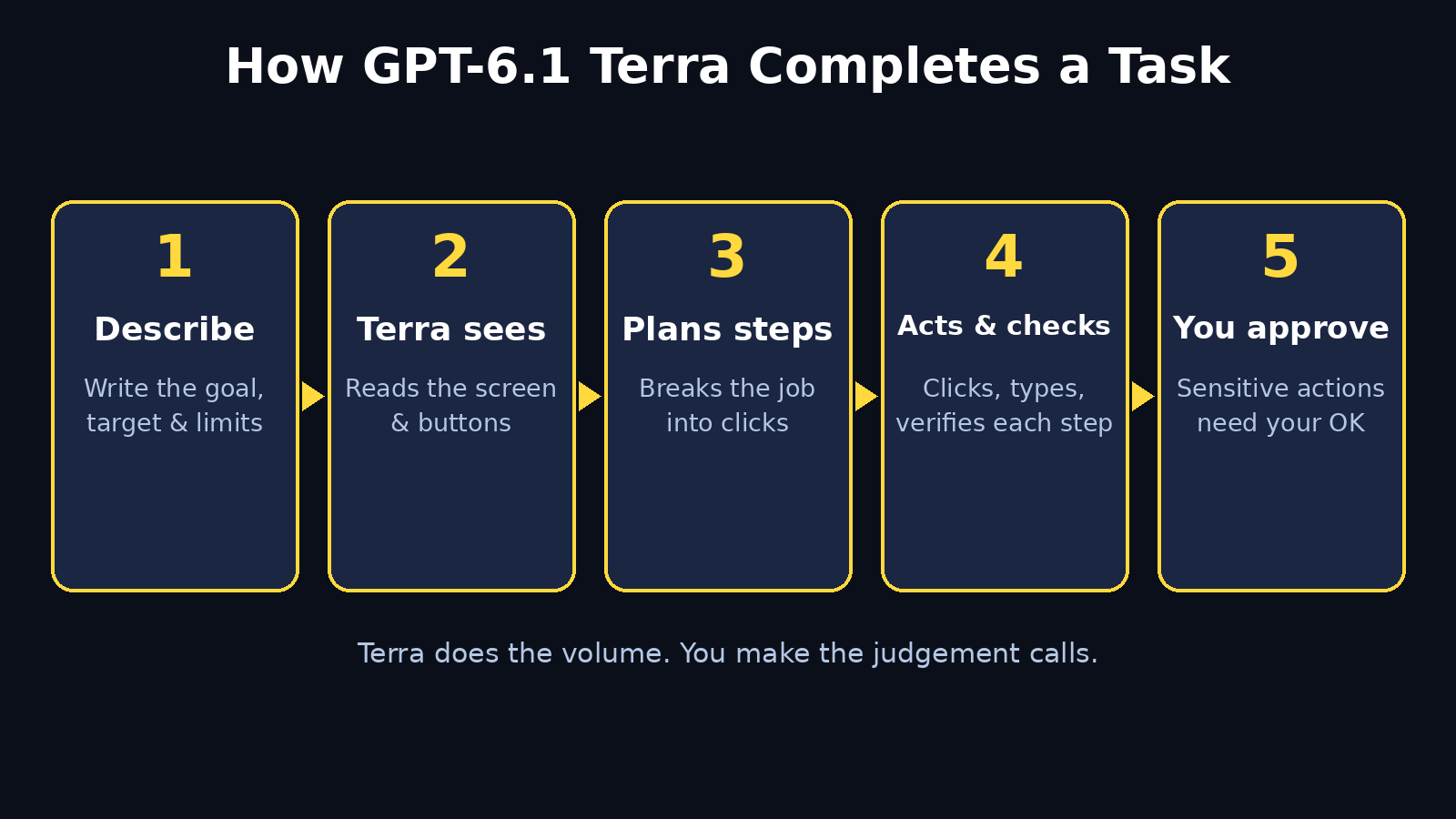
The clear version works because it names four things every good Terra instruction should include: the goal (what done looks like), the target (which file or page), the limits (what not to touch), and the report (what to tell you at the end). Use that four-part structure — goal, target, limits, report — for every task you give Terra, and your success rate will jump immediately.
One more rule: one task at a time. Beginners often cram five jobs into one giant instruction, and then cannot tell which part failed. Split big jobs into small, checkable steps instead. Terra handles a chain of small tasks far better than one huge, hopeful one, and you can stop the chain the moment something looks wrong.
Step 6: Use Screenshots and Visual Reasoning Deliberately
Terra’s visual reasoning is its superpower, but it works best when you give it good visual material. If you are asking about a specific page, a dashboard, or an error message, share a clear screenshot of exactly that screen rather than describing it from memory. A screenshot removes ambiguity: Terra can see the button labels, the error text, and the layout instead of guessing from your description.
When you share a screenshot, crop out anything private first — passwords, personal messages, account numbers, and internal company data do not belong in a screenshot you send to any AI tool. Then ask a specific question about what is visible: “What does the highlighted error message say, and which button on this screen would fix it?” is far better than “What is wrong here?” The first question gives Terra a job; the second gives it a riddle.
This visual skill also explains why Terra is useful for testing websites. A team running a digital agency can ask Terra to walk through a client’s signup flow the way a real visitor would, screenshot each step, and report where the flow breaks or confuses. The same trick works for your own site: before you publish a new page, let Terra try to use it and tell you what a first-time visitor would stumble on.
Step 7: Keep a Human in the Loop for Anything Important
Computer use means Terra can take actions, and actions can have consequences — submitting a form, changing a file, or sending a message. The safe pattern for beginners is simple: let Terra do the reading, drafting, and navigating freely, but require your approval before anything that spends money, sends something, deletes something, or changes shared data. In ChatGPT’s Work experience and in API setups, look for the approval or confirmation settings and keep them on for sensitive actions.
Build yourself a short checklist for every task that touches something important:
- Is this action reversible? If not, approve it yourself first.
- Does it spend money or contact another person? Approve it yourself first.
- Would I be embarrassed if this went to the wrong place? Check the recipient and the content before approving.
- Did Terra show me exactly what it is about to do? If not, ask it to show you before it acts.
This is not distrust of the tool — it is the normal way professionals use any assistant with real permissions. The goal is a partnership: Terra does the volume, you make the judgment calls. Teams building AI automation services use exactly this pattern at scale, with agents handling routine steps and humans approving the decisions that matter.
Step 8: Chain Small Tasks Into a Useful Workflow
Once single tasks feel reliable, you can chain them into a workflow. A good beginner workflow is a weekly research roundup: Terra visits three public sources you name, extracts the same three facts from each (title, date, and one-sentence summary), and compiles them into one short document for you to review. Each step is small and checkable, and the whole chain saves you an hour of tab-hopping every week.
Another practical workflow is form and data cleanup: Terra opens a spreadsheet, checks a column for obvious errors such as missing values or wrong formats, lists the problems it found, and only fixes them after you approve the list. Notice the pattern again — Terra proposes, you approve, Terra executes. That pattern scales to much bigger jobs without ever handing the keys to the whole business.
Keep a small notebook of the task instructions that worked well. Reusing a proven instruction is far more reliable than inventing a new one each time, and it is how a one-off experiment becomes a dependable weekly routine. Write down the goal, target, limits, and report for each winning task, and you will have a personal automation playbook within a month.
Step 9: Compare Terra With Sol, Astra, and Other Models
Terra does not live alone. OpenAI’s GPT-6.1 family includes siblings with different jobs, and knowing the difference stops you from paying flagship prices for workhorse tasks — or asking a workhorse to do flagship thinking. The table below summarises the family as described in the October 2026 launch coverage.
| Model | Built for | Best when you need | Beginner verdict |
|---|---|---|---|
| GPT-6.1 Terra | Visual reasoning + computer use | Fast, affordable on-screen tasks | Start here for automation |
| GPT-6.1 Sol | General flagship reasoning | Hard thinking, writing, analysis | Use for the thinking, not the clicking |
| GPT-6.1 Astra | Higher-tier agentic work | Complex multi-step agent jobs | Step up when Terra hits its limits |
| Claude Opus 5.5 | Anthropic flagship reasoning | Long documents, careful analysis | A strong alternative for thinking tasks |
The practical rule is simple: use Terra for doing, and use a flagship model for thinking. If a task is mostly clicks, forms, and screen reading, Terra is the efficient choice. If a task is mostly judgment, strategy, or long-form reasoning, switch to the bigger model and let Terra handle only the mechanical follow-through. Many experienced users split the job exactly this way without thinking about it — and their bills show it.
Step 10: Understand Costs, Limits, and Honest Limitations
Terra’s appeal is value, but value still needs a budget. Through the API, Terra is positioned at roughly $1 per million input tokens, which makes it cheap for routine tasks but not free — long, screenshot-heavy sessions consume more tokens than short text chats, because images cost more to process than words. In ChatGPT, your plan’s usage limits apply instead, so check what your plan includes before running a long batch of tasks. Either way, start with small jobs, watch your usage for a week, and only then scale up.
Terra also has honest limits you should know before you depend on it. It can misread a cluttered or unusual screen, just as a person can. It can get stuck when a website changes its layout mid-task or throws up an unexpected login wall. And it should never be given passwords, payment details, or access to systems you would not trust a new employee with on day one. When a task fails, the fix is usually the same: make the instruction smaller, give a clearer screenshot, and add an explicit stop condition such as “if you reach a login page, stop and tell me.”
Finally, treat launch-week claims with healthy scepticism. Terra launched on October 26, 2026, so independent benchmarks are still thin, and early coverage repeats OpenAI’s own framing. The honest test is your own: run the same small task in Terra and in one alternative, compare accuracy and cost, and keep the one that earns its place. That 15-minute comparison beats any launch article, including this one.
FAQ
Is GPT-6.1 Terra AI free to use?
Not exactly. Access depends on the route: ChatGPT plans include model access under their own limits, while the API is billed per token at roughly $1 per million input tokens. There is no standalone free Terra app, so check your current ChatGPT plan or the API pricing page before starting a big batch of tasks.
What does “computer use” actually mean?
Computer use means the AI can see a screen, understand its buttons and text, and take actions on it — clicking, typing, scrolling, and filling in forms — instead of only answering in text. Terra combines visual reasoning with action-taking, which is what lets it complete multi-step on-screen jobs.
Do I need coding skills to use Terra?
No, not for the ChatGPT route. You write task instructions in plain language, watch Terra work, and approve sensitive actions. Coding is only needed if you build with the API or Codex, and even then the instruction-writing skills from this guide still apply.
How is Terra different from GPT-6.1 Sol?
Sol is the family’s general flagship for reasoning, writing, and analysis, while Terra is the mid-tier specialist for visual reasoning and computer use. Use Sol when the hard part is thinking, and Terra when the hard part is doing fifty small on-screen steps quickly and cheaply.
Is it safe to let Terra click around on my computer?
It is safe when you follow the human-in-the-loop pattern: let Terra read and draft freely, but approve anything that spends money, sends messages, deletes data, or changes shared systems. Never share passwords or payment details in screenshots, and stop the task if it reaches a login page you did not expect.
What should I try first with Terra?
Start with a read-only task: ask Terra to visit a public page, find a pricing table, and summarise it. That single exercise teaches you instruction writing, visual reasoning, and result checking without any risk — and it is the foundation for every workflow that follows.
Final Thoughts
GPT-6.1 Terra AI is exciting not because it is the smartest model of 2026, but because it is the most practical one for everyday work. It takes the boring middle of computer work — the clicking, copying, checking, and form-filling — and hands it to an assistant that is fast, affordable, and good enough for the job. Used with the habits in this guide — clear four-part instructions, one task at a time, screenshots cropped for privacy, and human approval for anything important — Terra can quietly give you back hours every week.
Start today with one small, read-only task. Watch it work, check the result, and keep the instruction that worked. Within a week you will know whether Terra earns a permanent place in your workflow — and you will have the saved time to prove it.
Explore More Free AI Tools
Want more free tools like this one? Try the AI Title Generator, the Meta Description Generator, the AI Rewriter, and the Keyword Density Checker — all free on AIToolSteps, and all built to make everyday content work faster.