

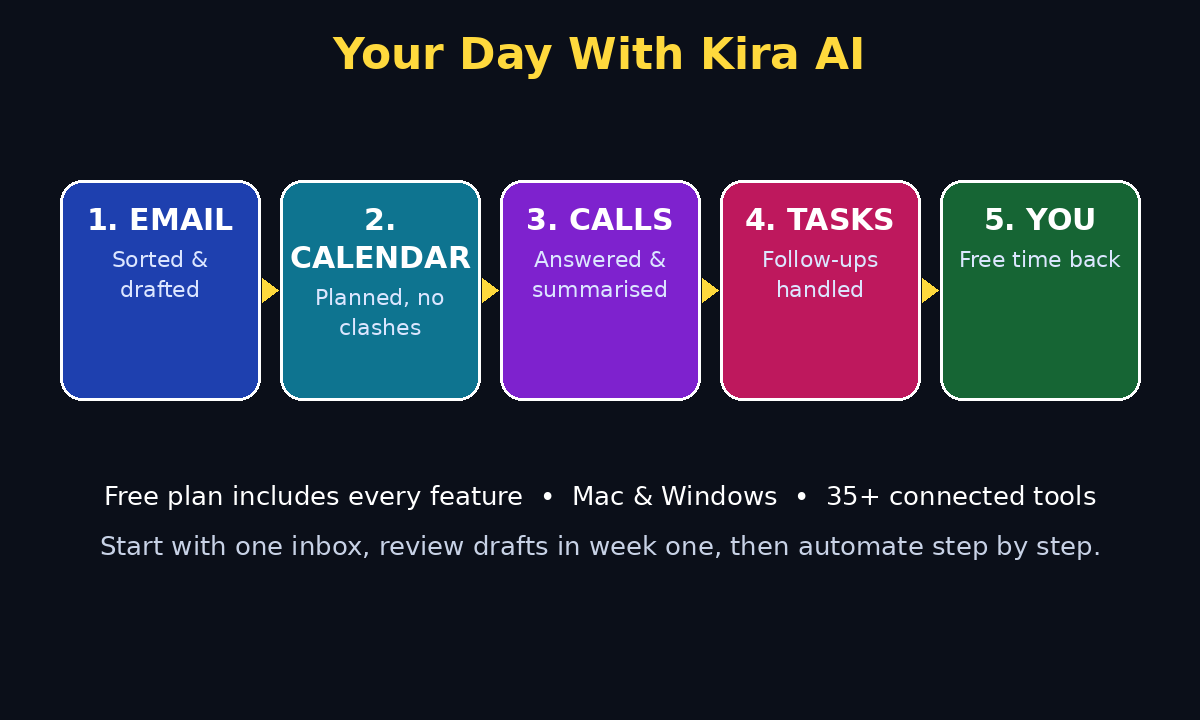
Imagine starting your day and never opening your inbox first. Instead, an AI assistant has already read your emails, sorted the urgent ones from the noise, moved two meetings that clashed, answered a routine call, and left you a short plan for the day. That is the promise of Kira AI, the new “life operating software” that launched on October 13, 2026. This guide shows how to use Kira AI step by step.
Kira AI is not just another chatbot you ask questions. It is built to do things for you. It reads your emails, takes your calls, plans your day, and connects with the apps you already use. The company behind it started in 2024 with an email agent and a smart calendar, added AI call agents and voice commands in 2025, and now ships desktop apps for Mac and Windows with more than 35 built-in tools. Best of all for beginners, the free plan includes every feature, so you can try the full experience without paying anything upfront.
This beginner guide walks you through exactly how to use Kira AI: setting it up, connecting your email and calendar, letting it handle calls and tasks, and building a daily routine that actually saves you time. No technical experience is needed. If you can send an email, you can use Kira.
Step 1: Understand What Kira AI Actually Does
Before you install anything, it helps to know what Kira is for. Most of our working day is not real work. It is chasing replies, moving meetings around, writing the same email five different ways, and answering calls that could have been an email. Kira is designed to eat those boring tasks so you get your hours back.
Here is what Kira AI does in plain language:
- Email agent: It reads your inbox, drafts replies, follows up on threads you forgot, and flags only the messages that truly need you.
- Smart calendar: It plans your day, spots clashes before they happen, and reschedules meetings without a long back-and-forth.
- Call agent: It takes routine calls for you, gathers the details, and leaves you a summary instead of a voicemail you never listen to.
- Voice commands: You can talk to Kira on your computer and ask it to do things, instead of clicking through five apps.
- Connected apps hub: With more than 35 built-in tools, Kira connects your daily apps into one workspace, so information stops living in separate silos.
Think of Kira as a personal chief of staff living inside your computer. You stay in charge of decisions. Kira handles the routine work around those decisions.
Step 2: Create Your Free Kira AI Account
Getting started takes just a few minutes, and the free plan is the right place to begin.
- Open your browser and search for the official Kira AI website. Only sign up from the official site. Copycat pages appear quickly around any popular launch, and they are not worth the risk.
- Click Sign Up and create your account with the email address you actually check every day. This is the address Kira will use for setup messages and summaries.
- Verify your email if Kira asks you to. Check your spam folder if the message does not arrive within a few minutes.
- Choose a strong password, or sign in with a trusted account option if one is offered. Never reuse a password you use for your bank or main email.
- Complete the short onboarding questions honestly. Telling Kira what you do, which apps you use, and what eats your time helps it suggest the right setup instead of a generic one.
Beginner tip: Do not skip onboarding. The two minutes you spend answering those questions save you hours of manual setup later, because Kira can turn on the right agents for your work from day one.
Step 3: Download the Kira AI Desktop App
Kira now ships desktop apps for Mac and Windows, and that is where the full experience lives. The desktop app is where voice commands, call handling, and connected tools come together.
- From your Kira account, find the download option for your computer, Mac or Windows.
- Download and install the app, then sign in with the same account you just created.
- Allow the permissions the app asks for, one by one, and read what each one does. Kira needs access to your email and calendar to help you, but you should understand each permission before you grant it.
- Keep the app running in the background during your first week. Kira learns your routine by watching how your day actually unfolds, and it can only do that while it is on.
If you work mostly on a laptop, pin Kira to your taskbar or dock so you can reach it with one click. The easier it is to open, the more likely you are to actually use it.
Step 4: Connect Your Email to Kira AI the Safe Way
Email is where Kira saves you the most time, but it is also where you should be most careful. Connect one inbox first, learn how Kira handles it, and only then add a second one.
- In Kira, open the email section and choose your email provider.
- Sign in through the official provider login page. Kira should never ask you to type your email password into a plain text box inside the app.
- Start with read and draft permissions if they are offered separately. Let Kira draft replies first, and only allow automatic sending once you trust its drafts.
- Tell Kira which senders matter most to you: your boss, your clients, your family. Those messages should always reach you first.
- Set a daily email window. For example, ask Kira to hold non-urgent mail until 10 am and 4 pm, so your morning is not eaten by your inbox.
For the first week, review every draft Kira writes before it sends anything. You will quickly learn its tone, correct a few phrases, and build trust. After that, you can let it handle routine replies on its own while you approve only the sensitive ones.
Business owners often pair this kind of setup with professional help as they grow. If you are turning a side project into a real operation, a good digital agency can help you turn the time Kira saves into better marketing, a stronger website, and more customers.
Step 5: Let Kira AI Plan Your Calendar
A calendar that only shows meetings is not very useful. Kira’s calendar tries to protect your time, not just record it.
- Connect your calendar the same way you connected email, through the official provider login.
- Add your working hours and your focus hours. Focus hours are the blocks when you do your best work and do not want meetings.
- Let Kira spot clashes. When two meetings overlap, it can suggest new times instead of leaving you to negotiate by email.
- Ask Kira to add buffer time between back-to-back meetings. Fifteen minutes between calls is often the difference between a calm day and a chaotic one.
- Review your tomorrow plan every evening. Kira prepares a short summary of the next day, and a two-minute review the night before prevents most morning surprises.
A simple daily routine: Each morning, open Kira, read its three-line plan, approve any rescheduled meetings, and then close your email until your first focus block ends. That one habit alone can give you back an hour a day.
Step 6: Set Up the Kira AI Call Agent
This is the feature that surprises most beginners. Kira’s call agent can take routine calls, ask the right questions, and leave you a clean summary.
- Turn on the call agent in Kira’s settings and choose which numbers or call types it should answer.
- Write a short greeting script in your own words. For example: “Hi, this is Kira, assistant to [your name]. How can I help today?”
- Decide what the agent may do on a call: take a message, book an appointment, answer a common question, or pass the caller to you.
- Set clear limits. The agent should never agree to payments, contracts, or refunds without your approval.
- After each handled call, read the summary and correct anything it got wrong. Those corrections teach Kira your preferences fast.
Start with low-risk calls: appointment bookings, delivery questions, and routine enquiries. Keep sales calls, complaints, and anything emotional for yourself until you are confident in how the agent sounds and behaves.
Step 7: Use Kira AI Voice Commands to Get Things Done
Typing is slow when you already know what you want. Kira’s voice commands let you speak a task and watch it happen.
Try these beginner commands first:
- “Plan my day for tomorrow.”
- “What emails need my reply today?”
- “Move my 2 pm meeting to Thursday morning.”
- “Summarise my unread emails in three bullet points.”
- “Call back the number from this morning and take a message.”
Speak naturally, one task at a time. If Kira misunderstands you, rephrase the task more simply instead of repeating the same sentence louder. Voice assistants handle short, clear instructions far better than long, complicated ones.
Beginner tip: Keep a sticky note of your five most-used commands for the first week. Once those five feel natural, add five more. You do not need to memorise everything on day one.
Step 8: Connect Your Other Apps to Kira AI
Kira’s hub of more than 35 built-in tools is where the real magic happens, because your information stops living in separate apps.
- Open the connected apps section and connect the tools you use every day first: email, calendar, and task list.
- Add one new tool per day, not ten at once. That way, if something behaves strangely, you know exactly which connection caused it.
- Check what each tool shares with Kira. Turn off any data sharing you do not need.
- Create one simple automation to start. A good first automation is: “When an email contains the word invoice, add a task to follow up in three days.”
- Test the automation with a real example before you rely on it for important work.
As your workflow grows, you may want to explore how modern AI automation services can connect tools like Kira to the rest of your business, so routine work flows from one app to the next without manual copying.
Step 9: Build a Daily Routine With Kira AI
Tools only help when they become habits. Here is a simple Kira routine that works for most beginners:
- Morning (5 minutes): Read Kira’s daily plan, approve rescheduled meetings, and check only the urgent emails it flagged.
- Midday (2 minutes): Ask Kira for a summary of new emails and calls since the morning.
- Afternoon (5 minutes): Clear the drafts Kira prepared, approve routine replies, and confirm tomorrow’s calendar.
- Evening (2 minutes): Read tomorrow’s plan, so you start the next day with clarity instead of chaos.
That is fourteen minutes of management for a whole day of work. The rest of your time goes to the work itself, not to managing the work.
If a day goes wrong, do not blame the tool immediately. Open Kira, check what it did and why, and adjust one setting. Most “Kira mistakes” in the first week are actually unclear instructions, not broken software.
Step 10: Stay Safe With Kira AI: Privacy and Control
Kira reads your emails and takes your calls, so privacy is not optional. It is the whole deal.
- Review connected apps every month and disconnect anything you no longer use.
- Never let Kira share sensitive information on a call, such as passwords, bank details, or private addresses.
- Use Kira’s summaries to stay informed, but read the original message yourself before you act on anything important, like money or legal matters.
- If Kira ever does something you did not expect, pause that automation, check its settings, and only turn it back on when you understand what happened.
- Keep your Kira password strong and unique, and turn on two-factor authentication if it is offered.
You are always the boss. Kira is a powerful assistant, but every automation should have an off switch, and you should know where it is.
Kira AI vs Other AI Assistants
| Feature | Kira AI | Chatbot-only assistant | Traditional calendar app |
|---|---|---|---|
| Free plan includes all features | Yes | Often limited | Usually basic only |
| Reads and drafts emails | Yes | No | No |
| Takes routine calls | Yes | No | No |
| Plans and reschedules meetings | Yes | No | Basic reminders only |
| Voice commands on desktop | Yes | Sometimes | No |
| Connected app hub (35+ tools) | Yes | Limited | Limited |
| Best for | Busy people who want daily work handled | Quick questions and writing help | Simple reminders |
The honest takeaway: a chatbot answers questions, a calendar app reminds you of meetings, and Kira tries to do the work in between. If your biggest problem is too many routine tasks rather than too few ideas, Kira is the tool built for that problem.
Frequently Asked Questions
Is Kira AI really free?
Yes, the free plan includes every feature, according to the launch announcement. That is unusual, and it makes Kira one of the best free AI tools to try in 2026. Paid plans may arrive later as the company grows, so enjoy the full free experience now and check the pricing page before you commit to a long-term workflow.
Do I need technical skills to use Kira AI?
No. Kira is built for beginners. If you can use email and a calendar, you can use Kira. Start with one inbox and one calendar, follow the steps in this guide, and add more features only when you feel ready.
Is it safe to let Kira AI read my emails?
It depends on how you set it up. Connect through official provider logins, start with draft-only permissions, review everything in the first week, and disconnect apps you do not use. Never share passwords or bank details through any AI assistant, including Kira.
Can Kira AI replace a human assistant?
For routine work, mostly yes: sorting email, scheduling, taking messages, and summarising your day. For judgement calls, sensitive conversations, and creative decisions, no. Use Kira to clear the routine so you have more time for the human work only you can do.
Which devices does Kira AI work on?
Kira ships desktop apps for Mac and Windows, where the full voice, call, and connected-tools experience lives. Check the official site for the latest device support before you install, because new platforms can be added after launch.
What should I do first after signing up?
Connect one email inbox, connect your calendar, and let Kira prepare tomorrow’s plan. That single evening routine shows you the value of Kira within 24 hours, without any complicated setup.
Final Thoughts
Kira AI will not magically fix a chaotic life in one day. What it will do, if you set it up carefully, is quietly remove the routine work that fills most days: the inbox sorting, the meeting juggling, the routine calls, and the forgotten follow-ups. Start small, review everything in week one, and grow your automations one at a time. Within a month, you may wonder how you ever managed your day without it.
The best time to try a tool like Kira is while the full experience is free. Sign up, follow this guide, and give it one honest week. Your future self, with a calmer inbox and a clearer calendar, will thank you.
Explore More Free AI Tools
Keep exploring with more free tools from AIToolSteps: try our AI Title Generator, Meta Description Generator, AI Rewriter, and Keyword Density Checker at https://aitoolsteps.com/ — all free, all beginner-friendly, and all built to help your content and your business grow.