
Imagine you have just finished editing a short video. The visuals are sharp, the message is clear, and then you press play — and silence. Or worse, a generic music track that starts cheerful, stays cheerful, and completely ignores the moment your product appears on screen. Finding music that actually fits each scene used to take hours of searching, trimming, and re-editing. That is the exact problem ElevenLabs Instant Soundtracks is built to solve.
Launched on October 26, 2026, ElevenLabs Instant Soundtracks is a new AI feature from ElevenLabs, the company already known for realistic AI voices. Instead of handing you one long track and hoping it fits, it watches your video, understands what happens in each scene, and generates original music and sound effects that match the action. Fast scenes get energetic music. Calm scenes get something softer. A logo reveal gets a sound effect right on the beat. The result feels like a professionally scored video, even if you have never edited audio before.
This beginner guide walks you through exactly how to use ElevenLabs Instant Soundtracks: what it is, how to get started, how to upload a video, how to shape the mood scene by scene, and how to export finished audio you can actually use in ads, short-form videos, and social content. No audio engineering experience is needed. If you can upload a video, you can use this tool.
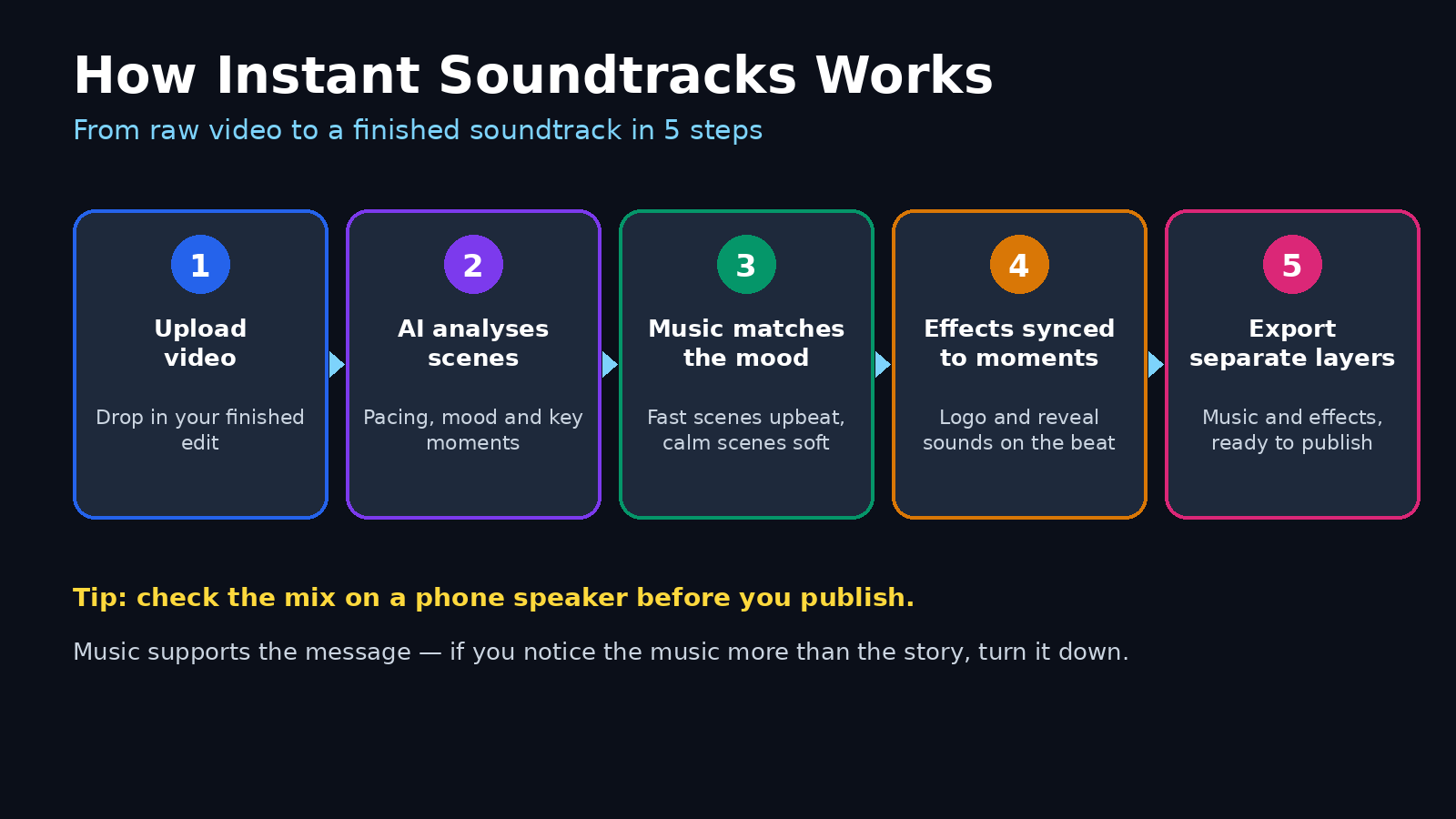
Step 1: Understand What ElevenLabs Instant Soundtracks Actually Does
Before you upload anything, it helps to understand what makes this tool different from a stock music library. A stock library gives you finished songs. You search by mood, download a track, and cut your video to fit the music. Instant Soundtracks flips that around: your video comes first, and the music is generated to fit it.
Here is what it does in plain language:
- It analyses your video: The AI looks at the content of your video, scene by scene, so it understands pacing, mood shifts, and key moments.
- It generates original music: Instead of reusing a licensed track, it composes music for your specific video, so you are not hearing the same song as a thousand other creators.
- It places sound effects in sync: It identifies moments that deserve a sound effect, such as a logo appearing, a product reveal, or a scene change, and places the effect at the right moment.
- It changes mood with the scene: A fast-paced montage can use energetic electronic or R&B-style music, while a quieter moment can switch to something calm like acoustic guitar, all inside the same video.
- It keeps music and effects separate: The music and sound effects come out as individual layers, so you can adjust, replace, or remove one without breaking the other.
Think of it as a film composer and a sound designer working together on your video, except the whole job takes minutes instead of days.
Step 2: Know Who Instant Soundtracks Is For
Instant Soundtracks is aimed squarely at video production workflows, and that includes a lot more people than professional studios. If any of these sound like you, this tool is worth trying first:
- Short-form creators: You make Reels, Shorts, or TikToks and need music that keeps pace with quick cuts.
- Small businesses and advertisers: You run product ads and want the music to lift at the exact moment your offer appears.
- Social media managers: You publish several videos a week and cannot spend a day scoring each one.
- Beginners: You have never touched an audio timeline and want a result that sounds polished without learning a complex editor.
- Agencies and freelancers: You deliver client videos on tight deadlines and need consistent, repeatable audio quality.
It is especially useful when your video changes mood halfway through. A single stock track rarely handles a hook, a demonstration, and a call to action equally well. Scene-aware music does, because it was built around your footage rather than forced onto it.
Step 3: Get Started With ElevenCreative or Eleven Music
Instant Soundtracks is available through ElevenCreative and Eleven Music, ElevenLabs' creative tools. Your first job is simply to get into the right workspace.
- Open your browser and search for the official ElevenLabs website. Only sign in from the official site, because copycat pages appear quickly around any popular launch.
- Sign in to your ElevenLabs account, or create a free account if you do not have one yet. Use the email address you actually check, since that is where account and billing messages will go.
- Look for ElevenCreative or Eleven Music in the ElevenLabs product area. Instant Soundtracks lives inside those tools, so open the one your plan gives you access to.
- Take two minutes to look around the workspace before you upload anything. Find where new projects are created, where uploads live, and where exports are downloaded. Knowing this now saves confusion later.
- Check what your plan includes before you start a big batch. Free and trial access is a great way to test the tool, but limits on videos, exports, or audio length may apply, so test one video first.
Beginner tip: Start with a short video, under 60 seconds, for your first test. You will learn the whole workflow in one sitting, and you can judge the quality quickly before committing to a longer project.
Step 4: Upload Your Video
Uploading is the simplest step, but a little preparation makes the AI's job much easier.
- Choose a finished or nearly finished video. The music is generated to match your edit, so upload the version with your final cuts, not an early rough draft.
- Make sure your video file is in a standard format your editor already exports, such as MP4. If your editor offers a choice, export at the quality you plan to publish, so the timing of every scene is exactly as your audience will see it.
- In ElevenCreative or Eleven Music, create a new Instant Soundtracks project and upload your video file.
- Wait for the upload and processing to finish. Larger files take longer, so this is a good moment to write down the mood you want, in plain words, for the next step.
- Preview your uploaded video inside the tool to confirm the picture, timing, and scene changes all look correct before you generate any audio.
If your video already has dialogue or narration you want to keep, note that now. The generated music is meant to sit underneath your video, and keeping your voice track clear is one of the checks you will do at the end.
Step 5: Let the AI Analyse Your Scenes
This is the step that does the heavy lifting, and you mostly just let it work.
- Start the analysis or generation step for your uploaded video, following the prompts inside the tool.
- The AI breaks your video into scenes and studies what happens in each one: how fast the action moves, whether the mood is exciting or calm, and where important moments land.
- Give it a moment to build its first version of the soundtrack. The first draft is a starting point, not a final verdict, so do not judge it on one listen alone.
- Watch the video through with the generated audio at least once, from start to finish, without pausing to tweak. You are listening for the overall journey: does the energy rise and fall where your story does?
- Note any moment that feels wrong. Write down the time and what you expected, for example "at 12 seconds the product appears but the music stays flat." Those notes become your editing checklist.
Beginner tip: Resist the urge to regenerate everything because one scene feels off. Most tools in this category let you adjust a single scene, and fixing one moment is far faster than starting over.
Step 6: Shape the Mood Scene by Scene
Here is where your taste matters. The AI proposes a soundtrack, but you decide the feeling of each part of your video.
- Play through your video scene by scene and check the mood of the music against the picture. Does a fast montage actually sound fast? Does a calm explanation actually sound calm?
- For energetic sections, lean toward upbeat styles. ElevenLabs describes fast-paced scenes working well with styles such as electronic dance music or R&B, which suit ads and short-form content that needs momentum.
- For quieter or more emotional sections, choose something gentler, such as acoustic guitar-led music, so the viewer can breathe and focus on the message.
- If a scene change feels abrupt, check whether the music changes with it. A good soundtrack helps the viewer feel a scene change, not just see it.
- Adjust one scene at a time and re-listen before moving on. Changing everything at once makes it impossible to tell which change actually helped.
A useful rule for beginners is simple: the music should make the picture feel more like itself, not distract from it. If you notice the music more than the message, it is probably too loud or too busy for that scene.
Step 7: Add Sound Effects at Exactly the Right Moments
Music sets the feeling. Sound effects sell the moment. Instant Soundtracks is designed to spot the moments that need them and place them in sync.
- Watch for key visual beats: a logo appearing, a product being revealed, a button being tapped, a door opening, or a scene snapping to a new location.
- Check that a sound effect lands on the beat, not a half-second early or late. Timing is what makes a sound effect feel professional instead of random.
- Pay special attention to the end of an ad. ElevenLabs gives the example of adding a sound effect at the moment a brand logo appears at the end, which is exactly where many beginners forget to add any audio punctuation at all.
- If a sound effect feels unnecessary, remove it. Silence, used deliberately for a beat, can be more powerful than another whoosh.
- Keep a short list of the effects that worked in your video. Reusing a consistent set of sounds across your videos builds a recognisable audio identity for your brand.
For small businesses, this step alone is worth the price of admission. A clean sound on your logo moment makes a short ad feel finished, and that finish is often what separates a video people scroll past from one they remember.
Step 8: Use Your Existing Audio as a Reference
Already have a track you like? Instant Soundtracks can use it as a starting point rather than forcing you to start from scratch.
- If your video already contains audio, you can let the tool use that audio as a reference for the new soundtrack.
- The system can take cues from the reference, such as its genre, its beats per minute, and its instrumentation, and generate new music in a similar spirit.
- Use this when you have a brand sound but need a fresh version for a new video, or when a client says "something like this, but not this exact song."
- Compare the new version against the reference side by side. It should feel related, not identical, and it should fit your new video's scenes better than the old track did.
- If the reference pulls the music too far from your video's mood, drop the reference and generate from the video alone. The video, not the old song, is the boss.
This reference feature is also a smart way for teams to stay consistent. A digital agency producing ads for several clients, for example a team like the one at Digital 365 Agency, can keep each client's sound in the same family across campaigns without reusing one tired track everywhere. The same idea works for creators building a personal brand: similar feel, fresh music, every time.
Step 9: Edit the Layers, Timing, and Mix
Once the music and effects are in place, the final polish happens in the layers. This is where a good video becomes a great one.
- Remember that music and sound effects are delivered as separate layers. That separation is your friend: you can change one without touching the other.
- Adjust the timing of any sound effect that lands slightly off. Small shifts of a fraction of a second make a big difference to how professional the result feels.
- Replace any piece of music that does not fit, scene by scene, instead of regenerating the whole soundtrack. Surgical fixes save time and protect the parts that already work.
- Balance the mix. Your music should support your voice, not compete with it. If you have narration, lower the music under the words and let it rise again in gaps between sentences.
- Listen on two devices before you finish: once with headphones, and once on a phone speaker. Most of your audience will hear your video on a phone, so if the music disappears or the effects sound harsh there, adjust now.
If you are producing content at scale, this layer-based editing is also what makes automation practical. Teams working with AI automation services to streamline content production often standardise exactly this kind of step: generate, check the layers, fix the timing, export. The tool does the repetitive work, and a human makes the taste decisions.
Step 10: Export, Download, and Publish Your Finished Video
You are nearly done. The last step is getting clean files out of the tool and into your publishing workflow.
- Do a final full watch-through with sound on, from the first frame to the last, and confirm the music, effects, and any dialogue all sit well together.
- Download the music and sound effects as separate files when you need them for further editing in your video editor. Separate stems give you freedom later.
- If you are using the API, note that you can process up to 10 videos at a time, which makes batch work for a week's worth of Shorts or ads realistic in a single session.
- Drop the finished audio into your video editor, export the final video, and watch it once more after export. Compression can change how audio sounds, so the exported file is the version that counts.
- Publish, and save your project settings and notes. When the next video in the same series comes along, your mood choices and effect notes become a template that makes the second video twice as fast.
Beginner tip: Keep your first few projects. When a soundtrack works really well, you can point back to it as the reference for the next one, and your channel starts to sound consistent without any extra effort.
Instant Soundtracks vs Other Ways to Score a Video
| Method | Speed | Scene sync | Editing flexibility | Best for |
|---|---|---|---|---|
| ElevenLabs Instant Soundtracks | Minutes per video | Automatic, scene by scene | Separate music and effect layers | Ads, Shorts, and fast video workflows |
| Stock music library | Fast to search, slow to fit | Manual trimming only | One fixed track | Simple videos with one steady mood |
| Hiring a composer | Days to weeks | Fully custom | Fully custom, but slow to revise | High-budget brand films |
| Generic AI music generator | Minutes per track | Usually one mood per track | Limited scene control | Background music for a single mood |
The honest takeaway is that Instant Soundtracks wins when your video changes mood or needs sound effects at specific moments. A stock track still works for a simple talking-head video with one steady feeling. A composer still wins for a flagship brand film. For the everyday videos most creators actually publish, scene-aware generation is the fastest route to a polished result.
Common Beginner Mistakes to Avoid
- Using one mood for the whole video: If your hook is exciting and your explanation is calm, your music should change too. One flat track flattens the whole story.
- Skipping the phone-speaker test: Audio that sounds rich on headphones can vanish or distort on a phone. Always check both.
- Overloading sound effects: Every cut does not need a whoosh. Use effects on moments that matter, and let the rest breathe.
- Judging the first draft too harshly: The first generation is a draft. Adjust one scene, re-listen, and only then decide whether to regenerate.
- Forgetting the logo moment: The end of your ad is prime real estate. A sound effect on the logo makes the brand moment land.
- Ignoring licences and plan limits: Check what your plan allows you to publish and where, before you use generated audio in paid ads.
Frequently Asked Questions
What is ElevenLabs Instant Soundtracks?
ElevenLabs Instant Soundtracks is an AI feature launched on October 26, 2026, that analyses your uploaded video and automatically generates original music and sound effects matched to each scene. It is available through ElevenCreative and Eleven Music, and it is designed for ads, short-form content, and other video production workflows.
Is ElevenLabs Instant Soundtracks free to try?
ElevenLabs offers free access to try its tools, but exact limits depend on your plan, so test one short video first and check what your account includes before starting a large batch. Free access is the right way to judge whether the scene-matched music fits your style before you commit to a paid plan.
How does Instant Soundtracks match music to my video?
The AI analyses the content of your video scene by scene, looking at pacing, mood, and key moments. It then generates music that changes with the scenes, for example energetic styles for fast-paced sections and calmer styles for quieter ones, and it places sound effects in sync with visual beats such as a logo appearing.
Can I edit the music and sound effects after they are generated?
Yes. The generated music and sound effects are separated into individual layers, so you can adjust timing, add or remove effects, and replace music scene by scene without regenerating the whole soundtrack. You can also download the layers as separate files for further editing.
Can I use my existing music as a reference?
Yes. If your video already has audio, the tool can use its genre, beats per minute, and instrumentation as a reference to generate new music in a similar style. This is useful when you want a fresh track that still sounds like your brand.
Is Instant Soundtracks good for short-form videos?
Yes, it is built for exactly that use case. Short-form videos change pace quickly, and the tool adjusts music timing to match fast cuts and short scenes, which is hard to achieve by trimming a single stock track by hand.
Final Thoughts
ElevenLabs Instant Soundtracks solves one of the most boring and time-consuming parts of making videos: finding music that actually fits. By generating scene-matched music and synced sound effects from your video itself, it turns a job that used to take hours into a job that takes minutes, and the result sounds like someone paid attention to your story, not just your timeline.
Start small. Upload one short video, listen to the first draft all the way through, adjust one scene, and export. Once you have that workflow down, the tool scales naturally, from one Short a week to a batch of ads, because the layers, references, and timing controls stay the same. For creators, small businesses, and anyone who publishes video regularly, that is a genuine time-saver, and it is free to try.
Explore More Free AI Tools
Want to keep building your AI toolkit? Try these free tools from AIToolSteps: AI Title Generator, Meta Description Generator, AI Rewriter, and Keyword Density Checker. Each one is free to use and pairs well with the video workflow in this guide, from writing better titles to polishing your descriptions before you publish.