

Imagine it is 2 a.m. and your phone buzzes: the nightly batch job on your IBM i system has failed. In the old world, that means opening a green-screen session, digging through job logs, running CL commands, and piecing together what went wrong — a process that can easily eat 15 to 30 minutes while everyone waits. Fresche OpsIQ AI changes that completely. Launched on October 26, 2026, OpsIQ is a free AI assistant built specifically for IBM i operators and administrators. Instead of memorizing SQL services and CL commands, you simply ask a question in plain English — “Why did this job end abnormally?” — and OpsIQ investigates, explains, and even recommends the fix, all in seconds.
If you have never used an AI assistant for system administration before, this beginner guide is for you. We will walk through exactly what OpsIQ is, how to download and install it for free, how to ask your first question, how to investigate failed jobs with one click, and how to use it for security audits. No advanced IBM i programming knowledge is required. If you can describe a problem in plain English, you can use OpsIQ.
Step 1: Understand What Fresche OpsIQ AI Is (and What It Is Not)
Fresche OpsIQ is an AI-powered operations assistant for IBM i, the business computing platform formerly known as AS/400 and iSeries. It is built by Fresche Solutions, a company that has spent years modernizing IBM i applications, and it is powered out of the box by Anthropic’s Claude AI model.
Here is the key idea: OpsIQ is a read-only investigative layer. It looks at your system, answers questions about it, and recommends actions — but it does not change anything on its own. You stay in control of every fix. That design makes it safe for beginners, because you cannot accidentally break a production system just by asking a question.
What OpsIQ can help you with:
- System questions: server configuration, job status, errors, and alerts
- Incident investigation: why a job failed, what blocked a queue, what a message means
- Security audits: how many powerful QSECOFR profiles exist, which user profiles have not signed on in over a year
- Everyday errors: a user reports an error message, and you paste it in for instant diagnosis
What OpsIQ is not: it is not a replacement for traditional monitoring tools such as Fortra’s Robot or Halcyon. Fresche itself positions OpsIQ as a complement to those tools — monitoring tools watch and alert, while OpsIQ investigates and explains. Think of it as the experienced colleague who sits next to you and instantly knows where to look.
Step 2: Download Fresche OpsIQ AI for Free
OpsIQ is free to download and use, and Fresche says it will remain free. That makes it one of the most accessible AI tools for IBM i teams in 2026, especially for small shops that cannot justify expensive monitoring suites.
To get started:
- Visit Fresche’s official OpsIQ page (search for “Fresche OpsIQ” to reach the official download) and request the free download.
- Choose the installer for your workstation: the installer runs on Windows, Linux, or Mac.
- Note the Claude trial: Fresche includes a free 45-day trial of Claude access as part of the download, since OpsIQ connects to Claude in the cloud and needs an open port for that connection.
- Keep your download link and any license details somewhere safe — you will need them again if you set OpsIQ up on a second machine.
Because OpsIQ is brand new, launched only today, check the official Fresche page for the latest setup notes before installing. Early tools sometimes update their requirements quickly in the first weeks.
Step 3: Install and Set Up OpsIQ on Your System
Installation is more involved than a typical desktop app, because OpsIQ talks directly to your IBM i server. Do not let that scare you — the steps are straightforward, and your system administrator can help with the server side if needed.
The requirements are:
- Node.js 22, PM2, and OpenSSL running on the IBM i server
- A deployment choice: run OpsIQ entirely on IBM i via PASE, or run just the core components on IBM i and the rest on an x86 machine
- An open port so OpsIQ can reach Claude in the cloud
Follow these steps:
- Confirm Node.js 22, PM2, and OpenSSL are installed on your IBM i server (ask your admin if you are unsure).
- Decide where OpsIQ will run: fully on IBM i via PASE is the simplest single-box option, while splitting core components onto an x86 machine suits shops that already run mixed infrastructure.
- Run the installer from your Windows, Linux, or Mac workstation and point it at your IBM i system.
- Complete the first-run connection check so OpsIQ can confirm it can read system information.
Once setup is complete, OpsIQ opens as a graphical client — no green screen required. You will see a dashboard, a chat interface, and an investigate button. That is your new home base for IBM i questions.
Step 4: Ask Your First Question in Plain English
This is where OpsIQ feels like magic to a beginner. You do not need to know SQL-based IBM i services, CL commands, or APIs. You just type what you want to know.
Try these starter questions:
- “How is the system performing right now?”
- “Why did this job end abnormally?”
- “How many QSECOFR profiles are on the system?”
- “Which user profiles have not logged in for over a year?”
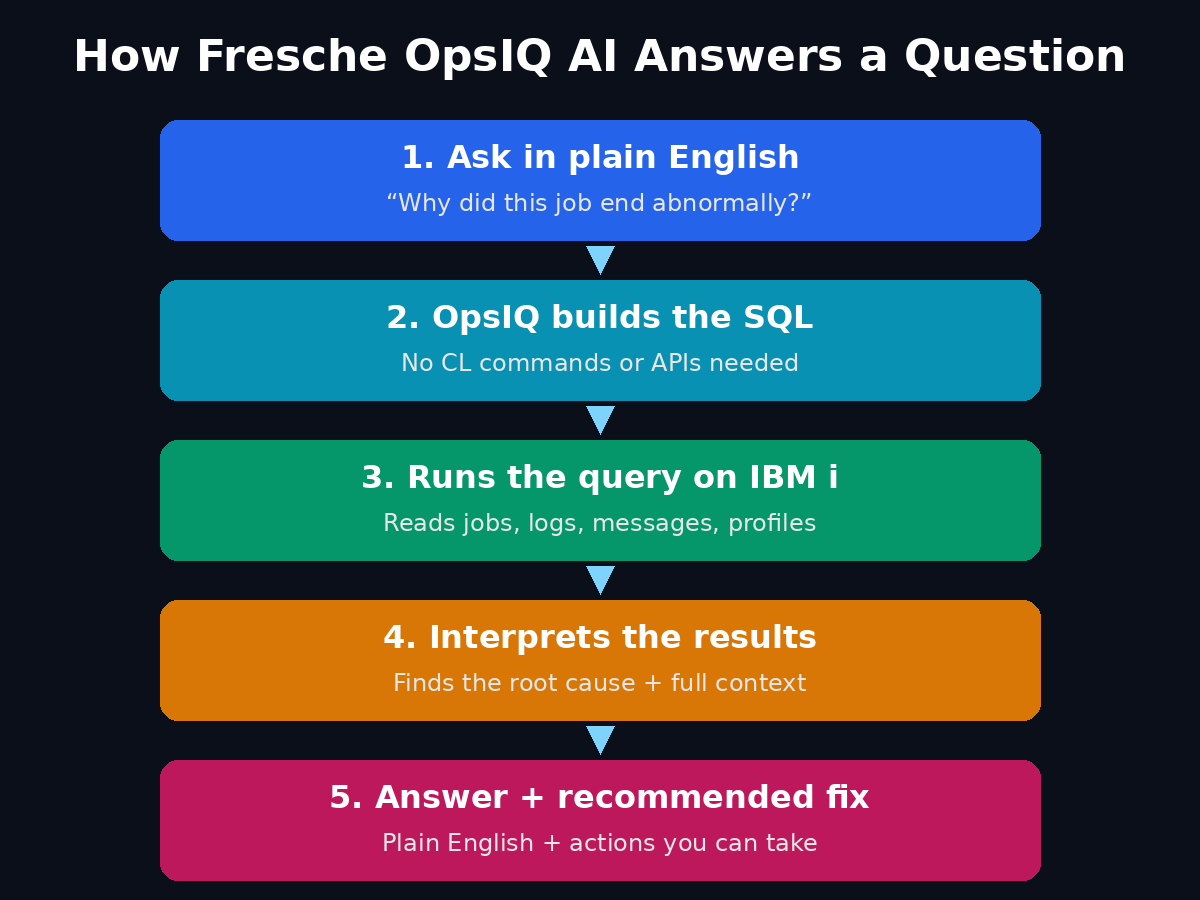
Behind the scenes, OpsIQ generates the necessary SQL, executes the query on IBM i, interprets the results, and returns a plain-language answer. For example, when asked about QSECOFR profiles in a recent demo, OpsIQ returned a complete list in seconds — including 13 enabled profiles that had never signed on at QSECOFR level, which the presenter noted were probably safe to remove.
Tips for better answers:
- Be specific: include the job name, user profile, or error message when you have it.
- Ask one question at a time, then follow up based on the answer.
- If an answer surprises you, ask OpsIQ to explain how it reached its conclusion — the investigation trail is part of the value.
Step 5: Investigate a Failed Job with One Click
The most impressive OpsIQ feature for beginners is its investigation mode. When something goes wrong, you do not have to hunt through logs manually.
Here is the workflow Fresche demonstrated:
- A message arrives in the QSYSOPR feed — for example, the dreaded 2 a.m. alert that a nightly batch job failed.
- Instead of opening a green-screen session and running commands, you click the Investigate button on that message.
- OpsIQ sends the message details to the assistant, which uses skills and tools built specifically for analyzing IBM i events.
- OpsIQ finds the root cause — in the demo, an unanswered inquiry message was blocking a queue, caused by a file that was not where it was supposed to be.
- OpsIQ explains the error with full system context, including the message’s history, and recommends the actions you can take next.
What used to take 15 to 30 minutes now takes seconds. For a beginner, this is also a learning tool: every investigation shows you what an experienced operator would have checked, in what order, and why.
Step 6: Use the QSYSOPR Dashboard to Spot Problems Early
OpsIQ’s client has several screens, and the QSYSOPR feed is the one you will watch most. It constantly monitors system messages and groups them by severity, so the most urgent problems rise to the top.
How to use it daily:
- Start your shift by scanning the QSYSOPR feed for high-severity messages.
- Click Investigate on anything you do not recognize instead of guessing.
- Clear routine messages once you understand them, so real problems stay visible.
- Use the feed as your early-warning system: a growing pile of low-severity messages often predicts a bigger failure later.
Over time, this habit turns OpsIQ from a troubleshooting tool into a daily operations routine — and it is far less intimidating than staring at a raw green-screen message queue.
Step 7: Run Security Audits in Seconds
Security audits are a chore on IBM i, but OpsIQ makes them almost effortless. Because it can query user profiles and system settings in plain language, audits that once took hours become quick questions.
Try these audit questions:
- “How many QSECOFR profiles are enabled on this system?”
- “Which profiles have never signed on?”
- “Which user profiles have not logged in for over a year?”
- “Are there any profiles with excessive authority that are no longer used?”
OpsIQ returns complete lists you can act on. Removing stale, powerful profiles is one of the highest-value security wins on any IBM i system, and OpsIQ hands you the list without a single SQL query. For teams modernizing legacy systems, this kind of quick audit pairs well with the work of a specialist digital agency that understands both IBM i environments and modern automation — the audit tells you what to clean up, and modernization experts help you plan what comes next.
Step 8: Fix Everyday User Errors Faster
Not every OpsIQ case is a midnight emergency. Many are small, everyday problems: a user calls and says, “I’m getting this error,” and you need to figure out why.
The workflow is simple:
- Ask the user to copy the exact error message.
- Paste the error straight into OpsIQ and let it investigate.
- OpsIQ pulls the job log and related information, identifies the cause — often an authority error, where the user lacks permission to an object — and suggests the fix.
- Apply the fix yourself: reply to the message, run the command to grant the missing authority, and consider updating the code so the job does not fall into message-wait again.
In Fresche’s demo, this entire process took very little time, and the fix included both the immediate command and a suggestion to prevent the problem from recurring. For beginners, this is the fastest way to build real IBM i troubleshooting confidence: you see the diagnosis, the fix, and the prevention step every time.
Step 9: Review Session History and Audit Trails
OpsIQ keeps a session history, so you can return to earlier investigations, and it maintains an audit trail of all activity with timestamps for compliance purposes. This matters more than it sounds.
Use it to:
- Revisit yesterday’s investigation when the same problem returns.
- Show your manager or auditor exactly what was checked and when.
- Learn from past cases: read old sessions the way you would read a senior operator’s notebook.
- Hand over cleanly at shift change — the next operator can see what you investigated and what is still open.
For regulated environments, the audit trail turns AI assistance from a convenience into a defensible part of your operations process.
Step 10: Pair OpsIQ with Your Existing Monitoring Tools
A common beginner mistake is treating a new AI tool as a replacement for everything else. OpsIQ works best as one layer in a sensible stack:
- Monitoring tools (such as Robot or Halcyon) watch continuously and raise alerts.
- OpsIQ investigates those alerts, explains them, and recommends fixes.
- Your documentation and runbooks capture the recurring fixes so the next operator benefits.
- AI agent platforms — the wider world of AI automation services — show where this kind of investigative AI is heading: assistants that do not just answer questions but orchestrate multi-step work across your systems.
As OpsIQ matures, Fresche has signaled possible support for the Model Context Protocol (MCP) and connections to other large language models beyond Claude. That would make OpsIQ even more flexible, but even today, the free Claude-powered version covers the daily needs of most IBM i operators.
Fresche OpsIQ AI vs Traditional IBM i Troubleshooting
| Feature | Fresche OpsIQ AI | Manual Green-Screen Investigation | Traditional Monitoring Tool |
|---|---|---|---|
| Cost | Free download (45-day Claude trial included) | Free, but slow | Usually paid license |
| Skills needed | Plain English only | SQL services, CL commands, APIs | Tool-specific configuration |
| Time to diagnose a failed job | Seconds | 15–30 minutes | Alerts only, investigation still manual |
| Root-cause explanation | Yes, with system context and history | Manual, from logs | Limited |
| Recommended fix | Yes, with commands to run | From experience only | Rarely |
| QSYSOPR monitoring | Yes, severity-ranked feed | Raw message queue | Yes, primary strength |
| Security audits | Plain-language queries | Manual queries | Partial |
| Changes the system itself | No (read-only) | Yes, by operator action | Usually alert-only |
| Best for | Fast investigation and learning | Deep expert control | 24/7 watching and alerting |
Frequently Asked Questions (FAQ)
Is Fresche OpsIQ AI really free?
Yes. Fresche provides OpsIQ as a free download and says it will remain free. The download includes a free 45-day trial of Claude access, since OpsIQ connects to Claude in the cloud. Check Fresche’s official page for any terms that apply after the trial period.
Do I need to know SQL or CL commands to use OpsIQ?
No. That is the whole point. You ask questions in plain English, and OpsIQ generates the SQL, runs the query, and explains the answer. Beginners can start immediately, and experienced operators save time on routine investigations.
Will OpsIQ change or fix things on my IBM i system automatically?
No. OpsIQ is currently a read-only tool. It investigates and recommends actions, but a human operator performs every fix. That makes it safe to try, even on production systems.
What do I need installed to run OpsIQ?
Your IBM i server needs Node.js 22, PM2, and OpenSSL, plus an open port for the Claude cloud connection. You can run OpsIQ entirely on IBM i via PASE, or run core components on IBM i and the rest on an x86 machine. The installer itself runs on Windows, Linux, or Mac.
Does OpsIQ replace monitoring tools like Robot or Halcyon?
No. Fresche positions OpsIQ as an investigative layer that complements monitoring tools. Monitoring tools watch and alert; OpsIQ explains and investigates. Most teams will get the best results using both together.
Is OpsIQ suitable for complete beginners?
Yes, as long as you have access to an IBM i system and basic familiarity with its concepts (jobs, messages, user profiles). OpsIQ actually teaches as it works — every investigation shows you what to check and why, which builds your skills over time.
Final Thoughts
Fresche OpsIQ AI is one of the most practical free AI launches of October 2026 for a simple reason: it solves a real, daily pain for a group that AI tools have mostly ignored — IBM i operators and administrators. It turns 30-minute log hunts into seconds-long investigations, makes security audits as easy as asking a question, and helps beginners learn the platform by showing its work every time.
If your team runs IBM i, downloading OpsIQ costs nothing and the learning curve is nearly flat. Start with one plain-English question, click Investigate on your next failed job, and run one security audit this week. Within days, you will wonder how you ever operated without an AI assistant that speaks your system’s language — in your language.
Explore More Free AI Tools
Want to keep building your free AI toolkit? Try these free tools from AIToolSteps:
- AI Title Generator — craft click-worthy titles for your articles and videos
- Meta Description Generator — write SEO-friendly descriptions in seconds
- AI Rewriter — refresh and improve your existing content
- Keyword Density Checker — check your content is optimized for your target keyword
Explore them all at https://aitoolsteps.com/ and keep learning — one free AI tool at a time.