

The designer-to-developer handoff has always been the most painful part of building a digital product. Designers craft pixel-perfect screens in Figma, and then developers spend hours — sometimes days — translating those screens into working code by hand. Spacing gets misread, components get rebuilt from scratch, and the final website never quite matches the mockup. On October 15, 2026, at its Config conference in India, Figma announced the public beta of Code Layers, an AI-powered feature that converts your visual designs directly into functional code. Alongside it came Figma Specs, a new way to write documentation right inside Figma that both humans and AI systems can understand.
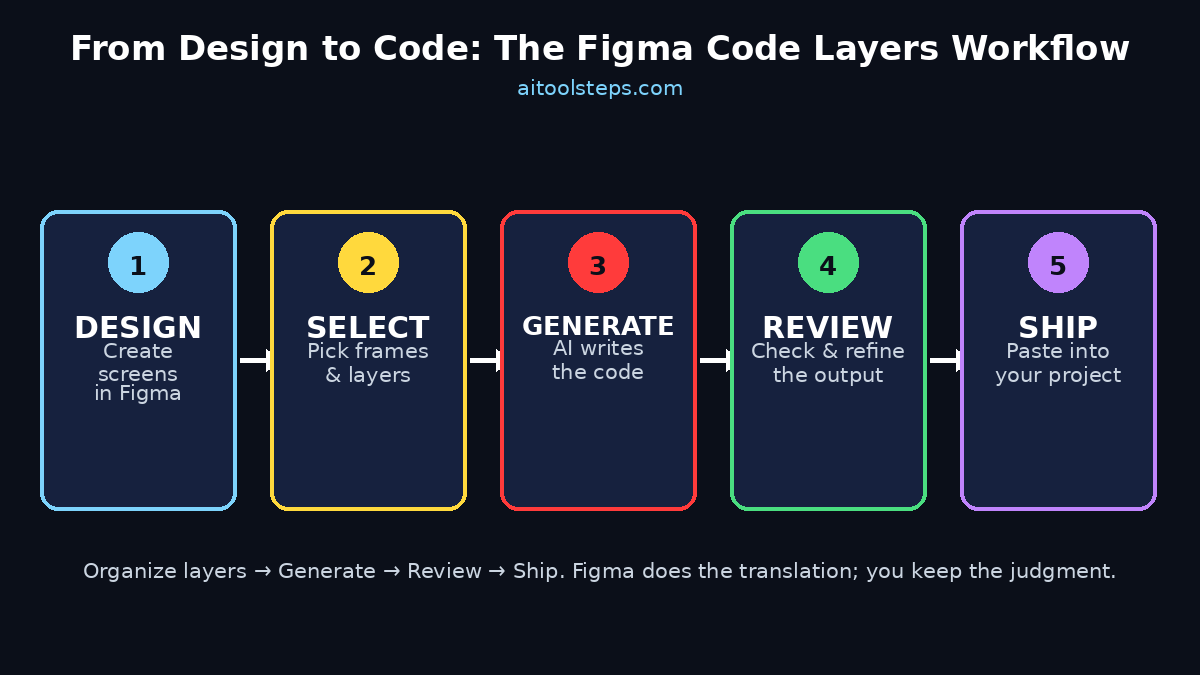
In this beginner guide, you will learn exactly how to use Figma Code Layers: how to get access to the beta, how to prepare your design so the AI generates clean code, how to generate and refine that code, and how to document everything with Figma Specs. You do not need to be a professional developer to follow along — if you can design a simple screen in Figma, you can turn it into code.
Step 1: Create Your Free Figma Account
Everything starts with a Figma account, and the good news is that the free plan is genuinely enough to get started with Code Layers.
- Go to figma.com and click Get started for free.
- Sign up with your email or a Google account — the whole process takes about two minutes.
- Once inside, you will land in your file browser. Create a new Design file from the top bar.
- If you have never used Figma before, spend ten minutes clicking around: draw a rectangle with the R key, add text with T, and drag a Frame with F. These three building blocks are all you need for your first Code Layers experiment.
Figma also offers a desktop app for Windows and Mac, but the browser version works identically for this guide — pick whichever you prefer. Your files autosave to the cloud, so nothing you do here can be lost.
Step 2: Get Access to the Code Layers Beta
Code Layers had been in experimental mode since June 2026, and the October announcement opened it as a public beta, which means any Figma user can try it while Figma keeps improving it.
- In Figma, look for the What is new or beta features section — Figma usually surfaces new betas through the Help menu or a banner at the top of the editor.
- Search for Code Layers in the beta list and enable it for your account or team.
- If you do not see it immediately, make sure your Figma app is updated to the latest version — beta features roll out in waves, so check back if it is missing.
Being in beta means two things for you as a beginner. First, the interface may change slightly over the coming months, so treat this guide as the workflow rather than a pixel-by-pixel map. Second, this is the best possible time to learn it: you will be ahead of most designers and developers while the feature is still new, and your feedback actually shapes where it goes.
Step 3: Prepare Your Design for Clean Code Output
Here is the secret that separates great Code Layers results from messy ones: the AI can only generate clean code from a clean design. If your layers are named “Rectangle 47” and “Group 12”, the generated code will be just as confusing. Spend a few minutes organizing before you generate anything.
- Name your layers properly. Rename “Rectangle 1” to “hero-button” and “Frame 3” to “pricing-card”. Good names become good class names in the output.
- Use Frames, not loose groups. Frames are Figma’s layout containers, and Code Layers understands them far better than plain groups.
- Apply Auto Layout. Select elements that should flow together (like a row of buttons or a card with text inside) and press Shift + A. Auto Layout tells the AI how your design should behave responsively, and the generated code will use flexbox-style layouts instead of absolute positioning.
- Use components for repeated elements. If your navigation bar appears on five screens, make it a component. Code Layers recognizes components and generates reusable code for them instead of duplicating markup.
- Stick to a consistent spacing scale. Use 8, 16, 24, 32 pixel increments. Consistent spacing produces consistent, predictable CSS.
This preparation step is also where having a solid design system pays off. Figma says Code Layers is built to respect your design system’s structure, so teams that use shared styles, variables, and components will get noticeably better code than teams working from chaotic files. If you are a solo beginner, do not worry — even a single well-organized screen will impress you.
Step 4: Select the Layers You Want to Convert
With your design organized, it is time to tell Code Layers what to convert. You do not have to convert an entire page at once — in fact, starting small gives you better results.
- Click on the frame containing the section you want to turn into code — for example, a hero section, a pricing card, or a login form.
- You can select a single frame, a component, or multiple layers at once using Shift + click.
- For your first try, pick something self-contained: a card with an image, a headline, a paragraph, and a button is the perfect test case.
Working section by section is a genuinely good habit even beyond the beginner stage. Smaller selections give the AI less ambiguity to resolve, which means cleaner code and fewer surprises.
Step 5: Open the Code Layers Panel and Generate Code
This is the moment the magic happens.
- With your layers selected, open the Code Layers panel — Figma places new AI features in the right-hand sidebar area near the Design and Prototype tabs.
- You will see a Generate code button (the exact label may evolve during the beta). Click it.
- The AI reads your selected layers — their structure, styles, spacing, and layout relationships — and produces working code in a few seconds.
What is happening behind the scenes is genuinely impressive: the model does not just screenshot your design and guess. It interprets the actual layer tree, understands which elements are buttons versus decorative shapes, maps your Auto Layout settings to real layout code, and converts your text styles and colors into proper CSS values. The first time you watch a button you designed become a real, clickable HTML button, it feels like a small miracle.
Step 6: Choose Your Framework and Styling Options
Raw HTML and CSS is only one possible output. Code Layers lets you tailor the generated code to the stack you actually build with.
- Look for the output settings in the Code Layers panel — you can typically choose between plain HTML/CSS and component-based output.
- Pick the styling approach that matches your project: utility-style classes if you work with modern CSS workflows, or classic stylesheets if you prefer traditional CSS.
- Check the responsive behavior options. Because you used Auto Layout in Step 3, the AI already understands how elements should reflow — confirm the breakpoints look sensible.
If you are a designer who does not code yet, do not let this step intimidate you. Start with the default HTML/CSS output — it is the most universal, it opens in any browser, and it teaches you what real code looks like as you compare it against your design. You can explore framework-specific output once you are comfortable.
Step 7: Review and Refine the Generated Code
Never ship AI-generated code without reviewing it. This is the single most important habit in this entire guide, and it applies to every AI coding tool, not just Code Layers.
- Read through the generated code and compare it against your design: do the spacing values match? Are the colors exact?
- Check the class names — if you named your layers well in Step 3, the names should read sensibly. Rename anything cryptic.
- Look for accessibility basics: buttons should be real
<button>elements, images need descriptive alt text, and text should have enough contrast against its background. - If something looks wrong, fix the design, not just the code. Nudge the layer in Figma, regenerate, and watch the code update. This design-first loop is the whole point of the workflow.
Think of Code Layers as a very fast junior developer: it does the tedious translation work in seconds, but you are still the senior reviewing the pull request. Beginners who build this review habit now will produce far better results than people who blindly copy-paste.
Step 8: Copy the Code into Your Real Project
Once the code looks right, it is time to use it for real.
- Use the copy button in the Code Layers panel to grab the generated markup and styles.
- Paste it into your project — a plain
.htmlfile for testing, or your framework’s component file if you chose component output. - Open it in a browser and compare it side by side with your Figma design. They should look nearly identical.
- Now connect it to real functionality: hook the button up to a form submission, feed the card real data, and replace placeholder text with actual content.
This is also the point where many beginners realize how much they have learned. By comparing your Figma layers with the generated code over a few projects, you will start to understand HTML and CSS almost by osmosis — which selectors do what, how flexbox works, why semantic markup matters. Code Layers is secretly one of the best ways to learn front-end development.
Step 9: Document Everything with Figma Specs
Code is only half of a professional handoff — the other half is documentation. That is where Figma Specs, the second announcement from the Config keynote, comes in.
- Figma Specs lets you build Markdown-based documentation directly inside Figma, right next to the designs it describes.
- You can embed diagrams, code samples, and design rules in a single document, creating one source of truth for how something should be built and used.
- Crucially, these documents are structured to be readable by both human teammates and AI systems. As AI agents increasingly participate in design and development workflows, having machine-readable specs means your AI tools can follow your design rules automatically.
For a beginner, start simple: write a short Spec for your first Code Layers project. Document which components exist, what the spacing rules are, and paste in the key code samples. Future-you — or your first collaborator — will be grateful. Teams at agencies, including a professional digital agency like the team behind d365a.com, live and die by this kind of documentation, and learning the habit early puts you ahead.
Step 10: Share, Collaborate, and Iterate
Design is a team sport, and Code Layers shines brightest when the whole team uses it.
- Share your Figma file with developers using the Share button — they can inspect the generated code themselves without needing you to export anything.
- Use Figma’s commenting to discuss specific parts of the generated code, just like you would discuss the design.
- When the design changes (and it always does), regenerate the code from the updated layers instead of hand-editing the old output. Keeping Figma as the source of truth prevents the design and the code from drifting apart.
- If you run into a case where the AI consistently generates poor code — complex animations, unusual layouts — that is valuable signal. Simplify the design or hand-code that one piece, and let Code Layers handle the 90% it does well.
The teams getting the most from AI-assisted development workflows, including specialists in AI automation services who connect design tools to automated pipelines, all follow the same pattern: let the AI do the repetitive translation, keep humans in charge of judgment, and document everything.
Pro Tips for Better Code Layers Results
- Design mobile-first. Create your smallest screen layout first, then scale up. The generated responsive code will be much cleaner.
- Use Figma variables for colors and spacing. Variables map beautifully to CSS custom properties in the output.
- Keep text styles in shared styles. A proper type scale (H1, H2, body, caption) produces consistent, semantic typography code.
- Test with real content early. Replace lorem ipsum with realistic headlines before generating — long words and short button labels break layouts differently.
- Generate often, not once. Regenerate after every meaningful design change so you always see fresh output.
- Learn the keyboard shortcuts. F for frame, R rectangle, T text, Shift + A auto layout — speed in Figma compounds fast.
- Pair it with a task-breakdown tool. When a project feels overwhelming, break it into small sections first — our guide on Goblin Tools shows a free AI way to do exactly that, one screen at a time.
Figma Code Layers vs. Other Design-to-Code Options
| Aspect | Figma Code Layers (Beta) | Manual Handoff | Third-Party Plugins |
|---|---|---|---|
| Where it lives | Built into Figma itself | Designer exports, developer rebuilds | Separate plugin or external tool |
| Setup effort | Enable the beta, done | None, but hours of dev time per screen | Install plugin, learn its workflow |
| Design system awareness | Yes — respects components and styles | Depends on the developer reading docs | Varies widely by tool |
| Built-in documentation | Yes — Figma Specs included | Usually a separate wiki or nothing | Rarely included |
| Code quality | Good for standard layouts, review needed | As good as your developer | Mixed, often bloated |
| Price | Free during beta | Developer salaries (the expensive part) | Many charge per project or seat |
| Best for | Beginners and fast-moving teams | Complex, custom interactions | Teams locked into a specific stack |
The honest takeaway: Code Layers will not replace skilled front-end developers — complex animations, state management, and backend integration still need human expertise. But for standard marketing pages, dashboards, and app screens, it removes the most tedious part of the job. If you are a beginner, it is the fastest path from “I designed something” to “I shipped something.”
Frequently Asked Questions
Is Figma Code Layers free?
Yes, during the public beta it is free to try for Figma users. Figma has not announced final pricing for the finished feature, but the beta costs nothing beyond your normal Figma plan — and Figma’s free Starter plan is enough to follow this entire guide.
Do I need to know how to code to use Code Layers?
No — that is the whole point. If you can design a screen in Figma, you can generate code from it. That said, learning basic HTML and CSS will help you review the output intelligently, and comparing your designs with the generated code is one of the fastest ways to learn.
Which frameworks and languages does it support?
The beta generates web code from your designs, with options for plain HTML/CSS and component-style output. Figma is expanding framework support during the beta period, so check the output settings in the Code Layers panel for the latest options.
Will Code Layers replace front-end developers?
No. It replaces the tedious translation step — turning a finished design into initial code — but developers are still essential for interactivity, data, performance, accessibility, and everything that makes a product actually work. Think of it as removing busywork, not jobs.
How accurate is the generated code?
For standard layouts — cards, heroes, forms, navigation bars — it is impressively close to the design, especially when your Figma file is well organized with Auto Layout and named layers. For unusual or highly custom designs, expect to refine the output by hand. The review step in this guide exists for exactly this reason.
What are Figma Specs, and do I need them?
Figma Specs are Markdown-based documents you write inside Figma to explain your designs — rules, components, and code samples in one place. You do not strictly need them for your first project, but they become essential the moment you collaborate, because they keep designers, developers, and even AI agents working from the same source of truth.
Final Thoughts
Figma Code Layers is one of those rare features that genuinely changes who gets to build for the web. Six months ago, turning a design into a working page meant either learning to code from scratch or hiring someone who could. Now, a beginner with a free Figma account can design a screen in the morning and hold working code for it by lunch. The beta label means rough edges remain — interfaces will shift, output options will grow, and your review skills still matter enormously. But the direction is unmistakable: design and code are converging, and the people who learn this workflow now will be the fastest builders in the room for years to come.
Start with one small section, generate your first code, review it carefully, and ship something. Then do it again. If you want to keep expanding your AI toolkit after this, our beginner guides on VoiceStudio for free AI voiceovers and FaceMap AI for on-device face scanning are great next stops.
Explore More Free AI Tools
Want to create even more with AI? Try these free tools on AIToolSteps:
- AI Title Generator — Generate catchy, SEO-friendly titles for your articles and videos in seconds.
- Meta Description Generator — Write perfect meta descriptions that boost your click-through rates.
- AI Rewriter — Rewrite any text in a fresh, natural style while keeping the original meaning.
- Keyword Density Checker — Analyze your content and keep your keyword usage perfectly balanced for SEO.