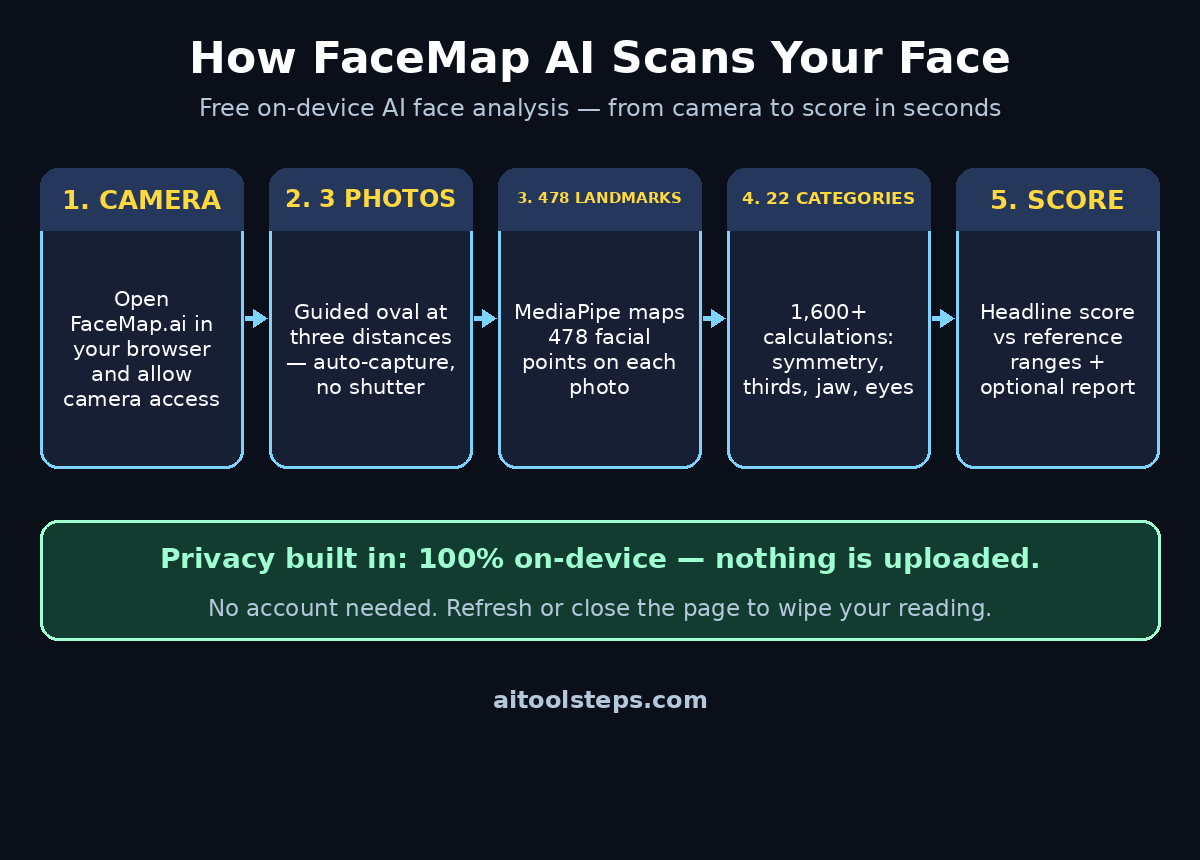
Ever wondered what artificial intelligence actually sees when it looks at your face? Not in a science-fiction way — but literally: how does an AI measure your facial proportions, symmetry, and features? FaceMap.ai, a free tool that launched in October 2026, answers that question in seconds. Open it in your browser, point your camera at your face, and you get a full AI-powered face scan: an overall score plus detailed readings of things like eye spacing, jaw definition, and facial symmetry.
The best part? The scan is completely free, requires no account, and — unlike most online face-rating tools — never uploads your photos anywhere. All the analysis runs right on your own device, and your reading is wiped the moment you refresh or close the page. If you have been searching for how to use FaceMap AI, this beginner-friendly guide walks you through every step, explains what each measurement means, and shows you how to get the most accurate results.
Step 1: Open FaceMap.ai in a Modern Browser
FaceMap.ai is a browser-based tool, which means there is nothing to download or install. Here is how to get started:
- Use a camera-equipped device. Any modern phone, tablet, or laptop with a working front camera will do.
- Pick an up-to-date browser. Chrome, Edge, Firefox, or Safari all work — just make sure yours is updated to the latest version for the smoothest experience.
- Go to the FaceMap.ai website. Type the address into your browser’s address bar and press enter. If this is your first time learning how to use FaceMap AI, bookmark the page so you can compare future scans.
- Allow camera access. Your browser will ask for permission to use your camera. Click “Allow” — without this, the scan cannot run.
You will notice something refreshing right away: there is no sign-up screen, no email field, and no payment card prompt. The free scan starts immediately, which makes FaceMap AI one of the most beginner-friendly AI tools you can try today.
Step 2: Set Up Good Lighting and a Plain Background
Before you scan, spend one minute on your setup — it makes a big difference to the quality of the results:
- Face a natural light source. Sit facing a window or a bright lamp. Even, front-facing light helps the AI detect your facial features clearly.
- Avoid strong backlight. If a bright window is behind you, your face will appear dark and the landmark detection will be less precise.
- Keep the background simple. A plain wall works best. Busy backgrounds can distract the landmark-mapping step.
- Remove obstructions. Take off sunglasses or anything covering large parts of your face. Regular glasses are usually fine, but reflective lenses can cause glare.
Think of it like taking a passport photo: the clearer and more evenly lit your face is, the more reliable the AI’s measurements will be.
Step 3: Line Your Face Up Inside the Guide Oval
Once your camera is live, FaceMap.ai shows an on-screen oval guide. This is the tool’s way of making sure every scan starts from the same framing:
- Center your face in the oval. Move your head or device until your face fills the oval comfortably, with a little margin around it.
- Look straight at the camera. Keep your head level — do not tilt it up, down, or to the side.
- Relax your expression. A neutral, relaxed face gives the most consistent measurements. You do not need to smile.
The oval guide is one of the reasons results stay consistent when you learn how to use FaceMap AI properly. By standardizing the framing before any photo is taken, the tool removes one of the biggest sources of error in face analysis: bad positioning.
Step 4: Take Three Photos at Different Distances
Anyone learning how to use FaceMap AI should know this is where it differs from most face-rating apps. Instead of a single selfie, it guides you through three photographs taken at different distances:
- Follow the on-screen prompts. The tool will tell you when to move closer or further away.
- Stay inside the oval. For each of the three shots, keep your face lined up in the guide oval.
- The camera captures automatically. You never press a shutter button — the app takes each photo by itself once you are correctly positioned.
- Keep a neutral expression. The same relaxed face for all three shots helps the AI compare readings fairly.
Taking three photos instead of one is a clever design choice: it gives the AI multiple angles to cross-check, so a single odd frame cannot skew your whole result.
Step 5: Let FaceMap AI Map 478 Facial Landmarks
After your three photos are captured, the real AI work begins. FaceMap.ai uses Google’s MediaPipe facial landmark technology to map your face:
- 478 points per photograph. The AI plots 478 precise landmarks across your eyes, nose, mouth, jawline, and overall face shape.
- Each photo is measured independently. All three shots get their own full landmark map.
- It adjusts for head angle and expression. Small tilts or natural facial tension are compensated for mathematically, so you do not need a perfectly rigid pose.
This landmark map is the foundation of everything that follows. Those 478 points become the raw data for more than 1,600 individual calculations — and all of it happens on your device in seconds.
Step 6: Read Your FaceMap AI Headline Score and Overview
Once the analysis finishes — the moment everyone learning how to use FaceMap AI waits for — the tool presents your results, starting with a headline score — a single number summarizing your overall facial proportions:
- The clearest photo decides. FaceMap uses your sharpest, best-framed photo for the headline score.
- Inconsistent readings are held back. If one of the three photos produces a reading that varies wildly from the others, the tool keeps it out of the headline number rather than letting it distort your score.
- Read the overview first. Before diving into details, look at the summary to understand the big picture.
Treat the headline score as a starting point, not a verdict. The real value of FaceMap AI is in the detailed breakdown that comes next — that is where you learn why you scored the way you did.
Step 7: Explore the 22 Measurement Categories
Here is where learning how to use FaceMap AI really pays off — the tool truly stands out. Your face is analyzed across 22 measurement categories with over 1,600 calculations in total. The categories include:
- Eye spacing and canthal tilt — the distance between your eyes and the angle of your eye corners.
- Facial thirds and fifths — the classic proportion system dividing your face into balanced horizontal and vertical sections.
- Nose proportions — width, length, and how your nose relates to the rest of your face.
- Mouth proportions — lip width, fullness ratios, and smile symmetry.
- Jaw and chin measurements — jawline definition, chin projection, and lower-face balance.
- Facial symmetry — how closely the left and right sides of your face mirror each other.
Take your time with each category. Tapping into a measurement usually shows you the exact numbers and a visual overlay of the landmarks, so you can see precisely what the AI measured and where.
Step 8: Compare Your Readings Against Reference Ranges
Numbers mean little without context. As you learn how to use FaceMap AI, you will appreciate that every reading is compared against published reference ranges — the measurement standards used in facial aesthetics research:
- See where you sit. Each measurement shows whether you fall within, above, or below the typical range.
- Understand “average” correctly. Being near the middle of a reference range is normal and healthy — these ranges describe common human variation, not a beauty contest cutoff.
- Look for patterns. One slightly unusual measurement means very little; a pattern across related categories tells a more interesting story.
This comparison step is what turns FaceMap from a novelty score generator into a genuinely educational tool. You are not just getting a number — you are learning how facial proportion science actually works.
Step 9: Understand FaceMap AI’s Optional Aesthetic Intelligence Report
The initial scan and all 22 measurement categories are free. FaceMap.ai also offers an optional paid Aesthetic Intelligence report for users who want more:
- Explains individual measurements. The report walks through your numbers in plain language instead of raw data.
- Adds personalized styling guidance. Hair, grooming, and style suggestions based on your specific proportions.
- Includes photography guidance. Tips on angles and lighting that flatter your face — genuinely useful if you take a lot of profile pictures or create content. It is the same discipline a professional digital agency applies when shooting client headshots, distilled into advice for your own face.
The paid report is entirely optional. The free scan already gives you the score and all the measurements — think of the report as a deep-dive upgrade for the curious, not a paywall blocking the core experience.
Step 10: Keep Your Scan Private — Clear Your Data
When you learn how to use FaceMap AI with privacy in mind, this final step is the simplest — FaceMap.ai was built with privacy at its core:
- Nothing is uploaded. All landmark mapping and calculations happen on your device — your photos never travel to a server.
- Refresh to wipe everything. Close the tab or refresh the page and your reading is cleared automatically.
- No account means no data trail. Since you never signed up, there is no profile storing your scans.
This on-device approach is part of a bigger trend: powerful AI running locally instead of in the cloud. It is the same direction that AI automation services are taking as they build privacy-conscious tools for businesses — processing sensitive data where it is created rather than shipping it off to distant servers.
FaceMap AI vs Typical Face-Rating Tools
| Feature | FaceMap AI | Typical Online Face Tools |
|---|---|---|
| Price | Free scan, optional paid report | Often paywalled or ad-heavy |
| Sign-up | None required | Usually required |
| Photo privacy | Processed on-device, cleared on refresh | Uploaded to remote servers |
| Measurements | 478 landmarks, 22 categories, 1,600+ calculations | Usually just a single score |
| Method transparency | MediaPipe landmarks + published reference ranges | Rarely disclosed |
Frequently Asked Questions
Is FaceMap AI really free?
Yes — and you can learn how to use FaceMap AI end to end without spending a cent. The full face scan — three photos, 478 facial landmarks, 22 measurement categories, and your headline score — is completely free with no account and no payment card. There is an optional paid Aesthetic Intelligence report, but the core experience costs nothing.
Does FaceMap AI upload my photos to the internet?
No. The scan runs entirely on your device using your browser, and your reading is cleared when you close or refresh the page. This is one of FaceMap AI’s biggest advantages over older face-rating websites that required uploading selfies to their servers.
How accurate is the FaceMap AI face scan?
FaceMap AI is built on Google’s MediaPipe landmark technology with 478 tracked points, 1,600+ calculations, and comparisons against published reference ranges — a serious measurement pipeline. That said, lighting, camera quality, and positioning still affect results, which is why the tool takes three photos and holds inconsistent readings back from your headline score.
What do I need to use FaceMap AI?
Just a modern browser (Chrome, Edge, Firefox, or Safari) on a phone, tablet, or laptop with a working camera. There is nothing to install and no account to create — allow camera access and you are ready to scan.
What is the Aesthetic Intelligence report?
It is FaceMap AI’s optional paid upgrade: a personalized report that explains your individual measurements in plain language and adds tailored styling and photography guidance. The free scan already includes your score and all 22 measurement categories, so the report is a bonus for anyone who wants a deeper breakdown.
Final Thoughts
Now that you know how to use FaceMap AI, you can see why it is one of the most interesting free AI tools to launch this year — not because a face score is life-changing, but because it packages serious computer-vision technology (478 landmarks, 1,600+ calculations, reference-range comparisons) into a scan anyone can run in a minute, with genuine privacy built in. Follow the steps above, pay attention to your lighting and framing, and take the headline score with a grain of salt while you learn from the detailed measurements.
Whether you are just curious, a content creator optimizing your on-camera look, or someone exploring what modern AI can do, FaceMap AI is worth the two minutes it takes to try. And when you are done scanning faces, there is a whole world of free AI tools waiting — keep reading below.
Explore More Free AI Tools
Want more free tools like this one? Check out our AI Title Generator, Meta Description Generator, AI Rewriter, and Keyword Density Checker — all free at aitoolsteps.com.